Are You Thinking WITH AI?
PLUS Stepbystep Guide To Create An AI Living In Your Notes

Hello Creators! 👋
Have you ever thought about thinking with AI? It’s a crazy thought, but hold on for a second. You know that AI can help with creative writing, idea generation, brainstorming — just about everything that falls under the umbrella of “thinking”. What if you could literally think alongside AI, in an app where you take notes?
We’ll show you how to use AI to think faster, explore more scenarios & write creatively, all in a note-taking app you may already be using.
In today’s post, we’ll cover:
- Why you should be using AI to think
- Obsidian — the go-to note-taking app for creators
- How to use AI within Obsidian
- An easy step-by-step guide to think, brainstorm, and write faster with AI
- 4 Awesome prompt examples for your AI Copilot living & breathing in your notes
Thinking With AI — What?!
Yep, believe it or not — AI can fill in the gaps that we humans have, like biases, not-so-obvious contradictions, and fallacies. And more often than not, we don’t actually notice our errors in thinking.
This is where AI comes in — if you prompt correctly, you can fish out the biases and fallacies in your thinking using AI.

But that’s boring and requires having multiple tabs & apps open for your notes, ChatGPT, and the YouTube video or resource you’re learning about.
What if we took this idea five steps further? Let’s first understand the vehicle of thinking with AI — a great note-taking app.
Obsidian — Note-Taking On Steroids
Obsidian is a PKM (personal knowledge management) system that adapts to the way you think by letting you connect notes, either with tags or links. Say if you’re learning about AI, you would make a note called “Machine Learning” and another one called “LLMs”. Since they are related, you can hyperlink “Machine Learning” within your LLMs note, and they become connected in the graphic view.
Speaking of LLMs, we covered large language models A-Z in words that you can understand + extra tools to save hundreds of hours of your time in this post:
For daily tasks, everything from meeting notes and podcasts to watch, all the way to task lists is interconnected — you can quickly find details from past discussions, meetings, and projects. No more lost information or forgotten tasks. Everything you need is just a click away, thanks to backlinks & tagging (you can also see the graphic view in the bottom right, it looks like a spiderweb of notes):

And there’s also a very cool canvas tool to map out a project or brainstorm:
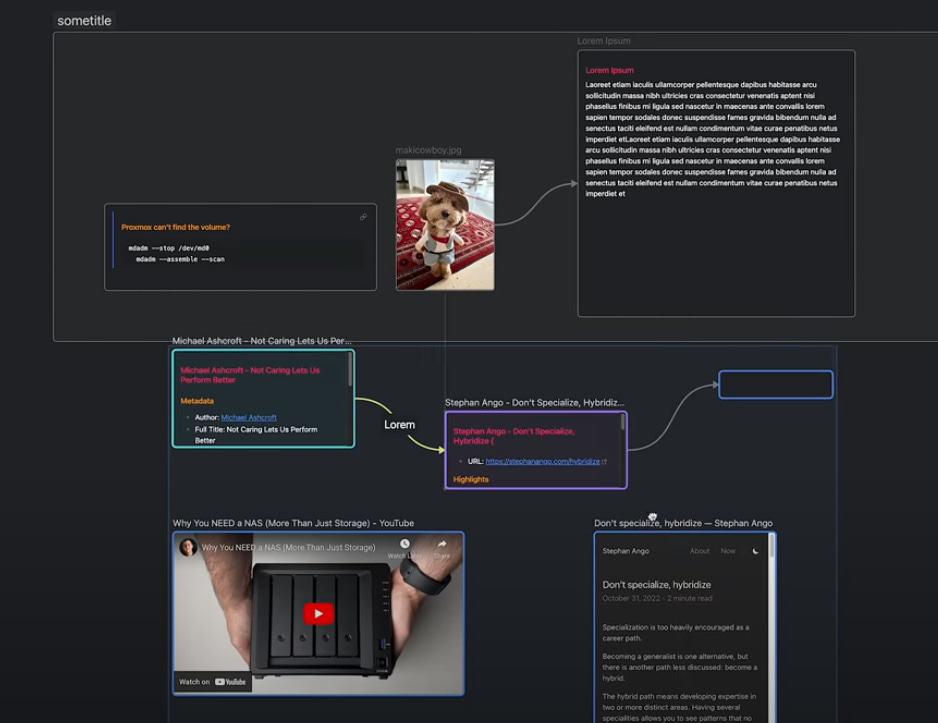
BTW — The whole reason we’re checking out this AI plugin functionale in Obsidian is because the app itself is incredibly strong, and combined with AI the potential is limitless, but let’s just compare the base app to Notion to paint the full picture:
Obsidian is local-first, so that’s data privacy & security, has a dedicated visual graph view, superior customization & plugin support (Notion has none), Obsidian lets you use it without internet AND it supports markdown format. Did I mention its fast, even if you have over 300 notes? Try opening a page in a Notion workspace where you have over 50 docs. I think we have a clear winner here.
Obsidian is a very powerful PKM system that lets you capture thoughts, be it for work or your personal life, and link them together seamlessly.
But how can we use AI within Obsidian to think and write clearer, faster & smarter?
Do you have a minute to participate in our Subscription Giveaway and make our newsletter even better? Take a quick survey and tell us about your experience & participate in the free Giveaway of a Premium Subscription for 6 months.
AI Copilot Plugin For Obsidian
Community plugins have been a thing in Obsidian for a while now, but AI plugins are the more useful of the bunch — take a look at what the Copilot plugin can do, right within your notes:
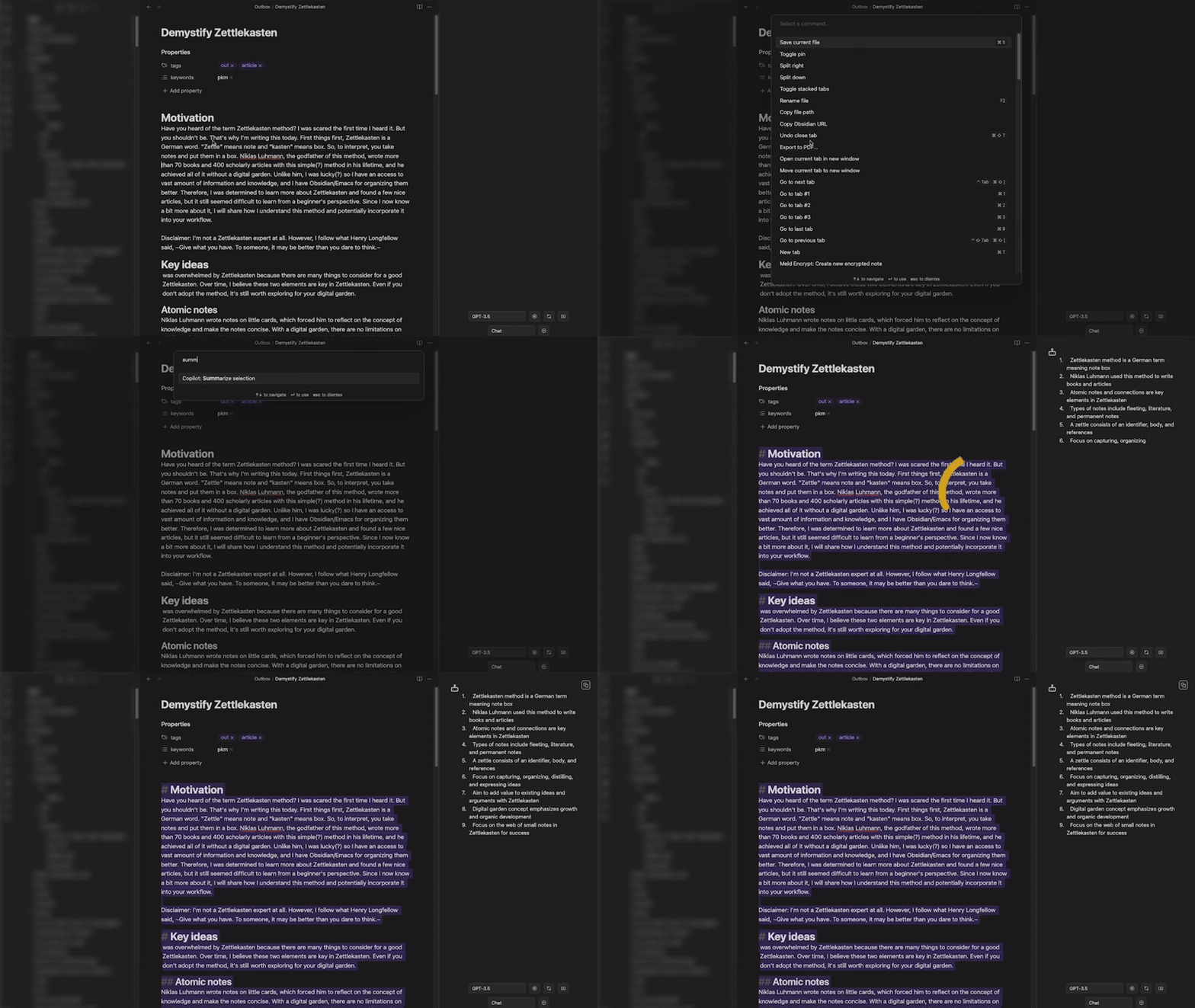
Yup, it can summarize your own notes that you left collecting dust, allowing you to refresh your memory on that knowledge almost instantly.
It also has the capabilities of every AI, such as instant language translation, and creative writing — it is, after all, based on whichever AI API key you use, be it Gemini, Claude, or GPT.
This plugin lets you think alongside AI right inside your notes app natively, without breaking your creative flow because of having to switch tabs or apps just to talk to ChatGPT.
Let’s get into how you can install this plugin and Obsidian super easily and get to thinking & writing more efficiently!
Share this with your friends and colleagues, especially if they are AI-savvy!
Step-by-step Copilot Installation Guide
First, you’ll need to install Obsidian. Then, follow the on-screen tutorial when you launch it for the first time, during which you’ll create your very own Obsidian “Vault”.
And no, this isn’t a Fallout vault, although I wish it was.

And now that you’ve downloaded Obsidian and created your own nuclear shelter, it’s time to integrate AI into this used-to-be note-taking app and turn it into an AI-powered second brain on steroids.
Hit the cogwheel in the bottom left to open up the settings menu, and then follow this nifty GIF showing you how to enable plugins and install Copilot:
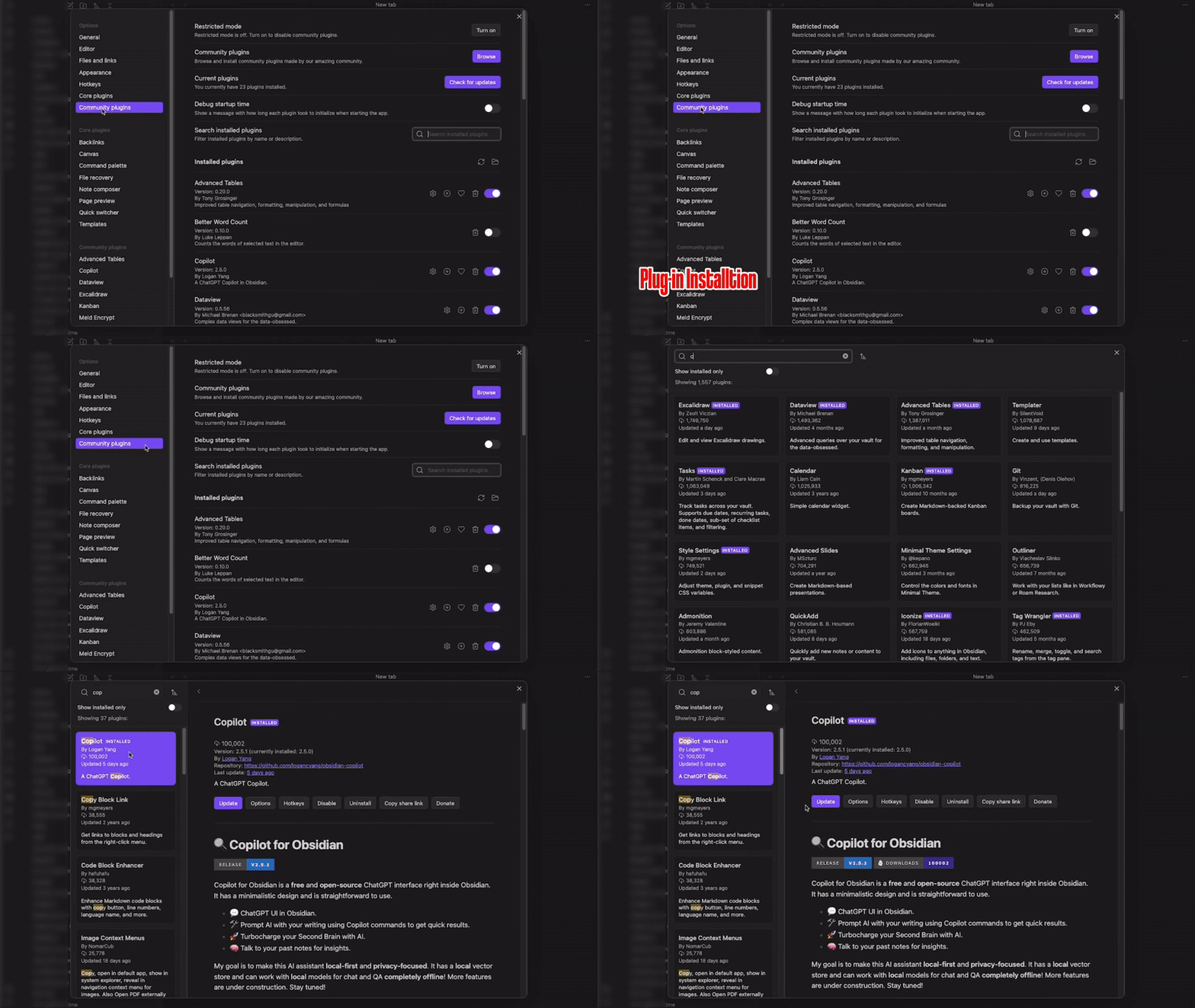
P.S — it’s so easy to get lost in community plugins and download tens or hundreds of them. You don’t need any. Just the Copilot plugin alone is enough to make note-taking, writing and thinking much better & faster (finding plugins and customizing your vault can be a huge timesink, too. Avoid that.)
Now, let’s set the plugin up so that it works flawlessly with your AI of choice — follow this second GIF:

Get more from Creators' AI in the Substack app
Available for iOS and Android
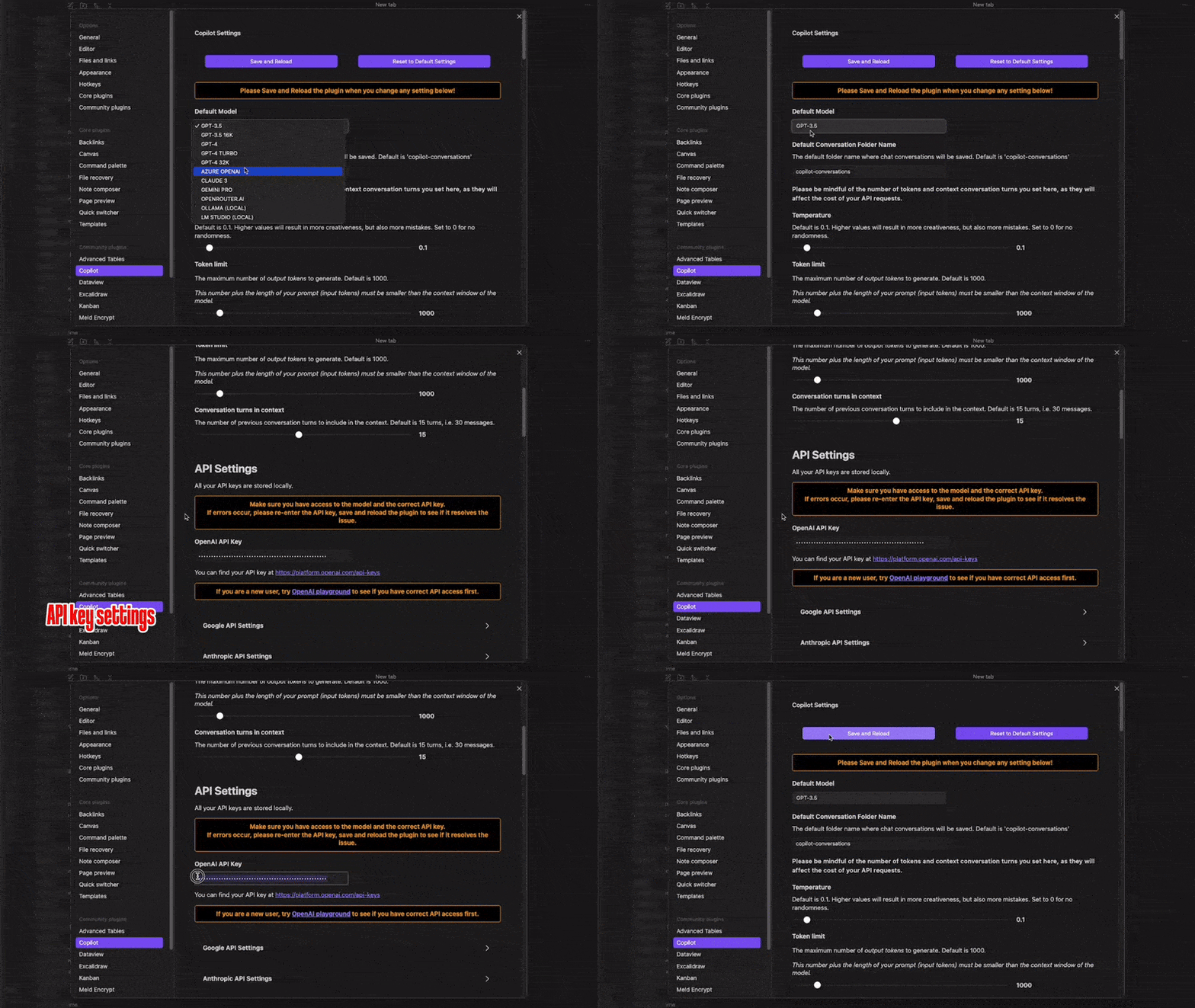
If you don’t know how to get an API key, check out these resources: Claude, Gemini, GPT.
And that’s that! If everything was done correctly, you now have a note-taking app with an AI integrated. Once you exit the settings menu, you’ll see a new window on the right that looks like this:
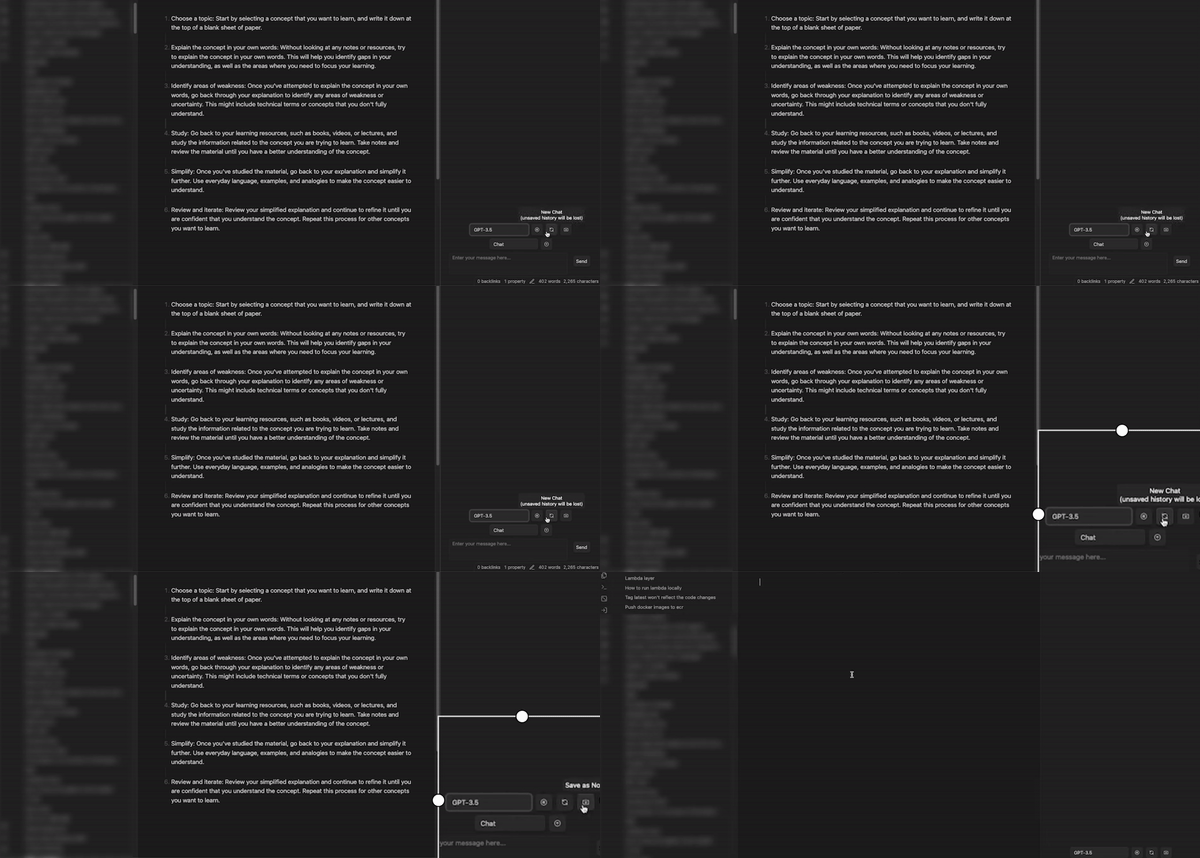
You can select your model, create a new chat, or even save the entire chat with the AI to a note. Now, let’s get into the best practices and how to use the AI copilot efficiently to think & write better!
Creators’ AI Subscription is the best gift for Creators diving into AI.
New Uses For Your New Thinking Partner
First and foremost, you must know how to prompt correctly so that the AI can give you accurate answers.
And luckily, we just made a post on the special formula to craft expert-level prompts, without putting in the effort of studying how AI works:
Now that you understand how prompting works and how to query AI like a pro, we’ll cover a few awesome use cases for Copilot in Obsidian.
- Brainstorming — Copilot lives with your notes, meaning you can brainstorm ideas based on the previous knowledge you have stored in your vault. The more notes & context you have, the better Copilot knows you & your preferences!
A solid brainstorming prompt using our special formula:
I am a [context]. I struggle with [details]. I want you to act as an idea generation & brainstorming expert and help me think of new ways to [do something]. Respond in 3 short concise sentences as 3 different individual answers.- Creative Writing — this plugin literally kills writer’s block. Stuck on a page? Prompt the AI to give you ideas and start a draft or create an outline — you can start writing creatively within seconds, never running out of ideas or ever experiencing writer’s block again.
I am a content writer & creative writer, mainly writing heroic action novels. Lately I’ve been suffering from writers block, and just can’t seem to start. Act as an expert creative writer and give me 5 different mythical heroic action novel starts. Respond in simple 1. 2. 3. format.- Review & Summarize — got century-old notes? Revisit them & ask your Copilot to summarise them, quiz you on them or even explain them to you like you’re five. This plugin makes revising old info much easier & more interactive.
For tasks like summarization, using a prompt formula can actually make it worse! Just state the intent with the response format, that should be enough.
These are my old algebra notes. Could you please organize & rewrite them in a way where even I now, 6 years later, can be taught the topic thanks to the notes? Then, quiz me lightly on them afterward.- Thinking — start writing something in a note. Ask Copilot to play devil’s advocate, fish for logical fallacies and cognitive biases, or question you constantly — you’ll find out a lot more about yourself than you could imagine and you’ll get better at thinking & decision-making.
I will be writing things in a note. My mind will wander and say things, and you are to constantly play devil’s advocate, question my thinking, look for logical fallacies or cognitive biases in my wording and thinking, — this is to increase my cognitive flexibility. After you point something out, point out what YOU personally think and why.Thinking is a fun one — I use this prompt frequently, and it really can help you think more clearly and put more effort into thinking correctly, rather than just going with your intuition which may sometimes fail you.
You now have an AI living and breathing inside of your notes — just know, your imagination is the limit here. Experiment and optimize the tasks you spend hours on, like thinking, decision-making & writing using Copilot!
Have you tried the Copilot plugin? What’s your favorite use case for it so far?
Leave a comment and let us know!
This article was first published in the Creators AI newsletter. View the original edition.