Canvas Review: New Level For ChatGPT?
One of the most critical ChatGPT updates in recent months
Hi!
For the last week, my colleagues and I have been testing ChatGPT Canvas. During this time, we've checked dozens of workflows and discovered some hacks. More importantly, I came to the conclusion that Canvas is OpenAI's most significant update in many months.
Yes, even with the OpenAI GPT-4o and Advanced Voice Mode releases.
Let's look at what we have now and discuss why Canvas can be considered a revolution.
Keep your mailbox updated with practical knowledge & key news from the AI industry!
ChatGPT Canvas | What It's About and How to Try

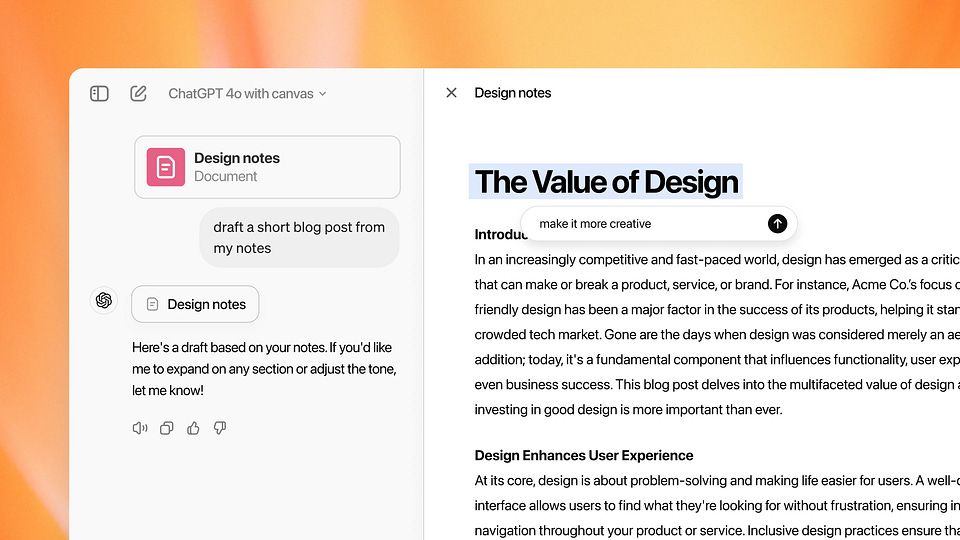
So, first of all, what is ChatGPT Canvas? It's a new feature for the GPT-4o model that allows for a more visual and interactive AI experience than traditional text-based chat. Unlike standard interfaces, Canvas combines textual prompts with visual inputs to improve our experience in text and code generation tasks.
To be fair, OpenAI is not a pioneer in this area. Anthropic implemented a similar feature called Artifacts back in June. We covered it here:
When you enable Canvas, the ChatGPT interface will change noticeably (but fear not, it will still be just as intuitive). You've got two windows instead of a single dialog with the chatbot. On the left will be the same ChatGPT, and on the right will be a text editor displaying the generated content. At the same time, you also got a toolkit for interacting with the AI and the ability to make edits to the text. In this sense, Canvas resembles a simplified analog of Microsoft Word, Google Docs, and Notion.
And if you need some useful prompts for ChatGPT, you'll find them here:
The idea behind OpenAI is to make ChatGPT for the two most demanded use cases - writing and coding. With Canvas, you no longer have to switch between different windows, cut blocks, and ask the AI to generate a new variant. Now, we can make spot edits and discuss with ChatGPT what can be improved. For this purpose, the developers offer a new set of hotkeys, tooltips, and pop-up tools in the bottom corner.
From a writer's point of view, Canvas is well-suited for composing complex articles, essays, or reports. The visual layout allows you to drag and drop sections and refine your ideas with AI. And developers can visualize code structures, port code to another language, and get real-time feedback. That's cool.
Sharing is caring! Refer someone who started a learning Journey in AI!
How to Use It
Canvas is in beta, but Plus and Team users can test the new feature. Enterprise and Edu users will get access shortly, and the developers plan to make Canvas available to all users as soon as it comes out of beta (when that will happen is currently unknown).

Here's what you need to do to try out the new interface.
- Upgrade your account to Plus or Team (if you don't already have a subscription).
- Open the ChatGPT dashboard
- Look for the model selector at the top left of the page
- Select "GPT-4o with canvas" from the available options
- After selecting the correct model, start writing your prompt as usual
Okay, after we've sorted out what Canvas is, let me explain why this update is a new step in the evolution of ChatGPT. The answer is quite simple: Canvas is a new approach to interacting with AI, even if you haven't noticed it. Where once the AI worked as your surrogate-whether it was a copywriter, marketer, or developer-it now feels like your co-author.
When working with a responsive task, you no longer have to ponder concepts and consider prompt engineering to explain what you want to accomplish. Enter the first prompt, get your result, make spot changes, and grab the content. So now, not only is the ride more enjoyable, but the distance between start and finish is much shorter.
Let's look at a few valuable tips and tricks you should try.
Tips & Tricks for ChatGPT Canvas

These icons are your best friends when working with Canvas.
While ChatGPT hasn't changed from a technical standpoint, Canvas provides many new use cases for AI. Here are some features that definitely shouldn’t be ignored. They will make your work easier, faster, and more enjoyable.
- Question The Canvas
This type of interaction should make working with ChatGPT in a single project even easier. You can select the text block you want and ask ChatGPT to edit it (e.g., shorten or expand it), explain some points, or completely rewrite a whole content segment. You can even translate individual text portions into other languages if you want.
- Suggest Edits Tool
With this feature, ChatGPT offers its inline suggestions and feedback. It sounds funny, but yes, in this case, the AI corrects the text it wrote itself. The best part is that ChatGPT makes corrections and explains why they are necessary.
And often, it really helps.
- Changing Reading Level
This is an excellent feature if the generated text is not hitting your target audience. Just choose one of the options between Kindergarten (so the text will look like a children's book) and Graduate School (for an advanced and educated audience) to ensure that your reader will hear and understand you.
Additional tip: you can combine this feature with “Add Emoji”. Good for positive posts on LinkedIn or Instagram.
- Adjust the Lenth
This is a feature you'll also find in the bottom right corner. It allows you to quickly and easily adjust the length of your articles by also moving the slider. This can be useful if you need to meet word count requirements or if you want to make your article more informative.
I know a few copywriters who will definitely love it.
- Add Comments for Coding
When coding, use the add comments feature. This can help you comment on your code and make it easier to understand. You can also add logs to your code for quick debugging.
- Use Program Logs
Program logs are now seamlessly integrated, allowing you to track execution, monitor performance, and easily identify potential problems. Canvas also offers guidance on running and customizing code, ensuring you have the support you need to bring your projects to life.
- Improve Your Code
Canvas provides several features, including code review and debugging, to improve the quality of your code. These tools add depth and functionality to your programs, allowing you to gain valuable insights and create more efficient applications.
Tell us in the comments if you've already tried ChatGPT Canvas, and what useful features you've found!
Conclusion
As I said earlier, for me personally, Canvas is the most significant update to ChatGPT. It's a case where we already had a product with great features and got a great user experience as well. And yes, it's definitely at the next level. Overall, ChatGPT Canvas merges text-based intelligence with visual creativity, offering an enhanced platform for those who want to interact with AI beyond pure text exchanges.
Share this edition with your friends!
This article was first published in the Creators AI newsletter. View the original edition.