Everything You Can Do with Kling O1: Review & Creative ideas
And totally need to try it
Hello friends!
Over the last few months, we’ve all seen a flood of AI videos — every week, there’s a new “big thing.” But Kling O1 has already been crowned the “Nano Banana Pro” for AI video by the community.
And since we already broke down how powerful Nano Banana is, today we’re going to see whether this new model actually lives up to the hype.
We’ll look at how it works, what actually makes it different, and how you can use it in real projects. Whether you’re creating content for social media, building marketing assets, or just playing around with AI video, I will try to show you how to get the best results from this model.
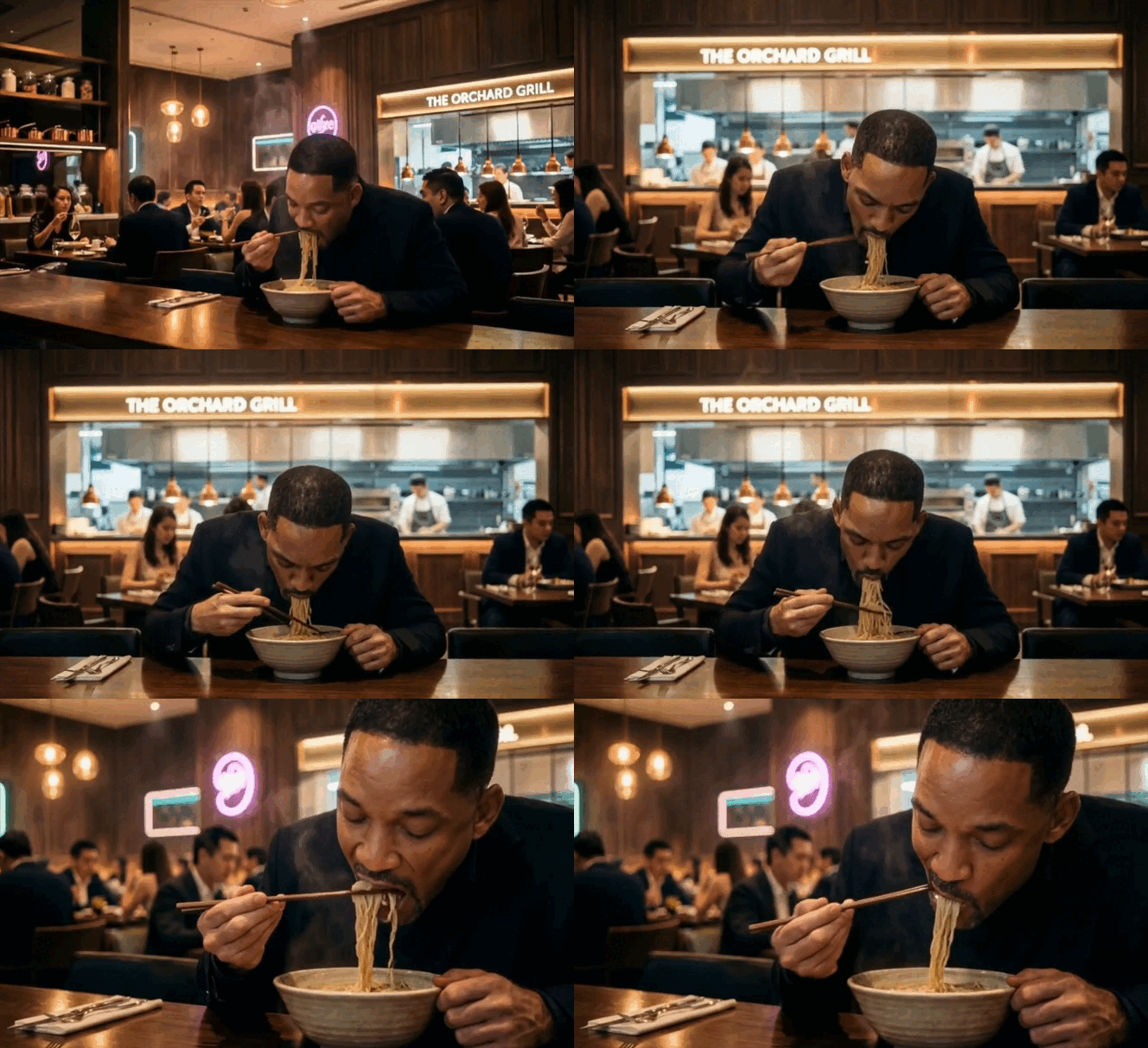
Keep your mailbox updated with practical knowledge & key news from the AI industry!
To see how much the model has improved, check out this post.
Also, I recommend you to use Higgsfield to create with Kling O1 — learn how to use it here.
Key Takeaways
O1 stands for Omni One — a new multimodal model that combines text, images, elements, and a reference video into a single prompt and produces a full cinematic shot.
Actually, Kling kept dropping new upgrades every single day this week, each one making the model noticeably better.
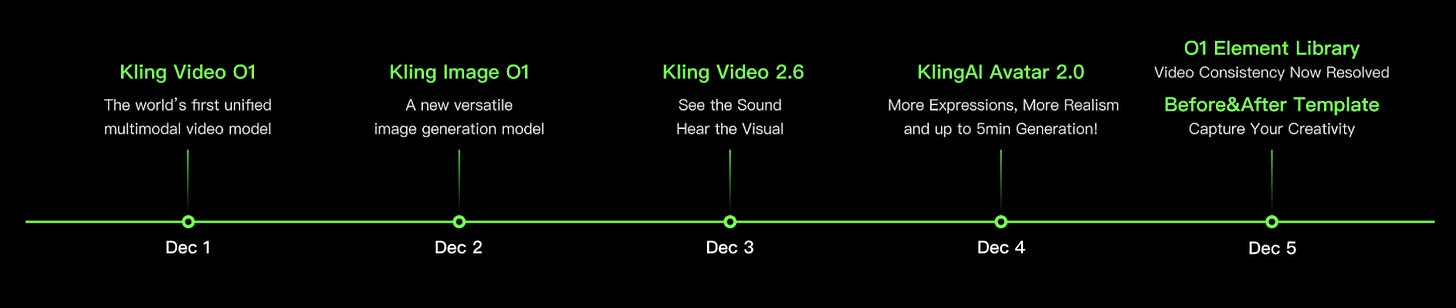
So let’s break down what’s really behind O1 and the other features.
Kling AI O1
Kling can help when you already have footage and need to swap elements, add stuff, delete things, or restyle entire scenes. What is more, there is:
- Chain of Thought (CoT) Text-to-Video. It breaks down what you’re asking for and figures out how things should move, interact, and evolve frame by frame.
- Flexible Output Options
- Up to 10-second clips
- Up to 16:9 aspect ratio (cinematic format)
- Professional or Standard quality modes, depending on whether you’re prototyping or shipping final work
- Multimodal Input System
It’s a kind of creative blender. You can throw text prompts, still images, AND video clips at it all at once, and it’ll actually respect all of them simultaneously.
- Now we can feed Kling up to 7 reference images, and it keeps your actor, mascot, and product perfectly consistent across every frame and angle.
Video 2.6 (sound/visual sync)
This update makes audio and visuals feel like they belong together. You can get dialogues that sync with lip movement, smoother sound effects, and overall cleaner audio with SFX that don’t feel glued on top.
Avatar 2.0
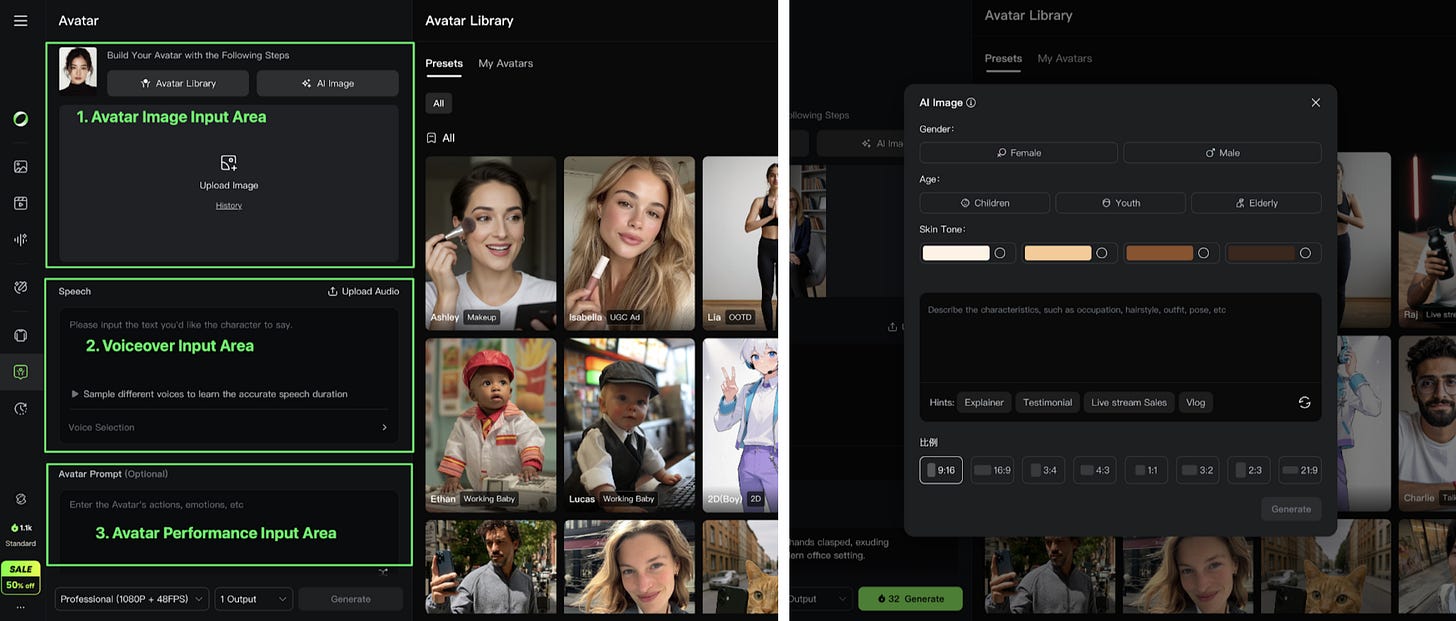
You can upload character images, pick a voiceover, describe expressions, and get a dynamic talking avatar. In the pictures, you find a little guide on how to create one.
btw, it can handle full 5-minute scenes without breaking consistency.
O1 Element Library
You get reusable elements, such as characters, objects, and styles, that stay consistent across different shots. By using @Element and @Image tags lock, your character or object across generate/edit/reference modes, so nothing randomly mutates. (just like @prompts in Cursor😄)
Before & After Template
Kling also showed this during Omni Launch Week Day 5. It puts the original clip next to the transformed one (perfect for portfolios and socials).
How to Use Features: Real-world Cases
The model is super user-friendly. Actually, all features are properly described inside.
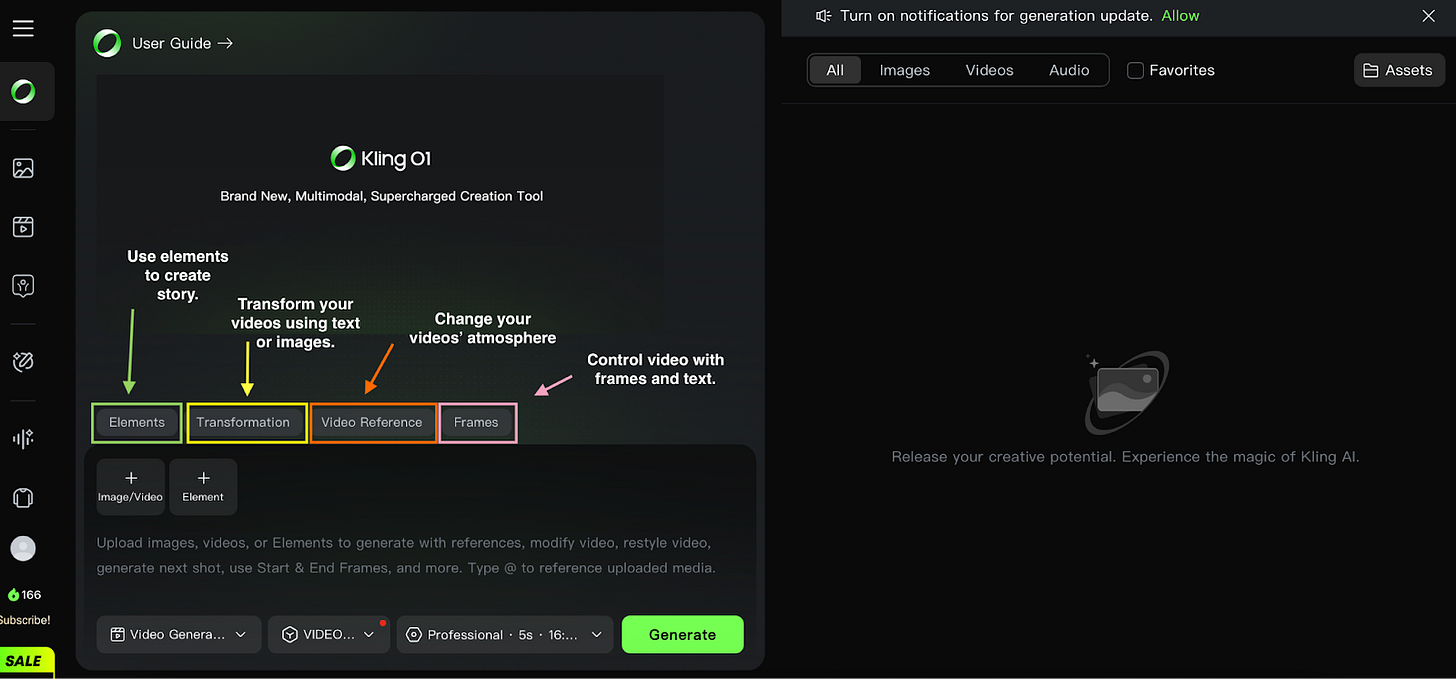
For Content Creators and Marketers
The goal is to see how it can help with creating ads or content, and to explore what the camera can do.
Let’s go!
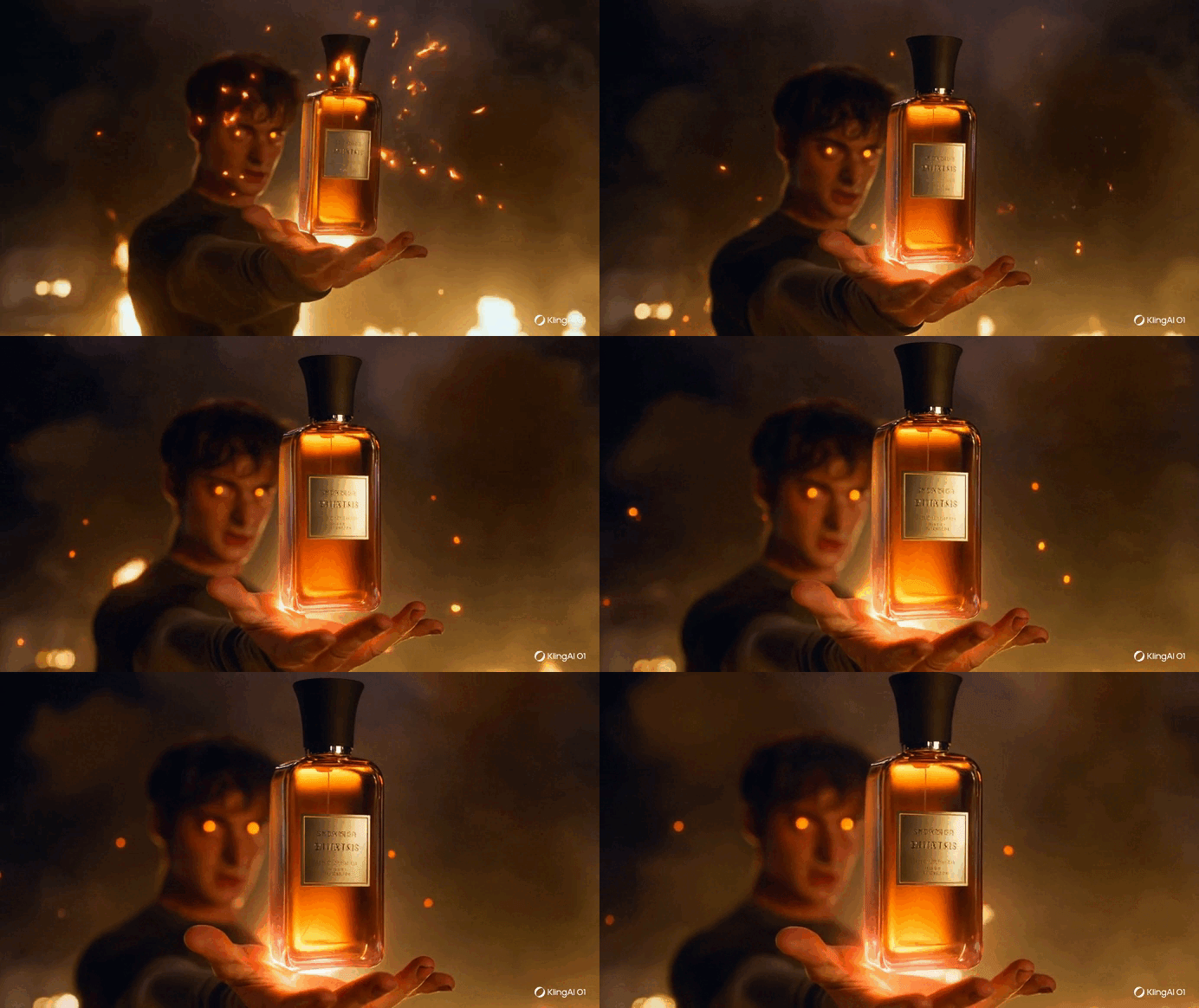
While the first example is clear and everything worked out great (what is more, this format of advertising is very popular right now).
The second one was trickier. I gave the model a photo reference, and the result is not bad, but…what happened to the text? 🤨
An honest take: it seems really strong when it comes to camera movement and swapping objects, but it’s not great even with a simple text (at least on the free tier).
Here are other things you can experiment with:
- Change props
- Swap furniture or decor
- Replace background elements
- Update product colors
- Add seasonal touches
- Turn neutral items into branded assets
- Restyle entire scenes
- Change materials
The only official way to remove the Kling logo is through a paid subscription (Standard from $7/month).
A very clear example of swapping elements. But when you ask to change the object, make sure the shadows stay the same. Here,they ended up looking a bit flat.
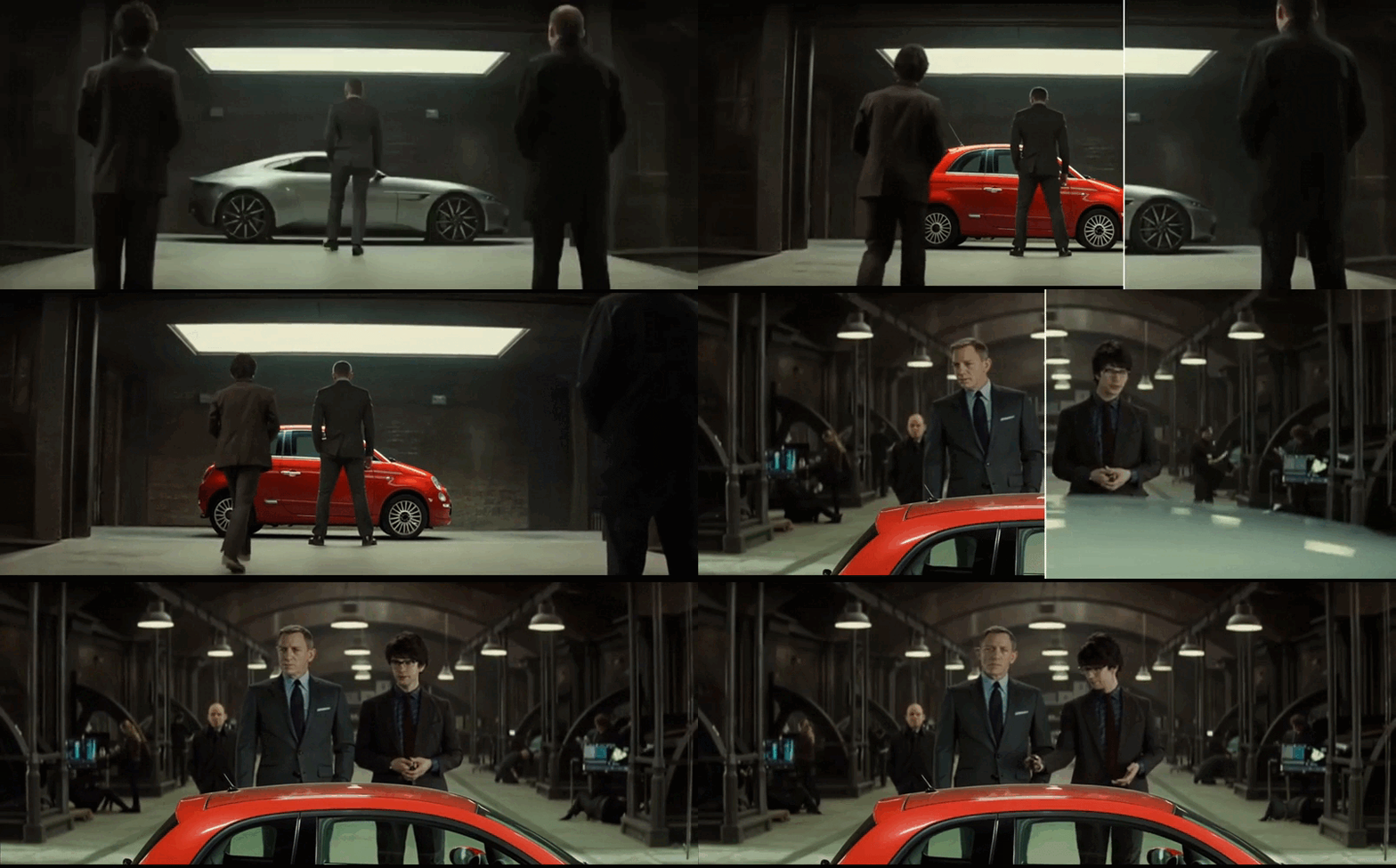
And below, we move on to changing characters.
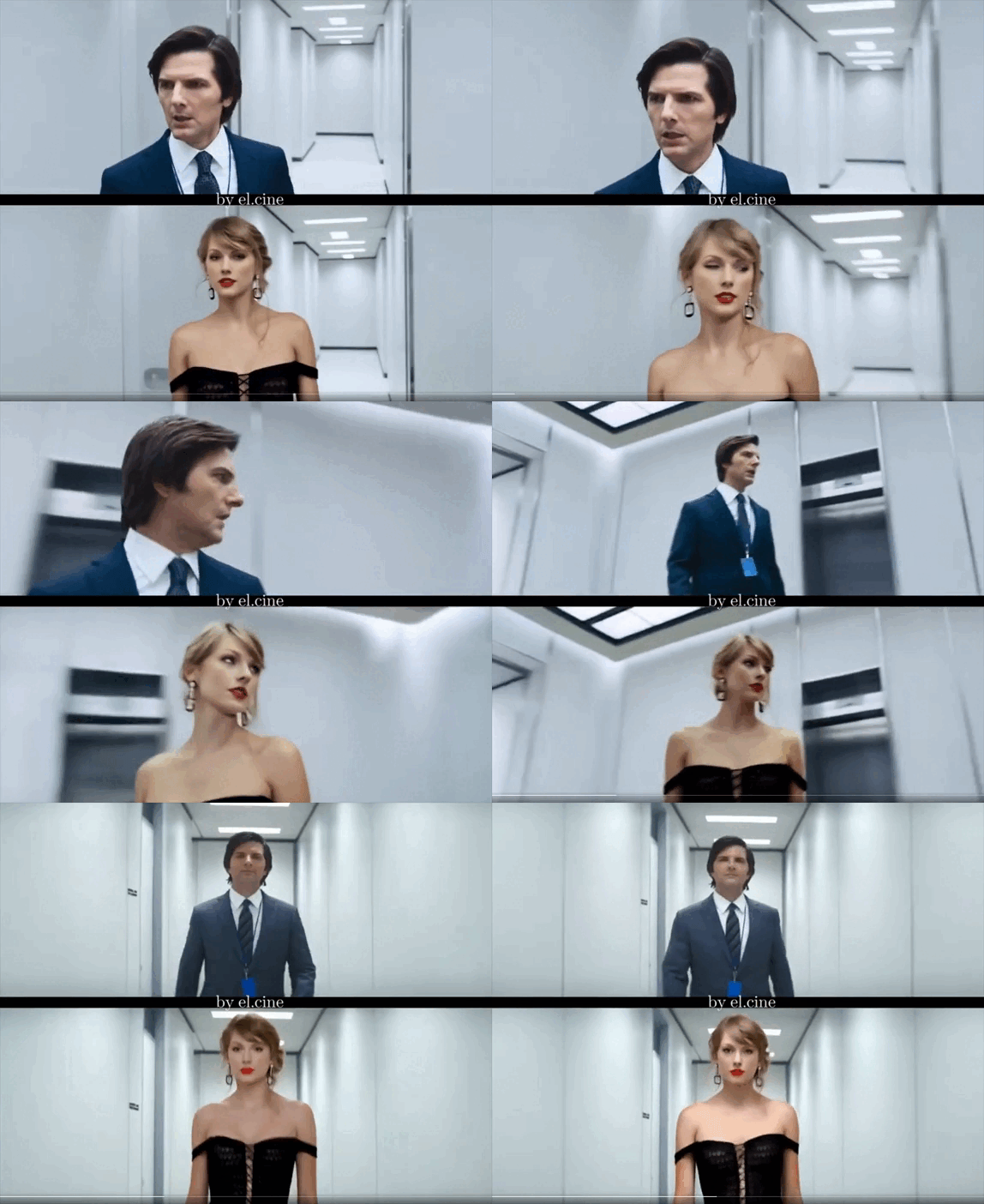
Source: @EHuanglu / X
So here we come to the thing that every marketer hits the same walls:
- No character consistency when faces shifted, and bodies morphed.
- Editing existing footage rarely worked. Changing product colors, removing logos, and updating packaging are (really) annoying.
- The majority of models couldn’t logically reconstruct new angles.
But as we saw above, Kling O1 manages this: you can create a video with your actor or mascot in any environment. Let’s stress-test the model more.
Switch angles without reshoots
I grabbed the transformation feature and wanted to see if it could switch camera angles while keeping the vibe of the scene.
Task: To keep the scene, BUT change the camera angle at once.
I uploaded my references, dropped in the classic clip of Shrek walking out of his swamp house.
And…I liked it!
Same atmosphere, same character, new angle, and it looked like it was always part of the original scene.
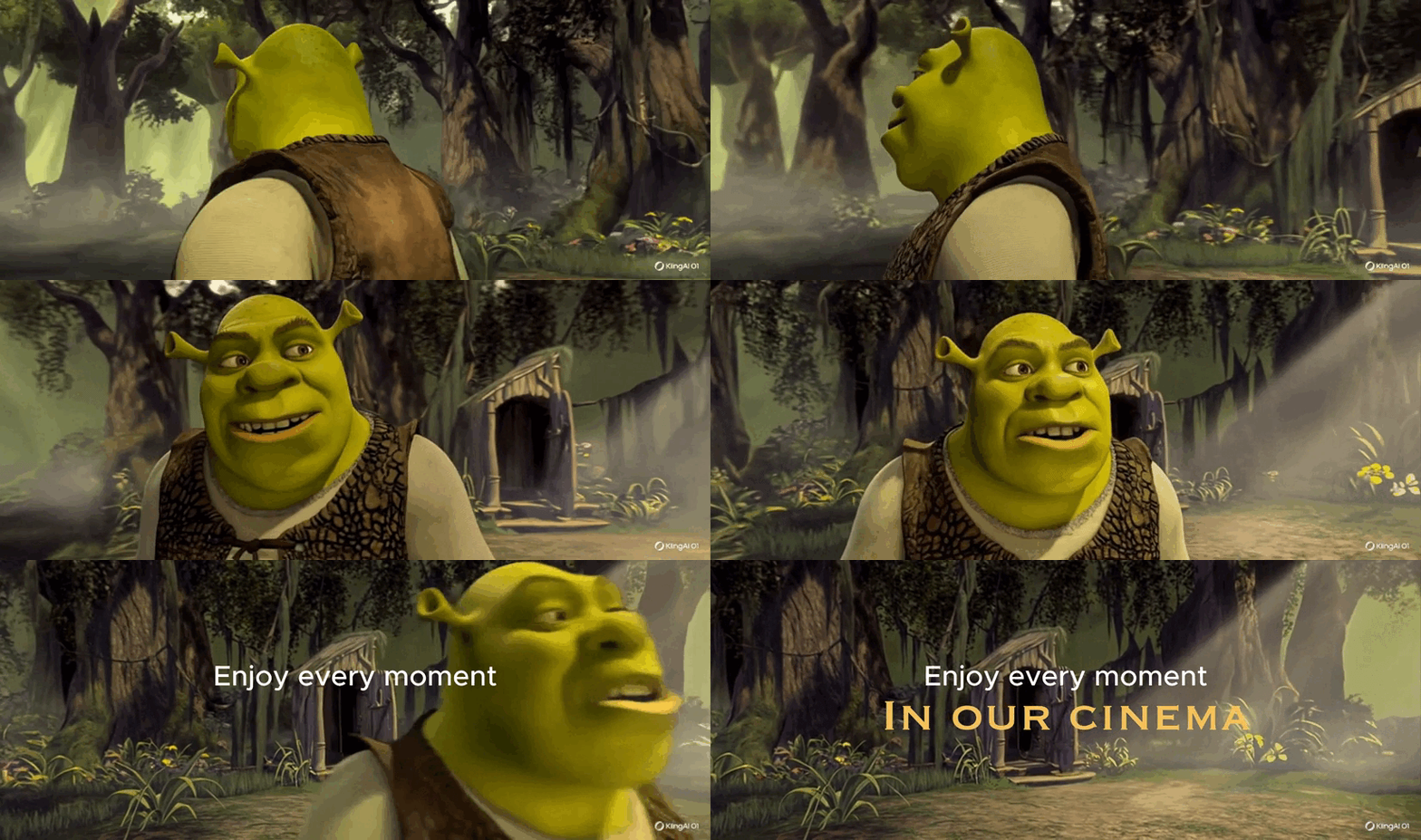
At the end, I slapped a little promo text on top just for fun.
Now imagine doing this with your actual marketing footage by fixing shots that were filmed wrong, generating the long continuous take you never captured, and testing totally new angles without reshooting anything.
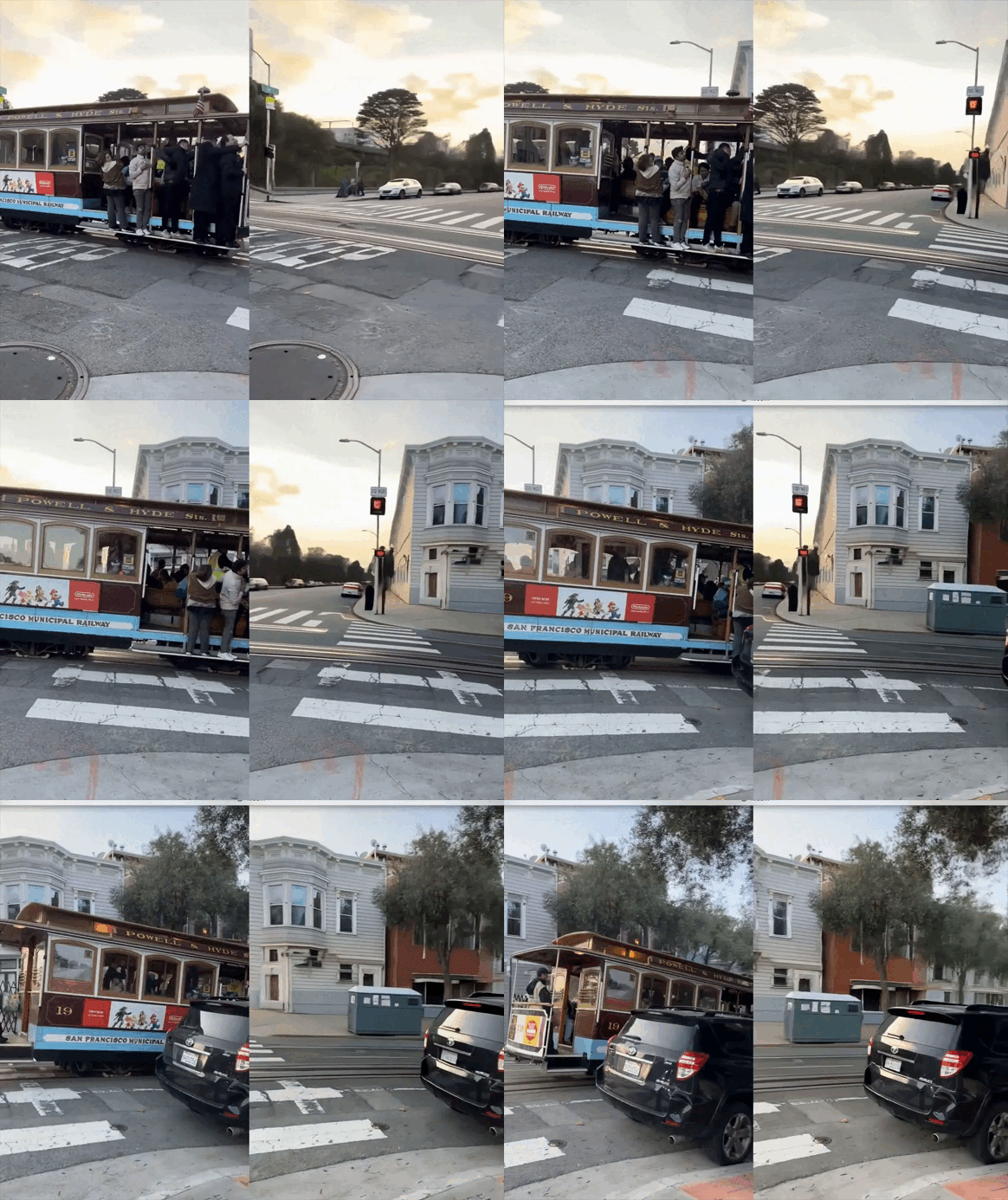
Task: to remove objects from videos.
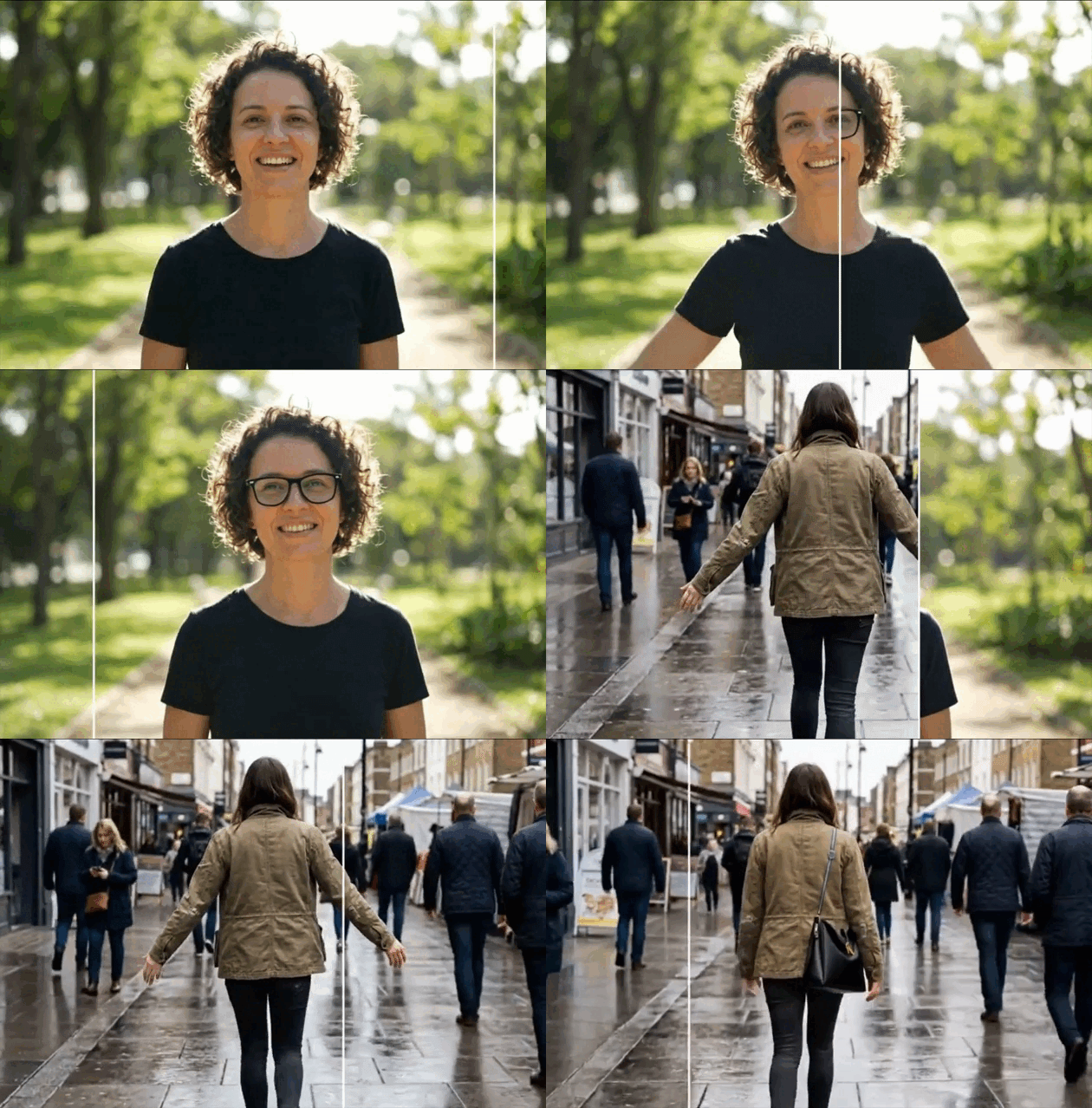
Task: Add objects
For filmmakers and YouTubers
Let’s continue exploring what it can do. We’ll see how the model handles the atmosphere and experiment with different visual styles in post-production.
Shadow consistency
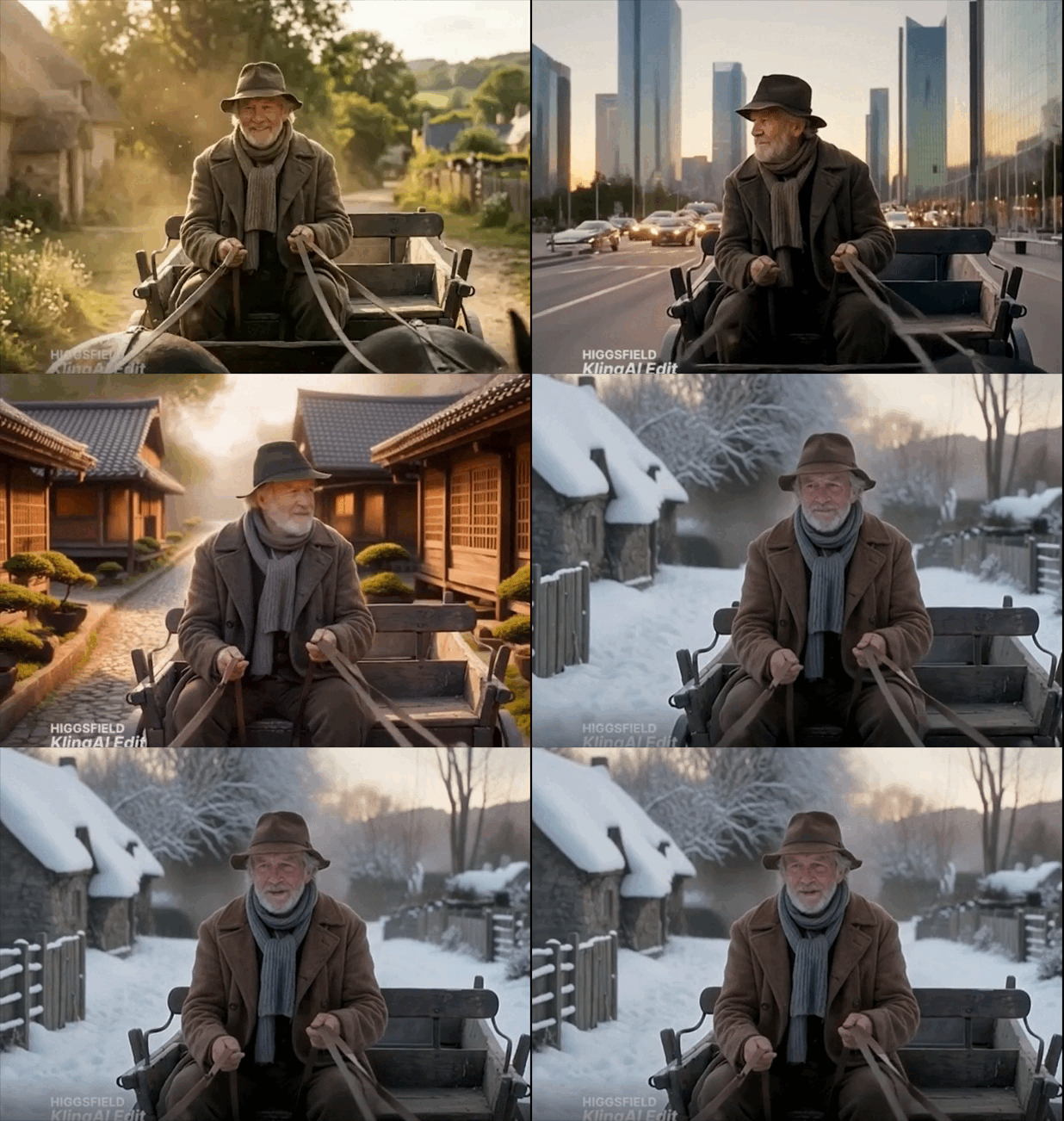
Both videos were made in Higgsfield AI, as the platform has a really handy idea library with transitions, so working with it gets way easier.
In the first clip, the old man, the horses, and the cart stay locked together while the scene jumps from a rural field to a city. That’s cool, because AI usually struggles with this. The problem is that when the shadows shift too much, the face starts melting.
So the fact that it holds everything together is actually a big deal for storytelling.
And in the second clip, the movement consistency is just perfect.
Task: Keep the character unchanged while the background changes.
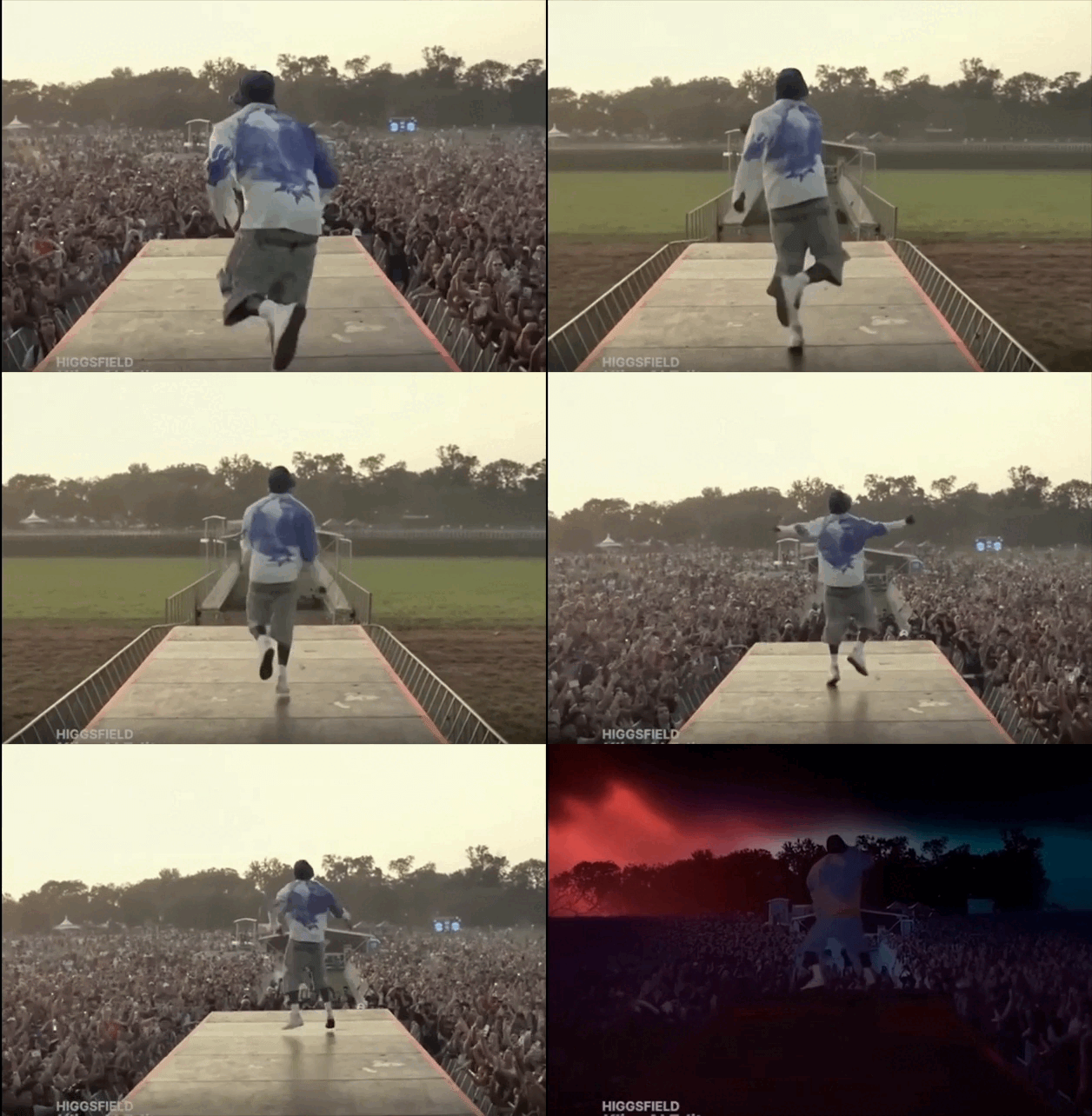
Task: to make a smooth transition with the start frame and end frame feature.

Generate one morning image and one night image, and use them as frames.
Multi-universes
I even ran across again a Stranger Things case (btw, have you already watched the new season?). But the vibe of this example below reminds me of Everything Everywhere All at Once.
Imagine being able to drop ourselves into other universes, different virtual environments with a high degree of realism, without spending hours like in ComfyUI (check out our post, this thing can literally create 30-minute films).
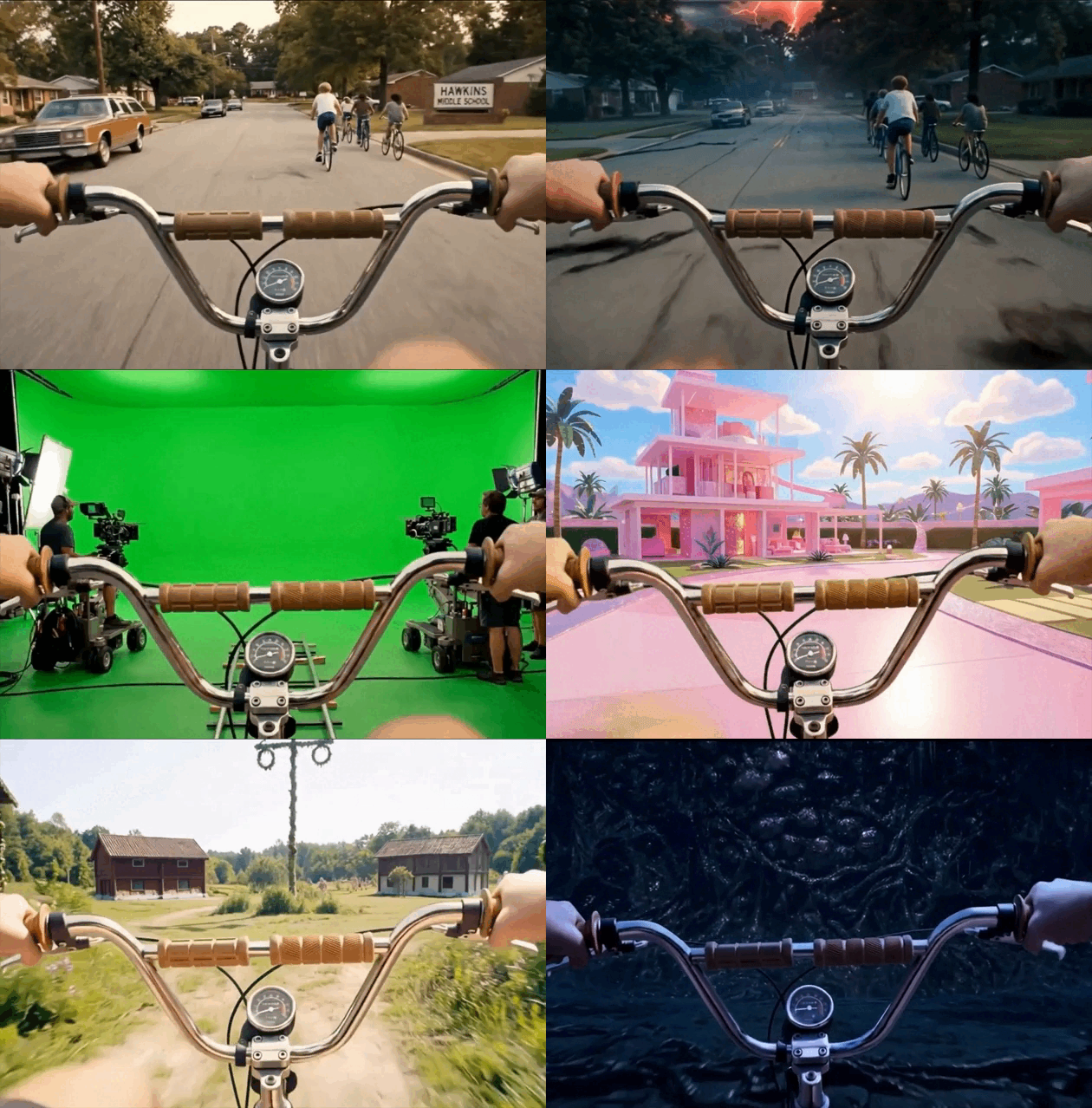
Source: @invideoOfficial
Action scenes
When I discovered this fight scene was generated, I couldn’t believe it at first. Truly, Kling shows an entirely new level of action choreography.
You know that achieving such cinematic realism is challenging in live-action filmmaking, yet the model delivers it with remarkable precision and authenticity.
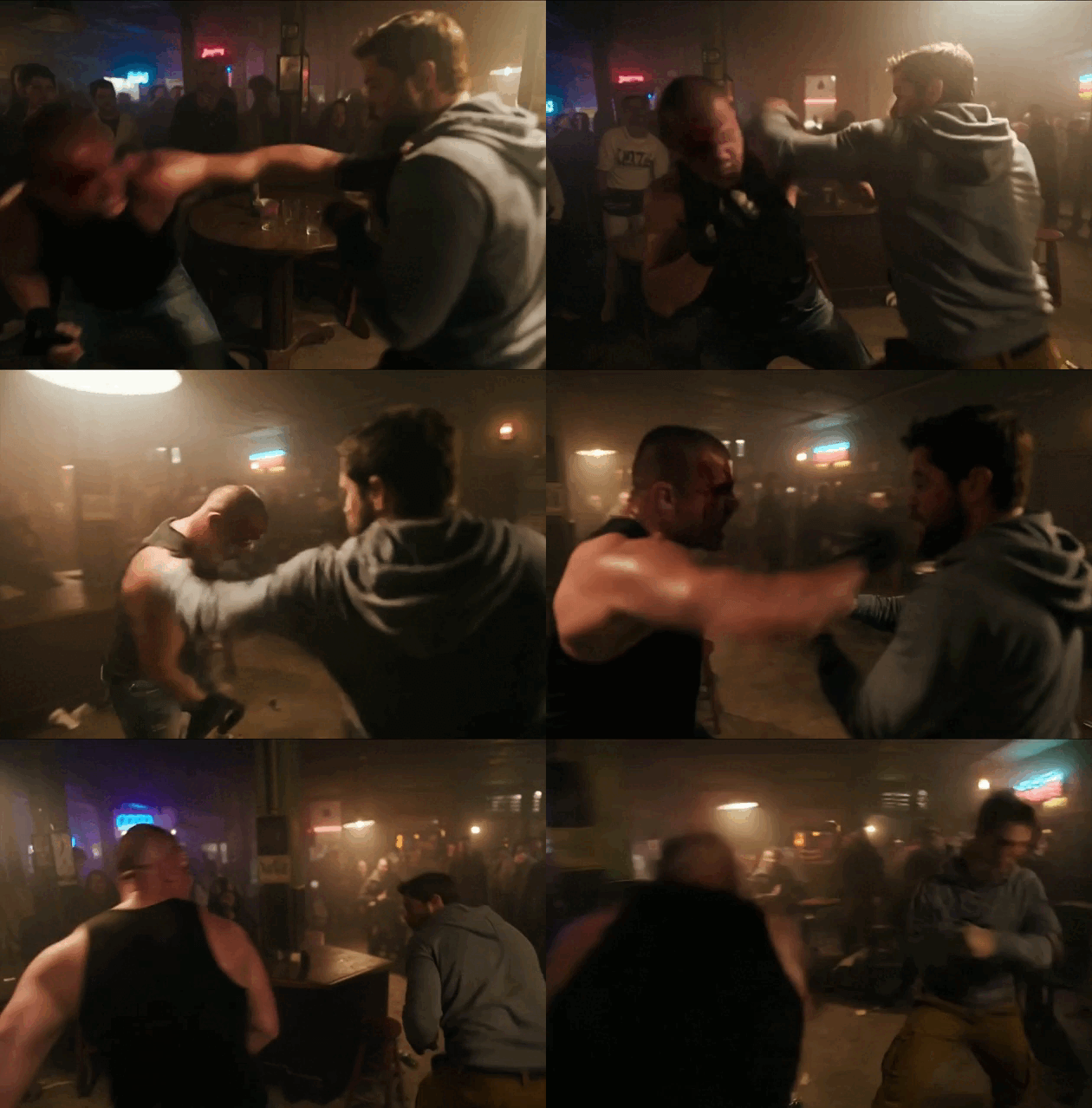
Source: @WuxiaRocks
Fictitious character
And to wrap up with a couple of examples, here’s the one where a guy turns himself into a fictitious character using Kling O1 with Freepik. We’ve seen a similar example before, also in ComfyUI. But here, the user literally published a step-by-step guide on how to do it, and I don’t think it would take more than 20 minutes.
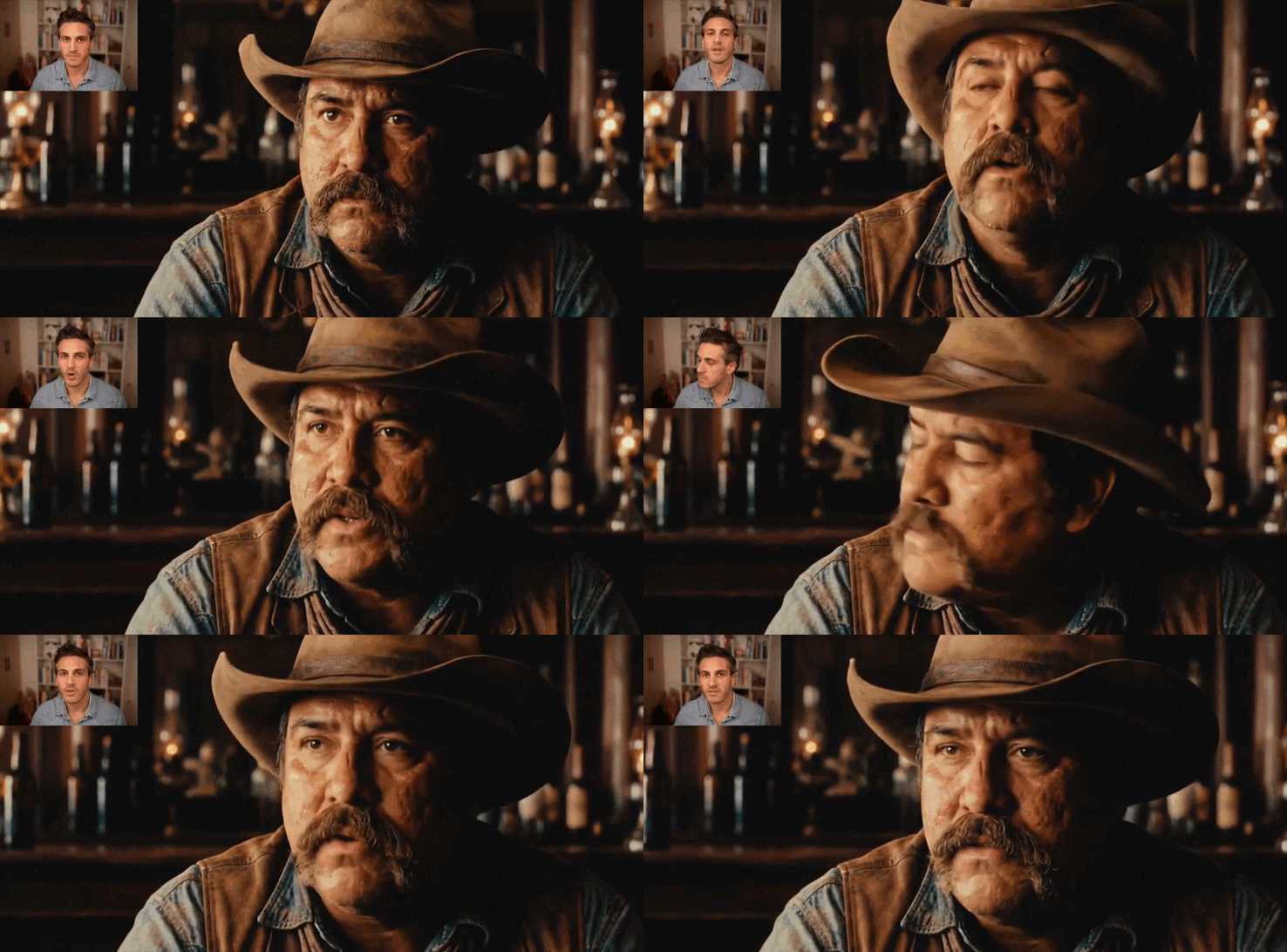
Source: @martinleblanc
How to make your workflow better:
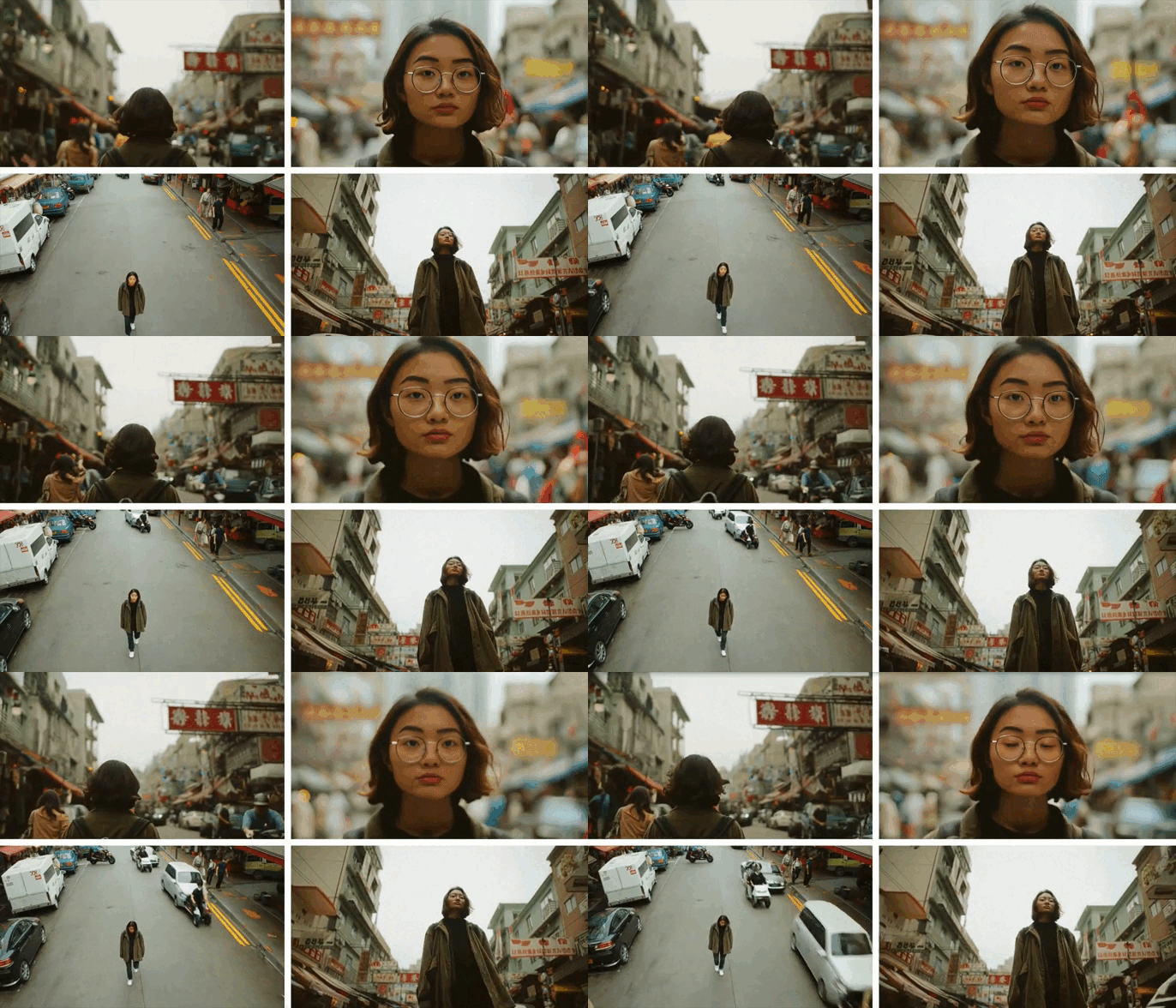
- Be very specific about camera work. Look, O1 can do smooth pans, zooms, rotations, depth-of-field, dolly shots, aerial drone views, and tight close-ups; you just need to tell it exactly what you want. Say “camera slowly pushes in on subject” or “aerial view rises through fog layer”.
- Also, when generating references, add camera specs to your prompt: “shot on 35mm”, cinematic color grading you want, grains, and depths instead of that flat digital look.
- Collab with the best image models: try pairing with Nano Banana or Flux. These will give you production-ready references instead of wonky AI slop.
- O1’s reasoning system works best when you give it concrete details to work with:
Motion & Action: Start with subject → specify movement → add environmental context → define mood through lighting → control camera behavior.
For Static Objects with Drama: Lead with the object → describe its key action or state → ground it in a setting → light it intentionally → give the camera purpose.
For Establishing Shots: Camera movement first (this signals intent) → reveal what you’re showing → nail the time/atmosphere → add emotional tone.
What actually matters in prompts:
- Specificity: “warm afternoon light through windows” beats “beautiful lighting.”
- Motion verbs: rotates, tracks, rises, circles, pulls back, pushes in
- Timing cues: slow motion, gradual, quick, smooth (helps the model understand pacing)
The final words
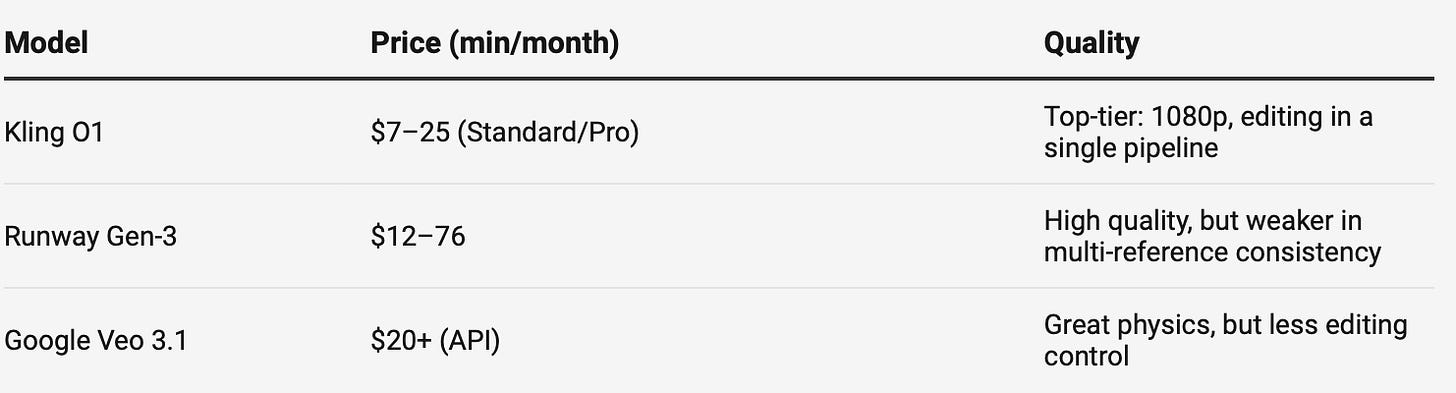
For me, Kling O1 is changing video production. And honestly, I’ve found it more consistent and realistic than Google Veo 3.1. Complex tasks like changing the weather or removing elements become just a few simple commands that seem to work smoothly, but they still need to work on text generation.
Anyway, it’s a huge step toward professional AI video creation. As you’ve seen, Kling O1 will perfectly work for marketers, e-commerce, and storytellers who need short videos with built-in editing: product swaps, object removal, and added effects. Also, so far, it’s cheaper than other models.
This article was first published in the Creators AI newsletter. View the original edition.