Firebase Studio: Overview & Tutorial
Google Dives Into Dev Tools Territory
Google seems to have gotten in over its head. After a few problems last year, the company caught up with the competition in chatbots, AI search, and image generation. And now, it is stepping on the heels of more specialized solutions.
The company released Firebase Studio. We have tried this platform and can already say it is one of the most interesting tools for both vibe coders and devs.
But let's go in order.
In this post:
- Why Firebase Studio Is Important
- Real Examples of How Creators Are Using It
- Comparison with AI Dev Tools
- A Guide to Building Your First App
Get 20% OFF Full Access subscription!
What Is Firebase Studio
Firebase Studio, launched last week at Cloud Next 2025, represents Google’s change in app development approaches. It's a cloud-based, agentic development environment that brings together what you need to build, test, deploy, and run AI apps in one place.
At its core, Firebase Studio combines several technologies:
- Project IDX (Google's browser-based development environment)
- Genkit (their framework for building AI features)
- Gemini (Google's AI model).
The result is an end-to-end platform that give us prototyping capabilities, coding workspaces, and deployment options into a single experience.
And it’s not just for devs.
For Vibe Coders & Real Devs
What makes Firebase Studio valuable is how it works for people with different skills.
If you're new to development (or never tried it), you can use natural language prompts to generate functional prototypes. And if you're a real developer, you can bring your own tech stack and use the underlying customizable virtual machine.
The first group has the App Prototyping agent. This feature helps turn ideas into working prototypes using various inputs, such as text descriptions, images, hand-drawn sketches, or voice commands.
For example, you can describe a food delivery app interface, and the agent will create the basic layout and suggest improvements to the user flow based on best practices.
Firebase Studio also includes a CodeOSS-based IDE, enhanced with Gemini's AI assistance. This provides code completion, debugging help, and optimization suggestions that learn from your codebase over time.
The platform connects with core Firebase services like Authentication, Firestore, Hosting, Cloud Functions, and Storage. Connection code and configuration happen automatically, reducing setup work.
When you're ready to deploy, Firebase Studio uses Firebase App Hosting for deployment, which handles the build process, CDN configuration, and server-side rendering for you.
Here's how it works in practice.
Share this post with friends, especially those interested in AI Insights!
Real-Life Examples
Here are some cases of how Firebase Studio works in real life. We’ll move from elementary solutions to more advanced ones.
CRM App in Two Minutes
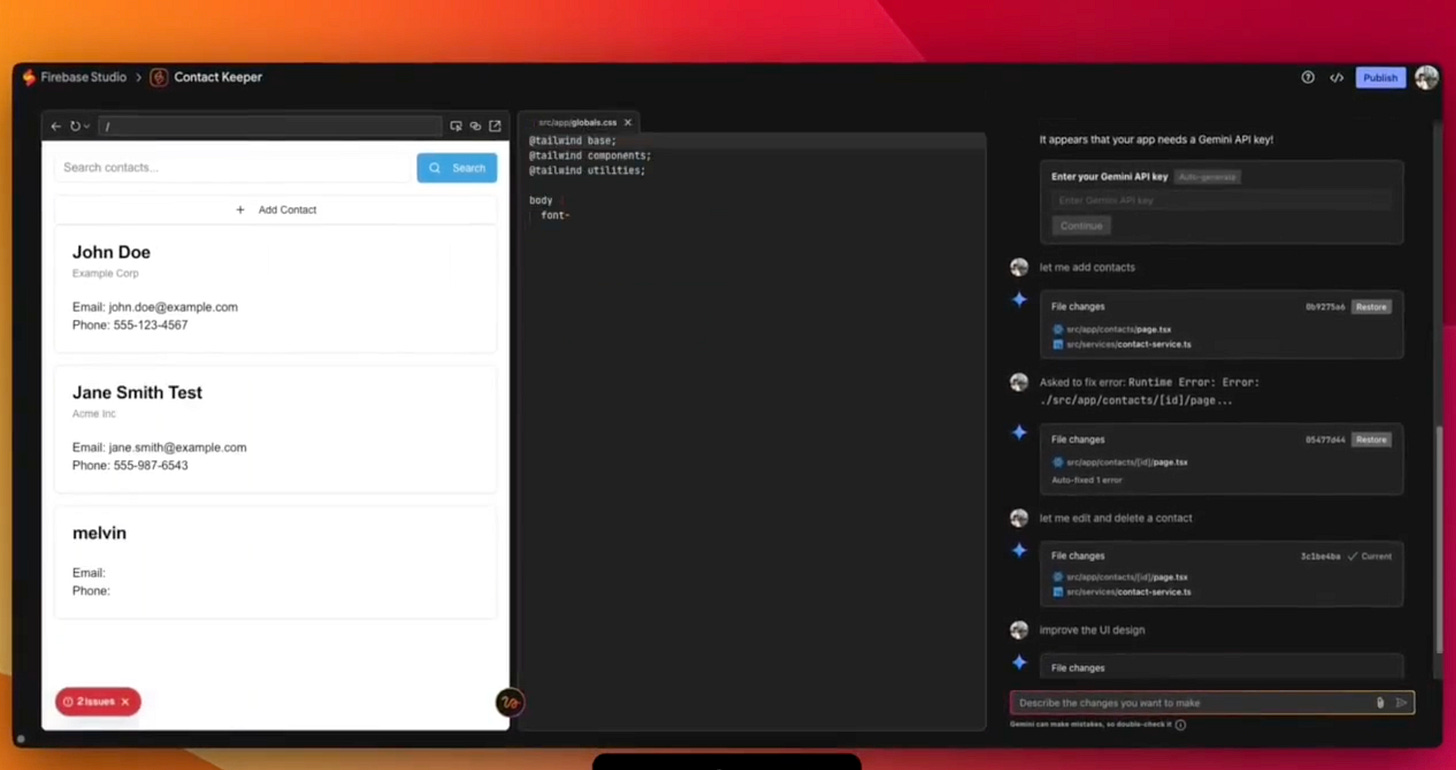
Creator Melvin Vivas showed what the new platform can do even with minimal input. He used a short “create a crm app” prompt. He didn't change the app blueprint and waited for the AI to generate the finished app.
Next, the creator added the following prompts:
let me add contactslet me edit and delete contactsimprove the UI designcan you add a top menuimprove the stylingGemini encountered a bug in the process but was able to fix it on its own.
Two minutes, and the application is ready.
Mind Map App
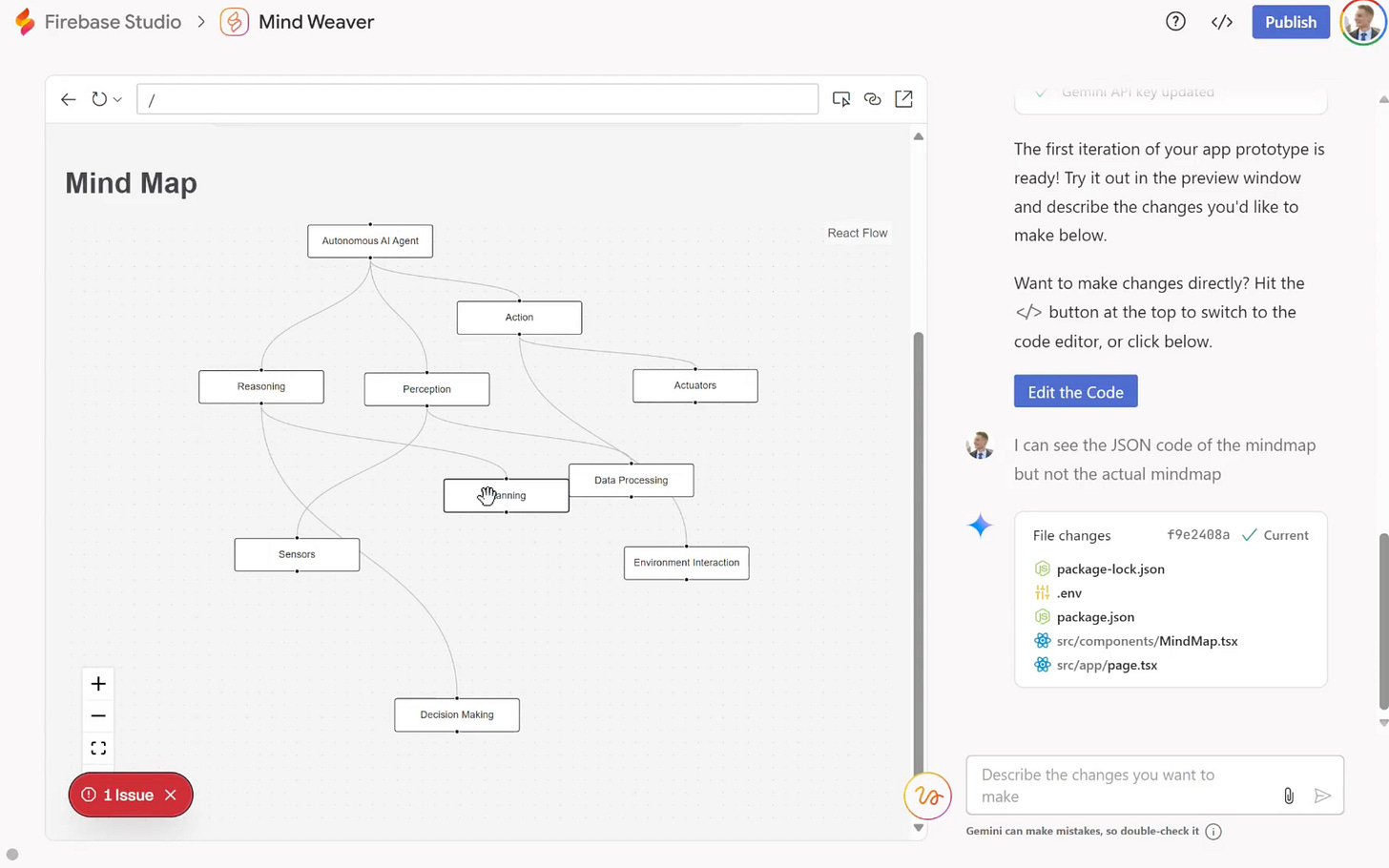
Building an app to keep notes, to-do's or reminders is a simple task that almost any AI can already handle. It's much more interesting to see how the model handles a more creative approach.
AI and tech educator Paul Couvert used Firebase Studio to generate a mind map app. To do so, he used this prompt:
An app that turns a theme or topic into mindmapAfter correcting a couple of errors, he achieved the desired result. If you don't count the generation time, the whole process takes less than a minute.
News Summary App with AI
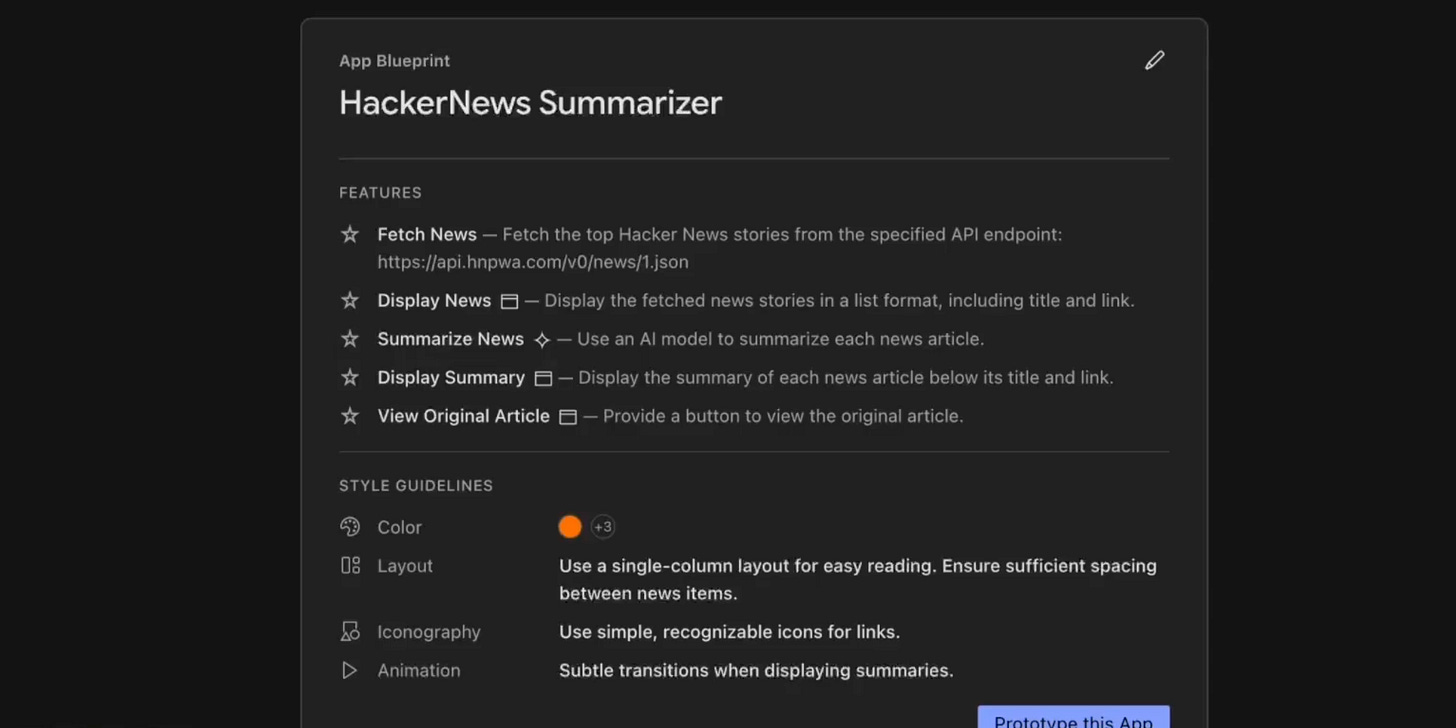
And for dessert, an advanced UI case study.
One of the features of Firebase Studio is the native ability to integrate AI into a future app. For this purpose, the platform can generate a new API key or use yours. What exactly the model will do depends on what you want it to do. Here's an example.
David East showed how he developed a tool that generates summaries for Hacker News. To do this, he needed a feed API and the following prompt:
Build me an app that summarizes hacker news with this API: [link to API].Here’s the result:
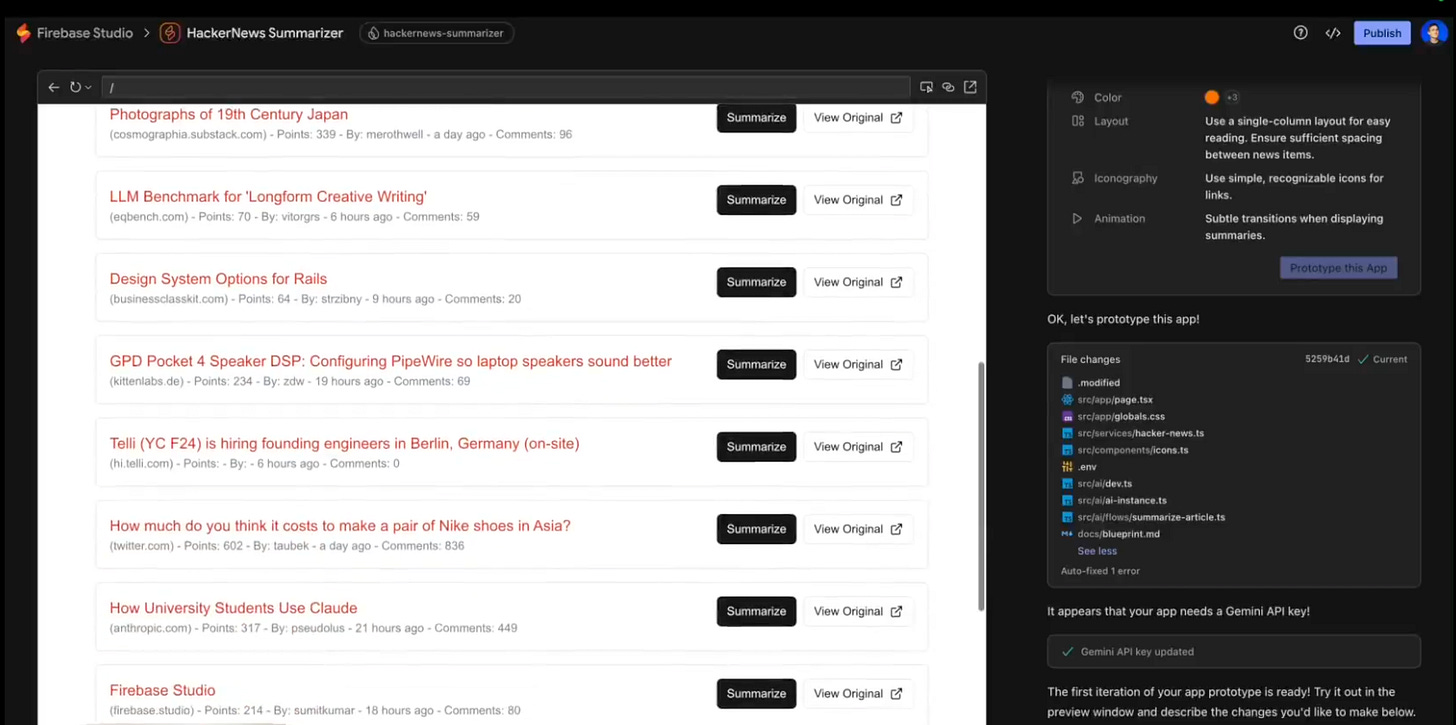
I have to say, this case study got me thinking about creating a similar application for several resources at once. This way, you can build an AI-based RSS reader where everything will work how you need it to.
But knowing what Firebase Studio can do is just the beginning.
The real question is: how can you use this for your projects?
Let’s find out.
How to Build Apps With Firebase Studio
Now that you understand what Firebase Studio is, let's look at the steps of building your app. This guide will take you from initial setup to deployment, highlighting the key features that make Firebase Studio useful.
Getting Started with Firebase Studio
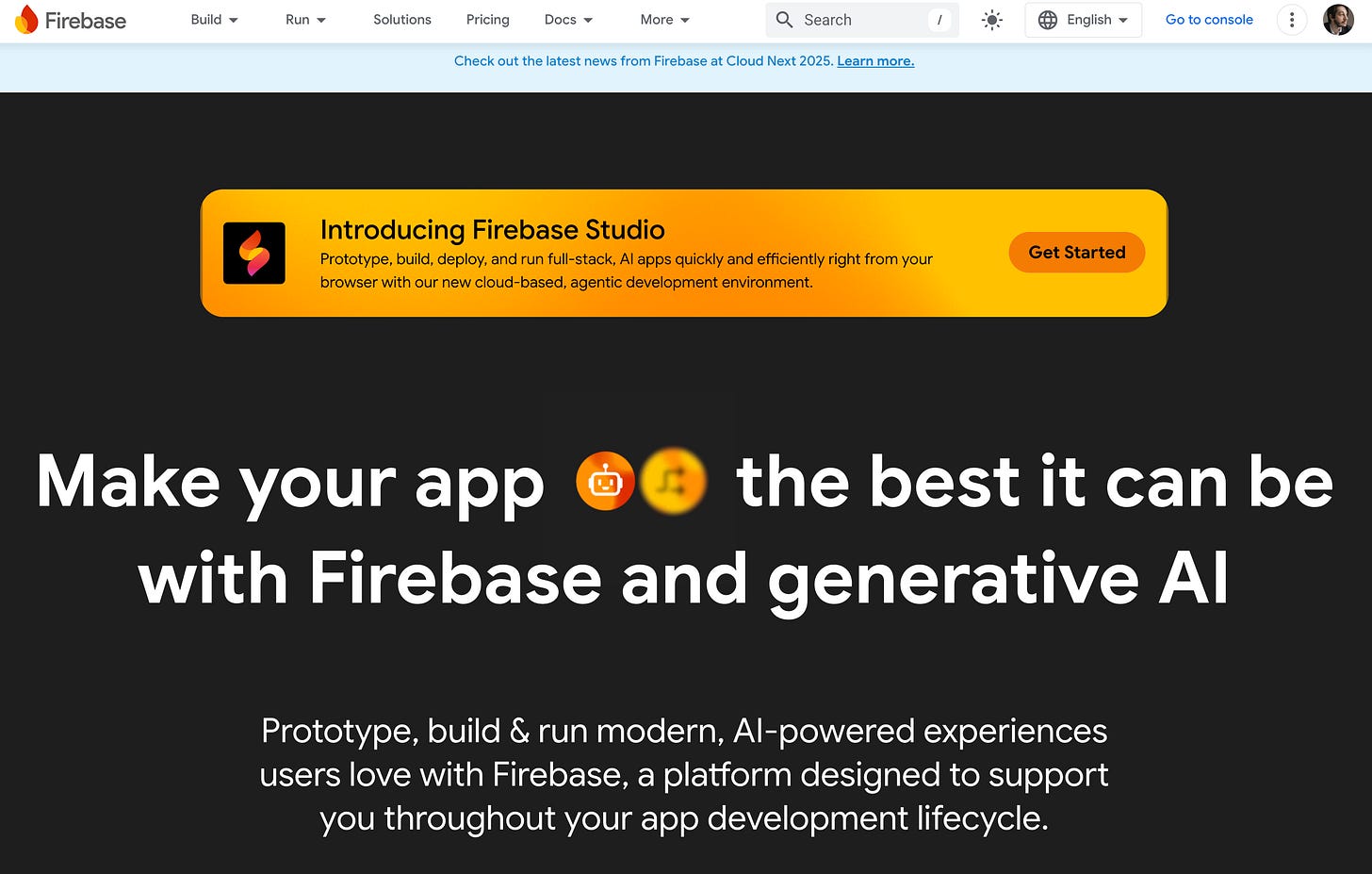
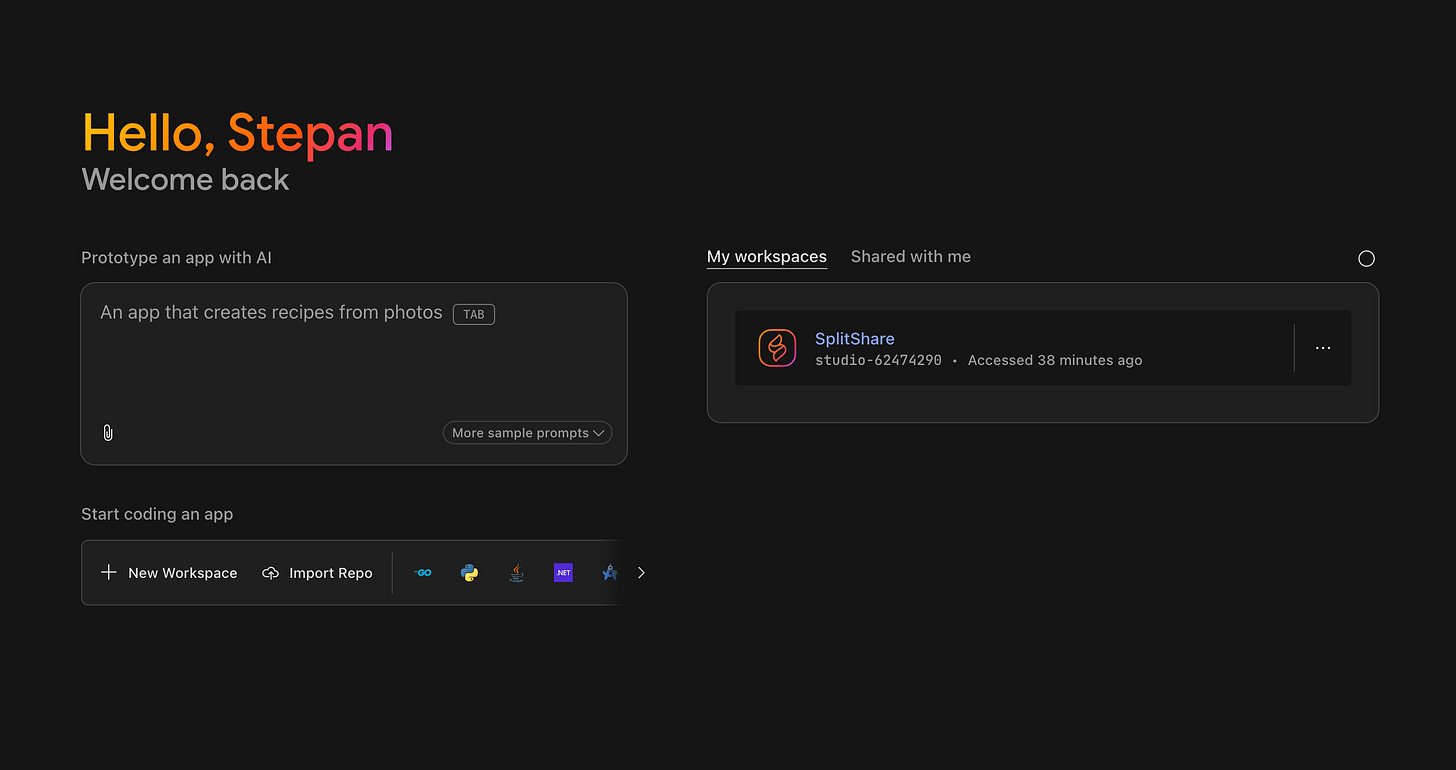
First, you need to access Firebase Studio.
- Navigate to the Firebase website and look for the Firebase Studio option.
- Sign in with your Google account to get started.
New users receive three free workspaces, which is enough for your first project.
Using the App Prototyping Agent
Once inside, you'll see the workspace dashboard. In the Prototype an app with AI field, you can describe your app idea in natural language.
To use it effectively:
- Describe your app concept in detail—be specific about functionality, not just appearance
- For better results, include information about:
- Target users and their needs
- Core features and user flows
- Data that needs to be stored
- Any specific design preferences
For example, instead of saying "I want a recipe app," try:
I need an app where users can browse recipes, save favorites, and create shopping lists from ingredients. Users should be able to filter recipes by dietary restrictions and cooking time.This will greatly increase the chances that the app will reflect the idea you have in your head.
I’ll start with this one:
A budgeting and expense tracking app with spending categories, charts and budget goals. Include a clean dashboard with key insights. It should include spending categories, charts, and budget goals.Check & Edit Your App Blueprint
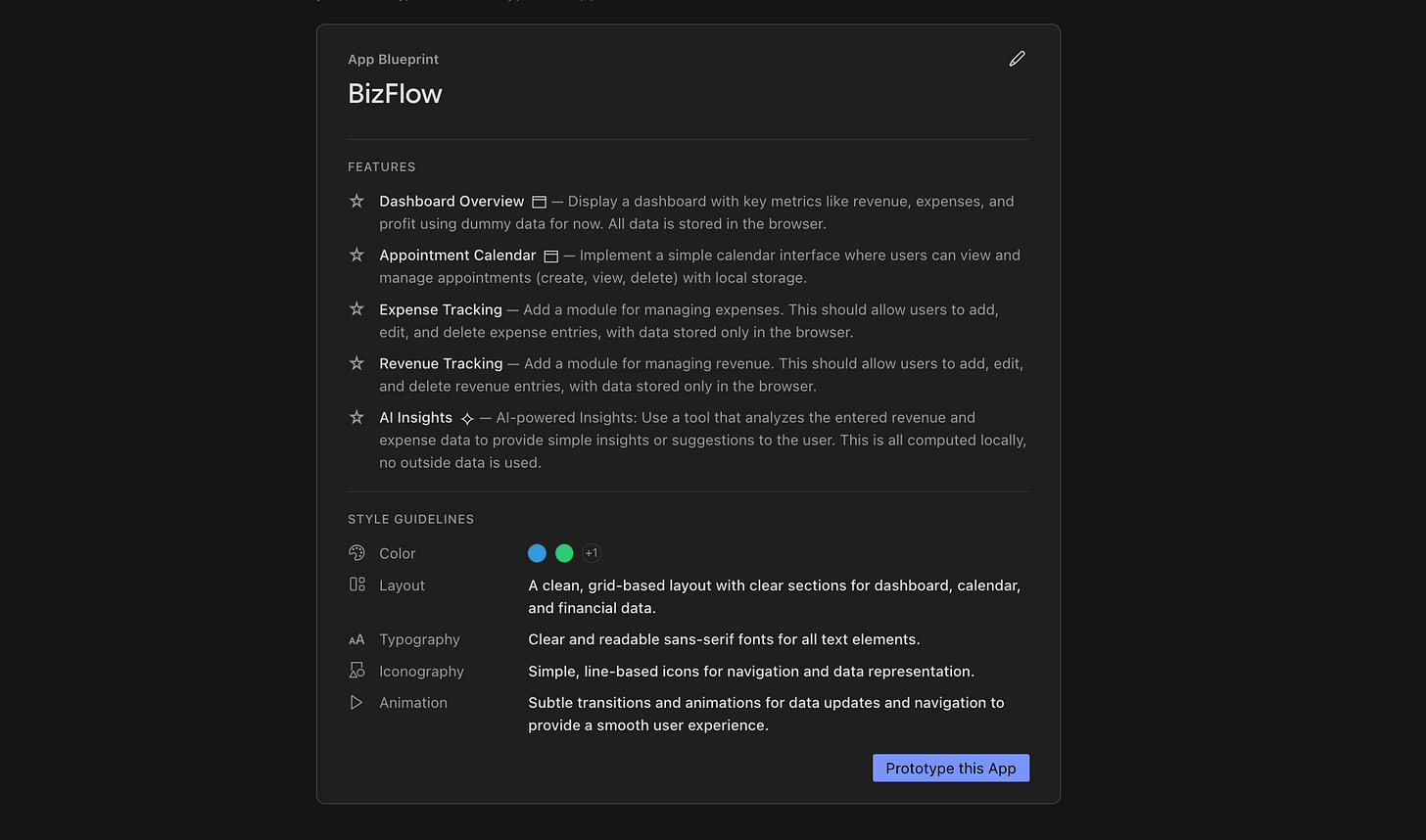
After entering the prompt and confirming, the AI will prompt you to look at the “App Blueprint.” This outlines a future app (similar to what you see when running Deep Research in ChatGPT).
If you don't like the plan offered by the platform, you can click on the icon in the top right corner of the screen and make edits. In addition to editing, you can also add features or refine design elements.
- When the Blueprint meets your expectations, click “Prototype this App”
The agent will generate a functional Next.js web app with the described features. This isn't just a mockup—it's working code with Firebase services that are already connected.
The AI may have errors in the process. And it's up to you. You can try to figure it out or, as a true vibe coder, just ask Gemini to fix them.
Creators’ AI could be a valuable gift for your friend, colleague, or family member. Gifting books is bright, but giving an AI newsletter is a superb move 😎
Refining Your Prototype
Once your initial prototype is generated, you can refine it.
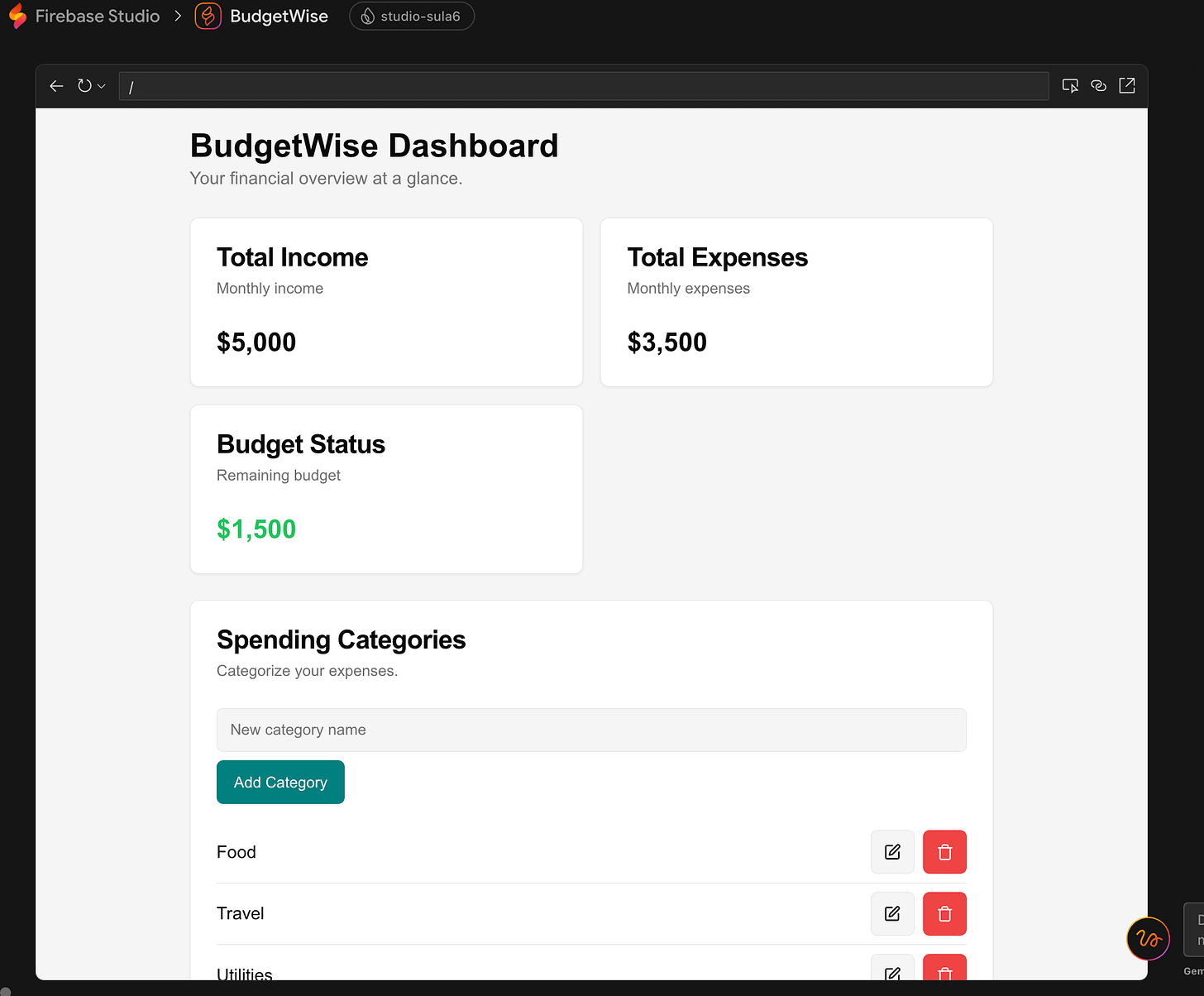
There are two approaches:
- Continue using natural language by chatting with Gemini in Firebase. Simply describe the changes you want: "Add user authentication with Google sign-in" or "Change the color scheme to use more blue tones."
- Jump into the code workspace by clicking "Edit Code." This opens the CodeOSS-based IDE, where you can directly change the codebase.
The second approach gives you more control but requires coding knowledge. The advantage is that you can switch between these approaches based on your comfort level.
You should also know that on the top right side of the app, you can select the “Select” function and edit a specific element of your app.
Implementing Essential Features
Every app needs certain core features.
Here's how to implement them in Firebase Studio:
User Authentication
Firebase Studio provides pre-built components for:
- Email/password authentication
- Social login (Google, Facebook, Twitter)
- Phone number verification
To implement Google authentication, for example, simply use the chat interface and type:
Add Google authentication to my appThe system will add the necessary code and configuration.
Database Setup
Firebase Studio automatically connects to Firestore, Firebase's NoSQL database. To create a data model use natural language:
Create a database collection called 'recipes' with fields for title, ingredients, cooking time, and dietary tags.Testing Your App
Firebase Studio includes testing tools:
- Preview Mode: Click "Preview" to see your app running in real-time
- QR Code Testing: Generate a QR code to test on mobile devices
- AI-Assisted Testing: Use the App Testing agent to automatically test user flows
The AI testing is helpful—it can identify edge cases and potential issues you might miss. For example, it might detect that your form validation doesn't handle certain special characters correctly.
Deployment and Monitoring
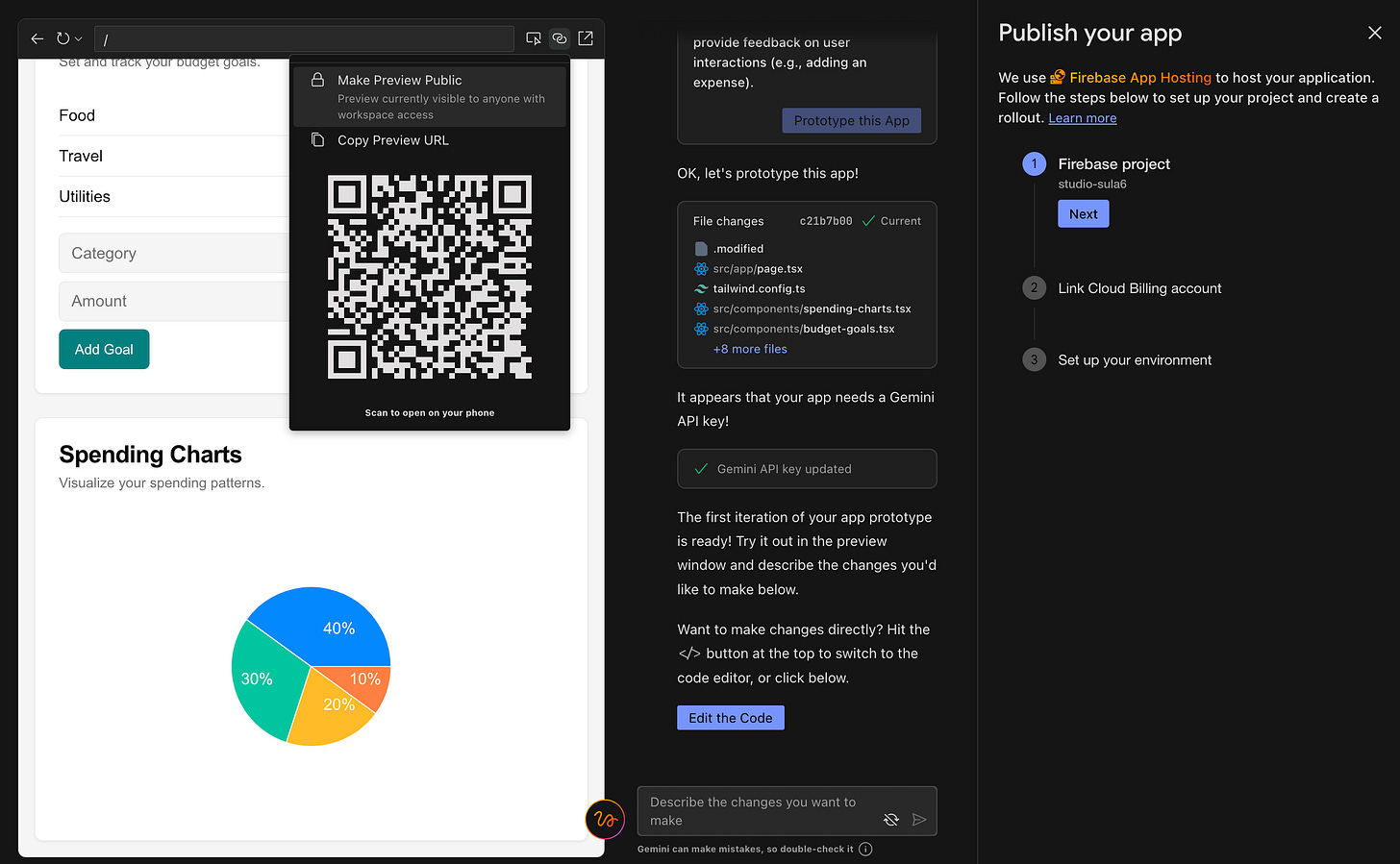
When you're ready to share your app:
- Click "Publish" to deploy using Firebase App Hosting
- Link Cloud Billing account
- Select deployment options
Optimization Tips
To get the most out of Firebase Studio:
Use incremental prompts: Start with a basic concept, then add complexity in stages.
Leverage the template library: Don't reinvent the wheel—many common patterns are already solved.
Explore the extensions marketplace: Add pre-built functionality like payment processing or email services.
Comparison with Other Dev Tools
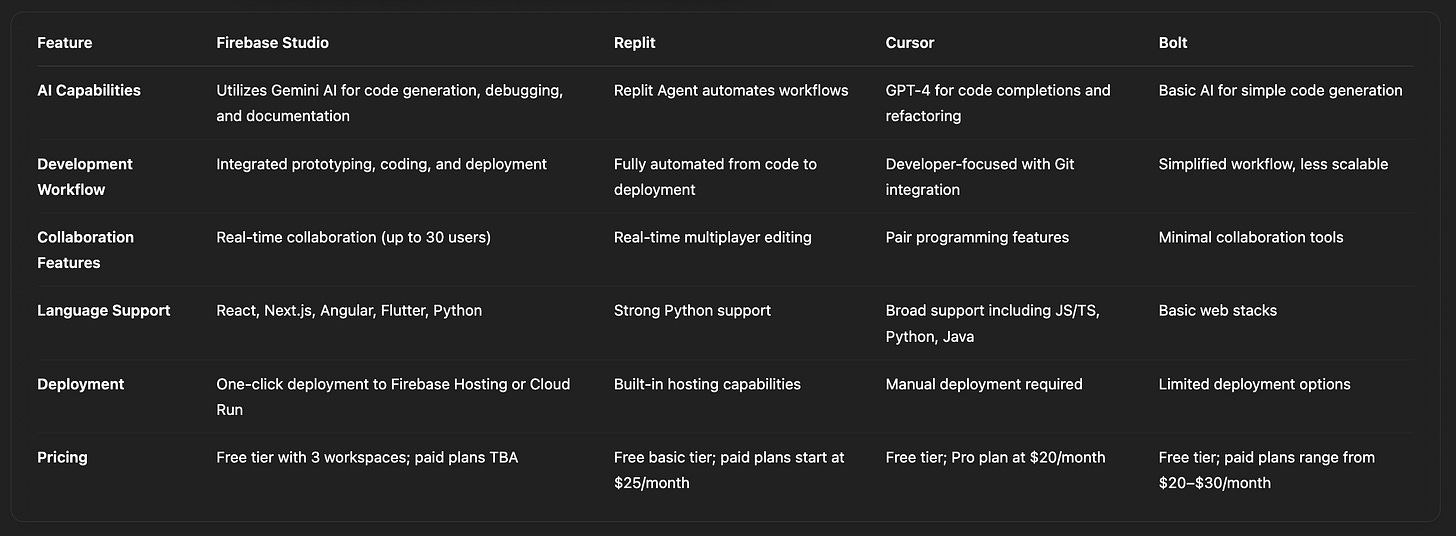
Firebase Studio stands out for its seamless integration with Firebase and Google Cloud services, making it a strong choice for developers already within the Google ecosystem. Its features and visual editing tools cater to rapid prototyping and deployment needs.
However, for developers seeking broader language support or more mature platforms, Replit and Cursor offer compelling alternatives with their own unique strengths.
We've covered the topics of choosing AI for building projects in this post:
Here's a table comparing the major development platforms and vibe coding:
Final Thoughts
In general, Firebase Studio seems to be a nice solution to the collection of tools for vibe coding. However, to be fair, except for the Google ecosystem, it doesn't offer any clear advantages for creating apps and websites (unlike Cursor AI, which is already actively used by a huge number of startups).
Also, if you check out the reviews of AI enthusiasts on Reddit and X, you'll see pretty mixed reviews. Especially when compared to other popular tools.
I recommend approaching Firebase Studio with realistic expectations. It's a valuable addition to your toolkit—especially if you're already invested in Google's cloud—but it won't replace dedicated coding knowledge or specialized tools for every scenario.
Share this edition with your friends!
This article was first published in the Creators AI newsletter. View the original edition.