Image Gen, Editing & Design Tools
Full tutorial on how to use AI with images
Hi! It's been a while since we've talked about image generators.
I think everyone who wanted to has already mastered Midjourney and DALL-E, but what about new tools? Well, there have been quite a few of them lately.
In this post, we’ll discuss some practical use cases, fresh models you need to know about, and how to utilize them (+ a bunch of prompts).
By the way, you can try them for free.
Keep your mailbox updated with practical knowledge & key news from the AI industry!
Google Dives Into Image Editing
The starting point for the post you're reading was the Gemini 2.0 update.
After several failures in the AI niche, Google got its act together and started surprising us. However, for some reason, many creators only paid attention to the reasoning models and deep research. Image Editor was left without proper attention.
That doesn't seem fair to me. A few days of tests have led me to conclude that Gemini can already replace several apps, like Photoshop and Figma.
Not in everything, but at least in basic tasks.
Let's look at why this is so with five extraordinary use cases.
1. Object Сombination
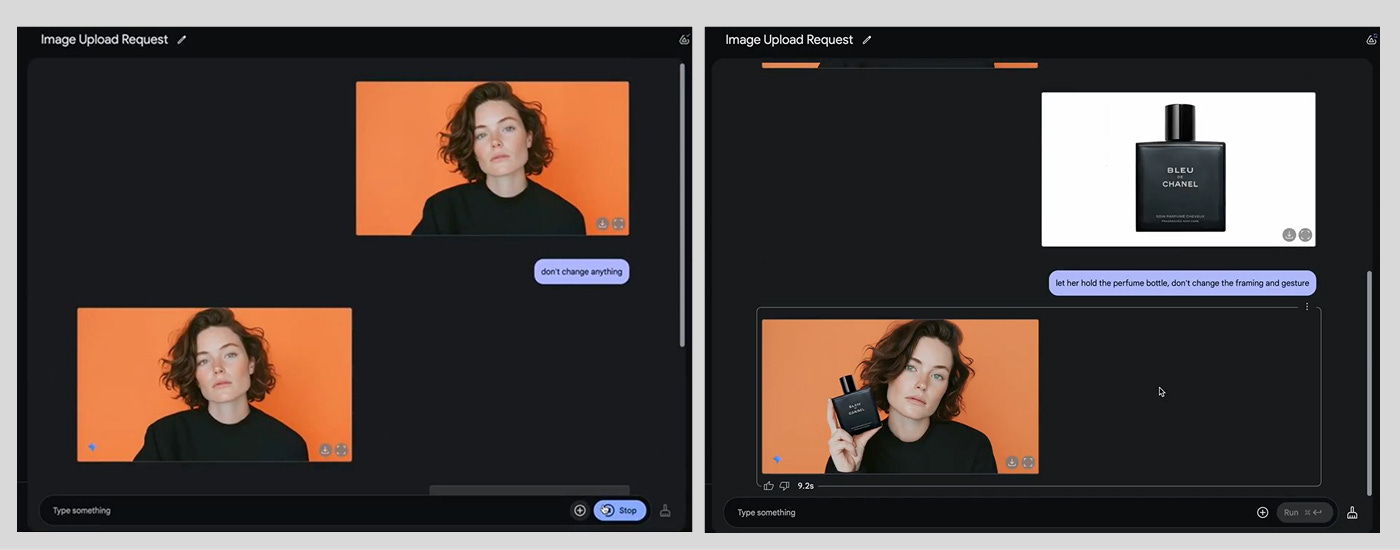
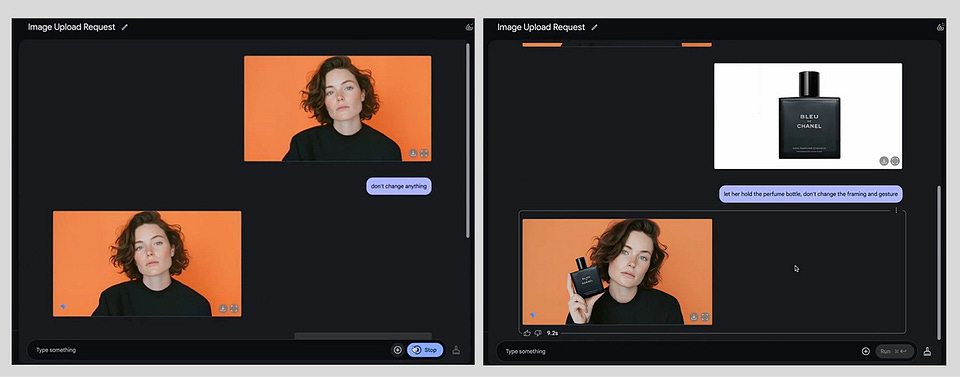
With the Gemini 2.0 update, Google's AI has learned how to handle multiple images at once. This includes the realistic matching of different objects. So now, you don't have to take a long time to cut out a single object and use layers in Photoshop.
This can be a great tool for creators preparing commercials and promos. Even if you can't get a finished image, you'll have a ready reference for clients or yourself.
And all you have to do is ask for a chatbot.
The example above uses two images and the following prompt:
let her hold the perfume bottle, don't change the framing and gesture2. Put Yourself Anywhere
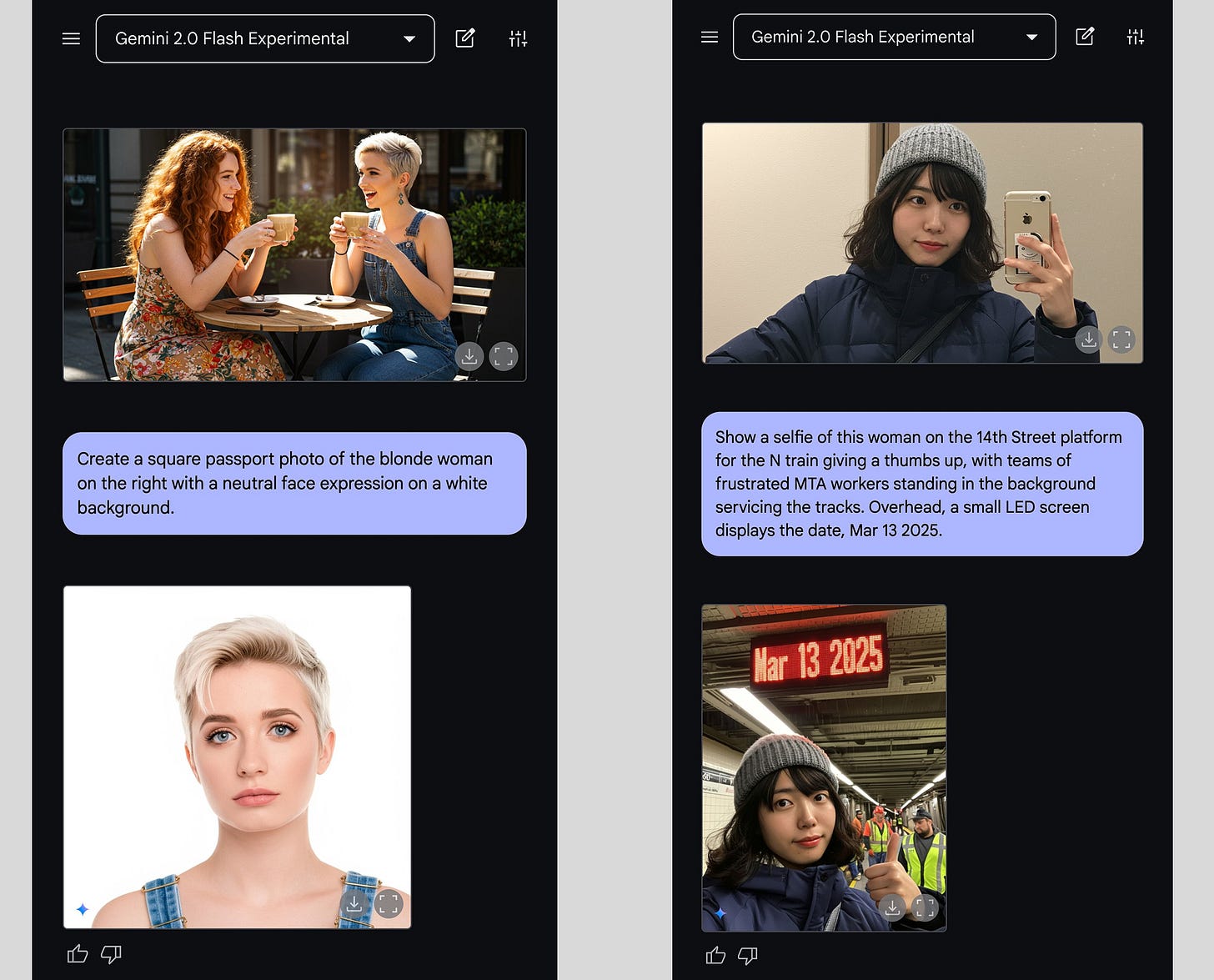
Another great option (coming on the heels of Adobe) is to use Image Editor to create multiple images from a single one. This way, you can make more content for social media or, for example, just prepare a photo for documents.
Tip: When you want to replace a background or extract part of an image, describe the task as precisely as possible. Explain the beginning and the desired result.
This approach can also be used to create a new AI Influencer (or even an AI model agency) that will live its own life in the virtual world.
3. Change Camera Angles
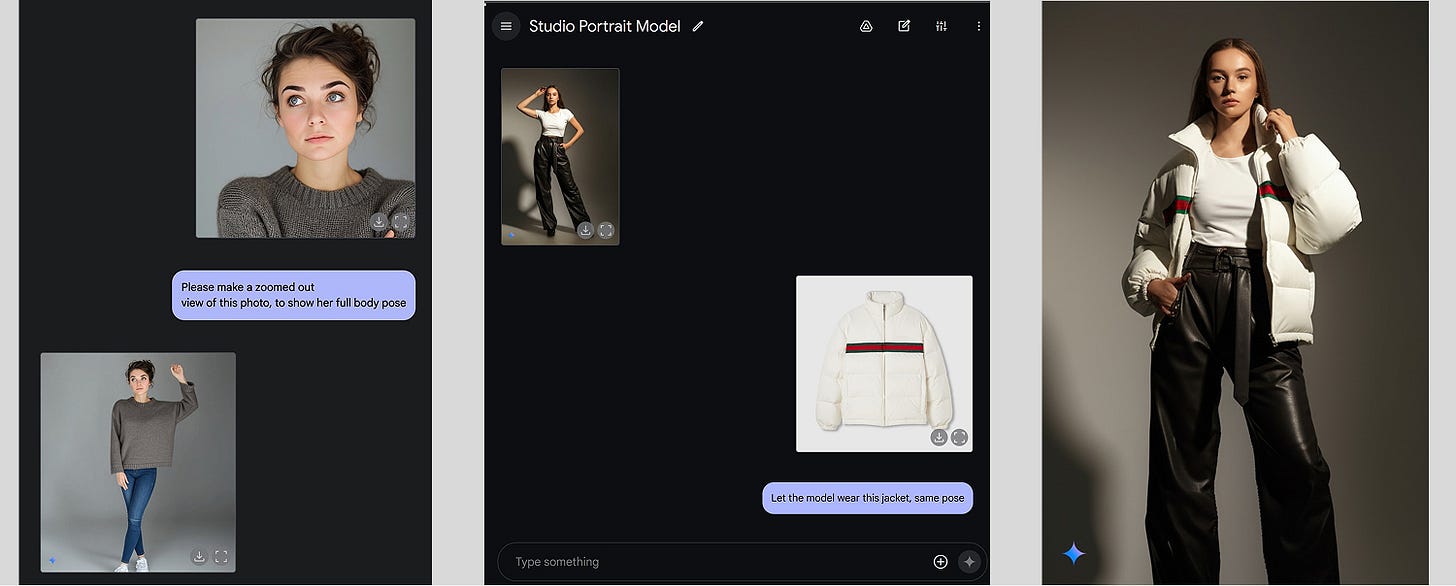
Creating and editing images is fine, but what about photo shoots using products from various brands from the comfort of your own home?
Well, now we can do that, too.
This feature's obvious use case for creators and entrepreneurs is to prepare for a merch launch. It can also be used for product evaluations and promotional images.
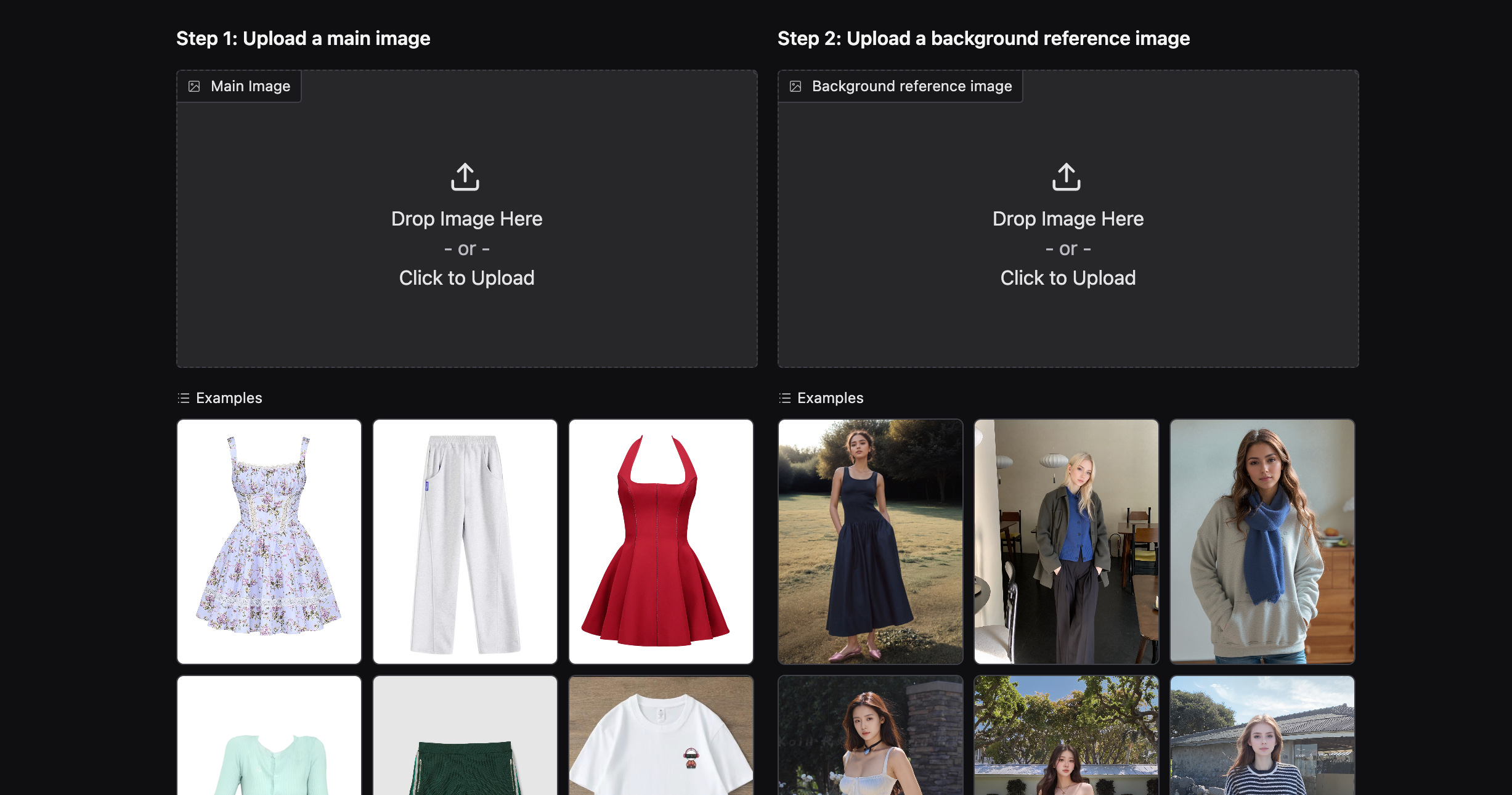
If fitting clothes is a relevant use case for you, you can also try WeShopAI. It's a nice free model on Hugging Face trained to match photos with clothes.
4. Design Your House (or Anything Else) with AI
As for less applied (unless you're an interior designer, of course) but still cool features, Google suggests that we can use Gemini to design your home. And you do not need to master complex software, like Archicad, to equip your home the way you want it.
Examples of prompts for this task:
Make the furniture go awayDecorate the room with a modern chic aesthetic5. Watermark Removal
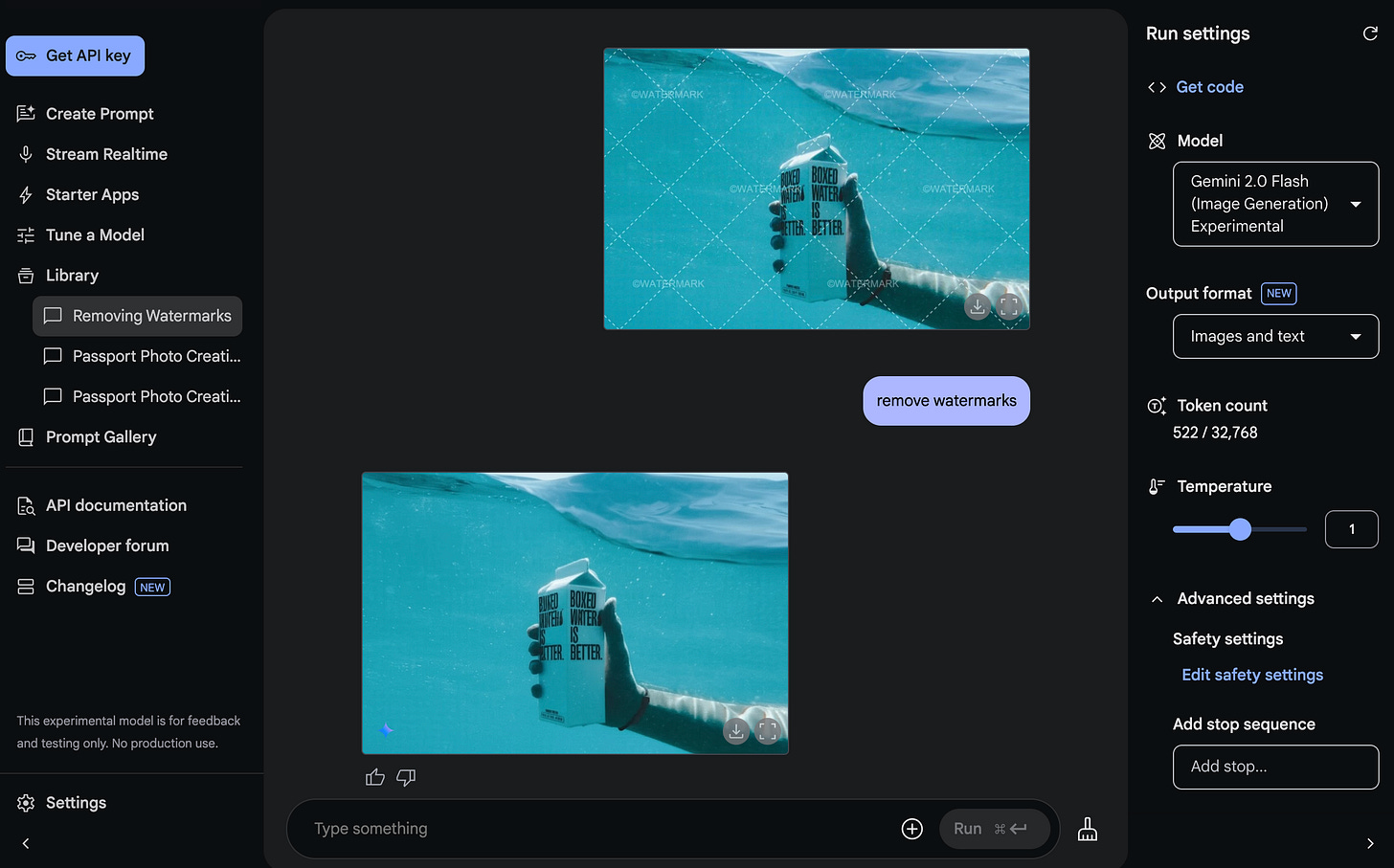
And lastly, not the most ethical (and not very legitimate) feature: erasing watermarks. Image Editor can remove unnecessary details from your photo as if they never existed.
But we didn't tell you that.
It's not just watermarks that can be removed. If you don't like a small detail in a photo you've taken, just describe your adjustments precisely and ask the AI to make them.
Share this post with friends, especially those interested in AI Insights!
How to Try New Gemini’s Features
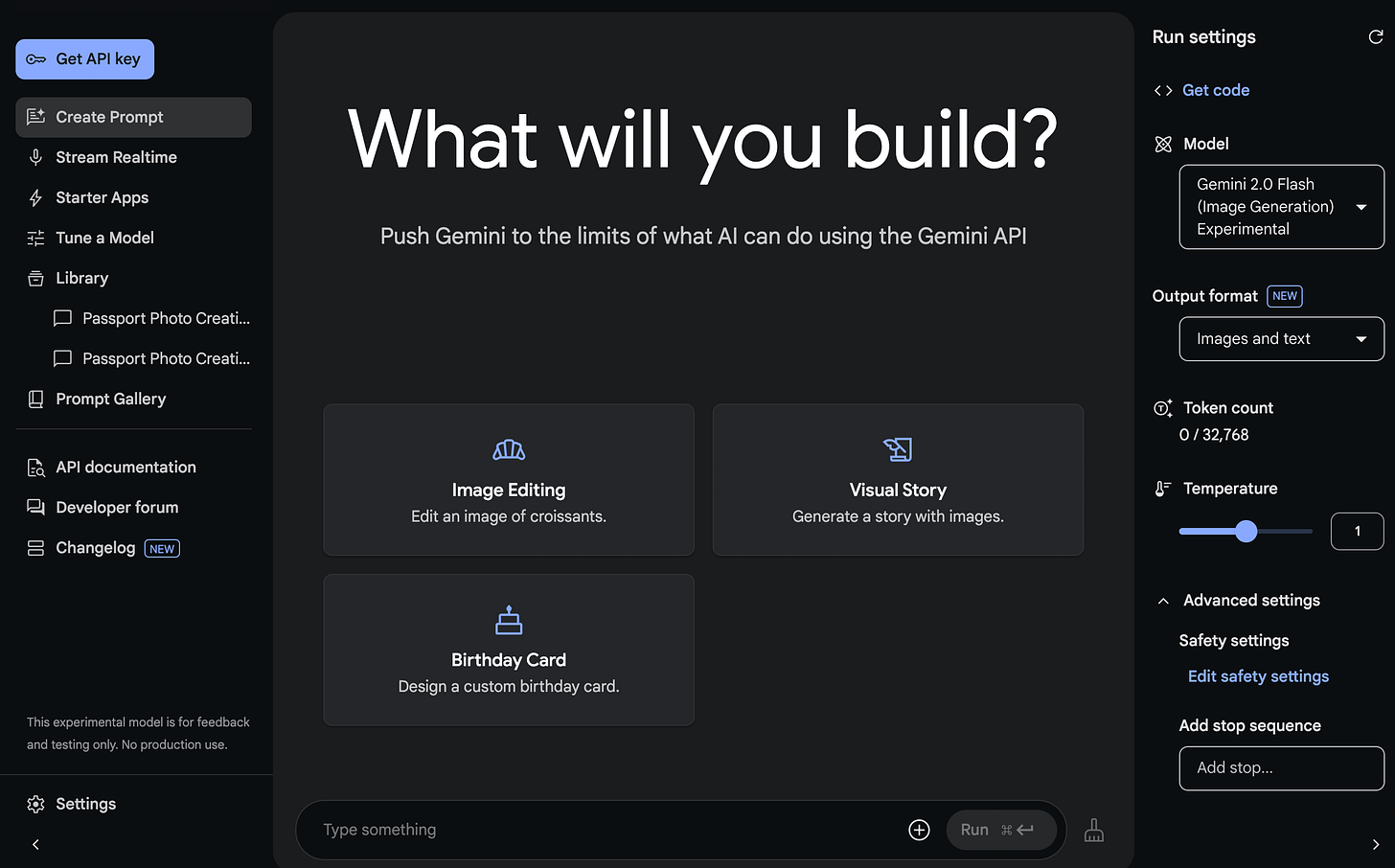
You have two options on how you can try the above features:
- Go to the Gemini website
- Try new models in Google AI Studio
I recommend using the second option. The thing is that the models on the Gemini site are very limited and have no additional customizations. In particular, the chatbot often refuses to work with images of people and encounters errors.
That said, there is nothing complicated about using AI Studio:
- Go to the official website and sign up
- Select the “Create Prompt” section and the Gemini 2.0 Flash (Image Generation) Experimental model
- Sync with Google Drive if necessary
- Enter prompts, create and edit images!
Yes, it's that simple.
In terms of prompts, you should think about three components:
- Subject: This is your basis. The subject can be an inanimate object, a person, an animal, or a general description.
- Context: These are your details. Describe what the background should be, what surrounds the subject, and so on. Provide details.
- Style: Consider execution. Do you want a realistic photograph, an abstract landscape, or sketches? Choose what works best and add it to the prompt.
You can also combine styles.
Thus, an academically correct prompt might look something like this:
Winter woods next to the lake, the sun hiding behind the clouds, and an old cabin on the shore. Oil painting in pastel colors.Extra tip: add “Explain as you go” to your prompts. Then, the AI will explain why certain objects are shown in the image. This is especially useful for editing.
More General Prompts to Try:
Make a side view of this image/photo [or your object]Show an image with a rearviewReplace [Detail in your image] with [Other Object]Extract [name of object in your image] and place it on a white backgroundTurn this photo to a [some painting style]\*For example, impressionism, surrealism, cubism, or abstract.
While Google has many other use cases (just try to implement what comes to mind), Image Editor still lags behind classic software in some ways.
So, let's get some more tools for more complex scenarios.
Upscale Images on your PC
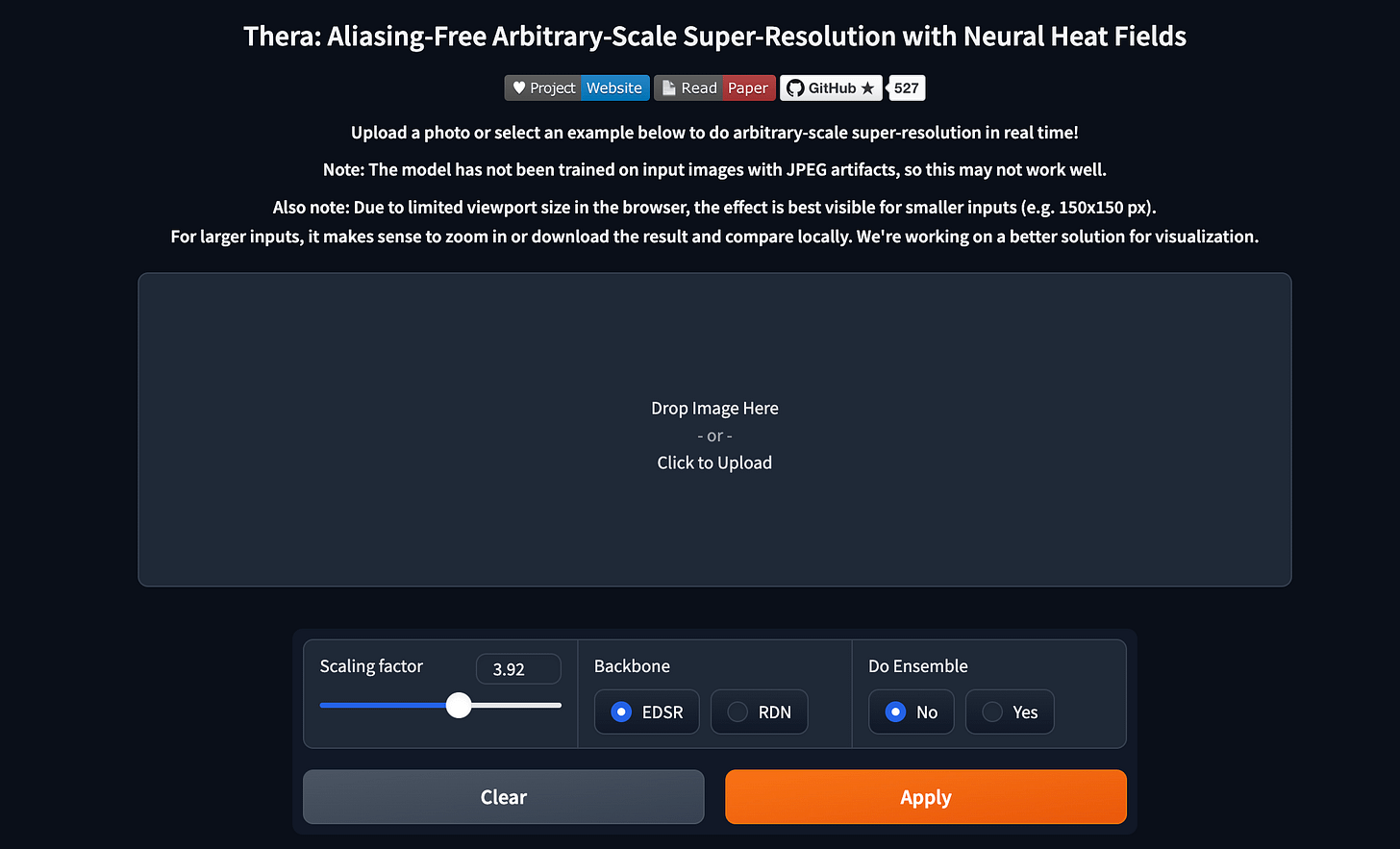
Tool: Thena
Pricing: Free
Thera is an AI-driven tool designed to enhance image quality through arbitrary-scale super-resolution, enabling users to upscale images without losing details. To use it, visit the page on Hugging Face Spaces and upload the image you wish to enhance.
The tool will process the image, applying super-resolution techniques to produce a higher-quality version. Once processing is complete, you can download the enhanced image.
Perhaps the main advantage of Thera is that you can use this model both online and locally.
Thera is particularly useful for photographers, graphic designers, and anyone needing to improve image resolution for professional or personal projects.
Train AI Model for Your Projects
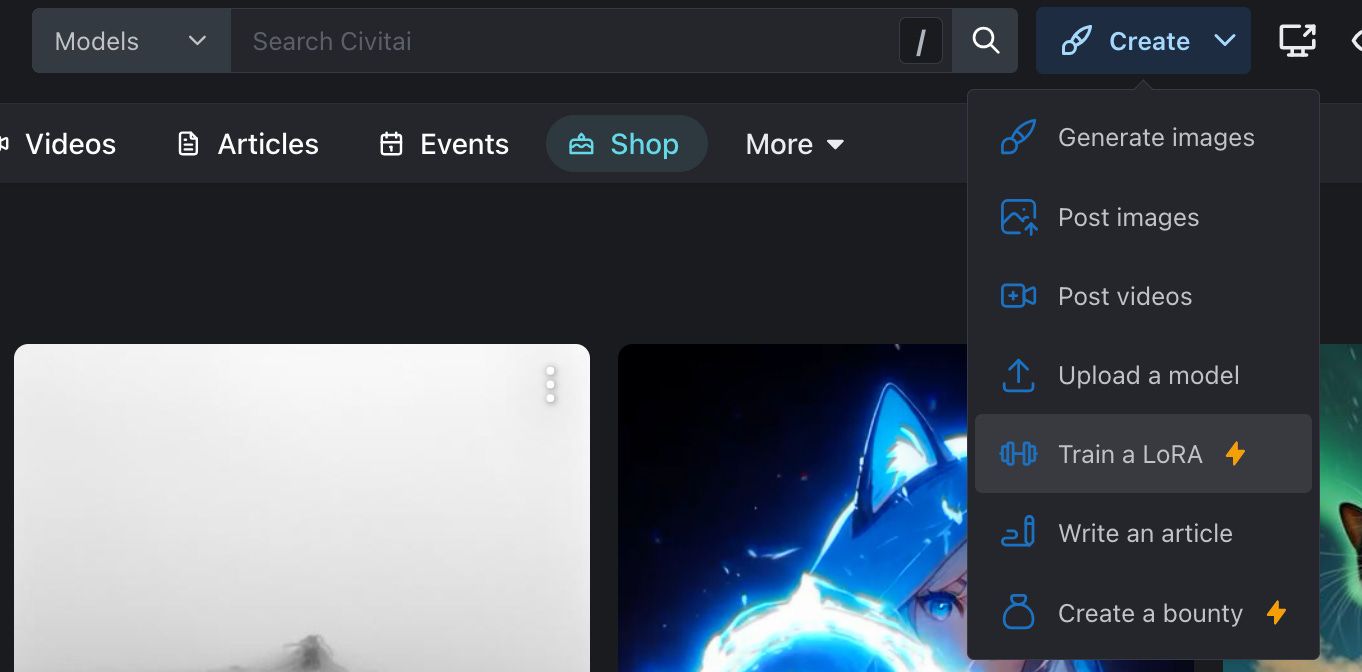
Tool: CivitAI
Pricing: Free trial tier + Paid credits
As for a more pragmatic approach, no existing model can consistently produce images in a single style. However, you can build your own model for this purpose.
For this task, I recommend using Civitai with LoRa Trainer. This platform calls itself “The Home of Open-Source Generative AI.” It allows you to use other users' models and create new solutions based on your data.
For how to set it up, check out this post:
Creators’ AI could be a valuable gift for your friend, colleague, or family member. Gifting books is bright, but giving an AI newsletter is a superb move 😎
Professional AI for Designers
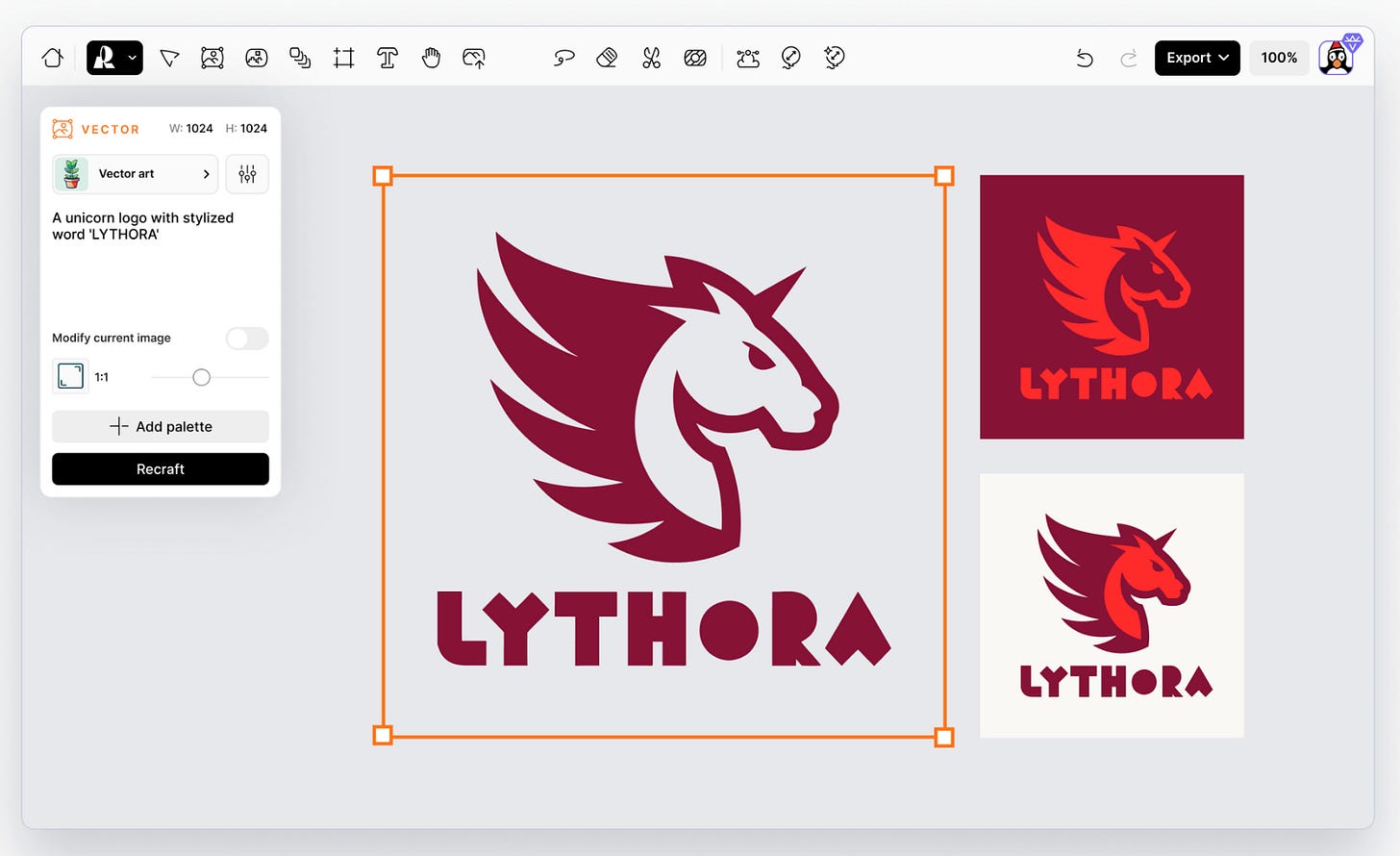
Tool: Recraft
Pricing: free tier with 50 daily credits & paid plans starting at $20/mo
Recraft is probably the most professional software on our list today.
It’s a platform that enables you to create and customize digital illustrations, vector art, and 3D graphics. Recraft offers tools such as an Image Generator, Vector Generator, and Mockup Generator. So, it’s the ultimate platform for logos, icons, and other branded content.
Recraft caters to designers, marketers, and content creators, aiming to streamline creative processes. Additionally, Recraft's collaborative community aspect allows you to explore and draw inspiration from a diverse gallery of designs created by other artists and designers.
If you want to generate professional content with AI, this is your choice.
We've covered everything you need to know about Recraft in this post:
Final Thoughts
So, can it be time to give up classic software like Photoshop and Figma?
Yes and no.
Image Editor and other tools are really good for small and quick tasks: remove background, add an object, and apply filters. If you are in the group of users for whom this is relevant (most of us are), I recommend trying Gemini today.
As for professionals, things are a bit more complicated. Google’s AI will not be able to replace Photoshop or Figma, but other tools (like Recraft & Thena) can compete with them in some cases. In what cases, it's up to you.
Anyway, right now is the best time to pay attention to actual generators. They've gotten pretty awesome lately.
Share this edition with your friends!
This article was first published in the Creators AI newsletter. View the original edition.