Notion AI: How You Can Change Notes into Workflow
Discover Features and Real Cases of Notion AI
Hi there!
Over the past few months, we’ve been testing how AI behaves once it meets real workflows. Today, we’re moving on to the next tool in the context engineering lineup.
Notion AI isn’t something new, and it hasn’t really dropped any big updates recently, but we haven’t paid enough attention to it. A few weeks ago, a sales lead showed me how they used Notion AI. And I was impressed.
They weren't just storing info there, but they were running their entire pipelines through it, using Notion AI to surface risks, draft client emails, and pull insights from scattered notes.
Nowadays, Notion has truly turned into the go-to workspace for many digital teams. You can just drop it in...
Review our Q4 deals database, plus notes from the #deals with the Slack channel. Summarize at‑risk opps, blockers, and next steps per account.And get a proper sales pipeline review: queries deals DB, flags risk criteria, proposes next actions.
or even better
Scan the last month of team meeting notes, Slack huddles summaries, and Google Calendar events to create a dashboard of recurring topics, action‑item completion, and key decisions.This one lets you build a meeting analytics dashboard to search your notes, spot patterns, and create dashboards.
Personally, I’ve stored multiple documents in Notion for years, long before AI development started. This tool feels closer to me personally than Cursor.
In this piece:
- We’ll cover what Notion AI is and its main features
- We’ll explore interesting use cases you need to try
The New Year is coming! Thank you for being with us, and enjoy our New Year offer for Creators AI Full Access (limited time).
# What is Notion AI at its Heart
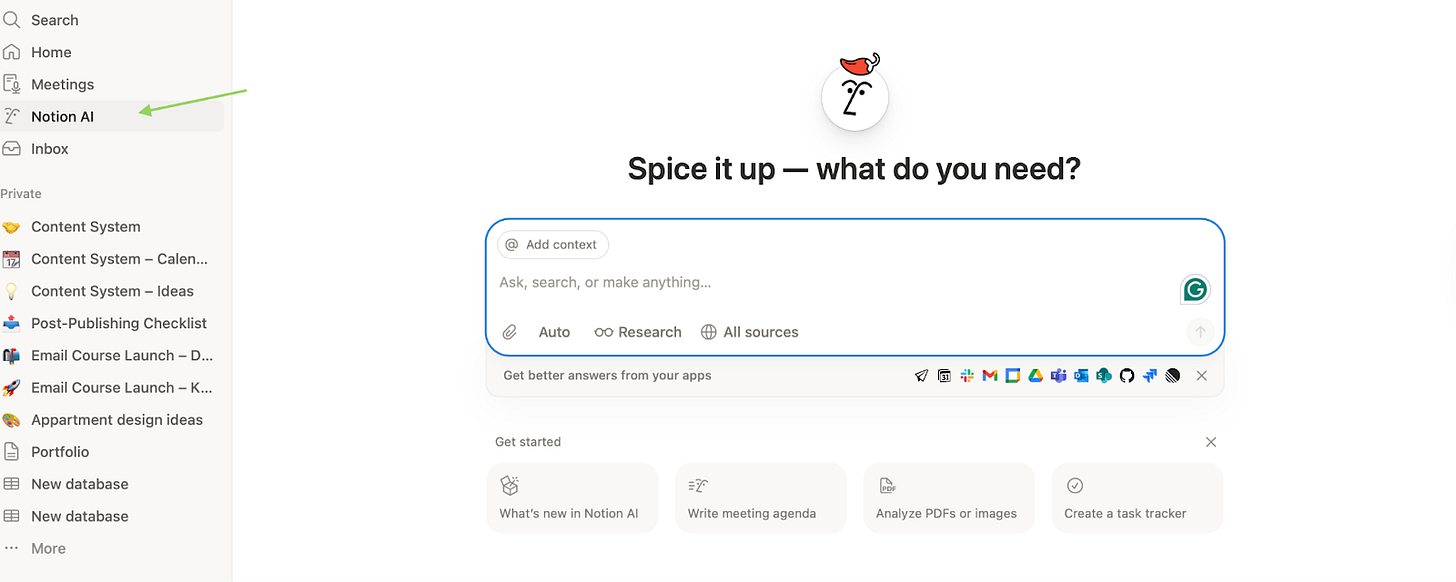
Notion AI sits inside your Notion workspace and acts as your assistant. It handles everything from summarizing long documents to generating drafts, creating reports, fixing grammar, and translating between languages.
For me, it helps with one core need. It automates repetitive writing tasks from content control to Financial Dashboards. You get math-solving capabilities and outline generation as bonus features.
What is inside:
- Like Cursor, the tool runs on multiple LLM models. Right now: Claude Sonnet 4.5, Claude Opus 4.5 Beta, GPT-5.2, Gemini 2.5 Flash, and 3 Pro.
It also has Auto mode for model selection, when Notion AI decides which model to use based on your request (but actually this feature’s standard by now).
- Notion AI in context engineering works with:
+ The current page + Linked databases + What you explicitly tag with @
Everything else? It pulls through retrieval, not memory.
- What Notion AI actually sees:
+ Your entire workspace (pages, databases, relations) + Connected Slack channels + Google Drive (Docs, Sheets, Slides) + Jira and GitHub (enterprise)
Here’s what Notion AI does:
- Works inside your database context. AI uses statuses, dates, connections, metrics, and history, not just your text prompts.
- Dives deep into specific topics and generates reports via Research Mode.
- Turns data into decisions. It doesn’t write text for the sake of writing.
It:
* Suggests priorities
* Flags risks
* Proposes next actions
If you’re afraid of the blank page, the assistant invents blog topics or startup names for you.
- Helps you improve your writing in-line on a page, or generate custom outputs in a page via AI blocks.
- Transcribes, summarizes, and pulls insights from meetings via AI Meeting Notes.
- Translates pages into other languages.
- Creates databases, auto-populates database properties via Autofill, and writes formulas in databases and automations.
- Create formulas and automations to track KPIs and business metrics. You can build a formula that automatically calculates project deadlines or shows task status in your database.
Subscription
Of course, with a subscription, you’ll get more features.
Plus - $10 per member/month
For small teams. Unlimited files & blocks, longer history, custom forms, basic automations & integrations.
Business - $20 per member/month
For growing teams. Advanced permissions, private teamspaces, full Notion AI, advanced forms, deeper integrations.
With this tier, you can deep into:
- Searches your entire workspace at once: Notion docs, Slack messages, Google Drive files. This ensures that everyone on your team has instant access to the most up-to-date information, regardless of where it was originally shared.
- Analyzes meeting recordings, turns them into structured notes, and extracts key decisions and agreements. From one transcript, it generates client proposals, task cards with owners and deadlines, follow-up emails, and social media posts matching your brand voice.
# What can Notion AI actually do?
Many people criticize Notion for being hard to learn. And they’re not wrong. If you’ve never used Notion before, start with a basic guide and get comfortable with the interface first.
Here, I’ll focus on something else. I’ll show you how Notion AI can be used to build practical systems for management and text work, and where it actually saves time. Better yet, you’ll find some tips that make working with Notion AI features more effective in the end.
To start:
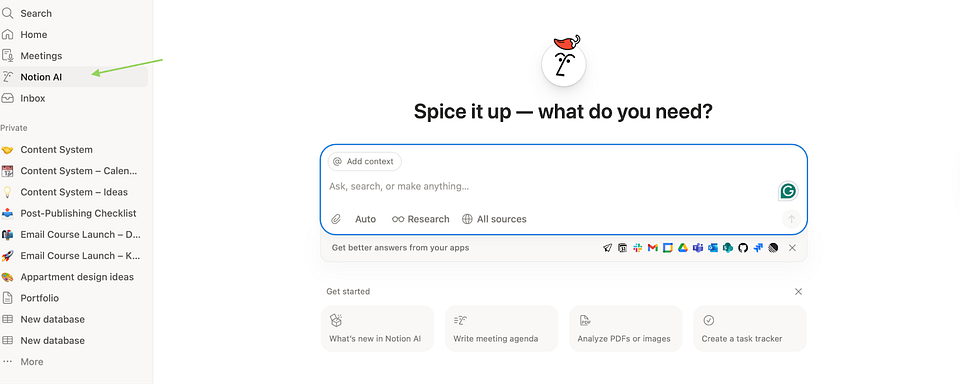
- Choose the Notion AI section through the side menu and start a dialogue like in any chat (if you don’t want to make up a prompt, find a ready template and ask the assistant in a prompt to explain its structure and capabilities).
- Or use the floating button. The icon in the bottom right corner of your workspace opens chat in a separate support window.
- Or when creating a new page, at the bottom of the page, you’ll see an icon labeled Ask AI. Click it to open a menu with functions.
THE MAIN THING: feed it your content, using the @add content feature
# For Creators: to manage the content creation grind
The Content Engine Strategy
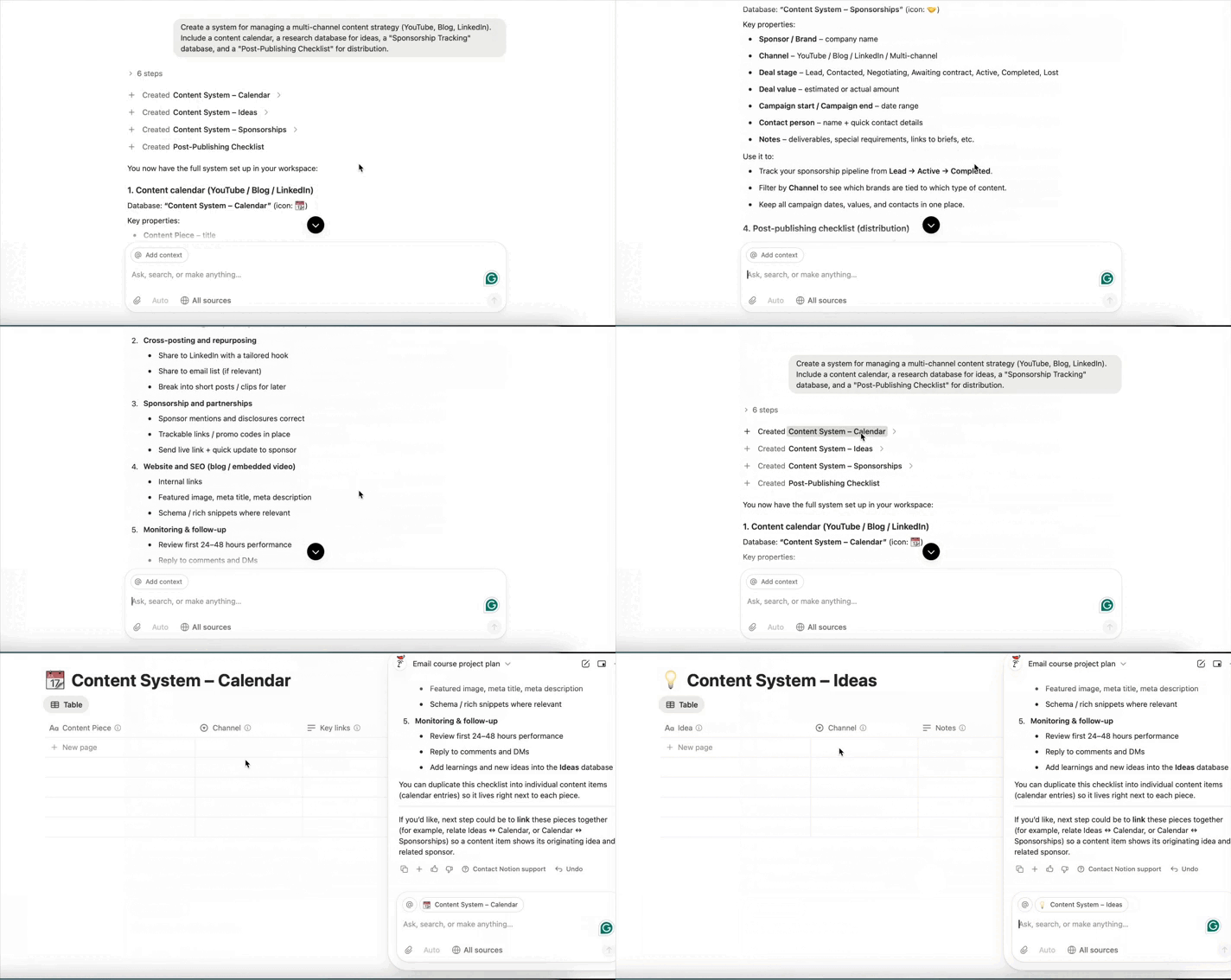
You can prompt the agent to build a centralized content production hub.
The Prompt:
Create a system for managing a multi-channel content strategy (YouTube, Blog, LinkedIn). Include a content calendar, a research database for ideas, a “Sponsorship Tracking” database, and a “Post-Publishing Checklist” for distribution.The agent will generate a timeline view for publishing, linked databases for assets, and automated templates for different content types.
Make it stronger:
I suppose before you start creating something, you should do some research in your field. After you fill out part of the tables, you can dig into other files in your Notion to strengthen your hub even more, analyze it properly, and add new information.
Market Research Summary
Prompt:
Combine interview notes, survey summaries, and web research. Give me three reader personas with pain points, triggers, preferred channels, and example messaging.With all these outputs, your hub is good to go. Once we build the system, it’s time to work on content.
Fast Content Ideas
After creating the system, you can easily enhance it to analyze data even more effectively. You can add more bases:
- Published – all content that has already been published.
- Top Performing – content that has achieved the highest success
- Competitor Content – competitor content that ranks well
You can start by analyzing your previous work (so nobody points out later that you’re repeating yourself, hehe).
Analyze content pages tagged @Published and @Top_Performing.
Group them by:

– core topic

– angle (how the topic was framed)

– format (tutorial, opinion, case study, breakdown)

– target audience segment

Identify:

1. Which topics consistently perform well

2. Which angles within those topics resonate most

3. Which formats get the strongest engagement

Do not generate new ideas.

Output insights only, with examples.
Or
Review @Published_Content and @Competitor_Content. Find content gaps where competitors rank, but we don’t. Cross-check with our past engagement data. Suggest 5 content ideas with the highest ROI potential.But old stuff won’t help us find new ideas for our audience, so then we’ll build a system to look for fresh concepts.
Automated Content Workflow
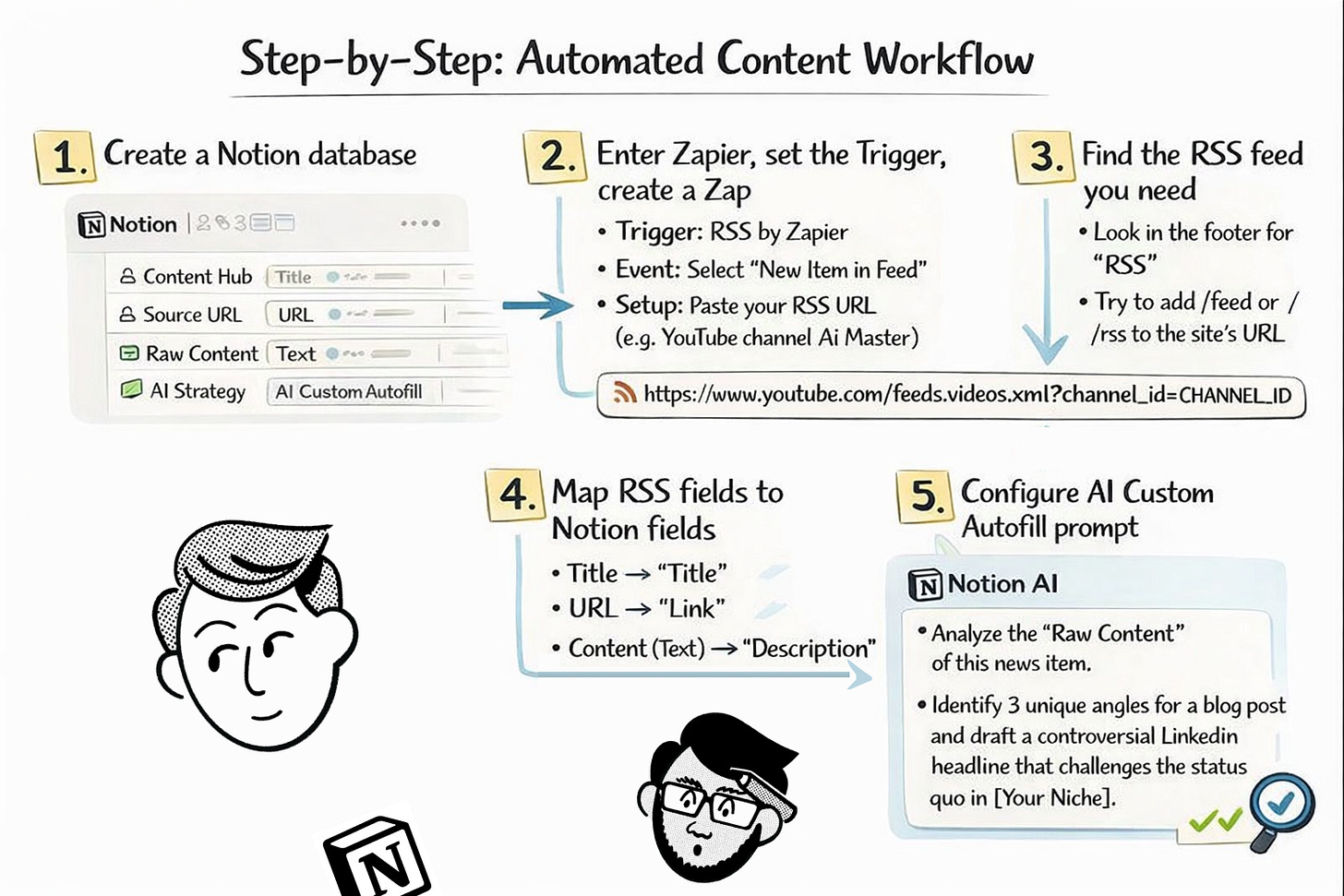
To stay on top of what’s happening in real-time, you can transform Notion into an active Trend Radar with RSS. Instead of manually searching for news, you can build a system that delivers industry insights directly into your workspace for AI analysis.
You need: The Trigger (Zapier), Notion Database, and its Brain (Notion AI Autofill)
Step-by-Step:
Step 1: Create a Notion database with the following properties: Content Hub (Title), Source URL (URL), Raw Content (Text), and an AI Strategy section (set it to AI Custom Autofill).
Step 2: Enter Zapier and set the Trigger
- Trigger: RSS by Zapier
- Event: Select “New Item in Feed”.
- Setup: Paste your RSS (Really Simple Syndication) URL (e.g., YouTube channel AI Master).
Step 3:
There, I’ll explain where to find the RSS feeds for the sites you need.
Most websites hide them in sections like “Subscribe,” “RSS,” or down in the footer. You can also try a quick trick:
- Add /feed or /rss to the site’s URL and see if a feed pops up.
- Every YouTube channel also has a hidden RSS feed to get the info from the site.
Just use this URL:
https://www.youtube.com/feeds/videos.xml?channel_id=CHANNEL_IDThe channel ID is that long mix of letters and numbers at the end of a channel’s link. If the channel uses a nickname instead, you can grab the ID from the page source or with one of the many quick lookup tools online.
Step 4: Set an Action and create a Zap
- Event: Select “Create Database Item”.
- Field Mapping: This is how you tell Zapier where to put the data in your Notion table:
+ Map the data from the RSS feed to your Notion database like this:
- Title (from the RSS item) → Notion “Content Hub” (The name of the content).
- Link (from the RSS item) → Notion “Source URL” (The direct link to the original article or YouTube video).
- Text (from the RSS item) → Notion “ Raw Content” (The summary pulled from the feed and used later for AI analysis).
Step 5: Configure the AI Custom Autofill prompt:
Analyze the “Raw Content” of this news item. Identify 3 unique angles for a blog post and draft a controversial LinkedIn headline that challenges the status quo in [Your Niche].Technical Note for you: not all websites allow direct automated access (often resulting in a 403 Forbidden Error and I faced it a lot). If a direct link fails, you can try to run it through RSS.app. It acts as a clean proxy, converting protected web content into a “Zapier-friendly” format.
Then, to make you content, solve real problems, continue with a prompt:
Blog Post Outlines
Prompt:
Pull from @Raw Content and @Bestsellers. Create a detailed blog outline with 5 external sources.Once your Trend Radar is collecting raw market signals, and you have a blog idea in your head, you can decide which ideas are actually worth publishing.
Publication ideas
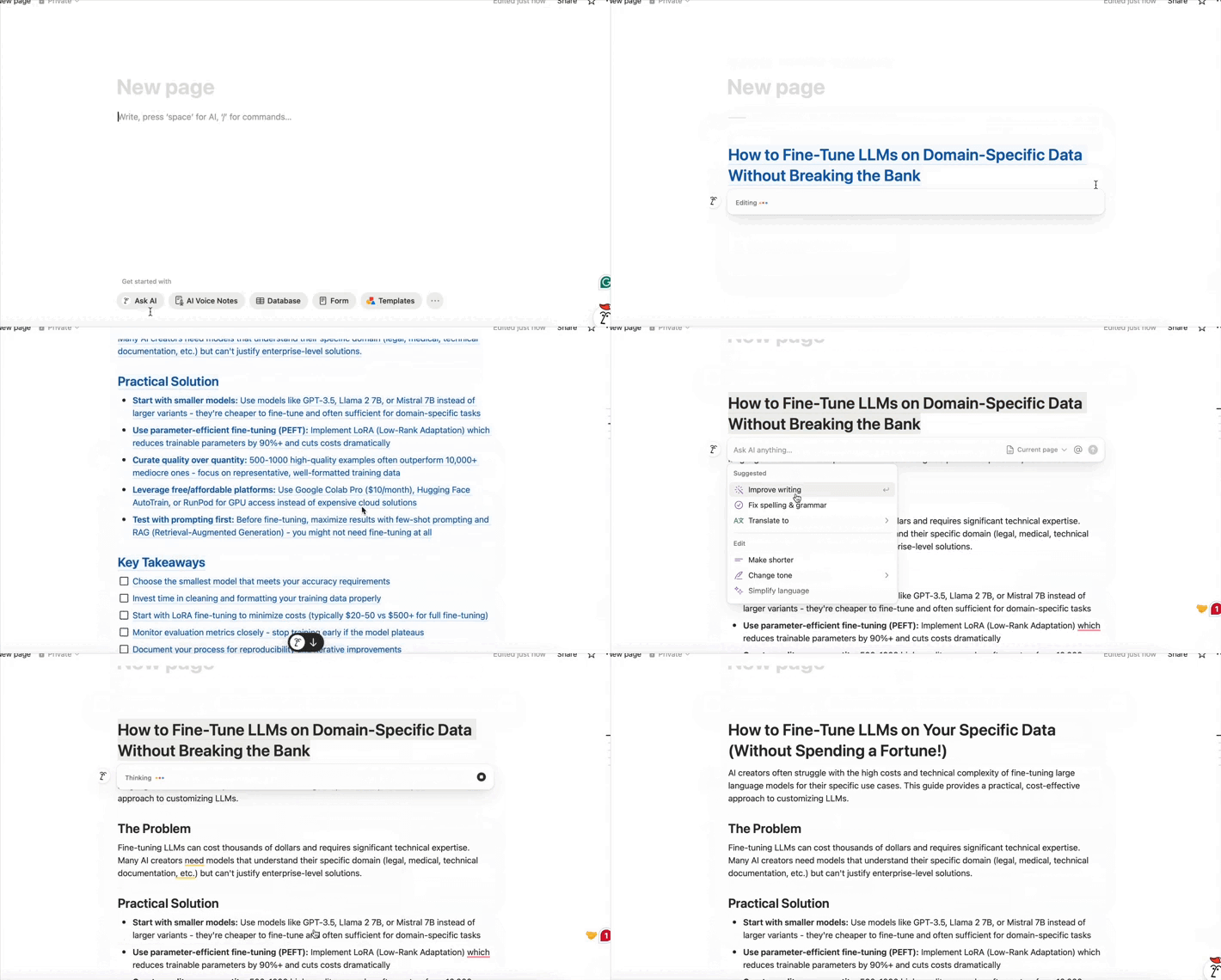
Generate Х content ideas for [your niche] that meet these criteria:
- Solve a specific problem audience faces
- Assess new trends
- Answer questions people actively search for
- Include clear, practical takeaways.
- Has the potential to rank in search results.
In the end, I got a full idea that I could continue brainstorming. But the title looked weird…so I altered it (very easily).
Here we explained how different AI models produce different tones of voice. Check it out, if you’re looking to sharpen your output and write even more effectively: Click
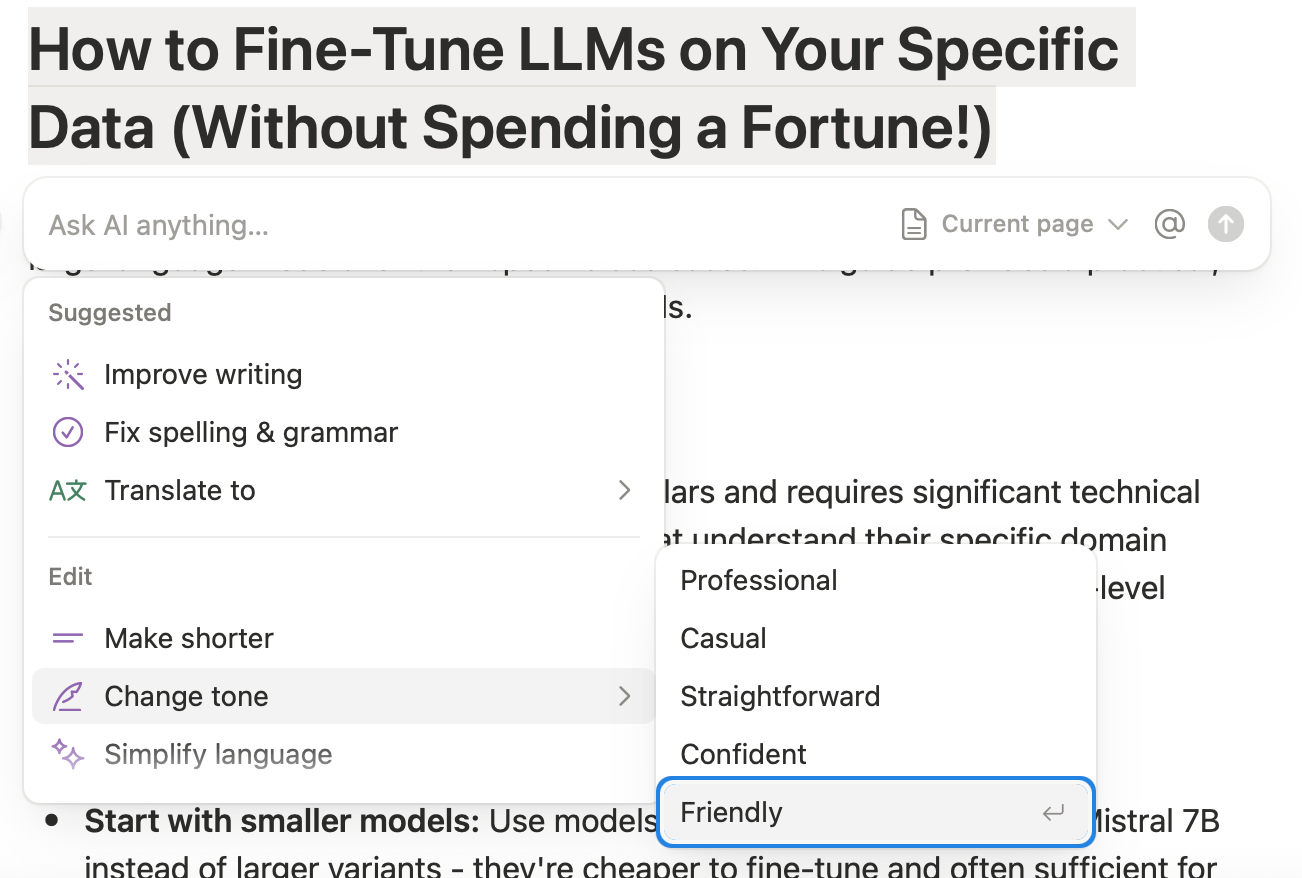
- Selected the text
- Choose what Notion AI offers - I picked “change tone to friendly”.
As you see, it offers multiple options for instant editing. You use it to ask the assistant to:
- Make text longer or shorter.
- Simplify language.
- Create a summary.
- Translate into 16 languages (from French to Arabic).
- Fix grammar.
One piece of content, multiple formats
Moreover, you can reuse an article across platforms without rewriting everything manually.
Prompt:
Act as a Multi-Channel Content Strategist. Analyze the attached article and repurpose it into the following formats:
- X Thread: A 5-tweet thread. Start with a high-impact ‘hook’ tweet (max 280 chars). Use bullet points for takeaways and ensure each tweet flows logically into the next.

- LinkedIn Post: Focus on professional growth. Use an ‘Opening - Body - Lesson - CTA’ structure. Make it ‘scannable’ with white space and use a personal, reflective tone.

- Instagram/Telegram Caption: A  punchy caption (max 150 words). Focus on one single actionable insight. Use short sentences to maintain high ‘reading velocity’.

Guidelines:

Mirror the style, pacing, and vocabulary of my previous work in @Published_Content.

Tailor the messaging for each platform based on the demographics defined in @Audience.
You can squeeze more mileage out of one piece of content without extra creative load.
# For Founders & Operators: Operational System with AI
Here are cases from real business people. They showed how Notion AI fits into their daily grind, and you can borrow their setup. After that, I’ll share tips to make your Notion AI work smoothly.
Full-scale project manager
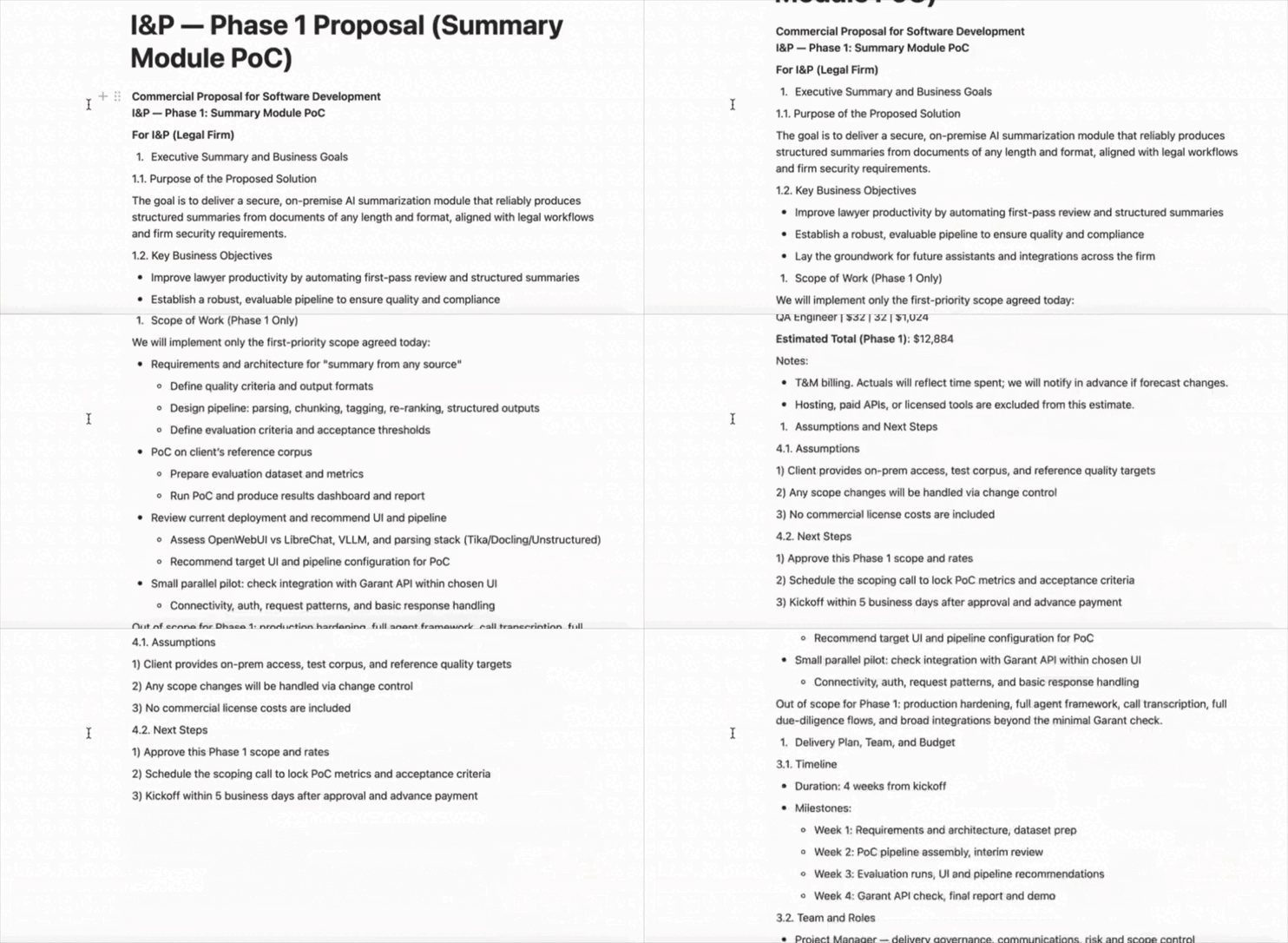
One of the founders I came across shared his everyday workflow. And we’re back to Zapier, which we used earlier, but now it helps us with a different tool.
He uses Notion as the core of project management.
What’s it for: you can create the whole infrastructure for your business in Notion. You don’t have to take manual notes of your calls, copy links from one app to another, and constantly chase context.
Instead, the system collects, organizes, and links all relevant information such as calls, transcripts, templates, rates, and project data.
How his system works:
- He records all client and team calls through TL;DV. Transcripts automatically flow into Notion through Zapier.
- Then an n8n agent kicks in. It reads the text, adds descriptions, tasks, tags, links the call to the right project, and creates a summary.
His database contains:
- Calls, transcripts, and agreements
- Rates by role
- Project descriptions, contacts, proposal templates, technical specifications, contracts, and internal procedures for executing projects based on project type, technologies, roles, and whether we need partners
Then it’s simple. He tells the agent:
Create a commercial proposal for the project we discussed with company X yesterdayor
Pull together a monthly progress report for client Y.Notion AI accounts for templates, rates, and context from previous calls.
After you create it, you can tweak it slightly and send it to the client. This guy takes only five minutes after the call and sends a proposal with all details and calculations.
Email Assistant AI Agent
Who it’s for: Founders, managers, consultants, anyone who writes 10+ emails a day and drowns in inbox chaos.
How it helps: This template turns Notion AI into your personal email writer. It learns your voice, remembers your preferences, drafts emails from messy notes, and saves your best work for reuse.
The process:
Step 1: Train it on your style Update the “Voice and Style Fidelity” section in the Agent Instructions page. If you don’t know your style, use Notion AI to help you analyze a few of your past emails:
Is the tone formal, casual, friendly, assertive, apologetic, diplomatic, etc.?Step 2: Set the agent as your Notion AI persona Go to Notion AI → Personalise → Use existing page → Select “Email Assistant Agent Instructions.”
Now every time you ask Notion AI for help, it acts like your email assistant.
Step 3: Start using it
- Paste meeting notes and say: “Write a participant-ready summary email”
- Drop rough bullets and say: “Turn this into an executive capsule”
- Paste an email you need to respond to: “Draft a reply in a diplomatic tone: Diplomatic-firm”
- Ask: “Do I have any tasks that require an email?”
- After a great draft, say: “Save as template”
- Give feedback: “Remember my preference for next time,” and it updates itself.
Featured Prompts you can use with Notion AI:
Sprint Planning Assistant
Review our backlog in Jira and create a 2-week sprint plan based on dependencies and team capacity.Team Skills Matrix
Build a skills database by extracting skills from project pages, GitHub repos, and uploaded certifications. Highlight gaps by role.For personal Use
Habit tracker
Very few people want to manage spreadsheets, remember to log things every day, or analyze their own data. And this template is based on the AI that can help you fill this gap.
It’s meant to take the friction out of habit tracking.
How this template works:
The system runs in the background:
- Every day at 12:01 AM, a fresh Daily Habits page is auto-created
- If you prefer manual control, just click “Create Daily Habits.”
Either way, your daily structure is always ready when you are.
Setting up your habits
- Open any Daily Habits page
- You’ll see placeholders: Habits 1 through Habits 10
- Click a habit > Rename it
- Delete any habit slots you don’t need
- Once you’re set, remove the setup and inspiration blocks
Daily habit tracking
- AI is giving habit suggestions, an overview of completed habits, an overview of missed habits, and a summary of the day’s progress.
- In the Today view, just check off what you’ve done
- Use This Week, This Month, or This Year to zoom out and spot patterns
The Calendar view can sync with Notion Calendar, so your habits live right next to your schedule.
Daily Summary
What it’s for: Staying on top of what actually matters when you’re juggling too much and small but critical commitments keeps slipping through the cracks.
Who it’s for: For anyone who is drowning in meetings and to-dos, who needs a quick daily reset without manually combing through notes and task lists.
# Command: “Daily Summary”
* Review my (MEETING NOTES DATABASE and (TO DO LIST DATABASE)

* Review content from the previous 1–2 calendar days, ending today at 9:00 AM local time.

* Review my tasks that I need to follow-up on and are due soon

* Review **MY (**`YOUR NAME`**) actions items and to dos**

* What to extract:

   * My action items and to‑dos that are still open or due soon

   * Items I need to keep top of mind for today and this week

   * Follow‑ups I owe to specific people, with names and links when available

   * Hard deadlines or events with dates and times

   * Risks or blockers I should address first

* Output format (concise, no extra commentary):

   * Title: “Daily Summary — November 6, 2025”

   * Sections:

      * Quick Overview (1-2 paragraphs)

      * Top 3 Priorities

      * Due Today and Overdue

      * Follow-ups I Owe

      * Upcoming (next 7 days)

      * Risks and Blockers
Self-Updating Base
When you have so much to deal with in your projects and life, updating everything is very annoying.
You can use this prompt to let Notion AI do the cleanup:
Go through my @Workspace and find anything that looks outdated or wrong. Check it against my recent @Notes and @Updates. If you find mismatches, write new versions and show me what needs changing.How it works: The agent combs through your workspace, spots outdated info (like old processes or tools you no longer use), cross-references new data from recent meeting notes, and drafts updates for you to review.
Practical Tips by Creators AI
- If your Notion is massive, click All sources and pick a specific folder (like “Contacts”). AI stops guessing and pulls exact answers from the right place.
- Use @-mentions for people, pages, and dates.
- If you want to build custom templates: Ask AI: “Create a template for weekly reports based on @Best\_Project\_Report.” It builds from your existing page.
- Upload an image of your handwriting to Notion and ask the assistant to turn it into typed text. AI scans the photo, recognizes the writing, and converts everything into text blocks.
- Type /AI Block into a page and give Notion AI a prompt for what it should generate. This could be a custom output, a summary of the page you’re in, or key points of the page you’re in.
How to Optimize Your Systems inside Notion AI
Finally, when you establish a foundation for your workflows, there are ways to make it smoother. Use these strategies to maintain performance:
• Avoid putting all data into one giant table. For example, instead of putting owner contact details directly in a “Project” table, create a separate People Database and link them via Relations.
• To keep your headquarters loading quickly, filter views using indexed fields like Status, Date, or Checkboxes. Avoid filtering by complex formula results or “Text Contains” searches, which are slower for the system to process.
• Large systems often lag because they load years of old data. Maintain an Archive Database for completed projects and reached milestones.
• If you need complex calculations (like runway or LTV/CAC trends), break them into multiple helper columns rather than one giant nested formula. This makes it easier for Notion to compute and for you to troubleshoot.
• Use Auto-IDs or unique identifiers for your records to ensure that relations between the Roadmap, Investors, and Tasks remain stable and easy to search.
# The bottom line
Unfortunately, most of Notion AI's features come with a subscription. You get 20 free requests.
Burn through those requests, and Notion locks you into a paid plan, and AI features are part of the main Notion subscription. The subscription also unlocks extended service capabilities: unlimited file storage, integration with external tools, and more.
Anyway, we have analyzed the practical utility of Notion AI for modern workflows. Let’s summarize a breakdown of the advantages and limitations:
- Notion AI is accessible directly within your active workspace, and it gives it an edge over other tools. Whether you are drafting a report, refining a table, architecting a database, or writing an email, you can invoke the assistant any time.
- The assistant has a deeper understanding of your proprietary data. It recognizes the specific relationships between your projects, processes, and interconnected databases.
- Notion AI already reduced repetitive tasks well before this, and now Notion AI lets users automate their standard operating procedures and focus on strategic decision-making.
- Through integrations with Slack and Google Drive, the AI performs cross-platform searches.
- It’s available everywhere (via desktop and mobile applications).
The drawbacks
- The platform’s nature can be overwhelming for beginners. Building a truly efficient workspace requires a significant upfront investment of time to master its diverse toolkit.
- It can analyze PDFs and images, but it only reads files you upload directly into the chat.
- Also, it often can’t see stuff if it’s in another database or on a page you didn’t @mention.
- Notion Automations still sometimes seem poor, especially when it comes to Relations
- Users may experience slower processing speeds when navigating enterprise-level environments (typically exceeding 500 pages).
- The system occasionally struggles with complex mathematical computations and advanced logic. For heavy-duty data crunching and financial modeling, better use Excel.
My conclusion
Notion is a Swiss Army knife because you can literally bend it to fit anything. You can build systems from scratch, generate stuff, edit, read through whatever you need, and even hook it up to other tools. In short, it can feel overwhelming as hell at first. ‘
Personally, I am giving it a try but still keeping everything in my Cursor Personal AI Assistant.
And here is my guide if you want to start from scratch:
1. Learn how Notion actually works Get familiar with basic tables, figure out what buttons do what, all that foundational stuff.
2. Try building your own janky workflow Even if it’s rough, at least you’ll see how things work in practice and where you might get stuck. At this stage, it might even feel like overkill for simple notes, and that’s totally normal.
3. Check out existing templates and adapt them Don’t reinvent the wheel. Grab something that already works and tweak it to fit your needs.
4. Only then start building with AI Analyze your info, connect third-party services, automate the boring stuff. That’s when Notion AI actually starts to shine.
This article was first published in the Creators AI newsletter. View the original edition.