Quick Video Creation with AI
Learning from creators who makes $1M+ in revenue on AI videos
How many creators are making high-quality content with AI? I'd say many simply don't understand the technology, using it only to pursue views and earnings.
But that doesn't mean they don't exist, and AI can't be a tool for really cool projects. Let's discuss one such case (which, by the way, went to 7-figure revenue) and understand what it takes to create good videos with AI quickly!
Keep your mailbox updated with practical knowledge & key news from the AI industry!
From 0 to $1M+ Revenue on Documentaries with AI
If you spend a lot of time on documentary topics on YouTube, you've probably already heard of our case study: the MagnatesMedia channel created by British creator John Frazer. It was launched in 2019 and went virtually unnoticed for a couple of years, but it started growing in January 2022 and now has over 1.65M subscribers and 70M views.
At its core, MagnatesMedia is about documentaries in which the author talks about famous brands like IKEA, McDonald's, PayPal, and others. Here's one of his latest videos, released less than two weeks ago but has already garnered 300K views:
Although the channel's author doesn't directly claim to use AI in his work, one viewing is enough to realize that algorithms play a significant (if not the leading) role in the creation. If we try to decompose this content, here's what we get:
- The main content is the images generated. Although MagnetsMedia creates videos, most of the timing is taken up by AI images that draw attention through effects and camera movements.
- Occasional appearance of actual footage. The generated content is sometimes replaced with stock photos and videos to make the video more lively and engaging.
- There is notable music backing. Each scene is accompanied by its audio track, which helps you immerse yourself in what's happening on screen.
- It's a script with many hooks and cliffhangers. The text and voice-over in the video build intrigue and anxiety that keep the viewer busy.
- Dynamic editing. The frames change extremely quickly, so the viewer doesn't have time to look at the flaws in the generated images. This creates the feeling of a higher-quality product and helps to hide some flaws.
This approach helped Frazer gather a large audience around him, provoked other bloggers to create copycat channels, and generated some tangible revenue.
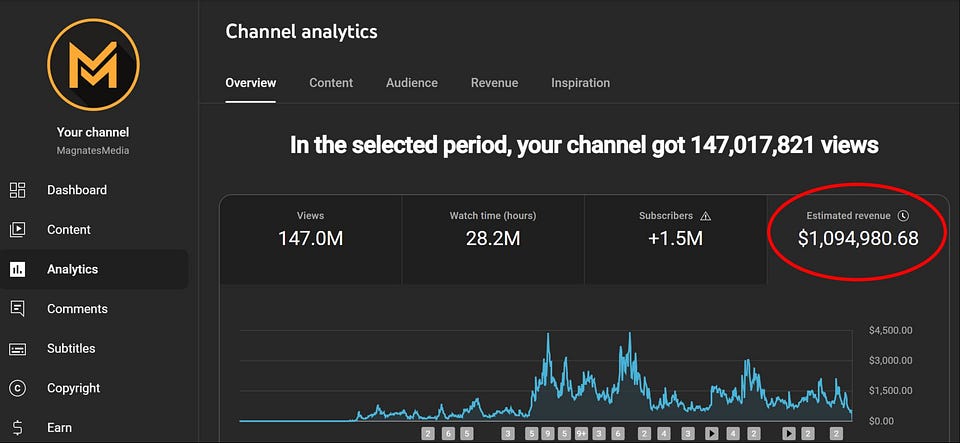
Here are the figures shared by the creator:

Each video now earns the author between $50 and $100K.
But what if I told you you can do the same without advanced scripting and video editing skills? Let's see how we can apply AI tools (some of which are used on MagnetsMedia) and quickly create high-quality videos for YouTube and other platforms.
Create High-Quality Videos with AI
Here's the step-by-step process I suggest you use when creating videos with AI. You will need minimal effort (which can also be reduced using the tools below), and valuable platforms will take care of the entire routine requiring advanced skills.
Step 1. Preparation
The first step is to decide which tools to use. The difficulty here is that everything depends on the complexity of the project. If we talk about a simple video for an Instagram post, we can limit ourselves to one solution like Luma. But if we want to create high-quality content, we can't do without a full-fledged set of tools.
And yes, it will take a bit more time. But it still won't require advanced skills.
Below, I list the leading AI platforms. Later, I'll explain each, suggest alternatives (if some don't work for you), and discuss valuable add-ons.
Our tools:
📝 Scripts: ChatGPT (or Perplexity & ChatGPT Search)
🎙️ Voiceover: ElevenLabs & Suno AI
🎥 Video Generation: Kling AI
🧑💻 Video Editing: CapCut or Captions AI
🪄 Customization: Suno AI & Leonardo AI
Step 2. Script Generation
Usually, when planning content, the creator already has a general idea. To turn it into a practical script, we can use ChatGPT.
- Open ChatGPT and write your prompt (you can use the example below). It will offer a complete script with an opening scene, shifting scenes, and a conclusion.
If necessary, you can refine the prompt to get the desired result.
Here's a prompt that will quickly turn your idea into a script.
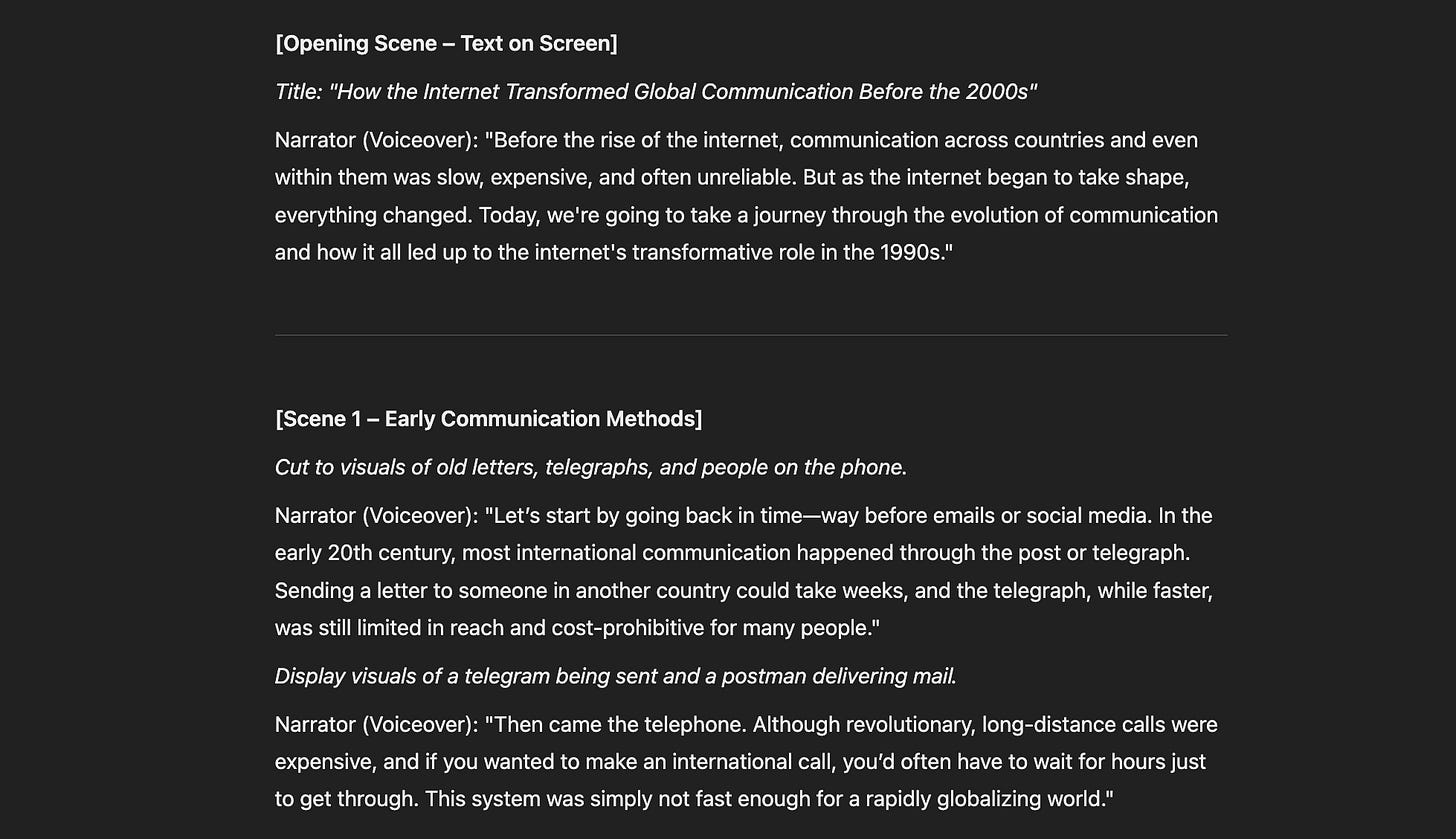
Write a script for a 10-minute faceless video explaining [your subject]For example, we can create an informative video about how the Internet changed communication between people and countries before the 2000s.
Here is the result I got:
Extra tip: If you want to create content on relevant topics, use Perplexity or ChatGPT Search for this task. They can pull together a selection of news or the latest industry insights.
Sharing is caring! Refer someone who started a learning Journey in AI!
Step 3. Creating Audio with ElevenLabs
Not all bloggers are ready to show their faces and have voice recording equipment. That's why we can use a digital voice for our script. This task has many tools, but I prefer ElevenLabs. It offers a wide variety of voices, even in the free version.
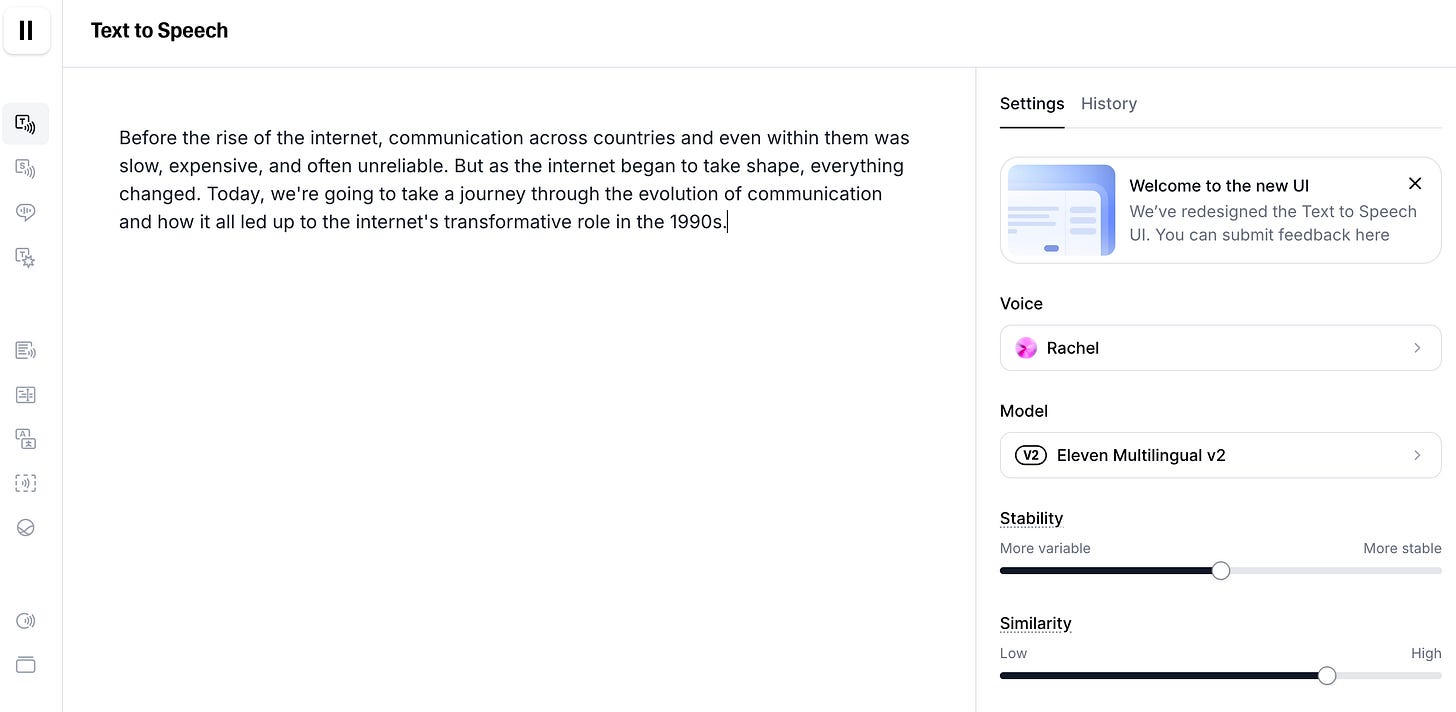
- Upload your text from ChatGPT.
- Listen to the different voiceovers and choose the one you like best.
- Save the finished audio file. We’ll come back for it later.
Extra tip: don't neglect the voice customization features. If it sounded robotic to you, it's not. Try speeding up or slowing down and other settings.
Step 4. Video Generation with Kling AI
Now, the key thing. I chose Kling AI as my video generator for many reasons, but only two main ones. It has a noticeably more comprehensive set of settings (compared to Luma and many others) and a free version that allows you to test all the features.
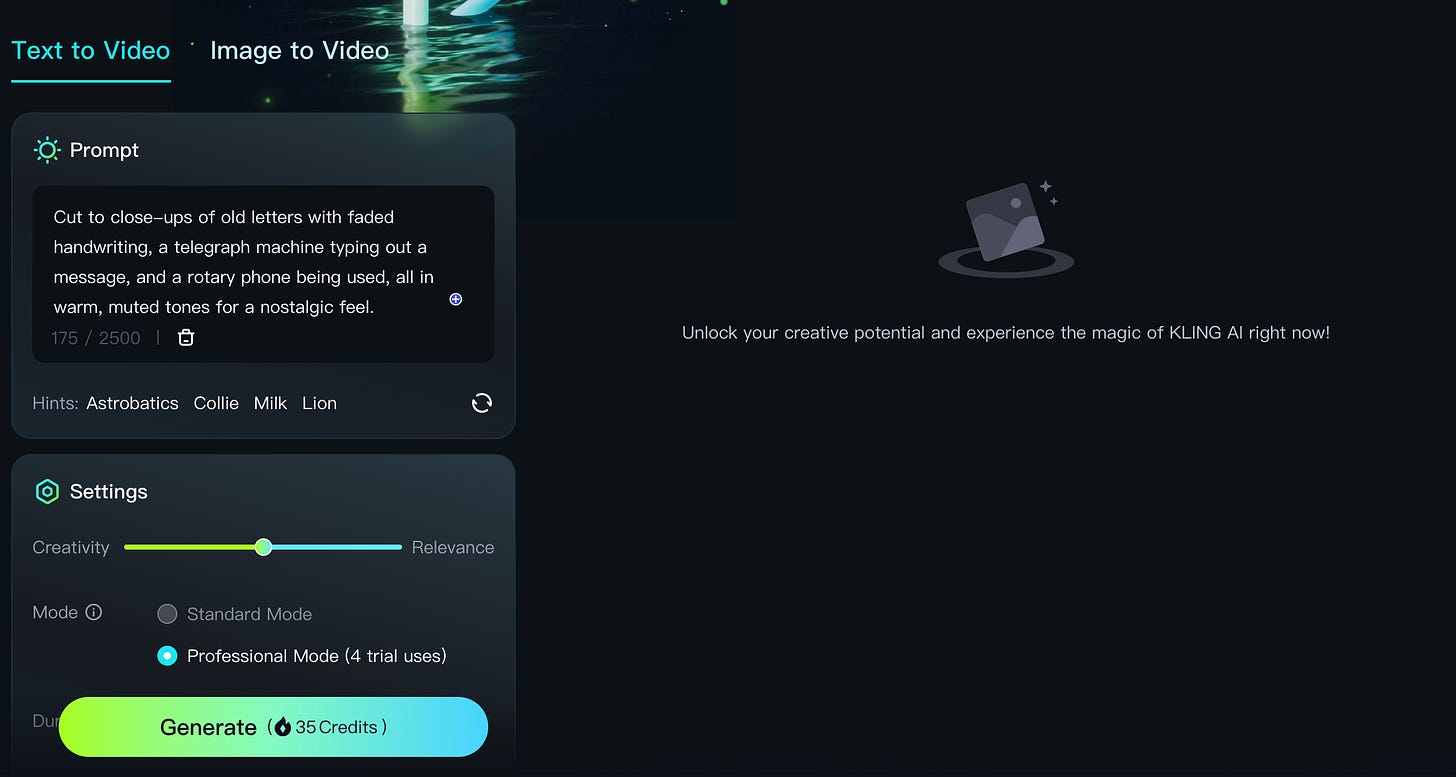
Here's a short guide on using Kling AI:
- Sign up for a Kling AI
- Break your long script into shorter segments, each around 10 seconds long.
- For each script segment:
- Select the text-to-video model.
- Paste your script segment into the prompt field.
In case you missed it, you already have the prompt. You will find it in the script suggested by ChatGPT. Use that as a basis and flesh it out with a little more detail so that the model better understands the desired result. If nothing comes to mind, ask the chatbot how to make the prompt clearer for video generation.
Here's the prompt I got:
Cut to close-ups of old letters with faded handwriting, a telegraph machine typing out a message, and a rotary phone being used, all in warm, muted tones for a nostalgic feel.- Adjust settings like creativity, frame ratio, and camera movement.
- Generate and save your videos.
Using Kling AI for the first time may not be very easy. If you're having trouble at this step, read our guide dedicated to the platform. There you'll find a full tutorial, after which you can come back here:
As a simpler alternative to Kling AI, I also suggest trying Hailuo AI. It's a free video generator that creates high-quality 6-second videos from text prompts, offering 720p at 25 fps. It's a nice option if you don't want to mess around or run out of Kling credits.
Step 5. Video Editing with CapCut or Captions AI
Although video editing is no longer too time-consuming with the advent of AI tools, you can't completely avoid the work. I recommend choosing one of the two below as your primary video editing tool:
CapCut is a video editor with many built-in AI features. It has a free version for both mobile and desktop, but most video editing will have to be done manually.
Captions AI relies much more on AI. It's paid but has many features, such as creating AI avatars, voiceovers, and editing videos with prompts. If you want to simplify your work as much as possible, choose it.
Personally, I opt for CapCut because I have some video editing experience. Besides, hundreds of tutorials on CapCut will allow you to accomplish any task.
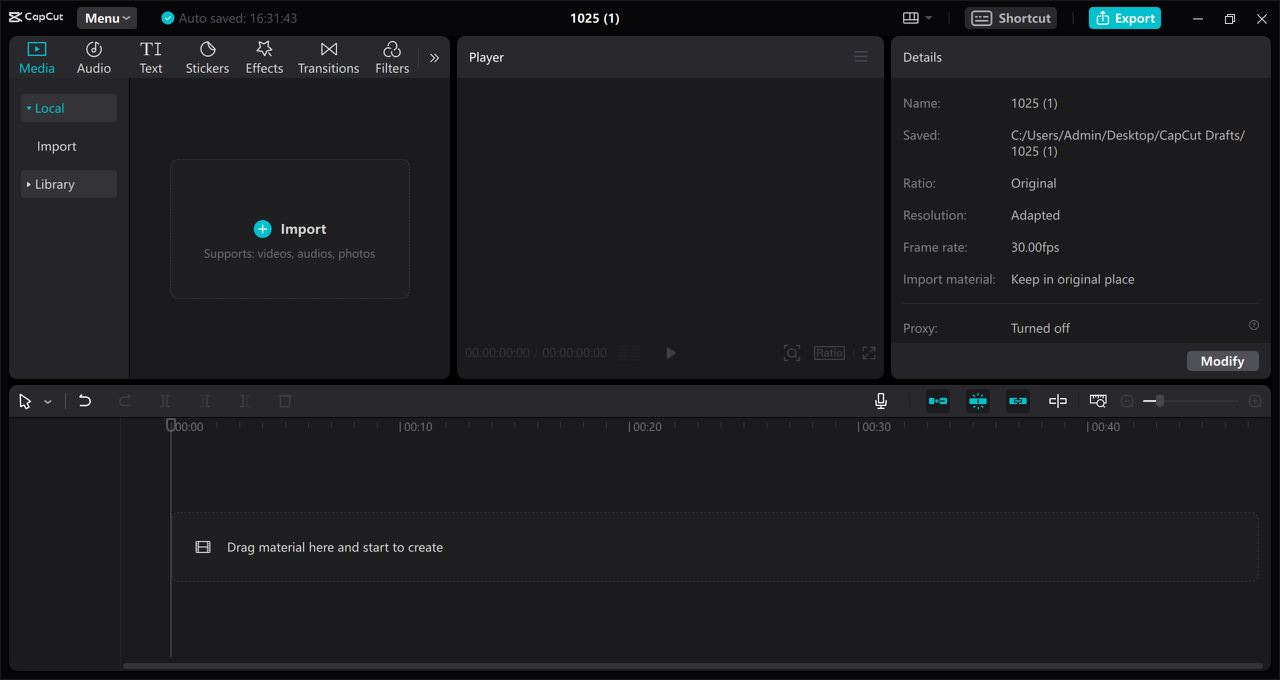
How to edit your video
- Open CapCut and Create a New Project
- Import voiceover using your file from ElevenLabs
- Import video fragments generated by Kling AI
- Align Audio and Video:
- Drag the audio track to align it with the desired video fragments on the timeline.
- Adjust the length of the audio or video clips by dragging their edges.
- Edit Clips (Optional)
- If you want to trim or split any video fragments, select the clip and use the "Split" or "Trim" options.
- You can also add transitions or effects by selecting a clip and choosing from the available options.
Extra tip: Pay attention to dynamics. Modern users don't like to linger in one place, so try to switch to a new scene every 3-4 seconds.
Using CapCut's (or Captions AI) built-in AI features, you can also:
- Add captions or subtitles for accessibility.
- Incorporate your branding elements (e.g., logo, color scheme).
- Preview the video and make any necessary adjustments.
Step 6. Final Touches
Background music
At this point, the video is pretty much done. But you can make it a bit more lively and enjoyable by adding background music. Suno AI does a good job with this.
- Open Suno AI and use a prompt that captures the mood of your video. (below are examples of such prompts)
- When the audio is ready, save it, and add it as an additional audio track to the timeline in the video editor.
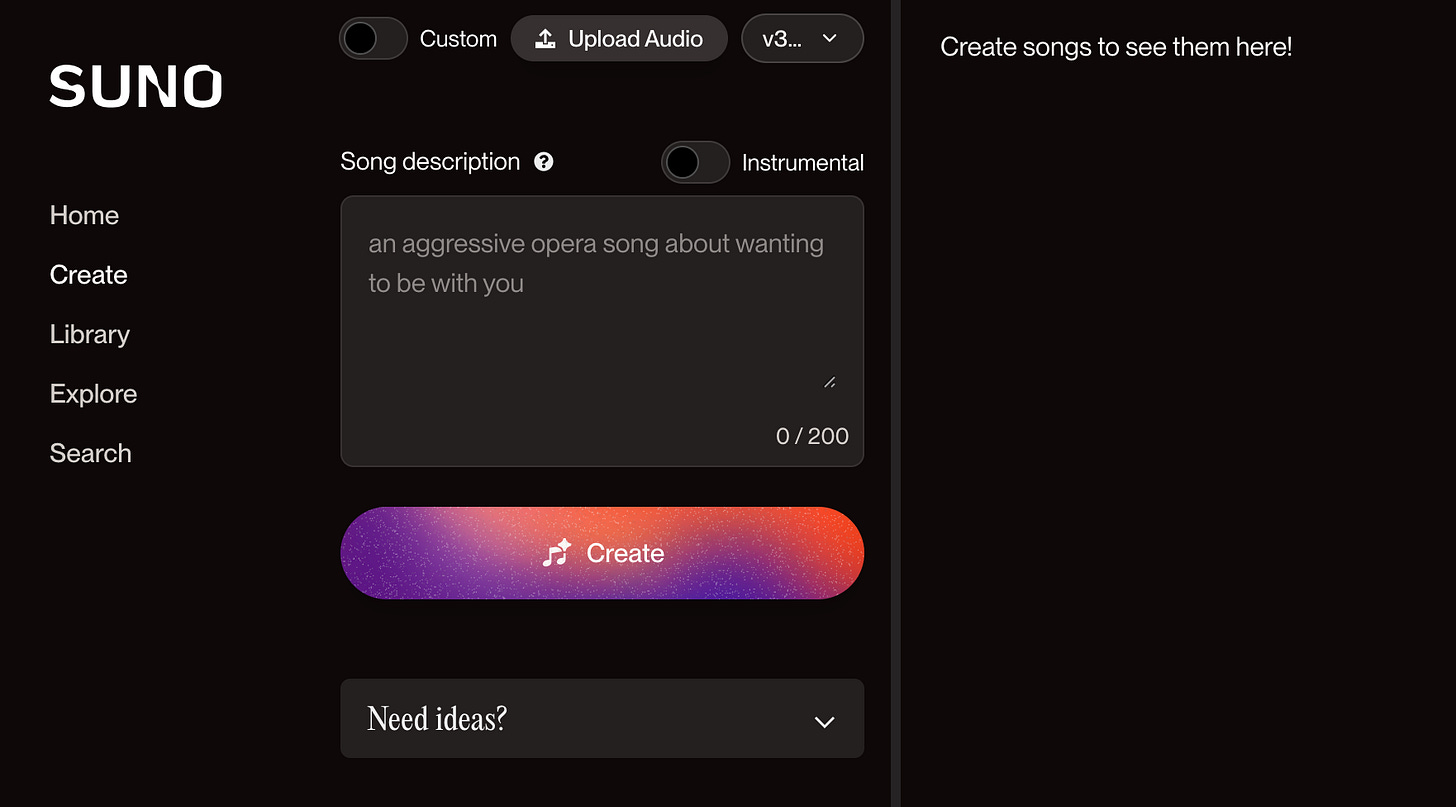
Here are some examples:
Create a gentle ambient track for a meditation video, featuring soft piano and nature soundsGenerate an upbeat instrumental track for a corporate presentation, with a modern feel and light electronic elementsProduce a lo-fi chillhop track perfect for studying, incorporating smooth beats and jazzy piano melodiesCover Art for Your Video
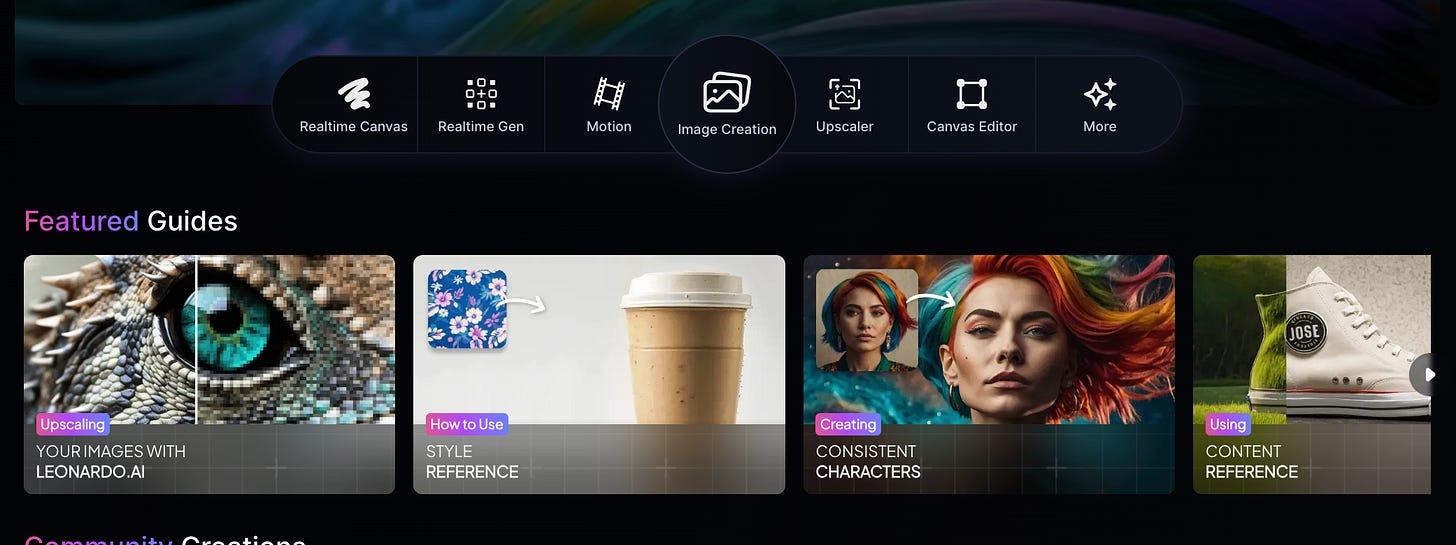
In the last step, we need an attractive cover. There are hundreds and thousands of different options here. You can use your images, find something suitable in Canva, or generate one with AI. Here are the image generators I personally use:
Just add the cover art and you're done. Now, you can upload your video!
You're awesome!
Share this edition with your friends!
This article was first published in the Creators AI newsletter. View the original edition.