Simple Trick for GPT4o Image Gen
JSON Technique with Prompts & Real Cases
We've got Image Generation swirling around in our feed again.
Thankfully, it's no longer Ghibli but a new, full-fledged approach. It works in various scenarios (any style & any colors), requires no special skills, and produces impressive results.
Some even call it the only right way to generate images with GPT-4o.
So, let’s discuss it.
In this post:
- The Fresh Way to Generate Images
- Real-Life Examples with Prompts
- Easy to Follow Tutorial
Get 20% OFF Full Access subscription!
How It Works
Although the Image Generation feature has already proven to everyone that it can make consistent images and has allowed the realization of different ideas, from ads to UI elements, creators continue to discover new approaches to image generation.
This time, we're talking about JSON Style Guides.
It's not a unique technique even for image generation: It was mentioned on the OpenAI forums back when working with Dall-e in 2024. However, now it's simpler, more accessible, and more useful. Here's how it works:
- Defining Parameters: Choose the aspects you want to control.
- Creating a JSON Template: Structure the parameters in an appropriate format.
- Image Generation with GPT-4o: Use your JSON template as a starting point for your content.
Later, we'll break down these points in more detail.
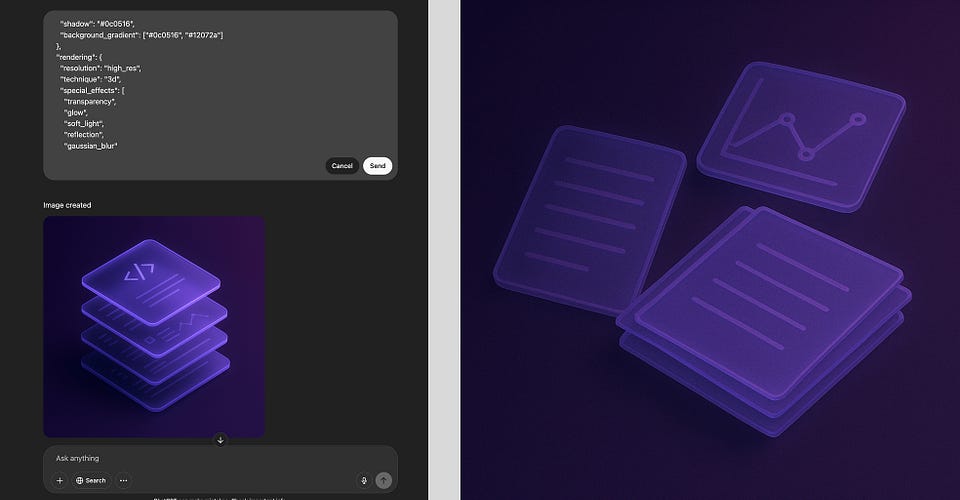
And for now, here's a quick example from X:

And you don't have to write your own template every time: just take a ready-made prompt and edit a few details or, for example, ask ChatGPT to do this job for you.
But it's easier to show than to explain.
Prompts & Cases
So here are a few cases that struck me as the most noteworthy.
Pixelize Everything with Your Branding
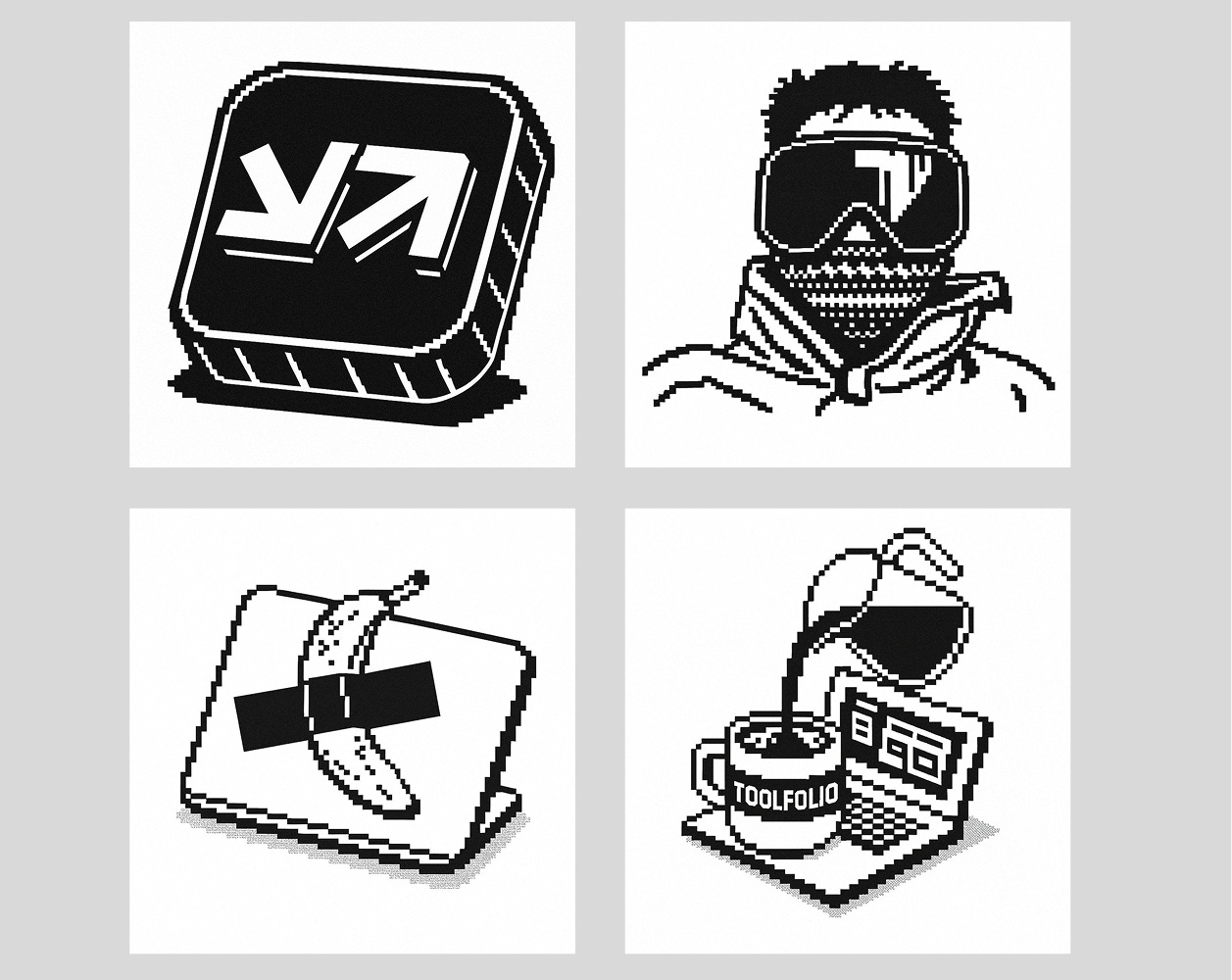
The creator of the Toolfolio platform, under the nickname Dudu, showed how this technique works for projects with specific design code. He provided GPT-4o with some ready-made images as a reference and a description of how AI should generate a Style Guide.
There is no need to prescribe anything manually.
If you don't like something, just ask the chatbot to make edits.
His first prompt:
[Insert images] Using these images as reference I want you to create a detailed Style guide in JSON format so as to be able to create new images following the same artistic, pixelated, style found in these imagesAnd here is the prompt he got:
{
  "style_guide": {
    "name": "Retro Pixel Art Style Guide",
    "resolution": {
      "grid_size": "8x8 or 16x16 pixels per icon/module",
      "canvas_size": "Flexible, but typically small (64x64 to 256x256 pixels)"
    },
    "color_palette": {
      "primary_colors": ["#000000", "#FFFFFF"],
      "usage": "Strictly black and white; no grayscale or color unless explicitly stylized for emphasis",
      "contrast": "Maximum contrast between black and white pixels"
    },
    "shading": {
      "method": "None or dithering patterns for shadows or gradients",
      "notes": "Flat color preferred; dithering allowed only for texture or shadow effects"
    },
    "outlines": {
      "thickness": "1 pixel",
      "color": "#000000",
      "use_consistent_outline": true
    },
    "forms_and_geometry": {
      "shape_style": "Blocky, geometric, square-based",
      "alignment": "Pixel-perfect symmetry preferred",
      "perspective": "Isometric or straight-on"
    },
    "typography": {
      "font_style": "Custom pixel font",
      "capitalization": "All Caps",
      "example_text": "TOOLFOLIO",
      "alignment": "Centered or flush left depending on context"
    },
    "objects_and_elements": {
      "icon_style": "Flat, iconic silhouettes",
      "typical_motifs": ["Coffee mug", "Cursor", "Computer", "Bomb", "Joystick", "Pixelated hands", "Tools", "Arrows"],
      "expression": "Playful, nostalgic, tech-oriented"
    },
    "animation": {
      "frame_rate": "Optional, 2–5 frames for simple motion",
      "motion_style": "Choppy, classic pixel game style"
    },
    "contextual_elements": {
      "background": "Plain white or gray, with optional pixel shadow below objects",
      "shadow_style": "1–2 pixel drop shadow or dot matrix effect"
    },
    "file_format": {
      "preferred": [".PNG", ".SVG (with pixel snap)", ".GIF (if animated)"],
      "resolution_retention": true
    },
    "example_use_cases": [
      "Website branding",
      "Icon packs",
      "Loading animations",
      "Social avatars or graphics",
      "UI elements in retro-style dashboards"
    ]
  }
}
And you can see the result in the images above or at this link. The creator shared a few tips for creating prompts in the thread.
But here's something more remarkable.
Share this post with friends, especially those interested in AI Insights!
Animated Logos with GPT-4o & Kling AI
This case is a bit more complicated, as it requires an additional tool (but no references are needed!). But even as a static image, the result is no less impressive.
Creator Hewar showed how you can create stylish translucent cards for various projects with additional data like name, revenue, year, etc. To get a Tesla card, you’ll need the following prompt:
(It's scary to imagine how much time it would take to draw it manually)
{
"prompt": "A futuristic trading card with a dark, moody neon aesthetic and soft sci-fi lighting. The card features a semi-transparent, rounded rectangle with slightly muted glowing edges, appearing as if made of holographic glass. At the center is a large glowing logo of {{logo}}, with no additional text or label, illuminated with a smooth gradient of {{colors}}, but not overly bright. The reflections on the card surface should be subtle, with a slight glossy finish catching ambient light. The background is a dark carbon fiber texture or deep gradient with soft ambient glows bleeding into the edges. Add subtle light rays streaming down diagonally from the top, giving the scene a soft cinematic glow. Apply light motion blur to the edges and reflections to give the scene a sense of depth and energy, as if it's part of a high-end tech animation still. Below the card, include realistic floor reflections that mirror the neon edges and logo—slightly diffused for a grounded, futuristic look. Text elements are minimal and softly lit: top-left shows '{{ticker}}', top-right has a stylized signature, and the bottom displays '{{company_name}}' with a serial number '{{card_number}}', a revenue badge reading '{{revenue}}', and the year '{{year}}'. Typography should have a faint glow with slight blurring, and all elements should feel premium, elegant, and softly illuminated—like a high-end cyberpunk collectible card.",
"style": {
"lighting": "Neon glow, soft reflections",
"font": "Modern sans-serif, clean and minimal",
"layout": "Centered, structured like a digital collectible card",
"materials": "Glass, holographic plastic, glowing metal edges"
},
"parameters": {
"logo": "Tesla logo",
"ticker": "TSLA",
"company_name": "Tesla Inc.",
"card_number": "#0006",
"revenue": "$96.8B",
"year": "2025",
"colors": ["red", "white", "dark gray"]
},
"medium": "3D render, high-resolution digital art",
"size": "1080px by 1080px"
}
Once the images were ready, Hewar transferred the files to Kling AI and animated them. To check how he did it, follow this link.
More Examples
Here are a few more examples to give you a better idea before we move on to the tutorial. It can be literally anything: an ad for a physical product, logo, iOS icons, or UI elements for a website.
Check this out:
Creators’ AI could be a valuable gift for your friend, colleague, or family member. Gifting books is bright, but giving an AI newsletter is a superb move 😎
How to Craft Perfect Images | Tutorial
One of the best aspects of this method is its simplicity and versatility. And there are several approaches you can take here. The first requires nothing more than your imagination, and for the second, you'll need a reference that the AI can easily figure out (we'll also discuss it).
Now, let's go through them with examples.
Images from Scratch
Here's what you should do if you start from scratch. First of all, we need to provide the model with the clearest possible explanation of what image you want to get.
- Write the prompt with design requirements
It should look something like this:
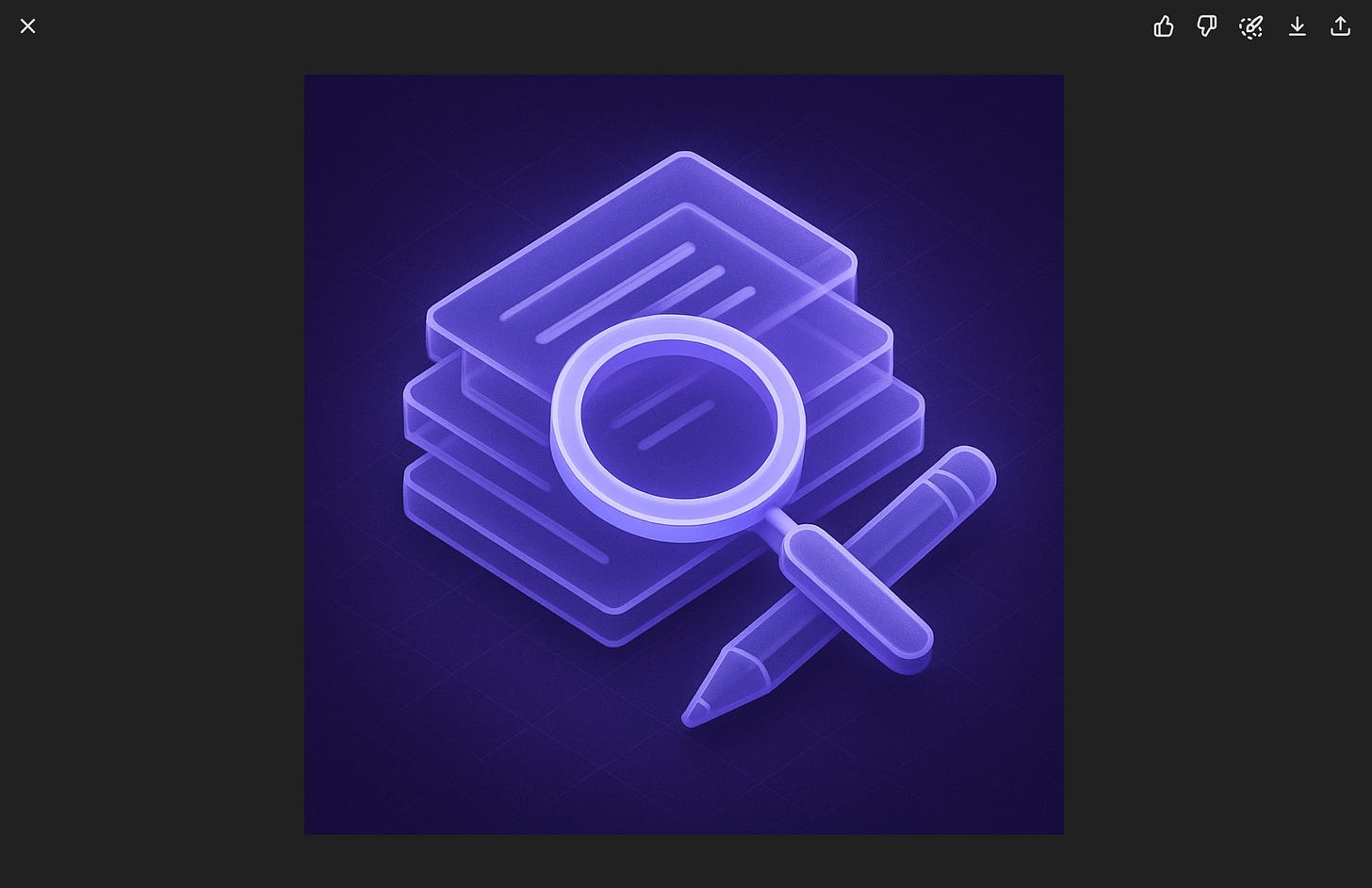
Create an image of a modern icon
The subject of the icon is: A research and planning phase
The image features a sleek, monochromatic 3D aesthetic with a dark purple palette and high contrast highlights. It uses layered, semi-transparent elements arranged in an isometric perspective to create depth, resembling frosted glass.
The key here is to be descriptive about the visual style and elements you have in mind, highlighting what matters most (color, lighting, mood, etc)
- When the based prompt is done, add it to this one:
You are tasked with generating a JSON object containing properties for image generation based on a simple design prompt. The JSON object should have the following top-level keys: style_name, inspiration, color_palette, rendering, background, subjects, themes, and usage_notes. Each of these keys should have properties that reflect the input design prompt.

Here is the design prompt:
<design_prompt>
[Insert Your Prompt Here]
</design_prompt>

Follow these steps to generate the JSON object:

1. Analyze the design prompt and extract key elements such as style, colors, and themes.

2. Generate a "style_name" that encapsulates the essence of the design prompt in a catchy, descriptive phrase.

3. Create an "inspiration" list with 2-4 artistic styles or concepts that align with the design prompt.

4. Develop a "color_palette" object with the following properties:
- primary: The main color (in hex code) derived from the design prompt
- secondary: A complementary color (in hex code)
- highlight: An accent color (in hex code)
- shadow: A darker shade (in hex code) for depth
- background_gradient: An array of two colors (in hex codes) for the background

5. Define a "rendering" object with properties that describe the technical aspects of the image:
- resolution: Specify the image quality (e.g., "high_res", "low_res")
- technique: Describe the main rendering technique (e.g., "vector", "pixel_art", "3D")
- special_effects: List any special rendering effects (e.g., "glow", "shadow", "texture")

6. Create a "background" object with properties that describe the image background:
- type: Specify the background style (e.g., "solid", "gradient", "pattern")
- details: Provide additional information about the background

7. Define a "subjects" object with properties that describe the main elements of the image:
- style: Describe the overall style of the subjects
- details: Provide specific details about how the subjects should be rendered

8. Generate a "themes" array with 3-5 thematic elements or concepts related to the design prompt.

9. Create a "usage_notes" string with brief guidelines on how to use the style effectively.

Ensure that all properties in the JSON object reflect the input design prompt. Be creative and consistent in your interpretations.

Output your final JSON object within <json_output> tags. Format the JSON with proper indentation for readability.- Take the output from ChatGPT and add this line to the beginning of the query:
Create an <image | icon | logo | graphic | etc> in this style:- Get your image
Extracting Styles from Images
Another use case will be especially relevant for creators and entrepreneurs.
If you already have images of your brand but want more, you can extract style from existing content and generate new content. Here's how to do it.
- Start your chatbot (o3 and o4-mini do the best job)
- Attach your image (you can have more than one) and add the following text:
Describe the visual characteristics—such as color palette, resolution, shading techniques, and composition rules—of the art style, to enable consistent generation of new images in the same aesthetic. Output 1 paragraph only.- Wait for the model to deconstruct your image
You can now use the resulting description as the design prompt in the previous use-case scenario.
New Style for Existing Images
And last but not least. If you already have some images, but they don’t fit the desired style, you can use JSON templates to change them quickly. and it’s also pretty simple.
- Start with a concise design requirement (you can extract from some images like in the previous usage scenario or write a new one):
Example:
A pop‑art silkscreen design featuring tight, photo-derived compositions. Rendered in flat, high-contrast blocks of vivid CMYK spot colors—hot magenta, process cyan, canary yellow, acid green—overlaid with bold black contours. The screen-printing technique introduces visible halftone dots, slight color-layer misregistration revealing underlying outlines, and occasional ink smudges. The finished surface resembles glossy offset print.- Now use the following prompt with o3 or o4-mini to generate a JSON style guide:
You are tasked with generating a JSON object containing properties for image generation based on a simple design prompt. The JSON object should have the following top-level keys: style_name, inspiration, color_palette, rendering, background, subjects, themes, and usage_notes. Each of these keys should have properties that reflect the input design prompt.

Here is the design prompt:
<design_prompt>
[Insert Your Design Here]
</design_prompt>

Follow these steps to generate the JSON object:

1. Analyze the design prompt and extract key elements such as style, colors, and themes.

2. Generate a "style_name" that encapsulates the essence of the design prompt in a catchy, descriptive phrase.

3. Create an "inspiration" list with 2-4 artistic styles or concepts that align with the design prompt.

4. Develop a "color_palette" object with the following properties:
- primary: The main color (in hex code) derived from the design prompt
- secondary: A complementary color (in hex code)
- highlight: An accent color (in hex code)
- shadow: A darker shade (in hex code) for depth
- background_gradient: An array of two colors (in hex codes) for the background

5. Define a "rendering" object with properties that describe the technical aspects of the image:
- resolution: Specify the image quality (e.g., "high_res", "low_res")
- technique: Describe the main rendering technique (e.g., "vector", "pixel_art", "3D")
- special_effects: List any special rendering effects (e.g., "glow", "shadow", "texture")

6. Create a "background" object with properties that describe the image background:
- type: Specify the background style (e.g., "solid", "gradient", "pattern")
- details: Provide additional information about the background

7. Define a "subjects" object with properties that describe the main elements of the image:
- style: Describe the overall style of the subjects
- details: Provide specific details about how the subjects should be rendered

8. Generate a "themes" array with 3-5 thematic elements or concepts related to the design prompt.

9. Create a "usage_notes" string with brief guidelines on how to use the style effectively.

Ensure that all properties in the JSON object reflect the input design prompt. Be creative and consistent in your interpretations.

Output your final JSON object within <json_output> tags. Format the JSON with proper indentation for readability.- Save you JSON style guide and go to GPT-4o
- Write the following prompt, attach the image, and add your guide:
Apply this style to the attached image. Do not change anything else in the image:- Wait till ChatGPT generates your image!
Here's what we got with our logo:
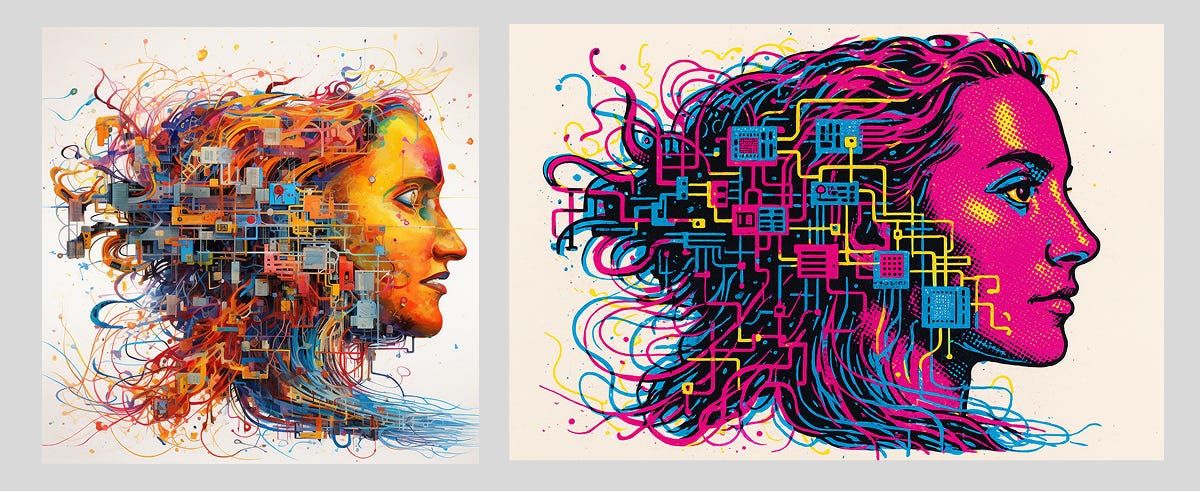
By the way, the example above is quite revealing in terms of complexity.
The original image is quite abstract and has a huge number of details. Nevertheless, GPT-4o managed to edit it appropriately: if you are familiar with Andy Warhol's works, you’ll understand what kind of artist the model was inspired by.
Final Thoughts
Honestly, at the beginning, I was skeptical about this approach.
Looking through the cases, I thought we could generate similar images using ordinary prompts. After all, why do we need chatbots if we can't communicate with them in natural language?
But after tests, I have to admit that I was wrong. These templates provide the foundation for generating predictable and quality content. If you create images for your app, social media, or startup and need to do it often, I would adopt this.
And we've said it before, but now GPT-4o feels even more like a replacement for Photoshop and Figma.
What do you think? Tell us in the comments!
Share this edition with your friends!
This article was first published in the Creators AI newsletter. View the original edition.