Sora 2 Is More Than Just Memes
ImagetoVideo Use Cases & Practical Applications

When Sora 2 launched a month ago, things got crazy fast.
Within hours, the Sora feed was flooded by videos of Pikachu doing ASMR, dead celebrities brought back to life, and endless memes of Sam Altman.
This post is prepared with Guest Author - Daniel Nest. Creator of Why Try AI
If you also want to write for Creators AI, send us an email here
Sure, shenanigans can be fun. In moderation. I always felt that OpenAI’s decision to package Sora 2 inside a “social app for AI slop” did a disservice to the model’s potential.
So I want to rectify things by sharing a few hands-on use cases that aren’t all “[meme] but with [person’s face].”
Let’s look at Sora’s image-to-video feature and cool practical stuff you can do with it.
Buckle up!
To stay updated and get AI Guides, Tools Digests, and New Posts, stay subscribed!
Signing up for and using Sora 2
Sora 2 is currently only available in the US or Canada (but you can always change the country of your App Store or turn VPN for Web version).
To learn more about signing up and finding Sora 2 invite codes, check out this article:
Note: While you can also access Sora 2 via API or third-party platforms, I’ll focus on OpenAI’s primary sora.com web option for this guide.
How to use the image-to-video feature?
In addition to basic text-to-video prompting, Sora lets you upload a reference image.
Simply click the “+” icon at the bottom-left of the prompt input field:

This lets you upload an image from your computer, which you can then combine with an optional text prompt to describe the action:
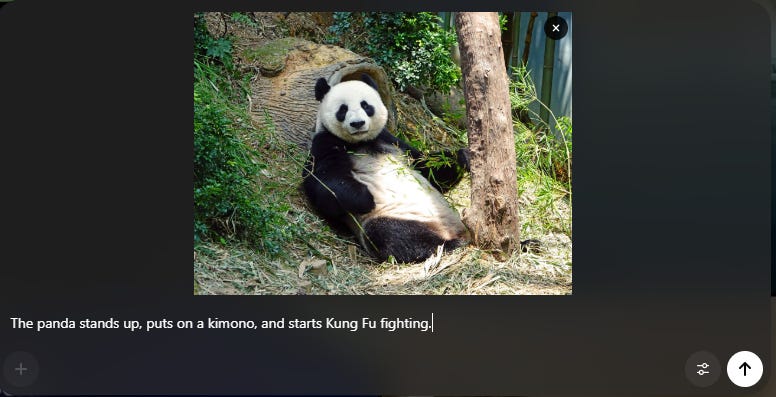
Sora 2 will create a video from your image+prompt combo, with occasionally mixed results:
(Yes, many kung-fu experts don’t know how to dress themselves.)
What can you do with Sora image-to-video?
This seemingly simple concept of combining a reference image with a text prompt lets you use Sora 2 for all kinds of practical applications. For instance:
First frame of a scene
This is the “vanilla” use case. You feed Sora 2 an image to use as the starting frame, then describe what should happen from that exact moment. See my panda example above.
Practical applications: Any scenario where you need full compositional control over the scene. Since your image acts as the starting frame, Sora 2 will respect the visual style and placement of all the objects and characters.
Pro tip: Try adding scene directions and annotations directly to the image, as Sora 2 can often parse those:
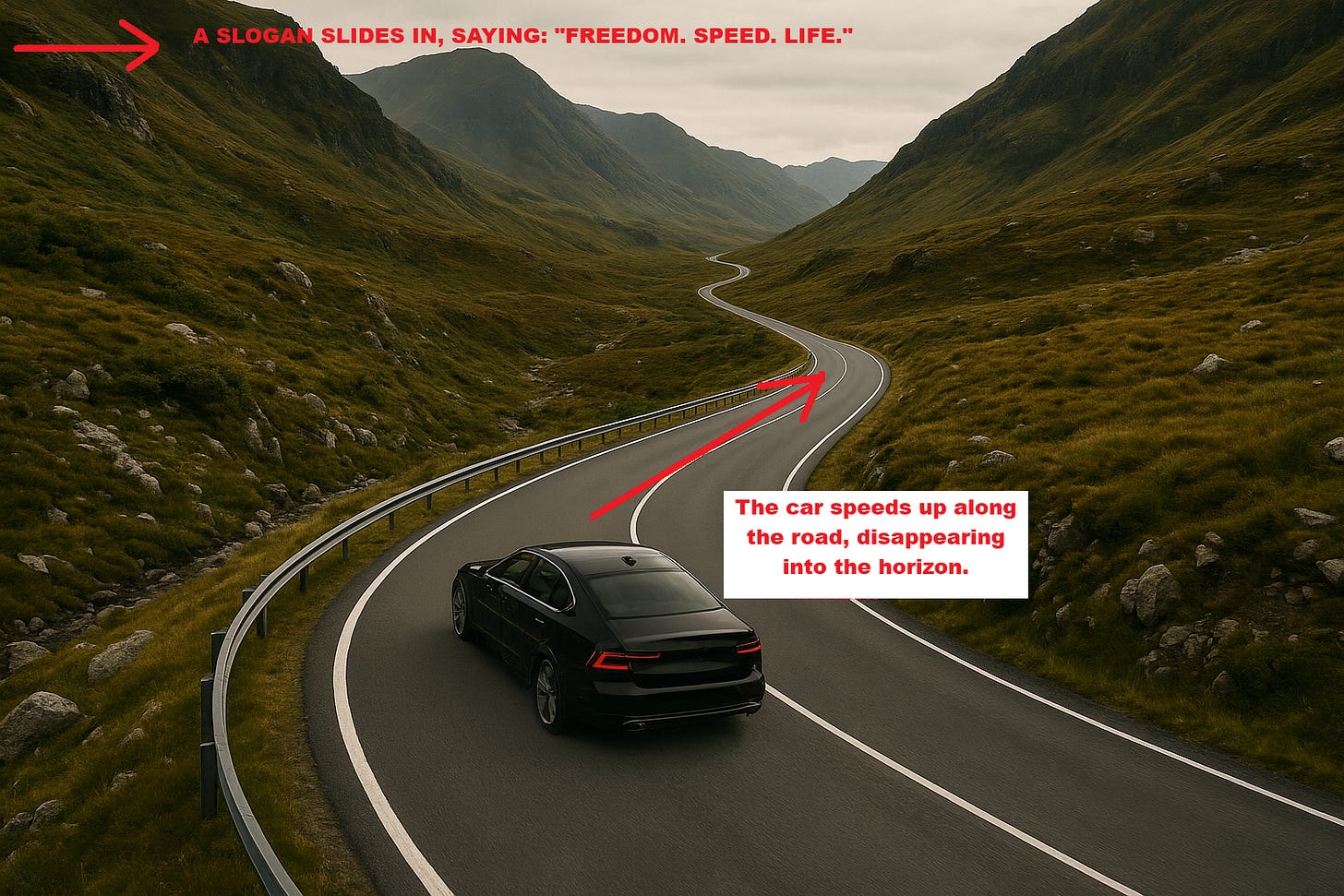
Here’s the first-take result as a proof of concept:
Character consistency across clips
You can also use an image of a character to insert them into any scene. This helps keep the character consistent across separate Sora 2 generations.
I recommend using a full-body character shot against a clean background and prompting Sora 2 heavily in terms of the scene and setting:
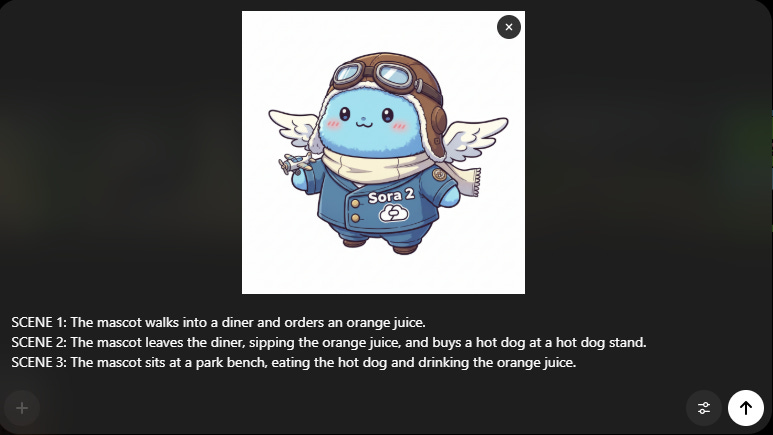
Here’s the result:
Practical applications: Multi-scene storytelling, like ads with brand mascots in different life situations, explainer videos with fixed characters, and so on.
Scene setting
Images of locations or settings can be used as establishing shots without you having to describe the surroundings in great detail.
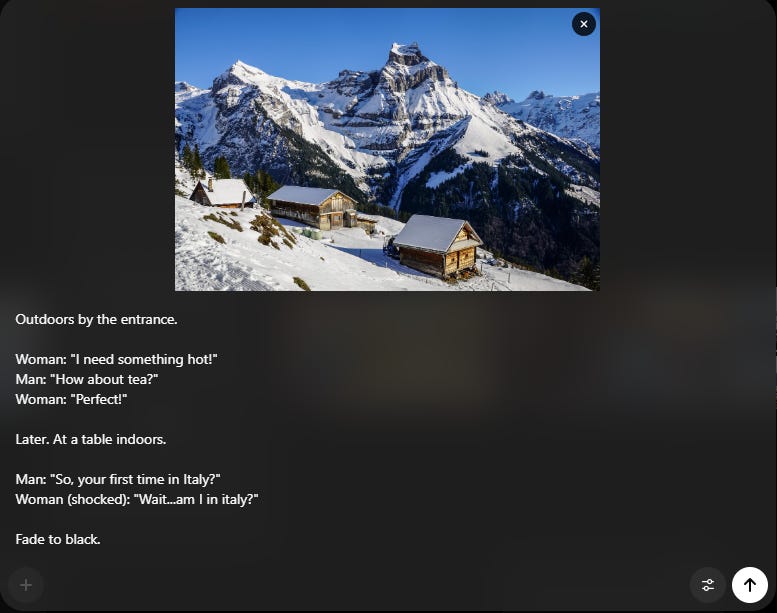
Result:
(Apart from the misattributed “Perfect,” this is…perfect.)
Practical applications: Travel ads, brand videos centered around a geographical location, a specific building, etc.
4. Object or item reference
Just as with consistent characters, you can use image-to-video prompting in Sora 2 to insert a given item or product into your video clip:
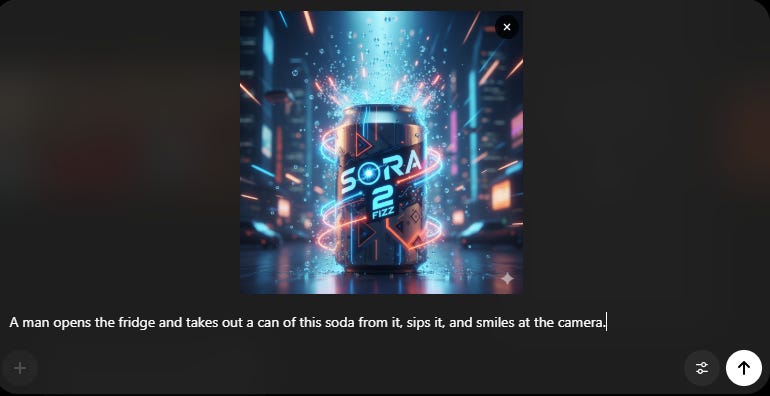
Result:
Pose reference
Image-to-video can also help you set poses and camera angles for the scene via a sketch. (Try a third-party tool like SetPose or JustSketchMe, or ask for a sketch in an image generator.)
When using this approach, make sure your sketch is as style-neutral as possible (e.g. stick figures) and describe the desired style/look in detail.
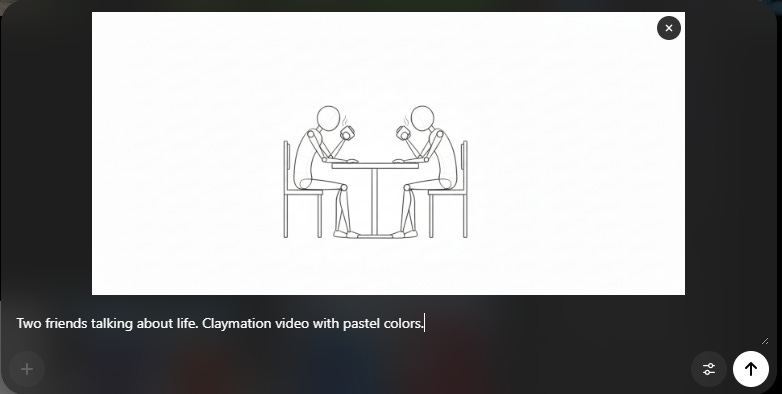
Result:
Practical applications: Whenever posing characters is important, such as fitness app demos, instructional videos, yoga class promotion, etc.
Multipanel storyboarding
Sora 2 can also parse a visual storyboard with several connected scenes.
Use this to prompt an entire storyline from a grid of images:
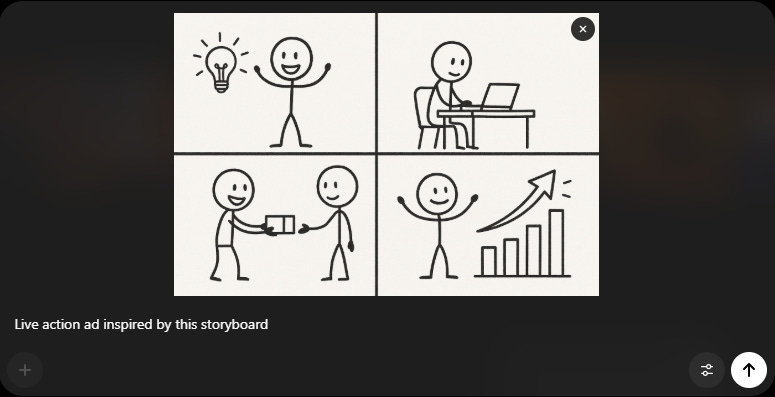
Result:
Note: I find that Sora 2 struggles if you use more than 6 panels in your story board. The sweet spot is somewhere around 4 panels.
Practical applications: Narrative ads with e.g. a “problem, solution, outcome” storyline.
Do you know someone who wants to make consistent AI videos? Share this post
Limitations & workarounds
While Sora 2 can be quite impressive, it’s far from perfect. You’ll often run into intentional or unintentional limitations. Here are some of them and what you can do about those.
Can’t use photos of people
OpenAI’s current policies are pretty strict when it comes to using photos of people as input images. (Unless you use the dedicated “Cameo” feature to add yourself officially.)
If you try uploading an image with realistic people in it, you’ll run into the following error:

This is a bummer if you want to include a resemblance to a specific person in your videos.
Workaround:I propose two possible solutions.
First, if your video doesn’t have to be a live-action take, you can convert the photo into a stylized cartoon, flat illustration, anime, etc., using a third-party image model like Nano Banana. Sora 2 is far more likely to accept a non-photographic image of people.
Two, if you really want a realistic video, you can feed your photo to an AI chatbot like ChatGPT and ask for a very detailed description of the person, down to minute details. Then you can include this character description in your Sora 2 text prompt.
Limited to 15-second videos
When Sora 2 first launched, it created 10-second clips, which were recently bumped up to 15 seconds. But what if you want a longer shot?
Workaround:You can use the last frame of your Sora 2 generation as the input image (first frame) for a new video. Simply export your first Sora 2 clip into any video editing tool, save the last frame as a standalone image, upload it to Sora, and describe what should happen. Later, you can stitch the clips together into a longer video.
Sora watermark
Sora 2 automatically embeds a floating watermark into its videos. In some cases, it can be quite intrusive.
Workaround:Certain watermark removers do a passable job of blurring out the watermark, but this might put you in breach of OpenAI’s policies, depending on your use case and intentions. A safer bet is to avoid visible watermarks in the first place by using Sora 2 via API or a third-party platform like Higgsfield.
Sora sticks too closely to the uploaded image style
When using a reference image for a character or pose, Sora 2 may inadvertently borrow its style elements for the video, even if you’re prompting for a different aesthetic. (That’s why I suggest using style-neutral reference images like stick figures, etc.)
Workaround: If all else fails, try first feeding your reference image to an image editor like Nano Banana and asking it to convert it into your chosen style. Then, use the resulting image as the first frame of your Sora 2 video.
Limited to just one image at a time
Unlike some other platforms where you can upload multiple reference images, Sora 2 only lets you upload a single image at a time.
Workaround: Try to combine multiple visual references into a single collage and describe your scene using the text prompt:
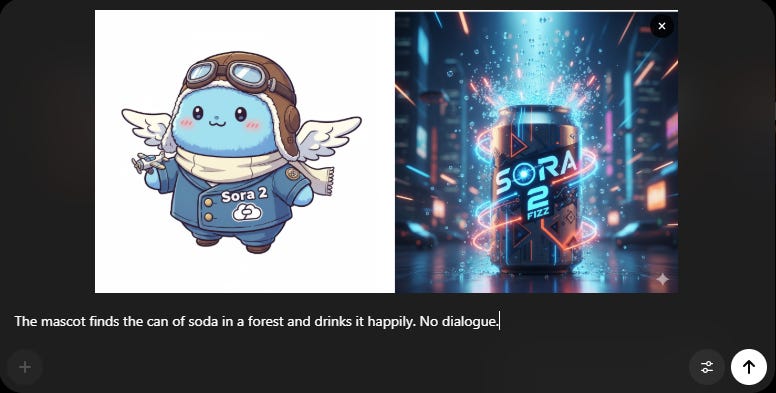
Result:
Wrap up
As you can see, Sora 2 can be more than just a silly meme generator.
Image-to-video seems simple, but it’s versatile enough for many use cases.
What will you create?
Footnotes:
- All demo images are generated by Nano Banana or sourced from Pixabay.com.
- The uploaded image will always be the first frame of the resulting video, even when used for other purposes. You can easily remove it using any third-party video editing tool.
### Other Why Try AI posts related to AI video:
Are you сurious to go deeper? Daniel breaks it all down to help you master AI video creation:
1. Complete Beginner’s Guide to AI Video
2. 3 Ways to Make Movie Clips with Sora 2
3. 17 Free AI Image-To-Video Tools: Tested
Tell us: How are you using Sora? Have you found ways to embed it for your business?
This article was first published in the Creators AI newsletter. View the original edition.