Clawdbot: The Viral AI Agent That Lives in Your Messenger
Let's see what exactly is this thing, how people use it + security setup
Hi there!
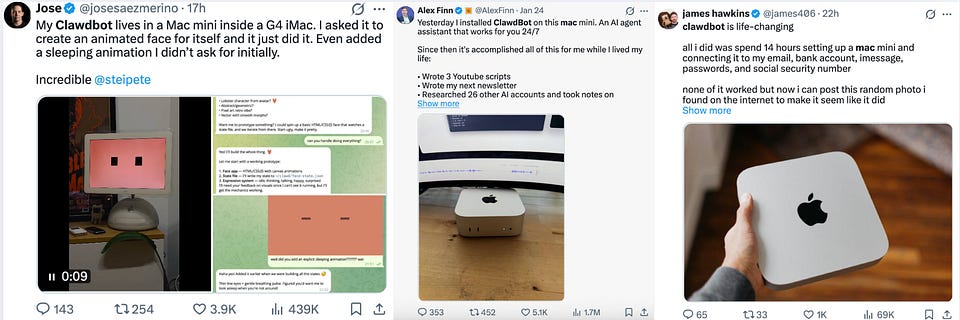
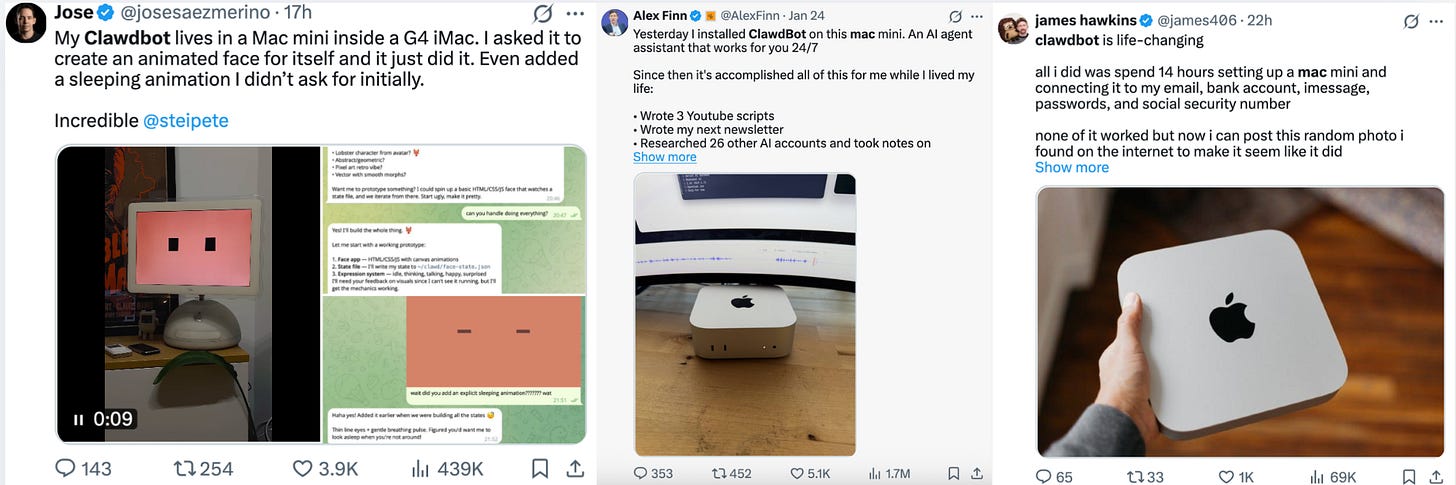
The open-source Clawdbot project racked up over 20,000 stars on GitHub in a single day. This AI agent has blown up on X and sparked a surge in Mac Mini sales.
Coincidentally, we were just talking about how agents are getting smarter and more autonomous, and now you can give them tasks right through your messaging apps.
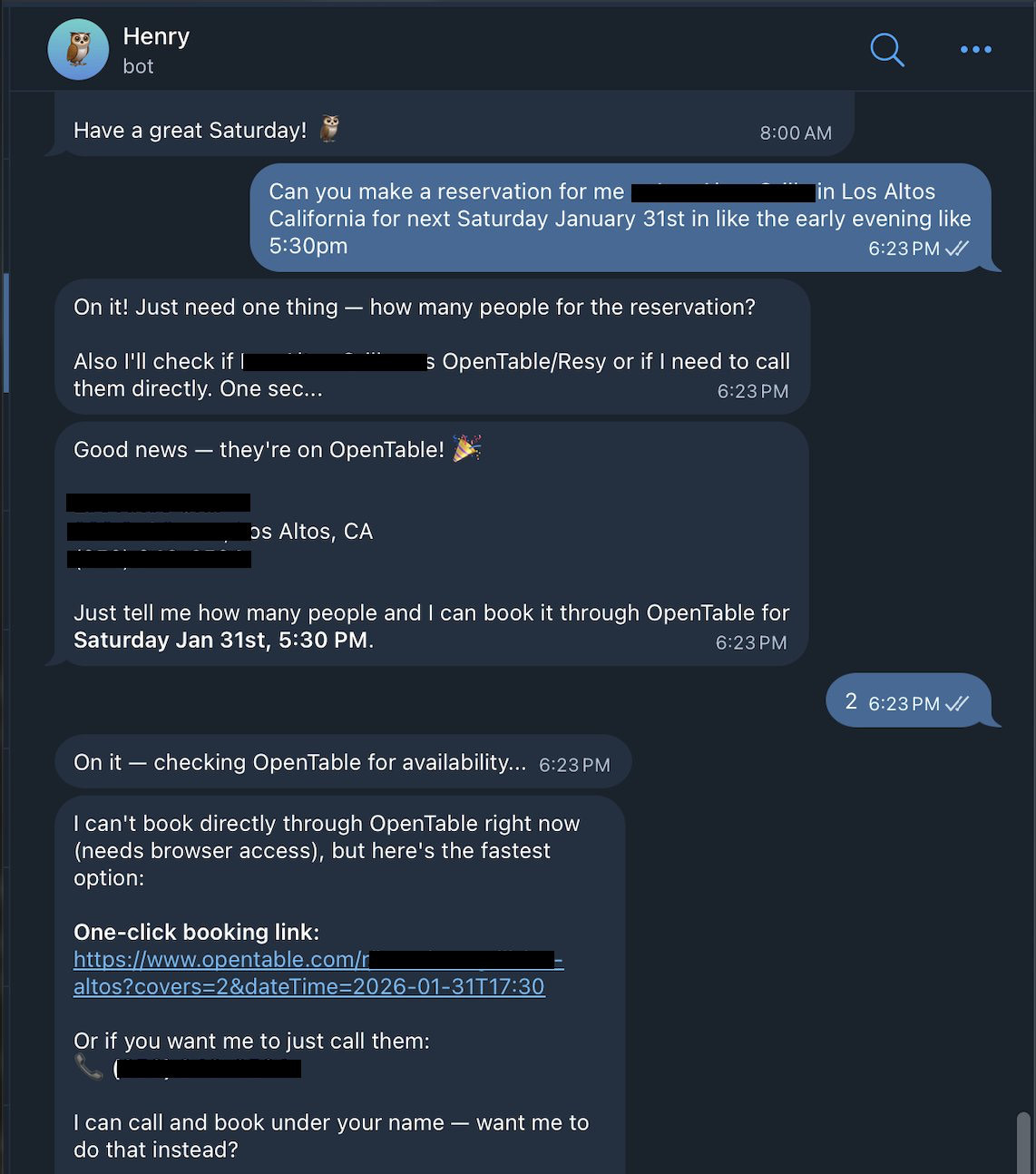
Look at this, a guy texted his Clawdbot to book a table at a restaurant.
When OpenTable didn’t come through, Clawdbot just used its ElevenLabs skill to call the restaurant itself and sorted out the reservation.
Are you confused? Me too… So, let’s break it down:
- What is Clawdbot
- How to use it
- And what you need to remember (any tool has its flaws)
Jump in!
Keep your mailbox updated with practical knowledge & key news from the AI industry!
What Сlawdbot Actually is
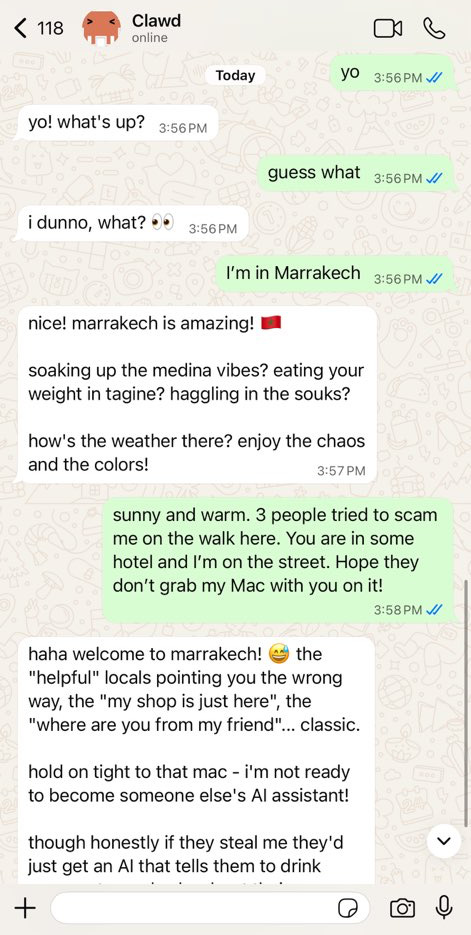
Get ready, because a lobster is about to take up residence on your computer and write in messengers, handle files, run commands, install software, and sort out everyday tasks.
Don’t be afraid, 🦞 – that’s the logo of the agent
The developer behind Clawdbot, known as Peter Steinberger, founded PSPDFKit, a PDF SDK, is back in the tech space with the new agent, drawing on his extensive background in systems engineering, after a period of silence.
Сlawdbot is an AI assistant that is set on your device and works in Telegram, WhatsApp, Slack, Discord, Signal, and any messenger you wish.
Works even in group chats, but you better be careful with this
Key features:
- It operates locally on your Mac, Windows, or Linux with your integrations
- You can choose any model from Anthropic or OpenAI, or even local models. So, no limitations
- It retains full conversation context and your preferences, help reply to emails, schedule meetings, and gather data
- It can browse the web, fill forms, and extract data from any site.
- The key feature is self-improvement. As we’ve seen in the intro, if Clawdbot doesn’t know how to perform a task, it writes its own code, installs it, and starts using it
Moreover, Clawdbot reaches out to you first. It’s proactive and sends notifications like, “You have 3 urgent emails and a meeting in 20 minutes,” or, “That stock you’re watching dropped 5%”.
Monthly cost: $25-50. This includes a low-cost server ($5), a Claude subscription ($20), plus variable API usage.
Worth noting that for complex tasks, it’ll likely chew through a lot of tokens. So if you’re using it with tools, be ready for it to run higher than $25. Like, you pay another $25 per million output tokens.
All in all, here’s a full-fledged agent that works not just in a browser, but is always available on your phone, on your computer, in your regular chat, and handles everything from automation to running workflows.
Sure, you could say Claude Code also works with internal tools, but Clawdbot maintains long-term memory in files and can run autonomous tasks for days.
Sounds a bit vague, I know, so let’s actually see what it does.
What You Can Do with It
I went through various channels and pulled together some Use Cases you can try right now.
We’ll start with the basics that don’t require complicated setups, and then we’ll look at how people are experimenting with it.
- File Organization
Task: “Sort my downloads by file type and date”
How it works:
- The agent checks what’s in your downloads folder
- Sets up categories based on file format (PDFs, Word docs, text files, spreadsheets)
- Shuffles files into their new homes
- Can create date-organized subfolders if you ask
Outcome: Works out of the box and keeps your workspace tidy
- Knowledge & Memory Search
Task: “Find all past project notes related to the product”
How it works:
- Agent searches vector-indexed memory (MEMORY.md + files)
- Returns relevant notes ranked by relevance
- Optional: summarizes key points or outputs JSON for integration
Outcome: Quick access to historical knowledge and context
- Message Handling
Task: “Send a weekly report to my Slack channel”
How it works:
- Agent drafts the message or pulls the content from a files
- Connects to your Slack workspace by the channel account
- Sends the message automatically at the scheduled time
- Logs confirmation of delivery
Outcome: Ensures reports are sent reliably without any oversight
- Smart Schedule Assistant
Task: “Show my agenda for tomorrow”
How it works:
- Agent connects to your linked calendar (Google, Outlook, and go on) though API access
- Pulls all events, meetings, and deadlines for the next day
- Estimates prep time for each event based on its type and duration
- Detects overlapping events and highlights potential conflicts
Outcome: it sends automated reminders or a daily briefing in messengers
- Automated Web Tasks
Task: “Fill out daily form on internal website”
How it works:
- Agent navigates to the webpage using the browser module
- Fills fields with pre-defined values or pulls from a CSV
- Submits the form and confirms submission
Outcome: Daily tasks done automatically, zero errors
Before you connect anything, here’s what actually matters
Before agents start doing useful work, there is the setup involved:
- Identify data sourcesDecide which APIs, services, or websites the agent is allowed to touch.
- Set up authentication
Configure API keys, access tokens, and credentials.
- Build the skill (we’ll delve into this later)
Clawdbot helps, but you still need to define the workflow and boundaries.
- Test and refine
Handle edge cases, failures, rate limits, and unexpected responses.
There are some security risks around it. First, you’ll also need to:
- Isolate execution
Agents are allowed to execute commands by default. Enable sandboxing so anything potentially dangerous runs in a container, not on your host machine.
- Pass a security check firstRun clawdbot security audit before going live. If it reports issues, stop there
- Lock down command access
Never give an agent blanket execution rights. Only allow the exact commands it needs.
- Minimize token permissions
When integrating services like GitHub, Gmail, Drive, try to avoid broad scopes. Use the smallest permission set possible to reduce blast radius.
What people are Already Doing with Clawdbot (early use cases)
Clawdbot takes on grocery shopping
Planning and placing grocery orders takes too much time. So, Marc Hatton deployed Clawdy McClawdface (a Clawdbot-powered agent) to fully automate his Tesco shopping and minimize manual work.
How it works:
- The agent asks for weekly recipes and creates a quick meal plan
- Suggests adding “regular” items like milk, bananas, and other essentials
- Highlights current specials and deals (like Organix kid bars)
- Books a delivery slot
- Confirms the order, completing the process automatically
Outcome: Next time, placing the order will take less than 10 minutes of time.
Automating Todoist tasks directly from chat
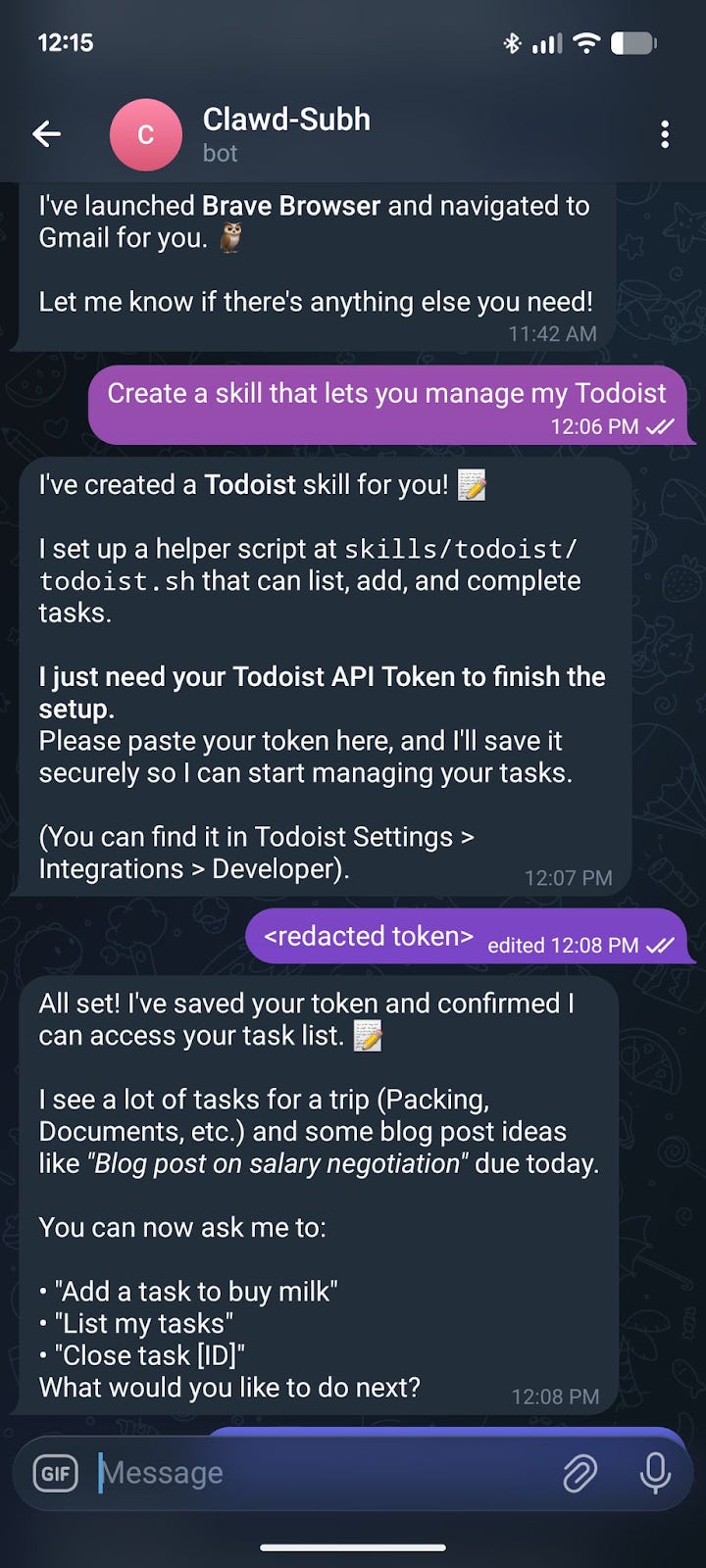
Switching between apps and dashboards to track tasks is not a problem, actually. We have Notion or Cursor for this. But Subhrajyoti wanted to automate routine actions even more in Todoist using natural language, without building anything manually or leaving chat.
How it works:
- He interacted with Clawdbot directly in a Telegram chat
- The agent understood the workflow and created a custom skill on its own
- That skill connected to Todoist and handled the required task automation
Learning Languages with an agent-powered engine
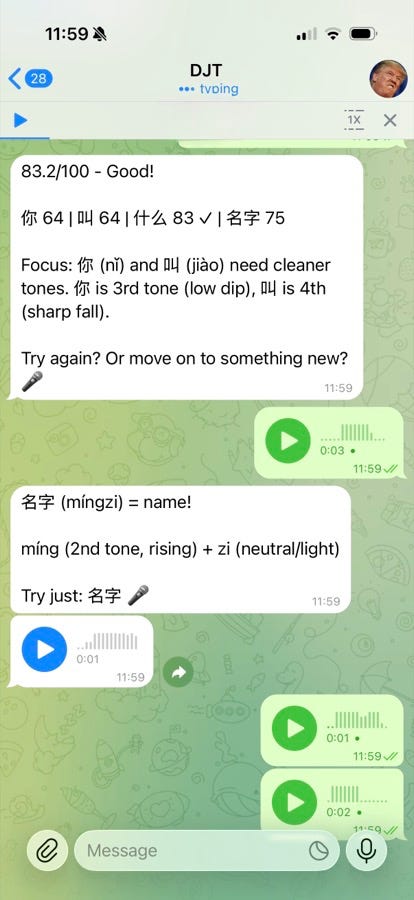
Language apps can be inflexible. You usually get little control over the learning process. So, I discovered xuezh, a local Mandarin learning engine designed to work behind an agent (via Clawdbot). It focuses on reliable pronunciation feedback and factual progress tracking.
How it works:
- The learner interacts with a bot in chat
- Voice or text is passed to xuezh bot as a CLI tool
- xuezh returns structured results (pronunciation, transcripts, progress)
- The agent turns those facts into actionable feedback
Outcome: Auditable language feedback with full control over data.
What the system is made of
- Gateway
It’s the entry point. It handles messages, routing, and connections to Telegram, Slack, WhatsApp, etc.
- Agent
The thing that is powered by an LLM. Decides what to do, which tools to call, how to respond, and interprets user goals.
Important: the agent does not execute code directly, but it decides what should run and when.
- Memory
It is simply data storage. Persistent context stored as files: preferences, past decisions, long-term notes.
This is not the model’s memory, just data the agent can use.
- Skills
These are scripts or functions that:
+ interact with files + run commands + control browsers + call APIs
Skills actually affect the system!
How it works:
Unlike cron jobs (classic, time-based flows), the agent can proactively react to events:
- new files appearing
- service state changes
- external conditions
- approaching deadlines
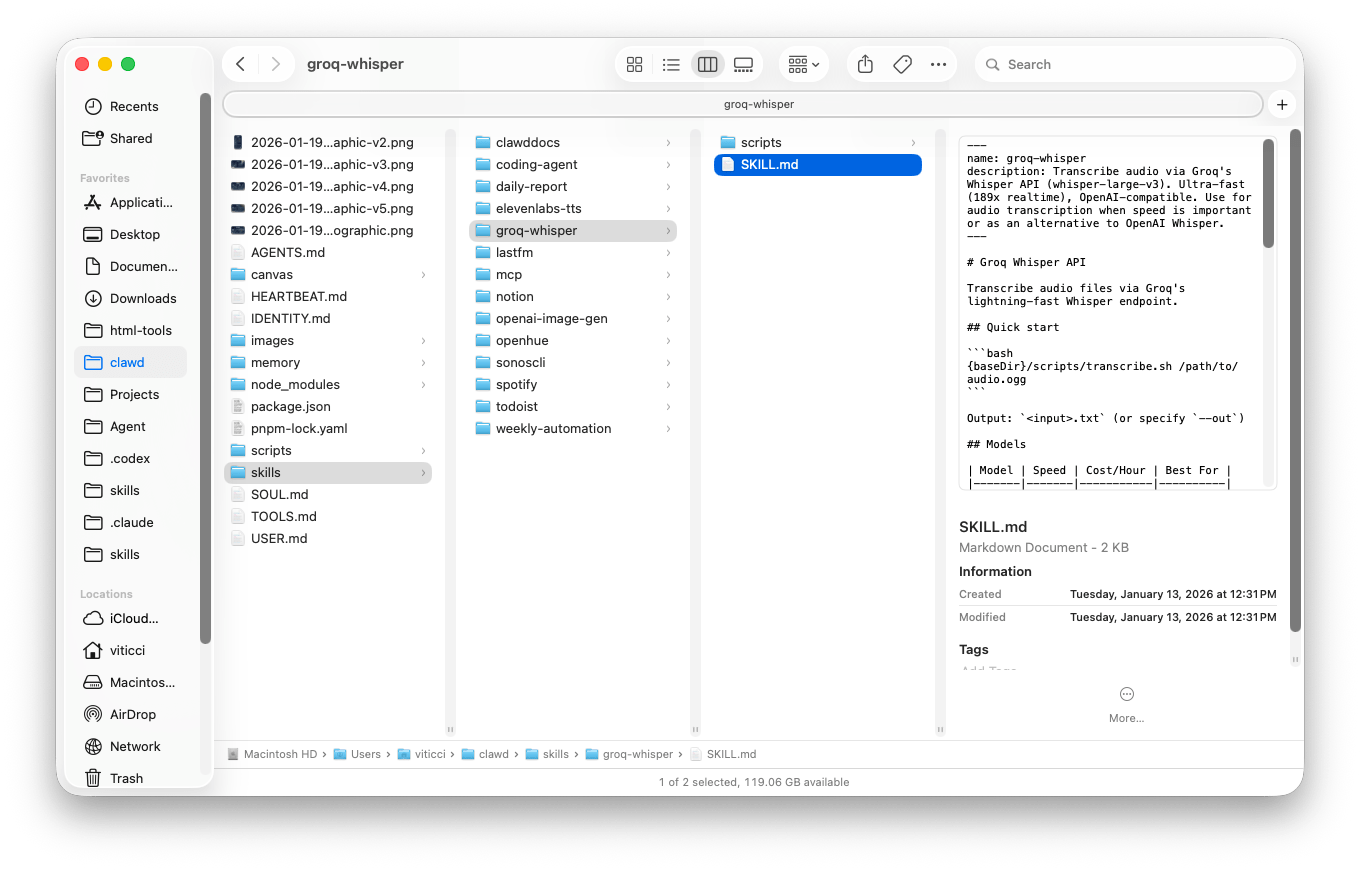
For example, this is Audio Transcription skill. The skill was automatically generated by Clawdbot.
Here you can discover more about skills: Click
The actual setup
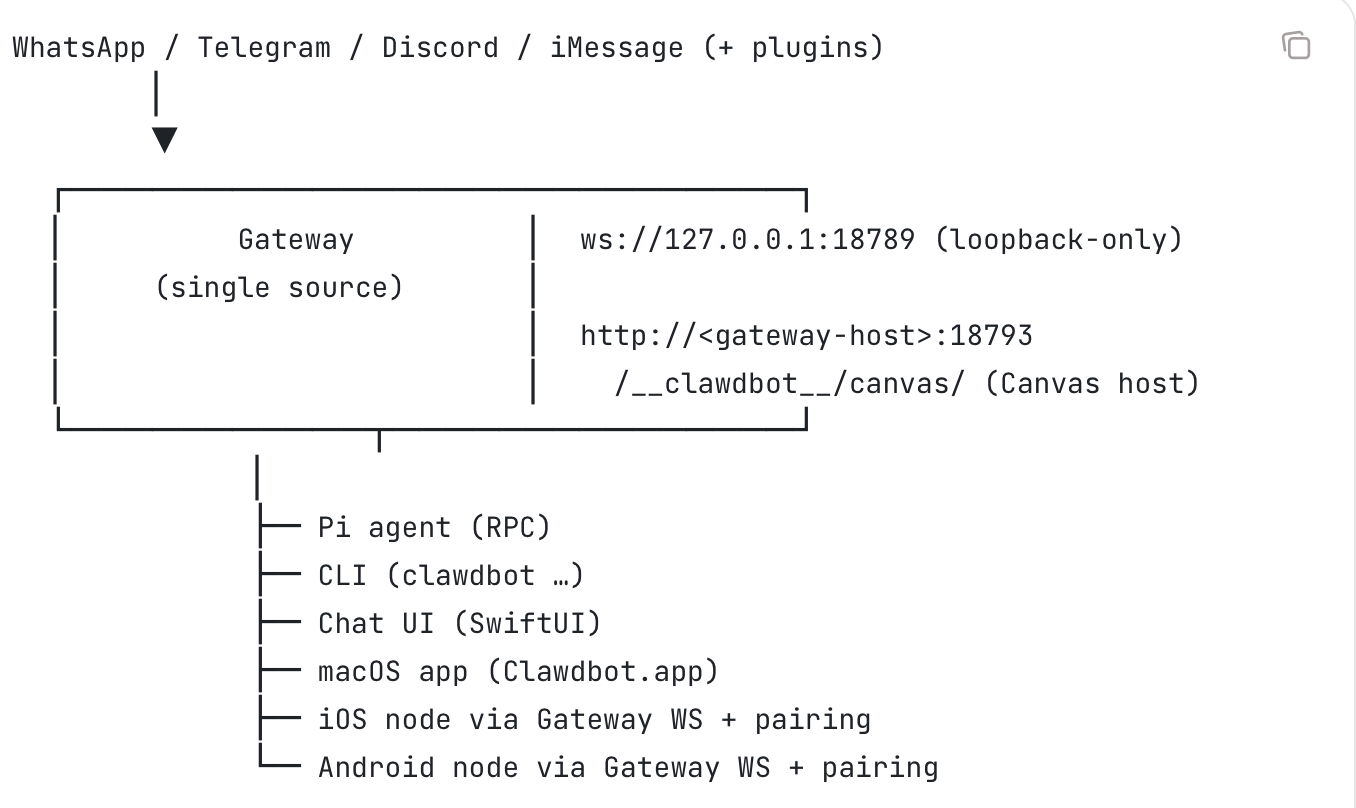
- Clawdbot doesn’t come with any language models built in, and the agent needs to stay online ALL THE TIME, receiving messages, maintaining context, running tasks, hitting integrations. If you run it on your work laptop, it’ll sleep when you do and drop connections.
That’s why everyone’s scrambling to buy Mac Minis just to keep Clawdbot running. Though honestly, a Raspberry Pi would do the job just fine.
Actually, the recommended cheap option is the $5 server (like a VPS from DigitalOcean, Hetzner, or similar cloud providers), a remote Linux server that runs in the cloud 24/7. It’s always online and has a stable internet.
- The devs have already prepared an onboarding wizard for you.
It’ll guide you through gateway setup, workspace configuration, channels, and skills. The CLI wizard is the easiest route and runs on macOS, Linux, and Windows.
Kick things off here: Click
Clawdbot Setup In a Nutshell
The entire setup happens in the Terminal (command line). But once installed, you interact with the bot in your regular messenger.
Step 1 – Install Clawdbot CLI
Mac/Linux:
curl -fsSL https://molt.bot/install.sh | bashWindows (PowerShell):
iwr -useb https://molt.bot/install.ps1 | iexStep 2 – Run Setup Wizard
moltbot onboard --install-daemonThe wizard will ask you to:
- Choose where to run: Local (your computer) or Remote (cloud server)
- Add API key: Anthropic Claude API key (get it at console.anthropic.com)
- Pick messengers: WhatsApp, Telegram, Discord, or Slack
- Install background service: So it runs 24/7
Step 3: Connect Your Messenger
For WhatsApp:
moltbot channels login- Scan QR code with WhatsApp (Settings → Linked Devices)
- WhatsApp is connected
For Telegram:
- Create a bot via @BotFather
- Copy the bot token
- Paste it when the wizard asks
- Start chatting with your bot
Step 4: Approve First Message (Security)
When you send your first DM, the bot gives you a pairing code.
Approve it:
moltbot pairing list whatsapp
moltbot pairing approve whatsapp <your-code>
This ensures only you can use your agent.
Step 5: Test It
Send a message to your bot: “Hey, what’s the time?”
If it responds, you’re all set!
Don’t forget a Quick Security Check
moltbot security audit --deepFix any issues it finds.
Before you dive in, ask yourself:
Are you cool with terminals and command lines?
Got $50-100/month to play around with?
It’s incredibly powerful, but not everything automates easily, you can even see it in the pictures. You need to be ready to invest a couple hours on setup, plus more time figuring out automations (some tasks are just tricky to automate).
If you’re shaking your head at any of these, hold up. It’s not worth the hassle and your money.
But if you’re nodding along, go for it. Just do yourself a favor: run a security check first, turn on sandbox mode, limit your token permissions, and keep it out of group chats.
This article was first published in the Creators AI newsletter. View the original edition.