10 Claude Cowork Prompts That Replace Your Boring Admin Work
Real cases of eliminating boring work with Cowork
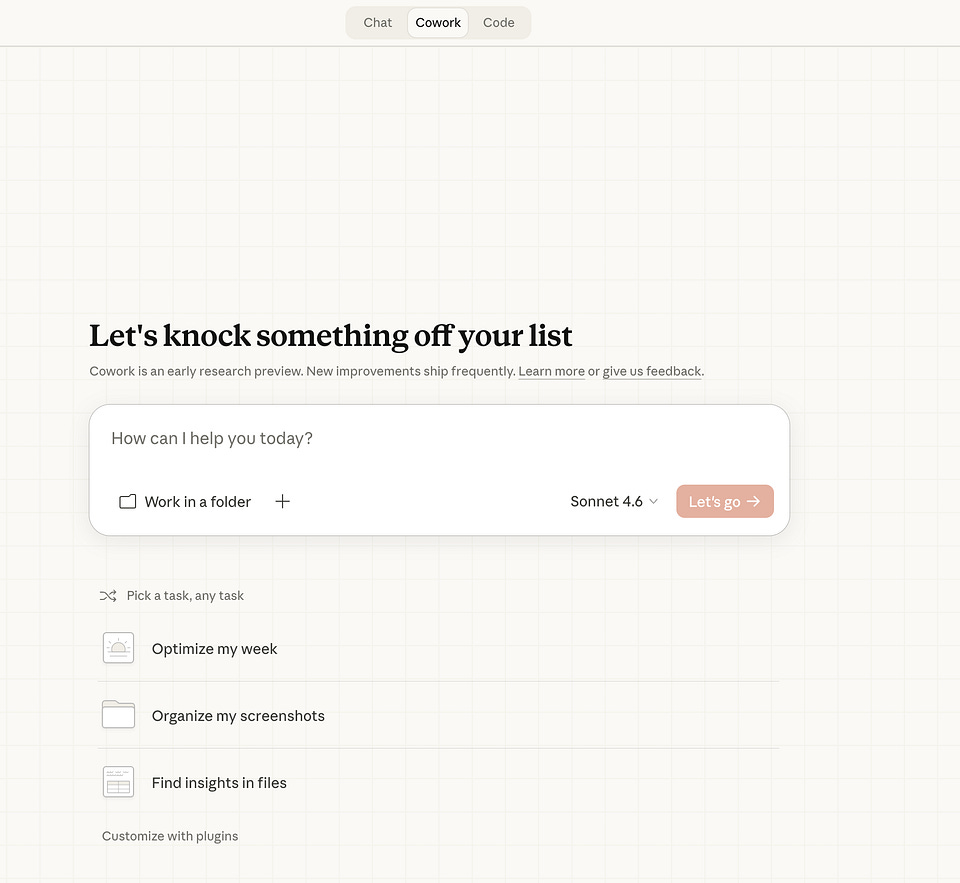
Copy-paste prompts for invoices, travel, subscriptions, meetings, and the admin pile that quietly eats your week.
Most people open Cowork, type something vague like “organize my files”, get a half-baked answer back, and close the tab. That’s the trap.
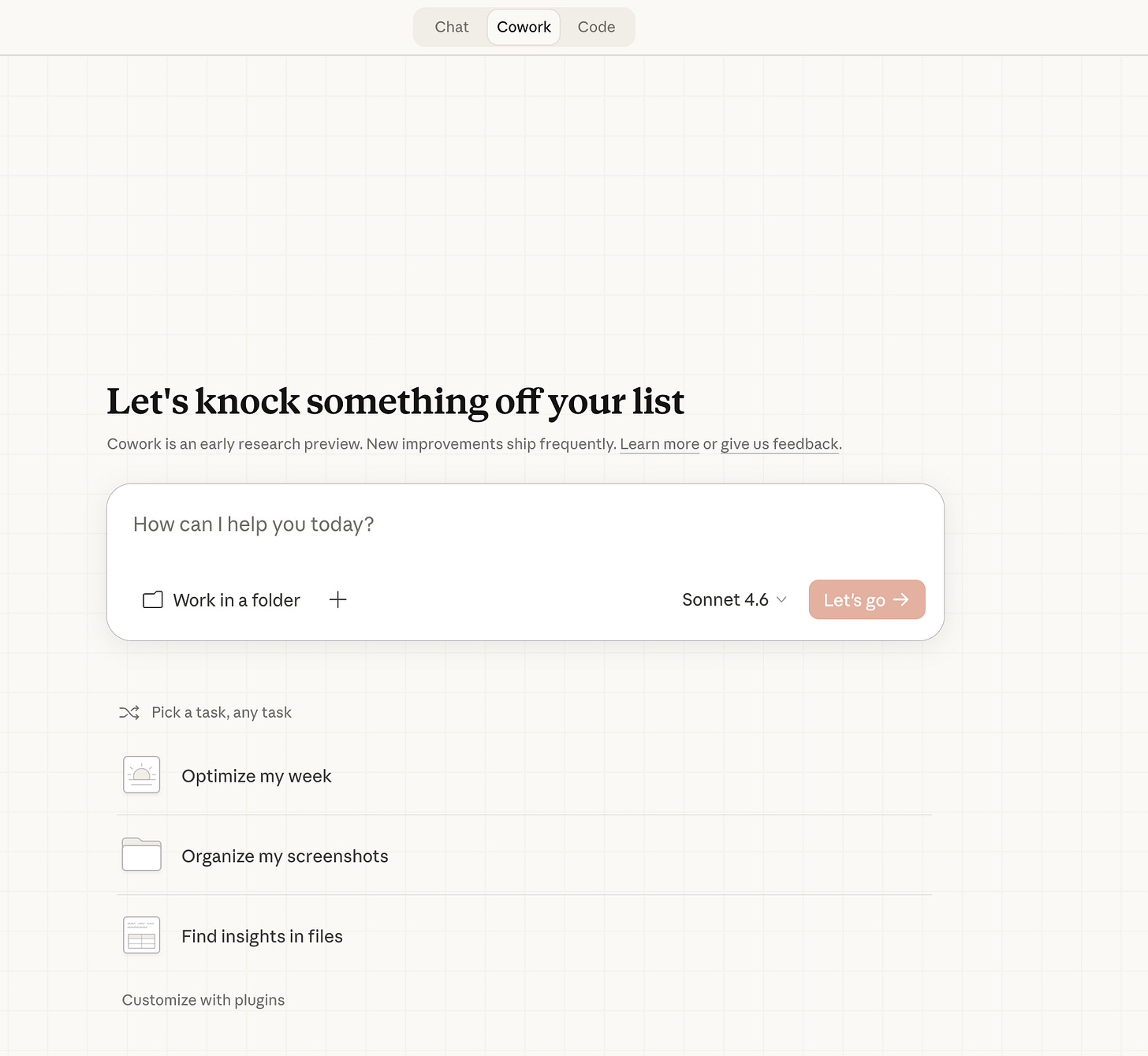
Cowork is not a chatbot. It does not reward one-shot prompting. It rewards iteration. You give it a job. You correct what it got wrong. Then (and this is the part everyone misses) you ask Cowork to rewrite your original prompt so the workflow runs cleanly next time. After three or four cycles, you have a prompt that just works. And if you set it on a schedule, it works without you.
New to Cowork entirely? Start with our Claude Cowork Complete Guide. This post is the prompt layer on top of that setup.
In the last few weeks, I tested a stack of prompts with my own files and inbox. I also pulled the strongest workflows from public Cowork users (Frank Andrade and Ilia Karelin’s prompt library, the orthopedic surgeon running five parallel Cowork tasks at 6am, Anthropic’s own Dispatch documentation). Below are the 10 that earned their place.
In this guide, you’ll get prompts to automate:
- The freelance invoice tracker (live artifact, not just a snapshot)
- The vendor comparison table that ends with a recommendation
- The travel itinerary that pulls every confirmation into one file
- The meeting transcript to action-items machine
- The subscription tracker that actually saves you money
- The job application dashboard
- The Downloads folder organizer (set it once, forget it)
- The morning brief (calendar plus email plus Slack in one pass)
- The competitor watch (scheduled, not manual)
- The Dispatch “prep me for the next meeting” prompt
How to actually use these prompts
The mechanics are simple:
- Copy the prompt
- Open Claude Cowork on your desktop
- Paste and run
- Grant folder, Gmail, or Calendar permissions when asked
- Customize anything in
[BRACKETS]for your situation
The non-obvious part is what happens after the first run. Cowork rarely nails it on attempt one. It scans the wrong folder, formats the table differently than you wanted, misses an edge case. Don’t start over. Tell Cowork what to fix. Then say:
“Now rewrite my original prompt so the next run produces this output cleanly. Save it as a Skill I can reuse.”
That single move turns a one-off task into a reusable system. After three iterations, you stop prompting and start running.
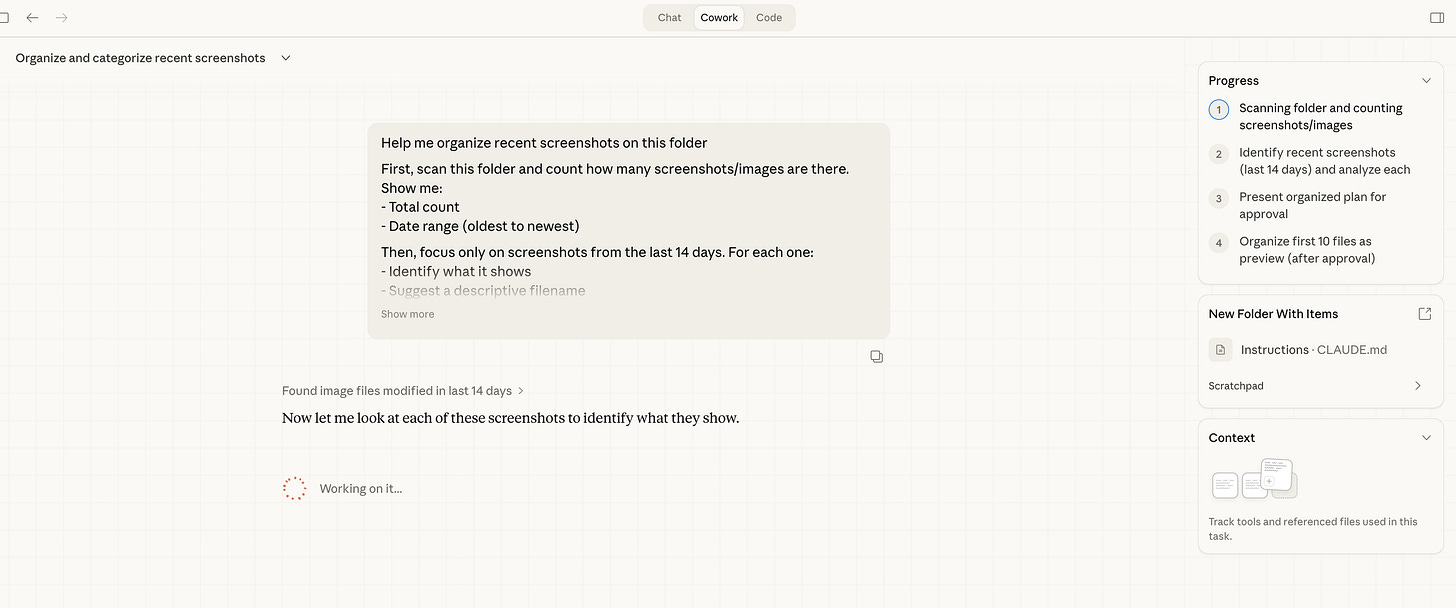
A Cowork task in progress: you describe the outcome, Cowork shows the plan, you watch (or walk away). Image via Claudia + AI.
1. The Freelance Invoice Tracker
The problem. You invoiced someone. You forgot when. You don’t remember if they paid. Your bookkeeping lives across Gmail, a folder of PDFs, and a Notion page you stopped updating in March.
What this prompt does:
- Scans Gmail and a local invoices folder for every invoice you’ve sent
- Flags overdue and unpaid invoices
- Calculates total outstanding at the top
- Saves a tracker file you can reference any time (or a live artifact that re-scans on demand)
The prompt:
Scan my emails and local files to track all freelance invoices and payment status.

GMAIL FILTER:
- Search for emails containing: invoice, payment, due, overdue, receipt
- Date range: [Last 30 days / Last 90 days / This year]

LOCAL FOLDER TO SCAN (optional):
- [path to invoices folder, e.g., ~/Documents/Invoices]
- File types: .pdf, .docx, .xlsx, .csv

FOR EACH INVOICE FOUND, EXTRACT:
- Client name
- Invoice number
- Amount
- Date sent
- Due date
- Payment status: Paid / Unpaid / Overdue / Unknown

BUILD A TRACKER TABLE:
- All invoices sorted by due date (oldest first)
- Status: OVERDUE / DUE SOON / PAID
- Total outstanding amount at the top
- Total paid this period

SUMMARY AT THE TOP:
- Total invoiced: $[X]
- Total paid: $[X]
- Total outstanding: $[X]
- Number of overdue invoices

OUTPUT: Save as invoices-tracker-YYYY-MM.md in [YOUR FOLDER PATH]
Subscribe to keep updated about practical cases with Claude and other AI tools
Pro tip. Run this on the first Monday of every month. The overdue column tells you exactly who to follow up with before chasing anything by hand.
Want a live version instead of a static file? Replace the last line with:
OUTPUT: Build this as a live artifact. Every time it's reopened, re-scan Gmail and the local folder and refresh all numbers. Do not cache the previous state.The live artifact stays connected to Gmail. Every time you open it, it re-scans your inbox and updates totals and statuses. New invoice sent, payment received, due date passed: the artifact reflects all of it without touching the prompt again. There’s a Reload button in the top right corner if you want to refresh mid-session.
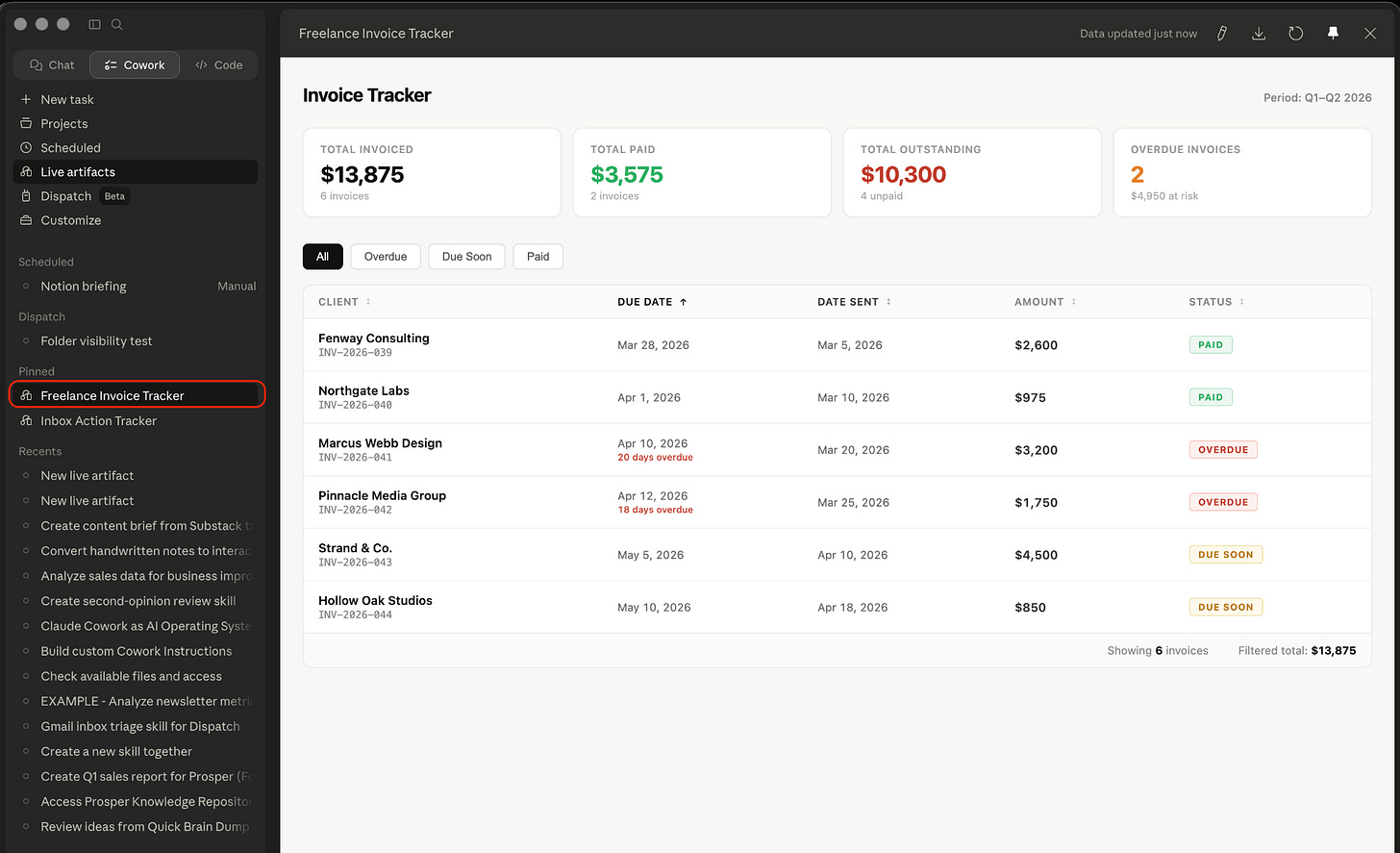
The live invoice tracker as it looks in Cowork. Source: Frank Andrade and Ilia Karelin’s Cowork prompt library.
2. The Vendor Comparison Table
The problem. You’re picking between three or four tools. You have ten tabs open. You still haven’t decided.
What this prompt does:
- Researches each vendor’s pricing, features, and limitations
- Pulls user sentiment from G2, Capterra, and Reddit
- Builds a scored comparison table
- Gives a direct recommendation for your specific use case
The prompt:
I'm evaluating tools/services and need a structured comparison to make a decision.

VENDORS TO COMPARE:
1. [Vendor 1]
2. [Vendor 2]
3. [Vendor 3]

WHAT I'M TRYING TO DO:
[Describe your use case in one sentence]

MY BUDGET: [Monthly or annual budget range]
TEAM SIZE: [Just me / Small team 2-10 / Medium team 10-50]

FOR EACH VENDOR, RESEARCH AND FILL IN:

## Pricing
- Free tier: yes/no, what's included
- Paid plans: price per seat or flat rate
- Annual vs monthly discount
- Hidden costs (storage, API calls, add-ons)

## Core Features
- Does it handle [YOUR PRIMARY USE CASE]?
- Top 3 things it does well
- Top 2 limitations

## Integrations
- Connects to [YOUR KEY TOOLS]?
- Native vs Zapier/Make required

## User Sentiment
- X / Capterra / Reddit consensus
- Most common complaint
- Most common praise

BUILD A COMPARISON TABLE:
- Rows: each vendor
- Columns: pricing, core fit, integrations, support, overall score (1-10)

RECOMMENDATION:
- Best overall for my use case
- Best budget option
- One to avoid and why

OUTPUT: Save as [topic]-vendor-comparison.md in [YOUR FOLDER PATH]
Pro tip. If you’re switching from a current tool, add MY CURRENT TOOL: [name] to the prompt. Cowork will include a migration difficulty rating for each alternative. That one line saves a separate research pass.
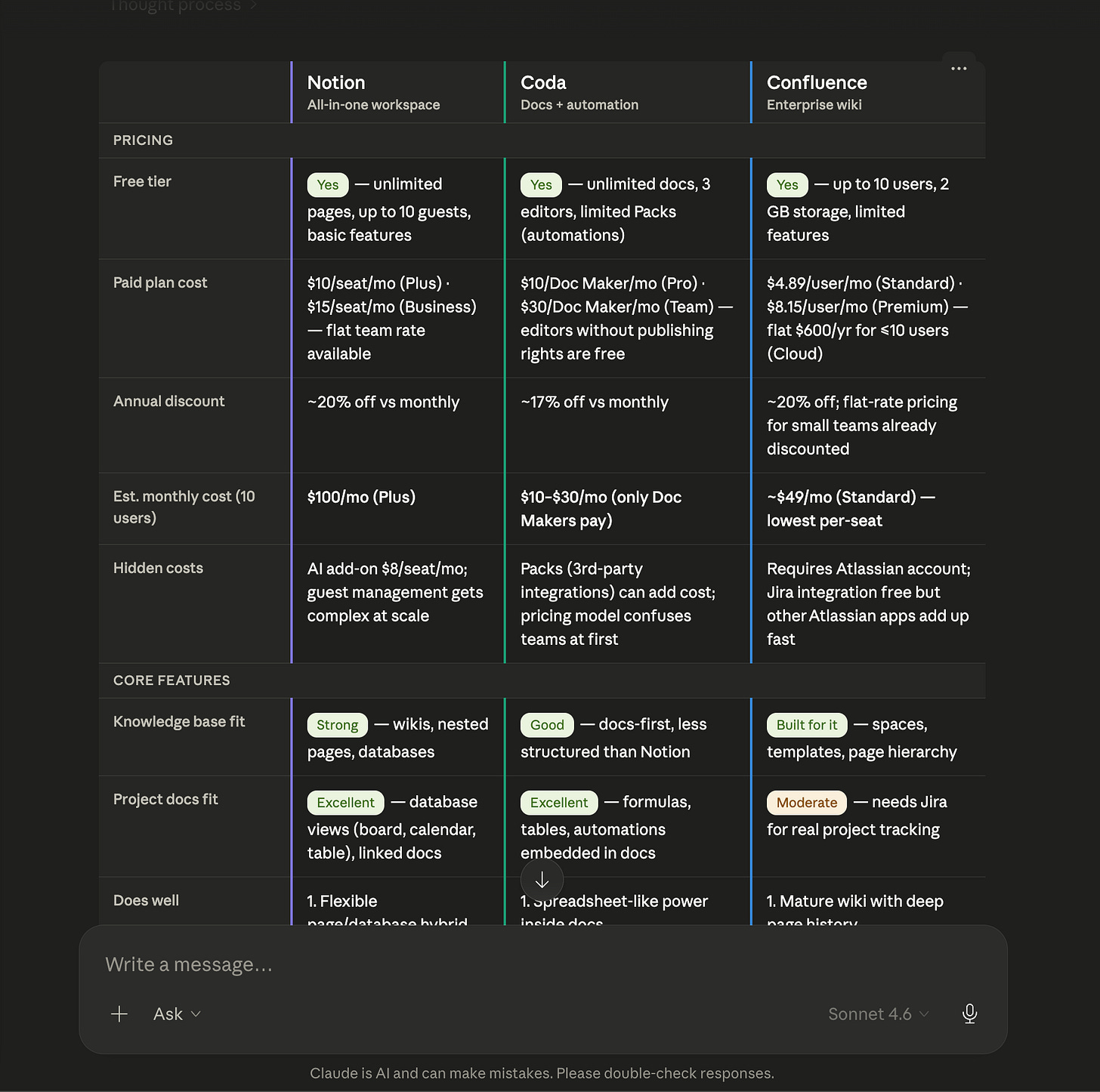
The scored comparison table. Cowork pulls pricing, features, and sentiment from G2/Capterra/Reddit, then scores each option.
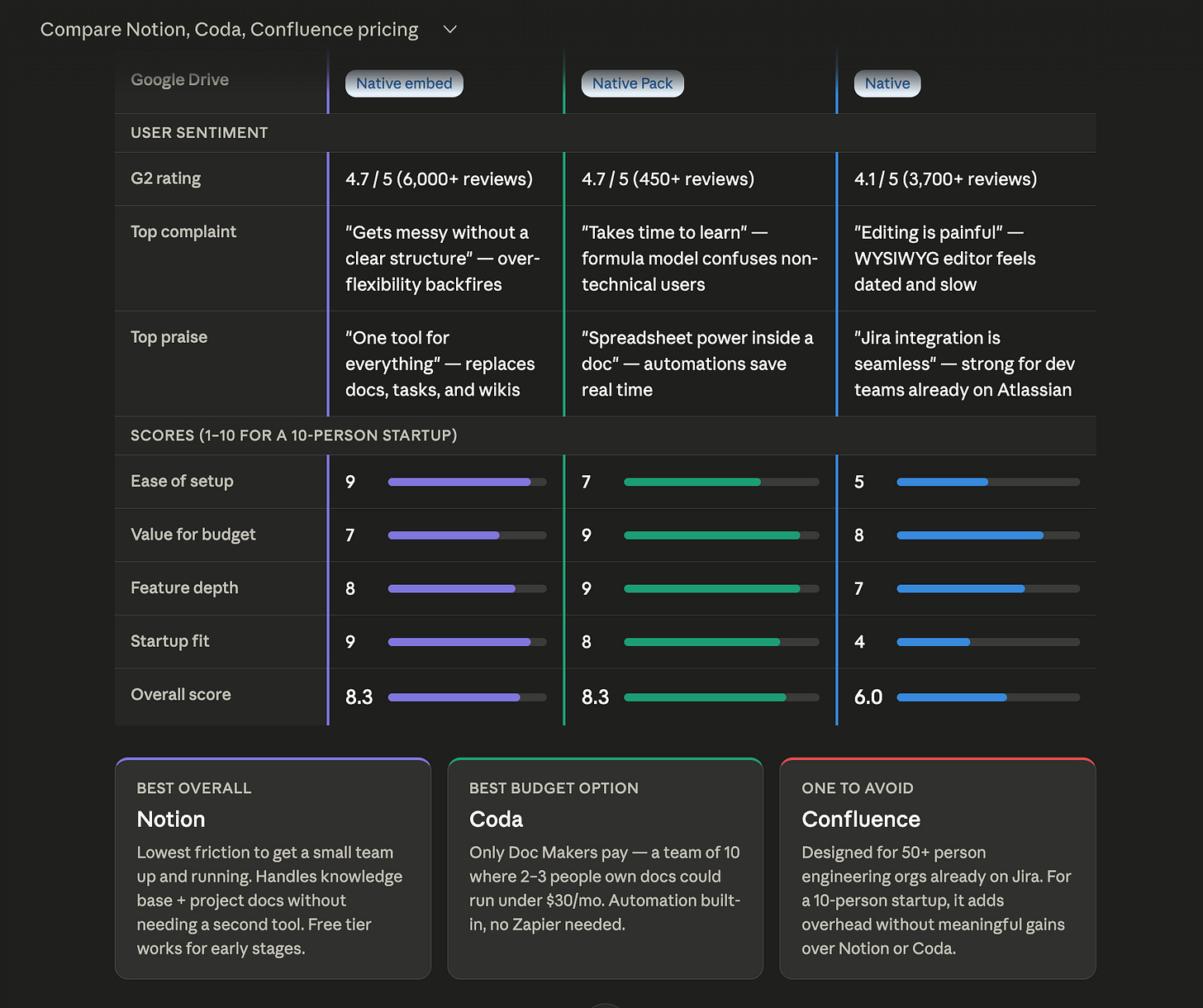
And the part that actually matters: a direct recommendation, not ten more tabs.
3. The Travel Itinerary Builder
The problem. Your trip confirmations are scattered across twelve emails. Flight, hotel, car rental, that restaurant reservation you made through OpenTable. None of it lives in one place.
What this prompt does:
- Scans Gmail for flight, hotel, and booking confirmation emails
- Extracts times, addresses, and confirmation numbers
- Builds a day-by-day itinerary in chronological order
- Flags gaps (like arriving at 11pm to a hotel that closes check-in at 10pm)
The prompt:
Scan my inbox for all travel-related emails and build a complete trip itinerary.

GMAIL FILTER:
- Search for: flight confirmation, hotel booking, reservation, booking confirmation, check-in, itinerary
- Date range: emails from [TODAY] to [TRIP END DATE]
- Focus on trip to: [DESTINATION]

FOR EACH TRAVEL ELEMENT FOUND, EXTRACT:

FLIGHTS:
- Airline and flight number
- Departure: airport, terminal, date, time
- Arrival: airport, terminal, date, time
- Booking reference and seat number

ACCOMMODATION:
- Hotel/Airbnb name and address
- Check-in and check-out date and time
- Confirmation number
- Notes (parking, early check-in, etc.)

OTHER BOOKINGS:
- Car rentals, trains, tours, restaurants
- Date, time, confirmation number, address

BUILD THE ITINERARY:
- Organized chronologically by day
- Each day: date as header, all events in time order
- Each event: time | what | address | confirmation number
- Flag any gaps
- Flag anything missing a confirmation number

SUMMARY AT THE TOP:
- Trip dates
- Destination(s)
- Total flights / nights / bookings

OUTPUT: Save as [destination]-[dates]-itinerary.md in [YOUR FOLDER PATH]
Pro tip. Run this 48 hours before departure, not the morning of. The gap-flagging is where it earns its keep. A missed check-in window is easy to fix two days out and almost impossible to fix at the airport.
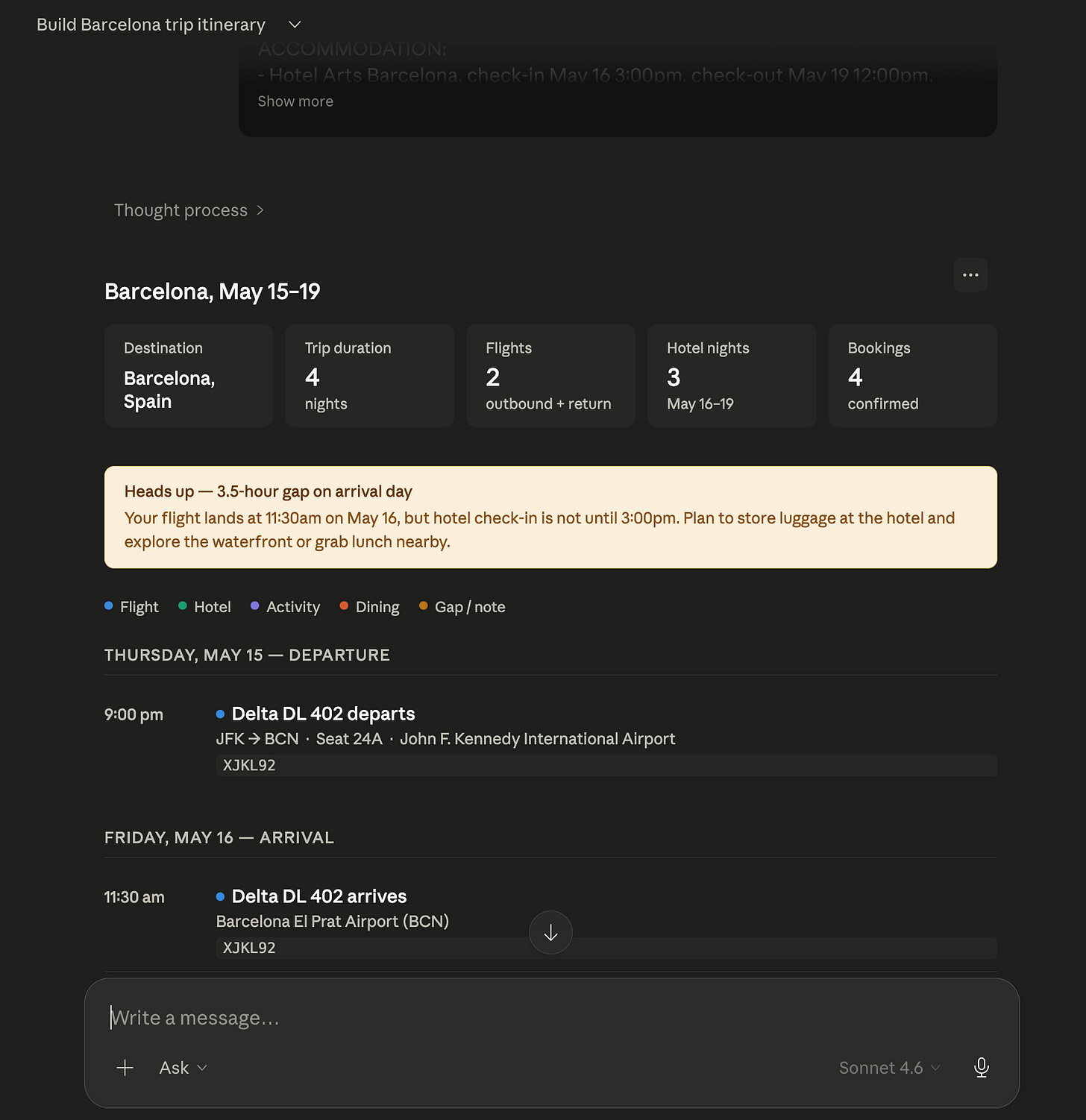
Day-by-day itinerary with confirmation numbers, addresses, and gap warnings.
4. The Meeting Transcript to Action Items Machine
The problem. The call ended. Everyone said “I’ll follow up.” Nobody did. The decisions made in that meeting are now buried in a 4,000-word transcript that nobody is going to read.
What this prompt does:
- Reads any transcript or meeting notes file from a local folder
- Extracts decisions made, action items with owners, and open questions
- Drafts a follow-up email ready to send with zero edits
- Flags anything assigned to nobody
The prompt:
I have a meeting transcript or notes file. Extract everything actionable and structured.

FOLDER TO SEARCH: [Downloads / Desktop / specify path]
FILE NAME (or partial match): [e.g., "meeting", "call", date, or topic]
FILE TYPE: [.txt / .pdf / .docx / .md / .vtt]

MEETING CONTEXT:
- Meeting type: [Team standup / Client call / Strategy session / 1:1 / Other]
- Attendees (if known): [Names or roles]
- Date of meeting: [DATE]

ONCE YOU FIND THE FILE, EXTRACT:

## 1. Decisions Made
- Every decision that was reached (not discussed, decided)
- Format: Decision | Owner | Effective date

## 2. Action Items
- Every task, commitment, or next step
- Format: Task | Owner | Deadline | Priority (High/Medium/Low)
- Flag as [UNASSIGNED] if no owner named
- Flag as [NO DATE] if no deadline mentioned

## 3. Open Questions
- Everything raised but not resolved
- Format: Question | Who raised it | Who should answer it

## 4. Key Discussion Points
- 3-5 bullet summary of what was actually discussed

## 5. Follow-Up Email Draft
Subject line included. Ready to send. Covers:
- Decisions made
- Action items with owners and deadlines
- Open questions with responsible parties

OUTPUT: Save as [meeting-topic]-[date]-actions.md in the same folder as the source file.
Pro tip. This works on Zoom transcripts, Otter exports, Google Meet notes, or even a rough .txt you typed during the call. The format of the input doesn’t matter. The structure comes from the prompt.
5. The Subscription Tracker
The problem. Every month you sign up for one more thing. A streaming service, a SaaS tool, a Substack like ours (we’d appreciate it). After a year you’re paying for things you don’t even use anymore. I once paid €5 a month for a delivery service for seven months after I’d stopped ordering. I only caught it on a bank statement scroll.
What this prompt does:
- Reads all bank statements in a folder (CSV, XLS, XLSX, PDF)
- Identifies recurring charges that repeat across two or more months
- Builds a visual dashboard plus a spreadsheet you can edit
- Calculates monthly savings if you cancel the dead ones
The prompt:
# Subscription tracker

Read all bank statements in my folder (any format: CSV, XLS, XLSX, PDF). Identify every recurring subscription or membership by finding charges that repeat across 2+ months with a consistent amount or merchant name.

## What to include
- Subscriptions (software, streaming, SaaS)
- Memberships (gym, coworking, clubs)
- Insurance, telecom, donations
- Any other fixed recurring charge

## What to exclude
- One-off purchases
- Groceries, dining, retail shopping
- Bank fees and currency conversion charges

## Output 1 — Visual dashboard (inline widget)
- Total number of subscriptions found
- Estimated monthly cost grouped by currency
- A card for each subscription showing: name, average amount, frequency, account
- Organized by category (software/streaming, services/utilities, etc.)

## Output 2 — Spreadsheet (.xlsx) saved to my folder
- **Active subscriptions** sheet with columns: Subscription, Amount, Currency, Frequency, Account
- Totals per currency using Excel formulas
- **Canceled subscriptions** section with a Status column
- Monthly savings row for canceled items
Pro tip. Run this with /schedule set to monthly. End of every month, you start the next one with a clean picture of where your money is going. We have a full guide on Cowork scheduled tasks if you’ve never used them.
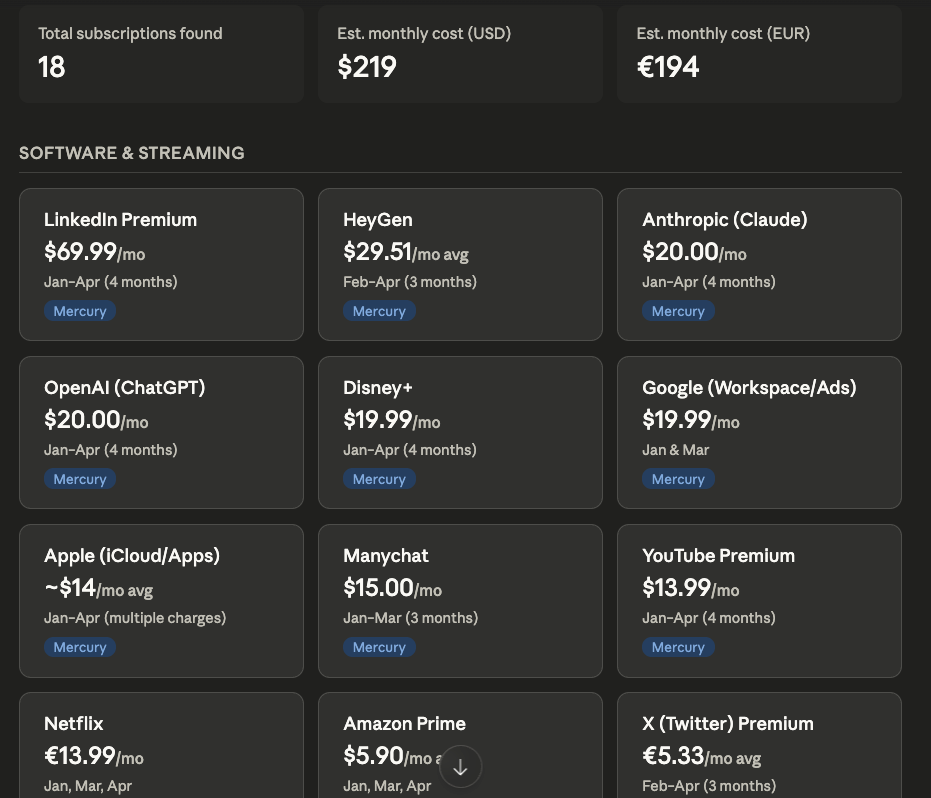
The visual dashboard. Each card shows a subscription, its average amount, frequency, and which account it’s charged to.
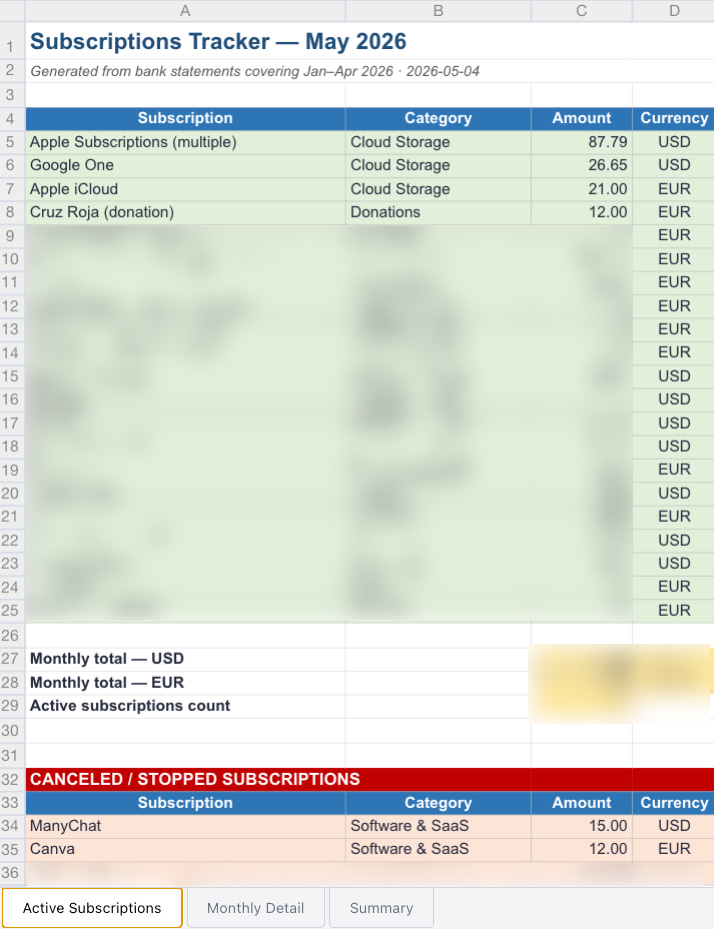
And the spreadsheet that lands in your folder, with active and canceled subscriptions plus monthly savings calculated for you.
6. The Job Application Dashboard
The problem. You’ve applied to 20 places. You can’t remember which ones replied. You can’t remember which ones ghosted. You’re worried about double-applying.
What this prompt does:
- Scans Gmail for application confirmations, interview requests, rejections
- Assigns a status to every application
- Sorts by days since last update (longest silence first)
- Flags applications with no response after 14 days
The prompt:
Scan my inbox and build a live tracker of every job application I've submitted.

GMAIL FILTER:
- Search for: application received, thank you for applying, interview, next steps, unfortunately, offer
- Date range: [Last 30 days / Last 3 months / specify]

FOR EACH APPLICATION FOUND, EXTRACT:
- Company name
- Role title
- Date applied
- Current status: Applied / Acknowledged / Interview Scheduled / Interviewing / Rejected / Offer / Withdrawn
- Last email date
- Next step (if mentioned)
- Recruiter contact name (if any)

BUILD A LIVE DASHBOARD:
- One row per application
- Columns: Company | Role | Date Applied | Status | Days Since Last Update | Next Step
- Sort by: Days Since Last Update (longest first)
- Status colors: green = active/interviewing, amber = applied/waiting, red = rejected, blue = offer

SUMMARY AT TOP:
- Total applications
- Active (not rejected or withdrawn)
- Awaiting response >14 days (flag these)
- Interviews scheduled
- Offers

OUTPUT: Live artifact. Every time it's reopened, re-scan Gmail and refresh all statuses. Do not cache the previous state.
Pro tip. The “awaiting response >14 days” flag is the whole point. That’s exactly where to send a polite follow-up. Most people let those go cold without realizing it.
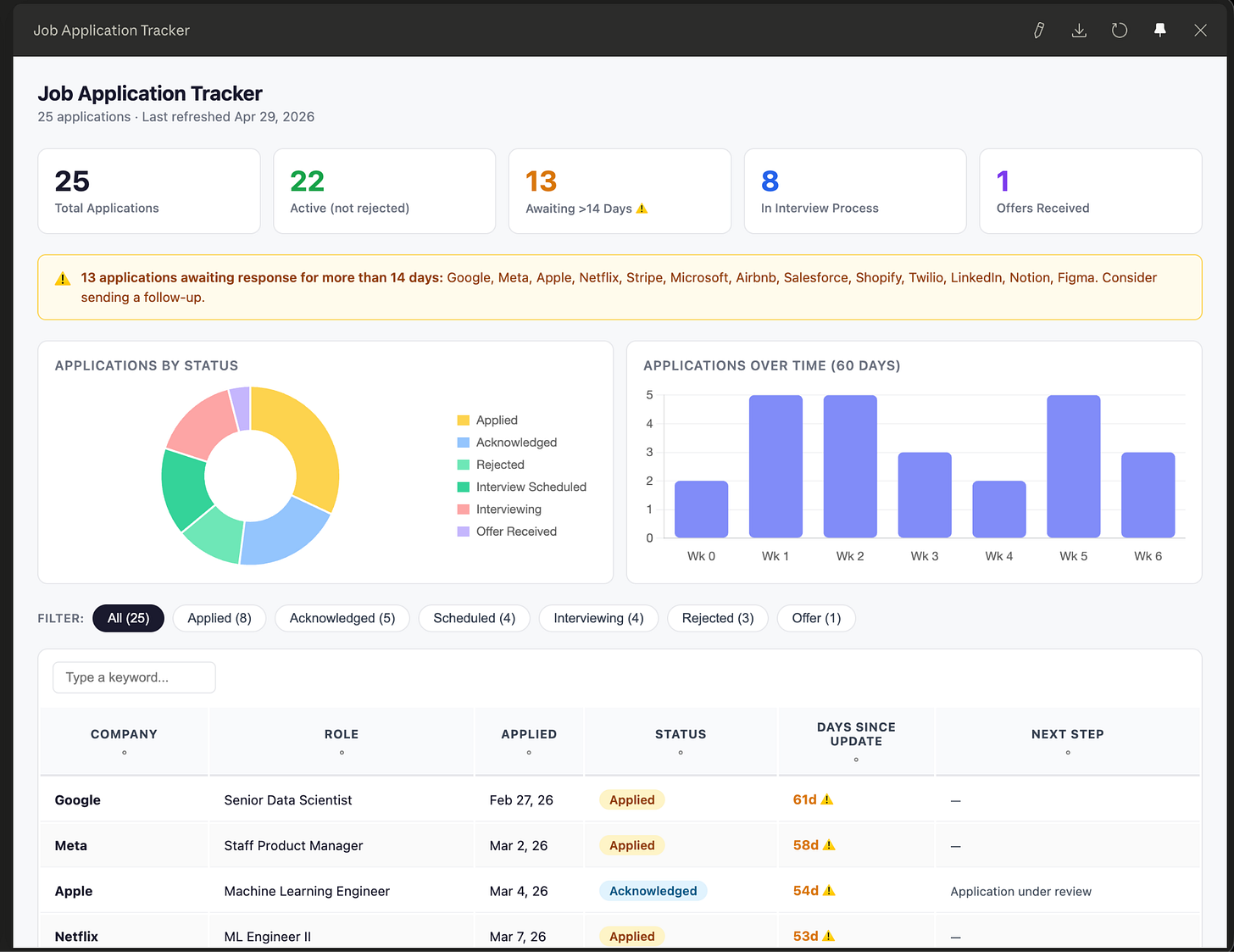
The live dashboard. Color-coded statuses (green = active, amber = waiting, red = rejected, blue = offer), sorted by days since last update.
7. The Downloads Folder Organizer
The problem. Every day, files land in your Downloads folder. Spreadsheets, screenshots, PDFs, random images. After a month it’s chaos. Once an important file lands in there, it disappears.
What this prompt does:
- Sorts loose files into existing subfolders by file type
- Hard guardrails: never creates new folders, never deletes anything
- Produces a move log so you can audit what changed
The prompt:
Organize loose files in the user's selected folder (their Downloads directory) into the appropriate subfolders based on file type.

The target folders are:
- **Audio** — move all audio files here (.mp3, .m4a, .wav, .flac, .aac, .ogg, .wma, .aiff)
- **Docs** — move all docs here (.docx, .txt, .md, .rtf, .odt, .doc)
- **PDFs** — move all .pdf files here
- **Images** — move all image files here (.png, .jpeg, .jpg, .gif, .webp, .svg, .bmp, .tiff, .heic)
- **Videos** — move all video files here (.mp4, .mov, .avi, .mkv, .webm)
- **Datasets** — move all data files here (.csv, .tsv, .json, .parquet, .xlsx, .xls)

## Steps
1. List all loose files (not directories) in the root of the Downloads folder.
2. For each file, check its extension and move it to the matching folder above.
3. After moving, list what was moved to each folder and note any files left untouched.

## Constraints
- Do NOT create any new folders. Only use the existing folders listed above.
- Do NOT move, rename, or touch any existing subfolders or their contents.
- Do NOT move files whose extensions don't match any of the categories.
- Never delete any files.
- Only operate on the root level of the Downloads folder.
Pro tip. Schedule this to run every two days at 9pm. Your Downloads folder stays tidy without you doing anything. Once a week, pop into the sorted folders and delete what you don’t need so they don’t balloon.
8. The Morning Brief
This is the prompt I’d most argue is underused. It’s also the one Anthropic itself documents as the canonical Cowork use case, but almost nobody is publishing it as a copy-paste template.
The problem. You wake up, open laptop, and now you’re sorting through email, calendar, and Slack mentions before you’ve even started your real work. By the time you have a picture of the day, it’s already 9:30.
What this prompt does:
- Pulls tomorrow’s calendar (or today’s, depending on when you run it)
- Summarizes unread email and Slack mentions from the last 24 hours
- Writes a one-paragraph prep note for each meeting on your calendar
- Delivers everything as a single brief before your first meeting
The prompt:
Build my morning brief.

PULL FROM:
- Google Calendar: my events for [today / tomorrow]
- Gmail: unread emails from the last 24 hours, prioritized
- Slack: mentions and DMs from the last 24 hours

OUTPUT STRUCTURE:

## Today at a glance
- Number of meetings
- First meeting time
- Last meeting time
- Any back-to-back blocks (flag these)

## Meeting prep (one block per meeting)
For each meeting on the calendar:
- Title, time, attendees
- 1-paragraph context: what's likely on the agenda based on past emails or notes
- Files to bring (if any are referenced in past threads)
- One question I should be ready to answer

## Inbox priority
- Top 5 emails that need a reply today (with one-line summary of each)
- Anything flagged urgent
- Things to ignore (newsletters, no-action FYIs)

## Slack priority
- Mentions that need a response
- DMs from the last 24 hours
- Threads I'm following that had new activity

OUTPUT: Save as morning-brief-YYYY-MM-DD.md in [YOUR FOLDER PATH]
Pro tip. Set this up with /schedule to run at 7am every weekday. By the time you sit down with coffee, the brief is already in your folder. Cowork rewrites the prompt itself after the first run, so subsequent runs are sharper. This is the single highest-ROI prompt in this list if you have meetings.
9. The Competitor Watch
This one is for marketers, founders, and anyone tracking a category. Most people do competitor research in bursts (usually before a board meeting). The whole point is to make it continuous and invisible.
The problem. Your competitor shipped a new feature, changed pricing, or quietly rewrote their homepage. You found out three weeks later from a customer.
What this prompt does:
- Checks a list of competitor URLs you maintain
- Notes any new features, pricing changes, or messaging shifts
- Appends findings to a running tracker file
- Runs on whatever cadence you set (I do monthly)
The prompt:
Review the competitor sites listed in /context/competitors.md.

For each competitor URL:
1. Visit the homepage and pricing page
2. Compare against the snapshot from the last run (in /reports/competitor-snapshots/)
3. Note any changes in:
   - Headline messaging
   - Feature lists
   - Pricing tiers or price points
   - Customer logos
   - New product launches mentioned in announcements or blog posts

OUTPUT:
- Append a dated entry to /reports/competitor-tracker.md
- Format: ## [Date] | [Competitor name] | What changed | Why it might matter
- If nothing material changed, note that explicitly
- Save a fresh snapshot of each homepage to /reports/competitor-snapshots/[competitor]-[date].md so the next run has something to compare against
Pro tip. Maintain /context/competitors.md as a simple list of URLs (one per line). When a new competitor enters the picture, just add a line. Cowork will pick it up on the next run with no other changes needed.
10. The Dispatch “Prep Me” Prompt
The first nine prompts run on your desktop. This one runs on your desktop too, but you trigger it from your phone. That’s what Dispatch is for. You’re in an Uber, you remember you have a 2pm meeting you didn’t prep for, and you fire off a one-line message to Claude on your phone. By the time you get to the meeting, your laptop has done the work.
The problem. You’re not at your laptop. You realize you’re walking into a meeting cold.
What this prompt does:
- Pulls the next event from your calendar
- Finds relevant past notes, emails, or files on your computer
- Drafts a one-page prep memo
- Attaches the memo to the calendar invite (or saves it where you can grab it on your phone)
The prompt (sent via Dispatch on mobile):
Prep me for my next calendar event.

Steps:
1. Open Google Calendar, get the next event in my day.
2. Note the attendees, the time, the meeting title, and any agenda in the description.
3. Search Gmail for past threads with these attendees in the last 30 days. Summarize the most recent thread in 2 sentences.
4. Search /context and /projects for any files that match the meeting topic (use keywords from the meeting title and description).
5. Write a 1-page prep memo with:
   - Meeting context (1 paragraph)
   - Attendees and what they likely care about
   - Most recent relevant exchange
   - 3 questions I should be ready to answer
   - 1 question I should be ready to ask

OUTPUT: Save as prep-[meeting-title]-[date].md on my desktop. Reply to me on Dispatch when done.
Pro tip. This requires Dispatch enabled (Pro and Max plans) and your laptop has to be awake with the Claude Desktop app open. If you set your laptop to never sleep, you can trigger Dispatch from anywhere and it just works. The Fortune review of Dispatch from April pointed out the obvious downside: leaving an unlocked laptop on all the time is unnerving. It’s a real tradeoff. I personally only use this when I’m out for the day and know my laptop is on.
The compounding move: Skills plus Schedule
A single prompt is a one-time win. The same prompt saved as a Skill, with a /schedule cadence, is a system.
The pattern looks like this:
- Run a prompt the manual way until the output is exactly what you want
- Ask Cowork to rewrite the prompt itself based on what worked
- Save the rewritten prompt as a Skill (Settings → Skills → New)
- Use
/scheduleto make it recurring (daily, weekly, monthly, weekdays only) - Walk away
The morning brief becomes a 7am scheduled task. The subscription tracker runs on the last day of every month. The competitor watch runs the first Monday of every month. None of them require you to remember.
If you’ve never built a Skill, our Skills, Plugins, and Swarm Mode post walks through it. The TLDR: a Skill is a folder with a SKILL.md file that tells Claude how to do something the way you want it done. Once it exists, every prompt that touches that area uses it automatically.
The honest catch
These prompts are not magic. A few things to plan for before you trust the output.
First run is rarely right. Cowork will scan the wrong folder, miss a Gmail label, format a table differently than you expected. That’s not a failure. That’s the iteration loop. Correct it once, ask Cowork to update the prompt, and the second run is usually clean. We covered the failure modes in detail in our post on how Cowork can boost your routine work.
Scheduled tasks only run when your computer is awake. If your laptop is asleep at 7am, the morning brief skips that day and runs the next time you open the app. Plan accordingly. Set your machine to never sleep if you genuinely depend on a recurring brief.
Don’t grant access to sensitive folders without a guardrail. Cowork can read and write inside any folder you allow. That’s the point. It’s also the risk. Avoid pointing it at folders with banking documents, passwords, signed legal docs, or anything you wouldn’t want an agent to touch on its own. Use a clean, task-specific folder for each workflow.
Cowork doesn’t replace verification. When the output looks polished, the temptation is to ship it and move on. Don’t. The cleanup job that looks done might have skipped six rows. The vendor comparison might have missed a key competitor. Always spot-check the high-stakes parts.
The bottom line
The difference between people who get hours back from Cowork and people who watch demos and close the tab isn’t the model. It’s whether they bothered to save the prompts that worked, turn them into Skills, and put the Skills on a schedule.
These ten prompts are starting templates. Customize the brackets, run the first version, fix what it gets wrong, and ask Cowork to rewrite the prompt itself. After three iterations, you have a system. After a month of running it on schedule, you’ve quietly automated a meaningful chunk of your week.
Which of these 10 are you trying first? Drop it in the comments. I want to see what people actually run.
More on Cowork from Creators AI:
- Claude Cowork: Complete Guide & Practical Use Cases. Start here if you’re new.
- How Cowork Can Boost Your Routine Work. Four real cases plus the failure modes nobody warns you about.
- Skills, Plugins, Swarm Mode: Practical Tips for Claude. How to convert any of these prompts into a permanent Skill.
This article was first published in the Creators AI newsletter. View the original edition.