Claude Can Control Your PC
Plus stepbystep guide on how to run it without any technical skills
Hi!
A few days ago, Anthropic released a big update for Claude models and the API that helps you control your PC using AI. This feature is still in beta, but it already provides many fantastic usage scenarios (and gets the whole internet excited).
We've figured out how to run “computer use” without any technical skills, and now ready to share it with you.
With this newsletter, you'll learn:
- What is “Computer Use” from Anthropic
- How to Set up Claude on Your PC
- Practical Scenarios to Use the New Platform
Keep your mailbox updated with practical knowledge & key news from the AI industry!
Claude AI Update & New API
So here's what happened. Briefly, without further details.
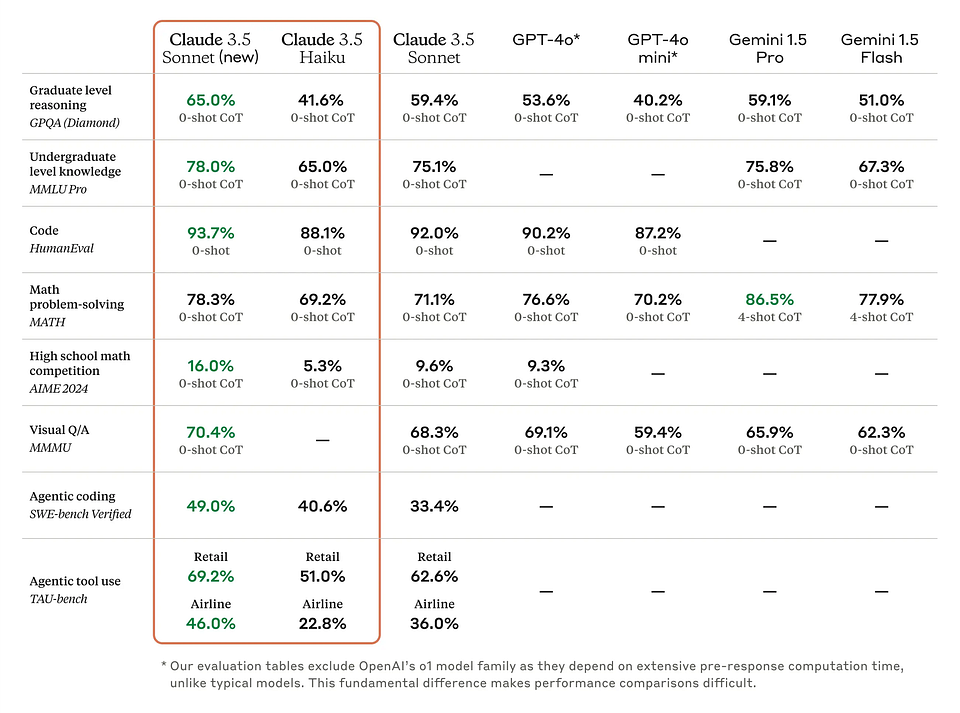
Anthropic unveiled an improved Claude 3.5 Sonnet module and a new Claude 3.5 Haiku model. The new version of Sonnet has become better than its predecessor in every way, including query processing speed and coding skills. (Below, you will see a table showing the capabilities of the current Claude 3.5 Sonnet) And the Claude 3.5 is the company's next biggest model, complementary to the Opus.
Here's how these models feel in comparison to the GPT-4o and Gemini 1.5 (Keep in mind that the tests were conducted at Anthropic, so let's not get too enthusiastic)

This is important because Claude 3.5 Sonnet is responsible for running the new API.
The “Computer use” platform allows developers to control a PC using a chatbot. The idea is that Claude mimics the behavior of real people—it looks at the screen, moves the cursor, clicks on copies, and types text. This approach creates a new way of interacting with a PC.
Sharing is caring! Refer someone who started a learning Journey in AI!
To be fair, it would be a bit of a cheat to call this approach new since Microsoft's Copilot chatbot works similarly. However, unlike Copilot, Claude can be used on other platforms as well as Windows.
Currently, “computer use” is an experimental feature in beta. Anthropic warns its users that the AI is still error-prone and may produce poor results. However, it is possible to test the API now.
It only requires one application and a couple of lines of code.
Try Claude AI on Your PC
I don't know about you, but for me (a person who is rather loosely connected with coding), the first link to GitHub usually makes me give up even the most exciting idea. But today's topic is not that case. Besides, the process of customizing Claude on PC is straightforward. And it looks identical no matter what platform you use: Windows, MacOS, or Linux.
Here's what the step-by-step setup looks like.
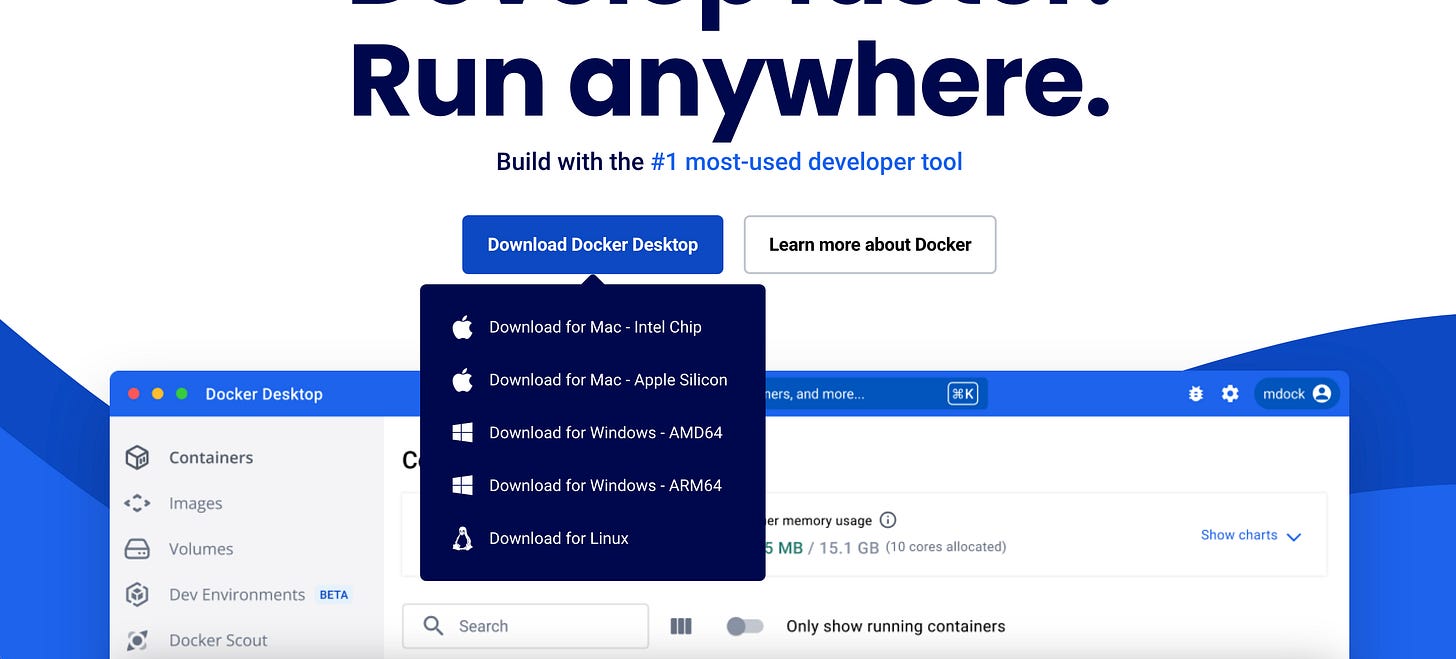
Step 1. Go to the official Docker website, download the application for your system, and install it.
Step 2. Start Docker and click “Terminal” in the bottom right corner of the screen.
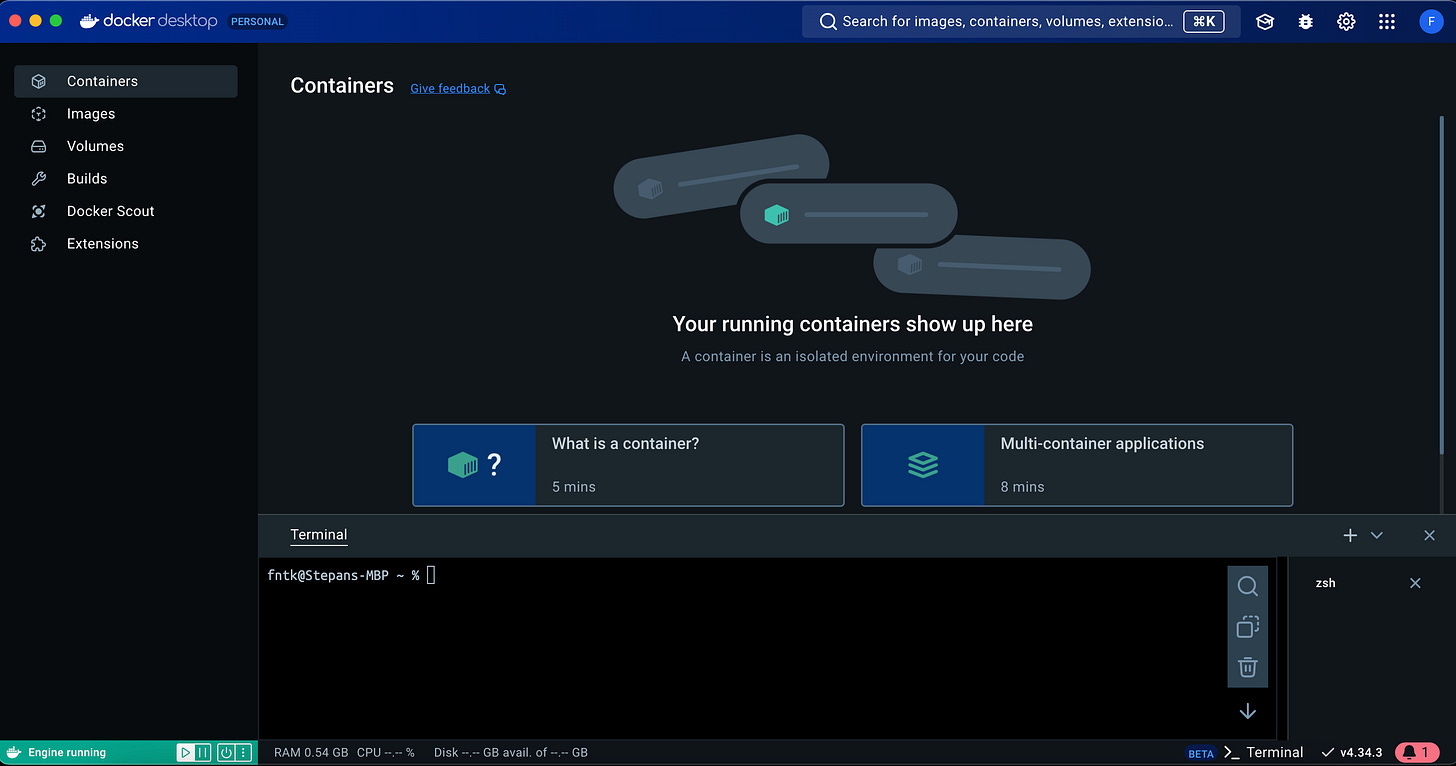
Step 3. Now, we need one command and an API Key from Anthropic. To do this, go to <https://console.anthropic.com/dashboard>, select “Get API Keys,” then “Create Key” in the upper right corner. Think of a name and select Workspace (you can set it the same way I did). Copy the obtained key.
You need to do this now! Otherwise, you will have to create a new key.
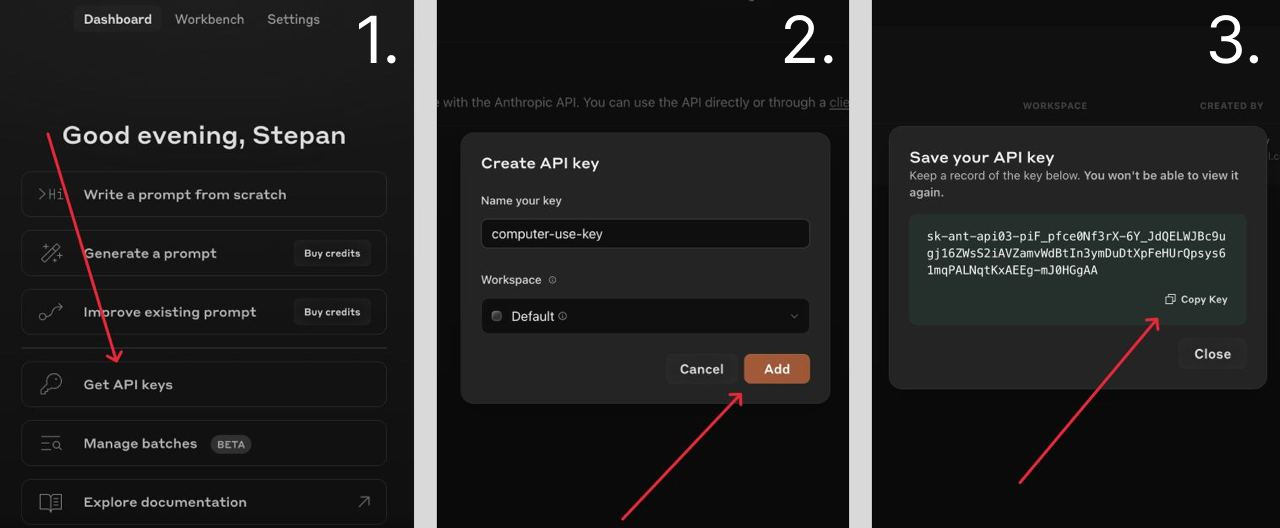
My key shown cannot be used. I’ll delete it by the time this post is published.
Step 4. Now use the command below, replacing “$ANTHROPIC\_API\_KEY” with your unique key. Paste the resulting text into your terminal and press “Enter.”
docker run -e ANTHROPIC_API_KEY=$ANTHROPIC_API_KEY -v $HOME/.anthropic:/home/computeruse/.anthropic -p 5900:5900 -p 8501:8501 -p 6080:6080 -p 8080:8080 -it ghcr.io/anthropics/anthropic-quickstarts:computer-use-demo-latestStep 5. Wait for the program to download all the necessary files. If you have done everything correctly, you will see the following image at the end.
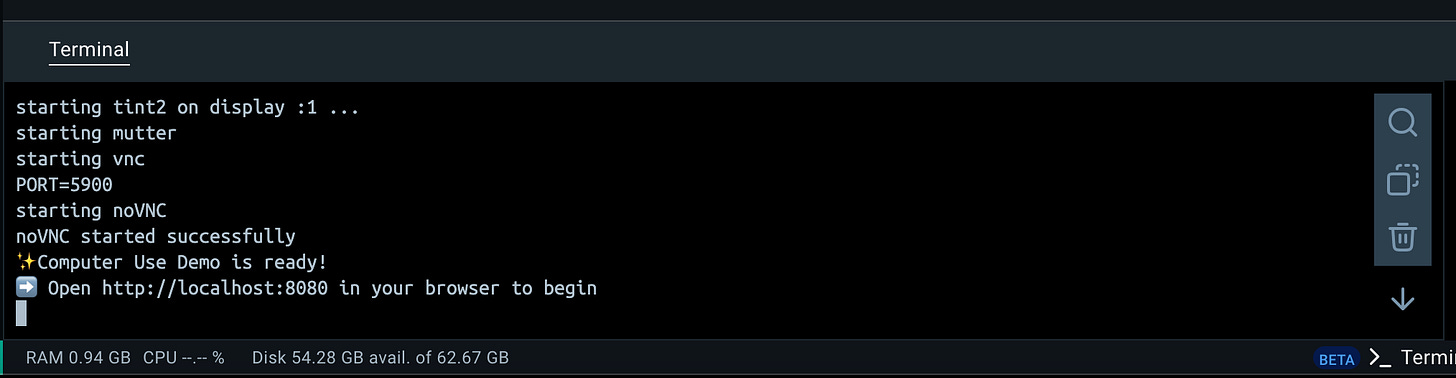
Step 6. Click on “http://localhost:8080” to open a browser and get started.
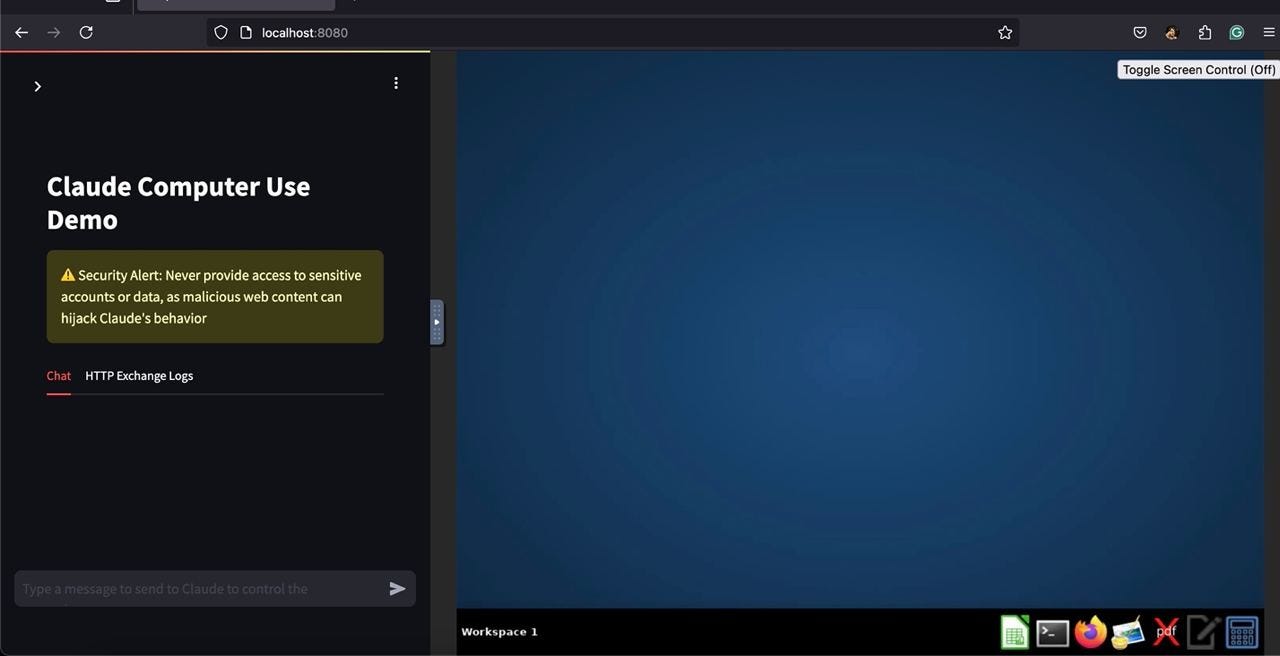
Step 7. You are awesome!
You can now use Claude to control your computer. Below, I suggest a few usage scenarios to make it valuable for you.
And I can’t attach new images because Substack sends newsletters to the “promo” section if there are too many pictures in the post. No offense, ok? :)
Scenarios for Using Claude on a PC
Claude is cool, especially when it's running on your PC. But like other models, it is prone to errors. So, I recommend using it for routine tasks that you can double-check.
- Web Search & Form Filling
I liked one of the use cases suggested by a user on Reddit. He asked Claude to search Amazon for three wireless earbuds, find the price, rating, and brand name, and transfer the findings into a spreadsheet.
A very cool way to search and summarize information that will save a lot of time. Especially for automating spreadsheets. I hate spreadsheets.
- Development & Coding Support
Chatbots have been good at coding before, but more as assistants. Now, however, Claude can become your hands. The AI can interact directly with your code editors, navigate through applications, test features and potentially identify bugs. It's been around before, but now it's orders of magnitude more convenient.
- Data & Trend Analysis (+ Idea Generation)
Claude can use up-to-date information from the web, so you can command it to gather data and make decisions. Unlike other chatbots, you'll be able to see what actions it performs, making it easier to understand the logic behind the proposed decisions.
For example, if you're a writer, you can ask Claude to collect 30 recent headlines from several relevant to you to understand what is troubling your audience.
Personally, I will use this all the time!
Perhaps that's all the general “computer use” scenarios that I've been using in different variations over the past few days. You can develop your own scripts based on these. Or maybe you have your own ideas and out-of-the-box approaches?
Tell us about it in the comments!
Share this edition with your friends!
This article was first published in the Creators AI newsletter. View the original edition.