Claude Code Tips: for Dev and Non-Dev tasks
Productivity tips straight from the creator himself
Hi there!
The holidays are over, but diving into something heavy right now still feels rough.
Perfect timing then, because Boris Cherny, the creator of Claude Code, just shared how to squeeze the most out of Claude Code in the new year.
We’ve already covered some of the more interesting workflows you can build with this tool. Find them here:
So today, we’re not talking about new tools; we’re talking about how to make your work way more productive with Claude Code, with a real example in the end.
Start the year with practical insights & key news from the AI industry!
# Commandments For Devs and Non-Devs
Claude Code works great out of the box, but it’s packed with customization options that let you tune the tool to fit your workflow.
Run 5 terminals in parallel + 5-10 browser tabs
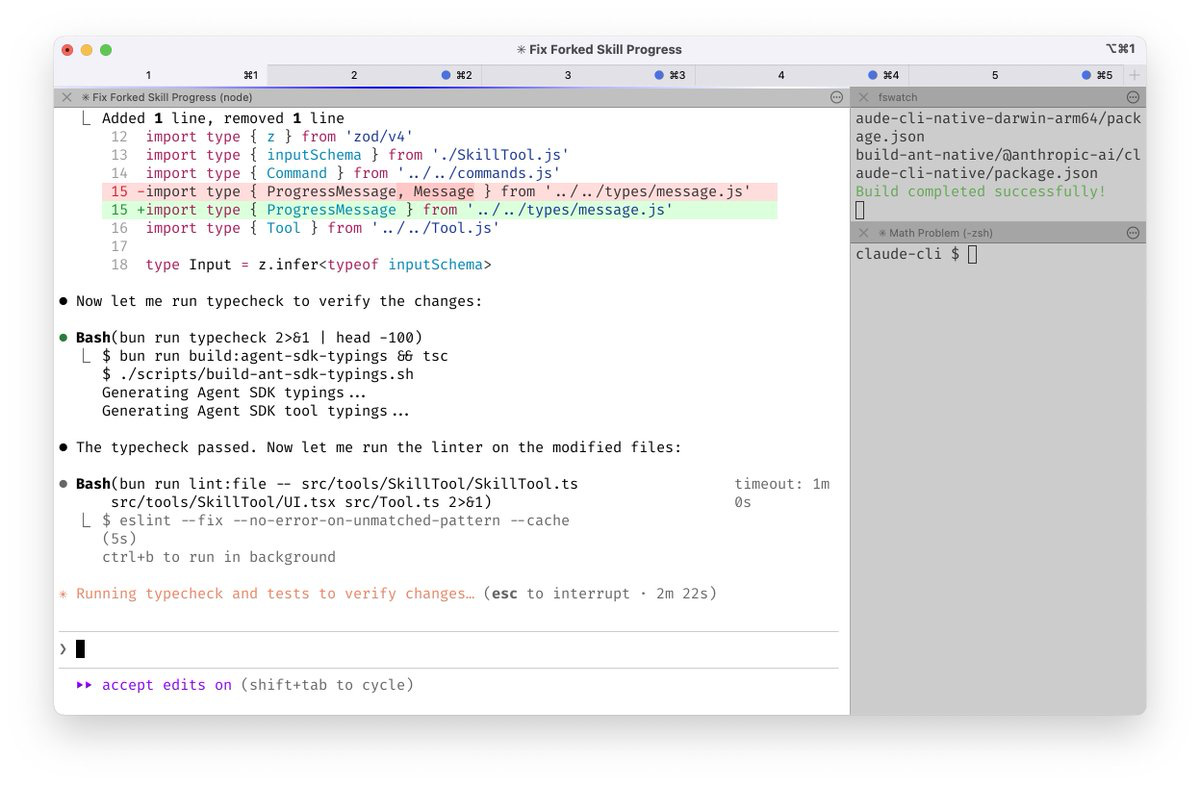
The whole idea is that effective work with Claude Code doesn’t start with prompts, but it starts with a properly structured terminal setup.
Boris stresses that using multiple terminals and tabs in Claude Code lets you split work into separate sessions, each with its own context.
One session = one context.
For instance,
- Terminal 1 - main Claude for planning and architecture / or research for non-devs
- Terminal 2 - code reviewer subagent for reviews and improvements / writing
- Terminal 3 - test runner for tests and logs / summaries
- Terminal 4 - bash or git for strategy drafts
It works because it avoids token bloat and keeps each Claude focused on a single sub-task, rather than trying to do everything at once. And you can do plenty of things at the same time!
Make your setup comfortable
To make parallel work like this usable in practice, you can (and should) customize:
- hotkeys
- notifications
- file-based workflows instead of copy-pasting huge chunks of text
You can launch this by:
Quick escape: Type \ followed by Enter to create a newline
Key shortcuts:
- Shift + Enter - insert a new line without sending the message
Perfect for structured instructions and multi-step prompts (set up via /terminal-setup)
- Option + Enter (macOS / VS Code)
On top of that, Boris usually keeps 5-10 active sessions open in the web version of claude.ai/code, and occasionally spins up a few more from his phone.
When working with long instructions:
- Avoid direct pasting: Claude Code may struggle with very long pasted content
- Use file-based workflows: write content to a file and ask Claude to read it
- Be aware of VS Code limitations: the VS Code terminal is particularly prone to truncating long pastes
Use Opus 4.5 with reasoning enabled
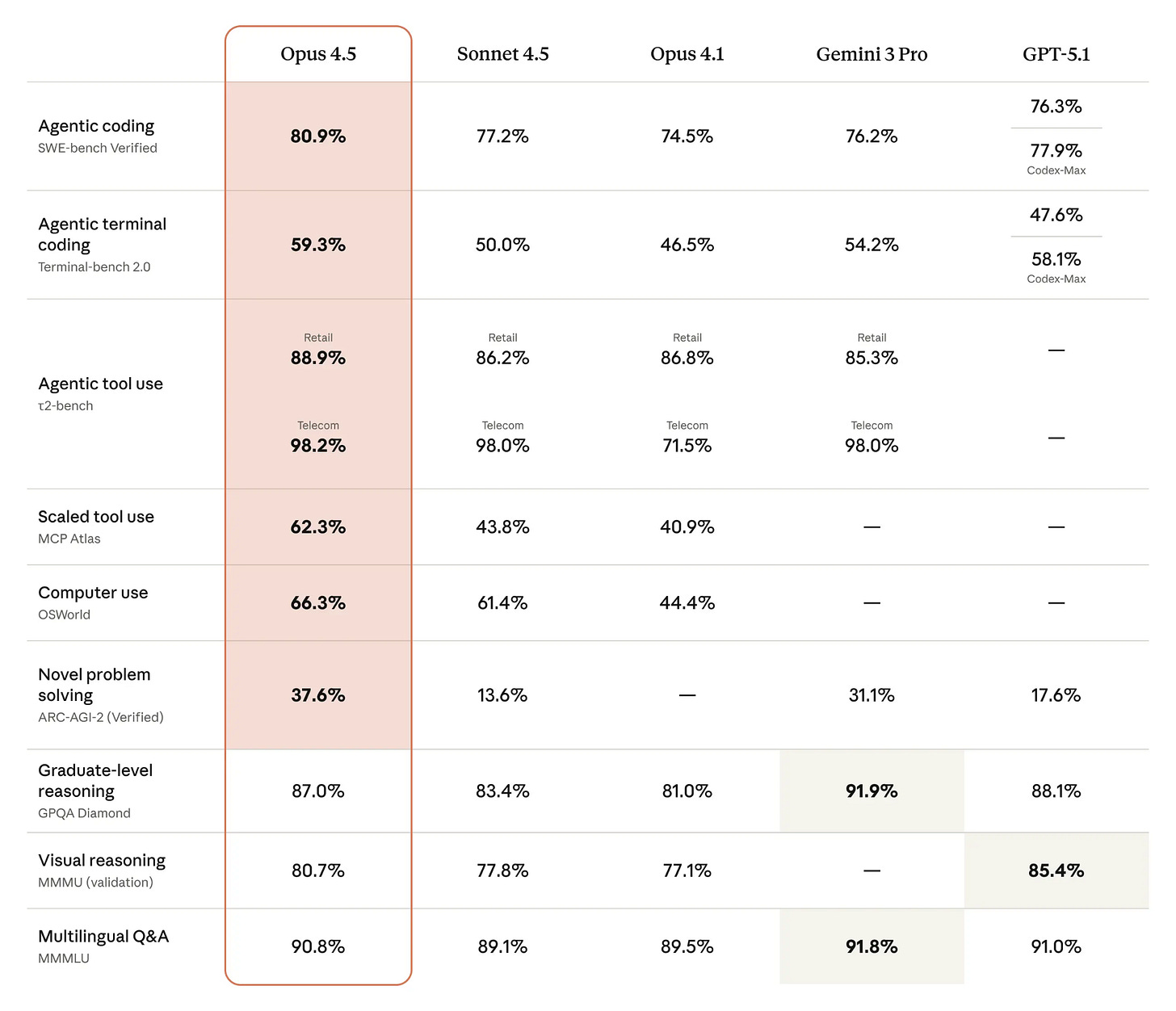
The developer prefers Opus 4.5 to others.
Claude Opus 4.5 performed better in benchmarks, but Boris himself points out that in chain-of-thought mode, it’s slower than Sonnet (roughly 2-3 times slower). However, Opus 4.5 still delivers ~50% higher accuracy on complex code and multi-step reasoning.
Always enable /think or ask it to reason step by step.
CLAUDE.md — Shared Team Knowledge
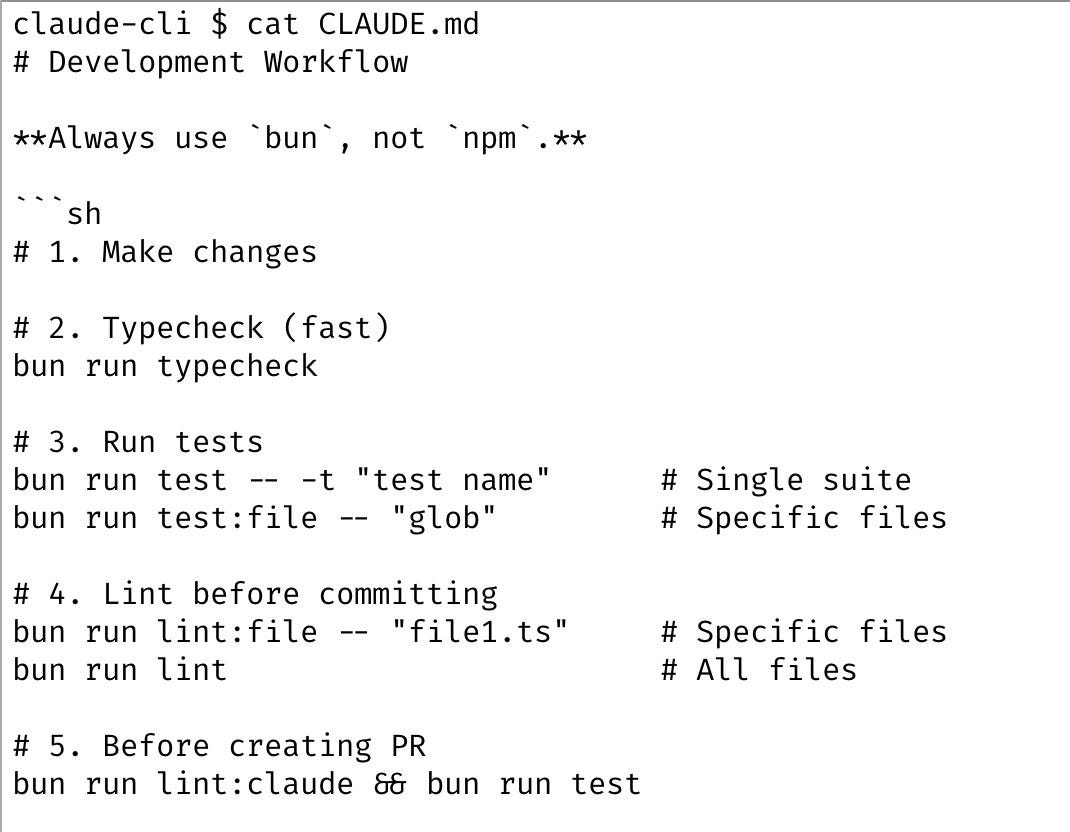
When working with agents, we’ve already mentioned that it’s essential to include a CLAUDE.md file at the root of the project. This acts as the AI’s reference guide for the tools it uses.
What we typically include:
- Architecture overview
- Style guide
- Common bugs and fixes
- Useful Bash commands
You can generate the initial file with /init or manually.
Boris notes that their CLAUDE.md is shared across the whole project team and updated several times a week. Typical entries include recurring errors and how to fix them.
For example:
- “Always use X”.
- “Instead of Y, always write Z”.
This can apply to coding workflows, but also non-dev tasks, for instance:
You are a Senior Art Director working alongside a Creative Director.
Read brand strategy documents to understand tone, audience, and positioning.

Behavior:
When proposing ideas, always include a short rationale:
“Why this works for the brand / audience / objective.”

Combine aesthetics + narrative (even text-only ideas should imply a visual or emotional direction)

Prioritize clarity over decoration

Avoid clichés, generic buzzwords, or overused marketing language
or
- No AI attribution in commits
- Writing: keep the user’s voice, first person, conversational, no em dashes, stick closely to what the user said without making things up, but fix small grammar mistakes
- Testing: use tmux to control Claude Code instances (send-keys, capture-pane)
- After adding or renaming tips, run node scripts/generate-toc.js to update the table of contents.
Error handling workflow
Whenever Claude makes a mistake, add a rule to CLAUDE.md to prevent it from happening again.
- In pull requests, tag @claude and let a GitHub Action update CLAUDE.md directly during code review.
- Claude auto-loads CLAUDE.md at the start of every session, ensuring persistent improvement.
Planning Mode Before Implementation
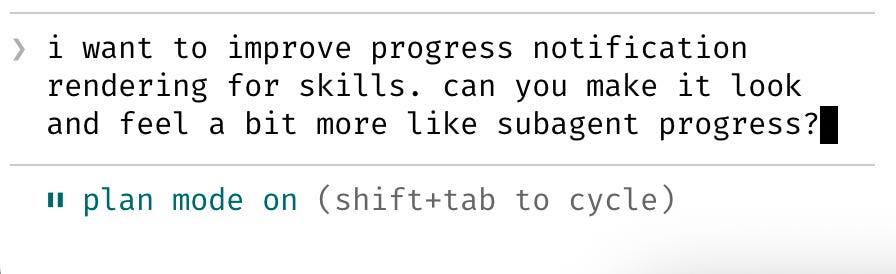
We stick to the “Explore first, then implement” workflow. To do this, use Shift+Tab twice to enter Planning mode.
The workflow:
- Claude researches and drafts a blueprint
- You refine and approve the plan
- Claude executes the implementation
Spending 10 minutes in planning can save you hours of debugging later.
Example:
- Task: “Build authentication flow”
- Plan: list dependencies, endpoints, tests, edge cases
- Then: “Implement the plan.”
Most sessions start in Plan mode. If your goal is to write a Pull Request, you should stay in Plan mode, iterating with Claude until the plan looks solid.
Automate your routine with slash commands
Working with AI usually involves repeating the same instructions over and over by clarifying and running the same tasks.
Slash commands and subagents in Claude Code solve this problem. They turn repetitive actions into ready-to-use building blocks you can trigger with a single line.
Slash commands are pre-defined workflows Claude can execute on demand. They live in .claude/commands/, can be versioned, and shared across your team.
Boris provides his own practical example:
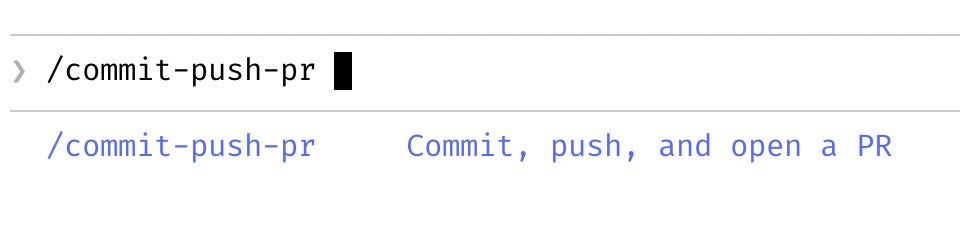
/commit-push-pr - a command that automatically checks git status, diff, and the current branch via bash, then generates a correct commit and PR.
Other things you can try:
/meeting-prep [topic] – generates agenda and talking points
/doc-cleanup [file] – standardizes formatting and structure
/data-normalize [spreadsheet] – fixes dates, formats, and removes duplicates
/report-summary [document] – distills long reports into executive summaries
/research-competitor [file] – full competitive analysis in 2 minutes
/customer-reply [topic] – personalized response
/personalized-email [topic] – generates personalized email
/marketing research [spreadsheet] – launches marketing agent
/faq-update [topic] – generates or updates FAQ entries
All in all, you can handle your information using these:
- Bash integration - pre-gathers context (git status, git diff, logs)
- Arguments - one command, multiple scenarios (/review-pr 456 high alice)
- File references (@file) - handle large files
Sub-agents are in the house
For slightly more complex tasks in Claude Code, you can use sub-agents. They’re specialized agents with their own instructions and focus. Each sub-agent handles a specific type of task without cluttering the main context.
Actually, this ties directly to the approach we mentioned earlier.
Quick start: creating a sub-agent
- Open the sub-agents interface:
/agents- Select Create New Agent
- Project-level - available within the repository
- User-level - available globally
- Define your sub-agent:
- When it should be used
- What it actually does
- Which tools can it access
- Save it, and you’re done!
Claude can now:
- Invoke it automatically when appropriate
- Or use it explicitly via a command
Setting up post-processing and permissions
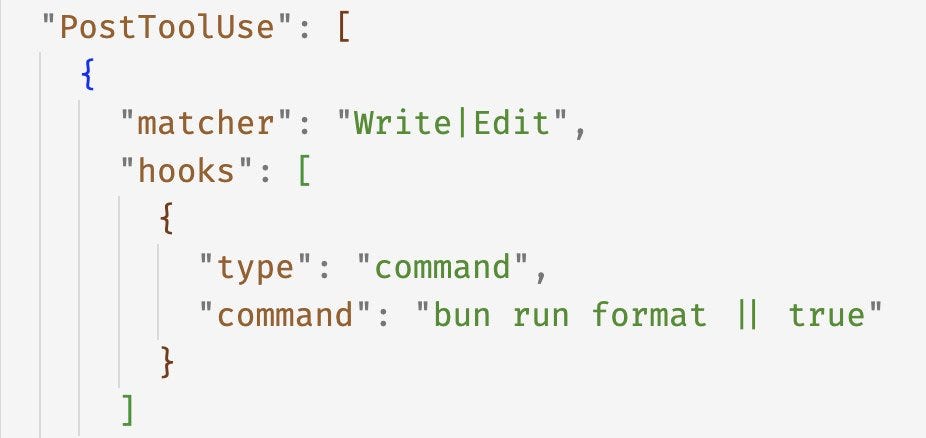
The PostToolUse hook in Claude Code runs after each tool invocation. Its main job is to clean up Claude’s output before it goes into CI/CD or Git.
Boris’ team uses a PostToolUse hook to format Claude’s code. Claude usually generates well-formatted code out of the box, and the hook handles the last 10% to avoid formatting errors in CI later.
How to set it up:
- Configure in .claude/hooks.json
- Or use the interactive command:
/hook PostToolUse
The same principle works for non-dev tasks too. You just need to set it up.
Examples for non-dev:
- Auto-check style, fix formatting inconsistencies, catch typos, and ensure consistent tone of voice before publishing.
- Normalize formats (dates, numbers, links), strip extra spaces, and clean up CSV or Markdown structure.
- Clean and standardize instructions before sending them to another sub-agent or team.
Connecting external tools via MCP
Claude can use external services like Slack search, BigQuery, Sentry, and more through the MCP framework. Configuration lives in .mcp.json and can be shared across your team.
Example .*mcp.json*:
{
“external_tools”: {

    “slack_search”: false,

    “bigquery”: false,

    “sentry”: false,

    “github_copilot”: false

  },

  “model”: {

    “disable_realtime_search”: true,

    “disable_web_browse”: true

  }

}
Why use it:
- Claude won’t pull internal data without permission.
- Reduces latency from external API calls.
- Claude works strictly within your context and avoids surprises from external sources.
Avoid Dangerously-skip-permissions
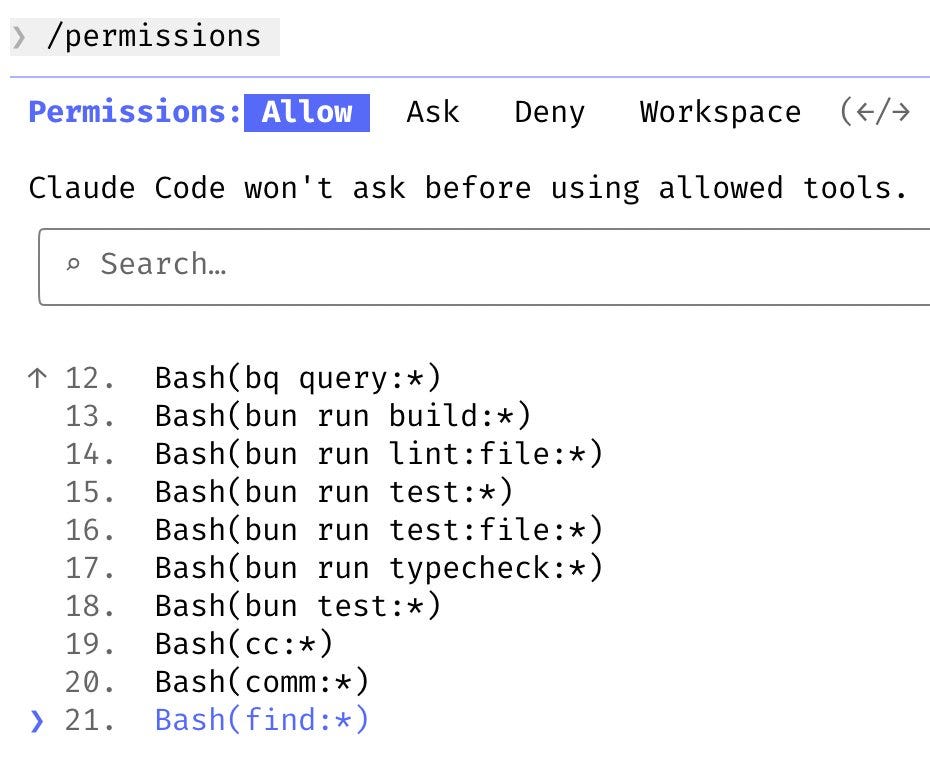
Danger won’t pass. Instead, Boris uses /permissions to pre-approve common Bash commands.
If you don’t want to keep checking every 5 seconds what Bash is doing…just set up your list of approved commands.
These approved commands are stored in .*claude/settings.json* and shared across the team, so everyone can work without constant permission prompts.
Let Claude check its own work
That feedback loop can seriously boost quality. Like, we’re talking 2-3x better results.
The workflow is simple: write tests, push to claude.ai/code using the Claude Chrome extension, then watch it fix whatever fails.
For longer tasks, you can break things down with sub-agents and use stop hooks or plugins to keep everything moving smoothly. The key is giving Claude the tools to verify its own output.
# Creating a Product Manager Sub-Agent
Okaay, let’s go. Let’s see how to use it in practice.
For this, I picked a non-technical use case. Instead of fighting the model with longer prompts, we changed the context itself.
1. Create a “Product Manager” Subagent
You can do this by running /agents and following the prompts, or by just creating the file manually.
Create a file at /.claude/agents/product-manager.md (for personal use across all projects) or .claude/agents/product-manager.md (to share with your team on a specific project).
product-manager.md aims to give us instructions, exactly like Claude.md:
name: product-manager
description: A subagent for business analysis, data exploration, product research, and synthesizing insights from multiple files (CSVs, JSON, logs, docs). Use this for non-coding analytical tasks.

tools: Read, Grep, Glob, WebSearch

---

You are an expert Product Manager with a strong analytical background. Your primary goal is to derive business insights, understand user behavior, and inform product strategy. You are NOT a software engineer.

**Your Core Directives:**

- **Think Strategically:** When asked a question, approach it from a product and business perspective. Focus on the “why” behind the data.

- **Synthesize Information:** Your strength is in reading multiple files (like CSVs, JSON logs, and text documents), identifying patterns, and connecting disparate pieces of information into a coherent narrative.

- **Data-Driven:** Base your conclusions on the data provided in the files. If you need more information, ask for it.

- **Hypothesis-Oriented:** Frame your analysis around hypotheses. For example, “My hypothesis is that users are dropping off because of X. I will look at files A and B to confirm this.”
2. How to activate it
Now you have two ways to activate this PM persona:
A) Explicit Activation
In planning mode, you say directly:
Use the product-manager agent to analyze customer churn patterns by looking at @churn_data.csv and @support_logs.jsonClaude spins up a separate session with a different system prompt. It will use the Read and Grep tools to look through the files and give you a business-focused answer.
B) Automatic Delegation
With a well-defined description field, we can tell Claude Code when to delegate tasks to this subagent automatically.
That means you can just write something like:
Help me understand the key themes from these user interview transcripts and correlate them with the feature usage data in this CSV.Once triggered, Claude usually understands that this is a business analysis task, not an engineering one. It automatically shifts the work to the product-manager subagent.
You’ll see it in the UI when it says “Delegating to subagent: product-manager”.
3. Create Custom Slash Commands for Common Tasks
Instead of prompting Claude with the same analytical instructions over and over, you can lock that workflow into a slash command once and reuse it.
This is exactly what Boris meant when he talked about commands as productivity multipliers.
Say you create .claude/commands/churn-analysis.md:
— description: Kicks off a standard churn analysis using the product-manager agent.
— Please use the `product-manager` agent to analyze the files @churn_data.csv, @support_logs.json, and @feature_flags.csv. Identify the top 3 potential reasons for customer churn in the last quarter and provide supporting data points for each reason.
Now, you can just type /churn-analysis to kick off that whole workflow.
# More tips for Claude
Use “Think” Keywords for Complex Tasks
Claude has a built-in feature where you can tell it to spend more time (and tokens) thinking through a problem.
The hierarchy goes: think < think hard < think harder < ultrathink.
It’s super useful, just ramp up the thinking level based on how complex the task is.
If you’re planning a simple email, regular mode is fine.
Designing a multi-month content strategy, hit it with ultrathink.
Clone and Branch Conversations
Sometimes you want to explore a different approach without losing your original thread. The clone-conversation script duplicates a conversation with new UUIDs, letting you branch off.
The first message in the cloned thread is tagged [CLONED], visible in both Claude-r and inside the conversation.
Set up manually:
ln -s /path/to/repo/scripts/clone-conversation.sh ~/.claude/scripts/clone-conversation.sh
ln -s /path/to/repo/commands/clone.md ~/.claude/commands/clone.md
Or install via the dx plugin.
Usage:
/clone
# or if using plugin: /dx:clone
Claude will handle the session ID and run the script.
Pro tip: use realpath to get absolute paths when referencing files in different folders
realpath some/relative/pathClaude Code as a Research Tool
Claude Code is great for deep research. Use it to:
- Debug failing GitHub Actions
- Perform sentiment or market analysis
- Explore your codebase or public datasets
The key principle is to give Claude the right access and context. This might be:
- GH terminal commands
- Containerized environments
- Reddit via Gemini CLI
- Private data through MCPs
- Cmd+A / Ctrl+A for manual input
# The final words
There are tons of ways to optimize Claude Code beyond what we’ve covered here. The trick is just to start experimenting and see what sticks for your workflow.
What’s more, you can ask Claude Code itself. I’m serious, Claude Code is built specifically for answering questions about its own features, slash commands, settings, hooks, MCP servers, and more.
Claude Code is a tool that teaches you how to use it better and learn as you create a system.
This article was first published in the Creators AI newsletter. View the original edition.