Hacks for Vibe Coding with Cursor AI
And other Coding Copilots
Do you know what separates good platforms from really great ones? Community.
This is especially noticeable if you look at vibe coding tools. There are dozens of them, but none have as many enthusiasts as Cursor AI. Thanks to these guys, we got a bunch of techniques and hacks for building apps.
And it's getting hard to keep them in one place, so we decided to share them.
Today, we show 10 tips to make building even more fun and less stressful.
Get 20% OFF Full Access subscription!
Tip 1: Plan with Markdown Instructions
Today, let's not dwell and get straight to the point.
Before diving into code, sketch out your features and steps in Markdown. Writing a quick outline or checklist clarifies your goals and gives the AI a roadmap.
For example, create an instructions.md file with bullet points like:
# Feature: User Login
- Add email/password fields
- Implement authentication API call
- Show loading indicator and error messages
You can then prompt Cursor or ChatGPT to follow that plan. Just ask:
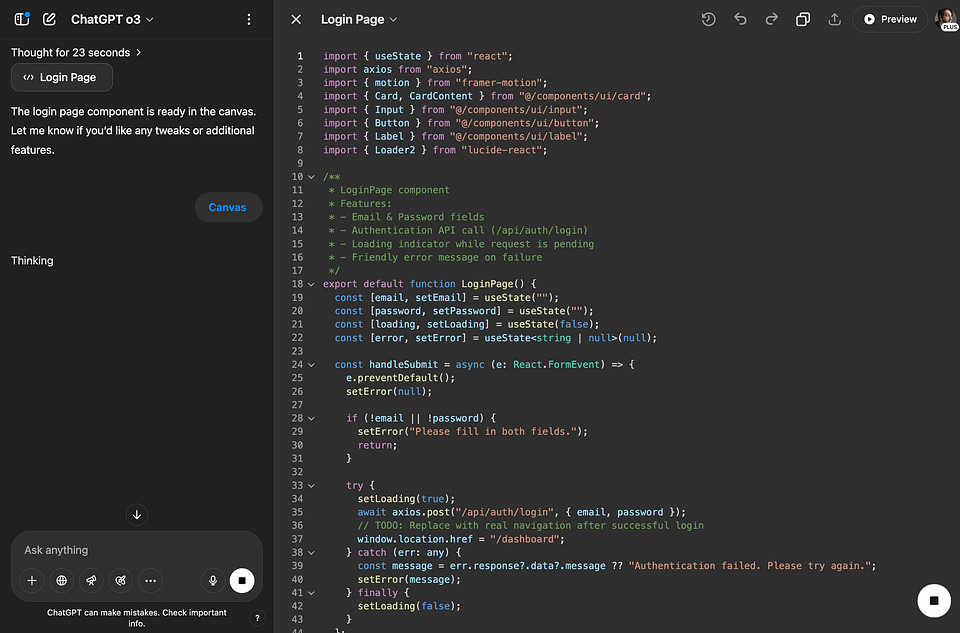
Using the instructions.md tasks above, implement the login page in React.
This way the AI knows exactly what to do next. Breaking things into headers and lists helps everyone (AI and humans) stay on track.
Tip 2: Use a .cursorrules File for Project Standards
Cursor AI lets you set persistent rules for each project.
Create a .cursorrules file in your repo’s root with guidelines like coding style or framework conventions. These rules act like a system prompt that Cursor always sees.
For instance, your .cursorrules might include:
- Use camelCase for variables and functions.
- Always import React at top of JSX files.
- Prefer `const` over `let` when possible.
- Include a brief comment on new functions.
By adding such rules, you guide the AI to code the way you do.
Speaking of which, you don't even have to compose it yourself.
Check it out on GitHub.
As a result, the generated code stays consistent and on-brand.
If you ever need to tweak them, just edit the .cursorrules file and everyone (or every machine) will pick up the change.
Share this post with friends, especially those interested in AI Insights!
Tip 3: Develop Incrementally (Test-Driven Style)
Think small steps and testing.
Don’t ask Cursor to write a whole app in one shot—break tasks into bite-sized pieces, verify each part, and then build on it. One powerful trick is test-driven development (TDD) for AI. Ask the AI to write tests first, then write the code, and repeat until all tests pass.
For example:
First write unit tests for a function that formats dates, then implement the function and iterate until all tests pass.With this prompt, Cursor will generate a test file, write code, run tests, fix failures, and repeat.
You get working code with built-in verification, and you stay in control. This step-by-step approach (commit, test, commit) also makes it easy to spot mistakes early.
Tip 4: Turn On YOLO Mode for Automatic Iterations
Cursor’s YOLO mode lets the AI run build and test commands on its own.
As of late, it's been renamed Auto-Run, but I still like to call it YOLO, because....
Well, it's funny.
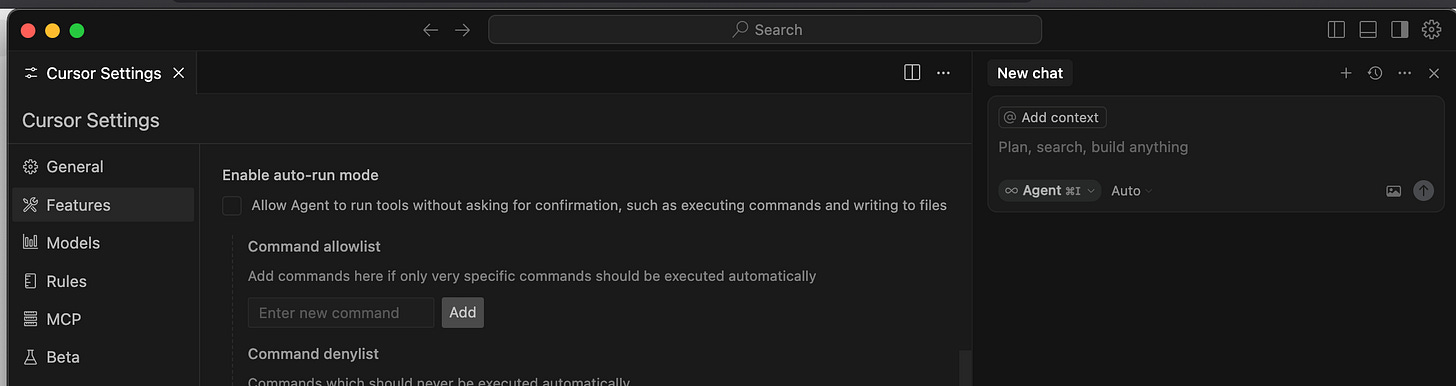
In settings, enable Auto-Run and specify commands it can run (for example, npm test, npm run build, tsc). Don’t let the scary name fool you – YOLO just means “repeat until success.”
Once on, Cursor can compile or lint your code, spot errors, and fix them without you manually restarting. For instance, with YOLO enabled, Cursor can run tsc after writing TypeScript code, see type errors, and correct them on the fly. You might set allowed commands like:
allow: [ "npm test", "npm run build", "tsc", "jest", "mkdir", "touch" ]Now when you say “add the search component,” Cursor will loop: code → compile/test → fix → repeat until everything is green. It’s like having an automated QA partner that tirelessly iterates in the background.
Tip 5: Build in Modules (Keep Code Modular)
Design your project in self-contained pieces. Rather than one giant file, split features into multiple small files or functions. This makes prompts simpler and outputs clearer. For example, you could ask Cursor:
Create a new file `mathUtils.js` exporting a function `add(a, b)` that returns their sum. Then in `index.js`, import `add` from `mathUtils.js` and use it.By handling one module at a time, you maintain clarity.
Cursor can open multiple files at once (using the Composer panel) so you can see all related code together. Modular code also makes it easier to test and reuse parts.
A well-structured project (components in React, controllers in backend, etc.) keeps your AI suggestions focused on one job at a time, which usually leads to better results.
Tip 6: Keep Your Code Synced and Indexed
Cursor works best when it “knows” your entire codebase.
Make sure code indexing is on (in Settings → Features → Codebase Indexing) so Cursor builds an internal map of your files. When you add or edit files, Cursor will re-index them automatically.
Also, commit or save your changes regularly. An up-to-date codebase means when you ask, “Where is this function used?” or “Find the API handler,” Cursor can search all files.
For example:
Where do we call `submitOrder` in the project?With indexing, Cursor will locate it quickly. In short, sync often (push to Git if you share a repo), and let Cursor index. This keeps the AI’s suggestions relevant and prevents it from offering outdated code.
Creators’ AI could be a valuable gift for your friend, colleague, or family member. Gifting books is bright, but giving an AI newsletter is a superb move 😎
Tip 7: Stay Strategic (Think Like a Team Lead)
Treat Cursor like a clever teammate – but one that needs clear direction.
Start each project with a high-level vision, then delegate specifics to the AI. Rather than asking for code immediately, you might first prompt for an outline of features.
For instance:
Describe the main components and data flow for a chat application with user authentication and real-time updates.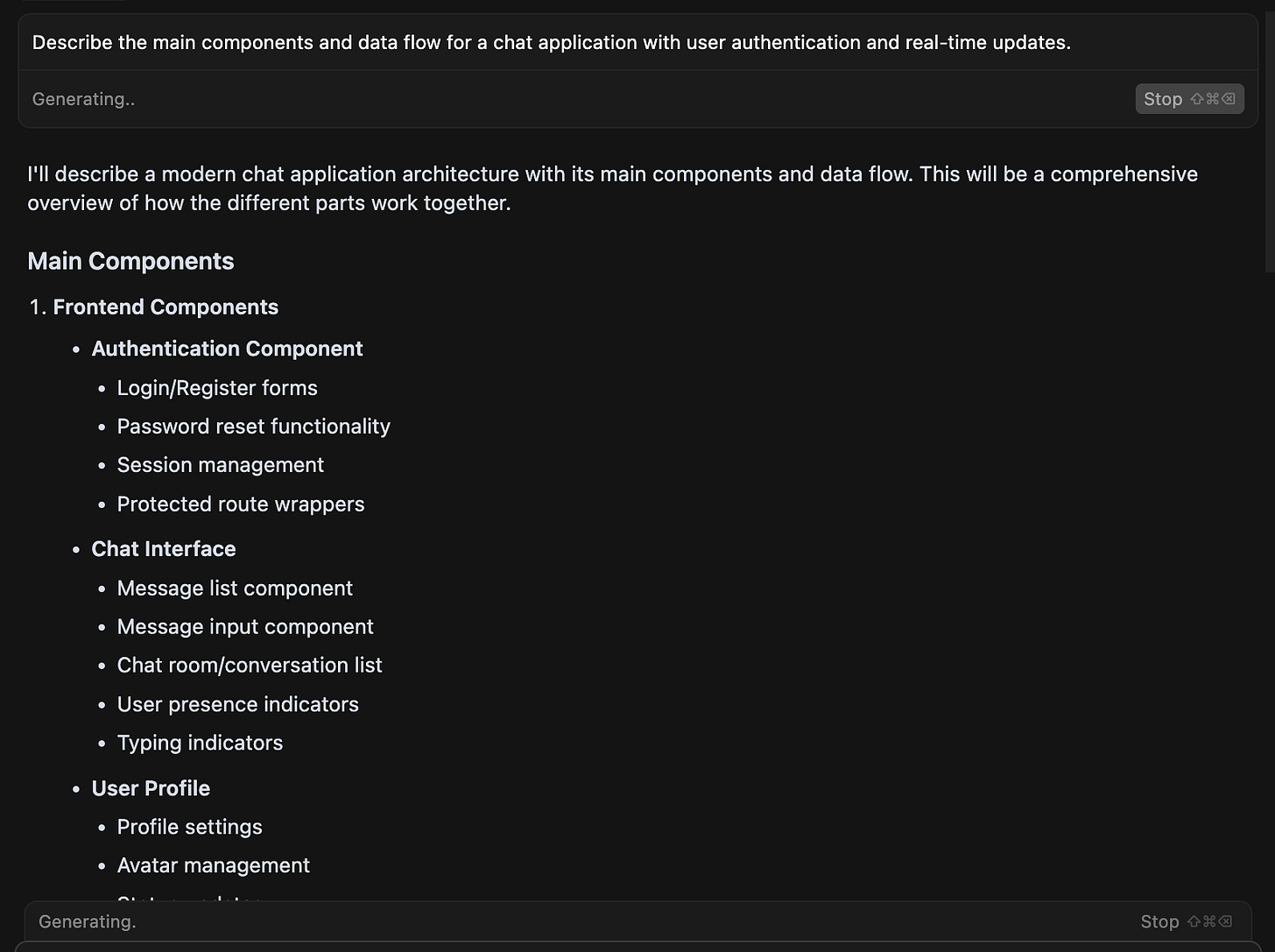
This helps you and the AI agree on an architecture.
Then break tasks down based on that plan.
Keep the big picture in mind: define directories, name modules, decide on tech stacks. Use .cursorrules or initial prompts to set preferences (e.g. “Use REST APIs instead of GraphQL for this project”).
In other words, you lead the project design and let Cursor implement the pieces. A strategic mindset prevents the chaos of haphazard prompts and ensures the AI’s work fits your overall goals.
Tip 8: Keep Your Workspace Tidy
A clean working directory = fewer surprises.
Before you start a major change, commit your current state to version control. That way, if the AI suggests something you don’t like, you can easily roll back. Also, after each successful feature or bug fix, commit again.
Small, frequent commits (with good messages) make tracking AI contributions simple.
For example, use:
git commit -m "Initial project setup with React and Router"When you scaffold the project, and then commit after implementing each feature.
This practice gives you safety and visibility. If Cursor writes some code that breaks things, you can compare diffs or revert. It also makes teamwork easier – everyone sees the latest code.
In short, treat AI changes like code changes: review them, commit the good ones, stash or reject the rest.
Tip 9: Include Docs and Examples in Prompts
Don’t rely on the AI’s memory alone – give it the real references. When using third-party libraries or APIs, link to official docs or examples in your prompts.
For example:
According to the Lodash documentation (<https://lodash.com/docs/#chunk>), implement a function `chunkArray(arr, size)` that splits an array.This tells the AI exactly which method to use and how it should behave.
Likewise, copy snippets of your own code as examples. If you want a component styled a certain way, paste a similar code sample and ask for a variant. By anchoring Cursor to concrete documentation and examples, you avoid outdated methods or hallucinations.
It’s especially useful for novices: the AI can learn from the reference on the spot. Always test the results, but this strategy makes them more accurate and up-to-date.
Tip 10: Leverage Other AI as Thinking Partners
Cursor is great for coding, but sometimes a second brain helps.
Use ChatGPT, Claude, or other LLMs to brainstorm or review.
For instance, you might ask ChatGPT to draft a project spec in plain English before telling Cursor to code. Here’s an example:
List the core features of a to-do list app in markdown format.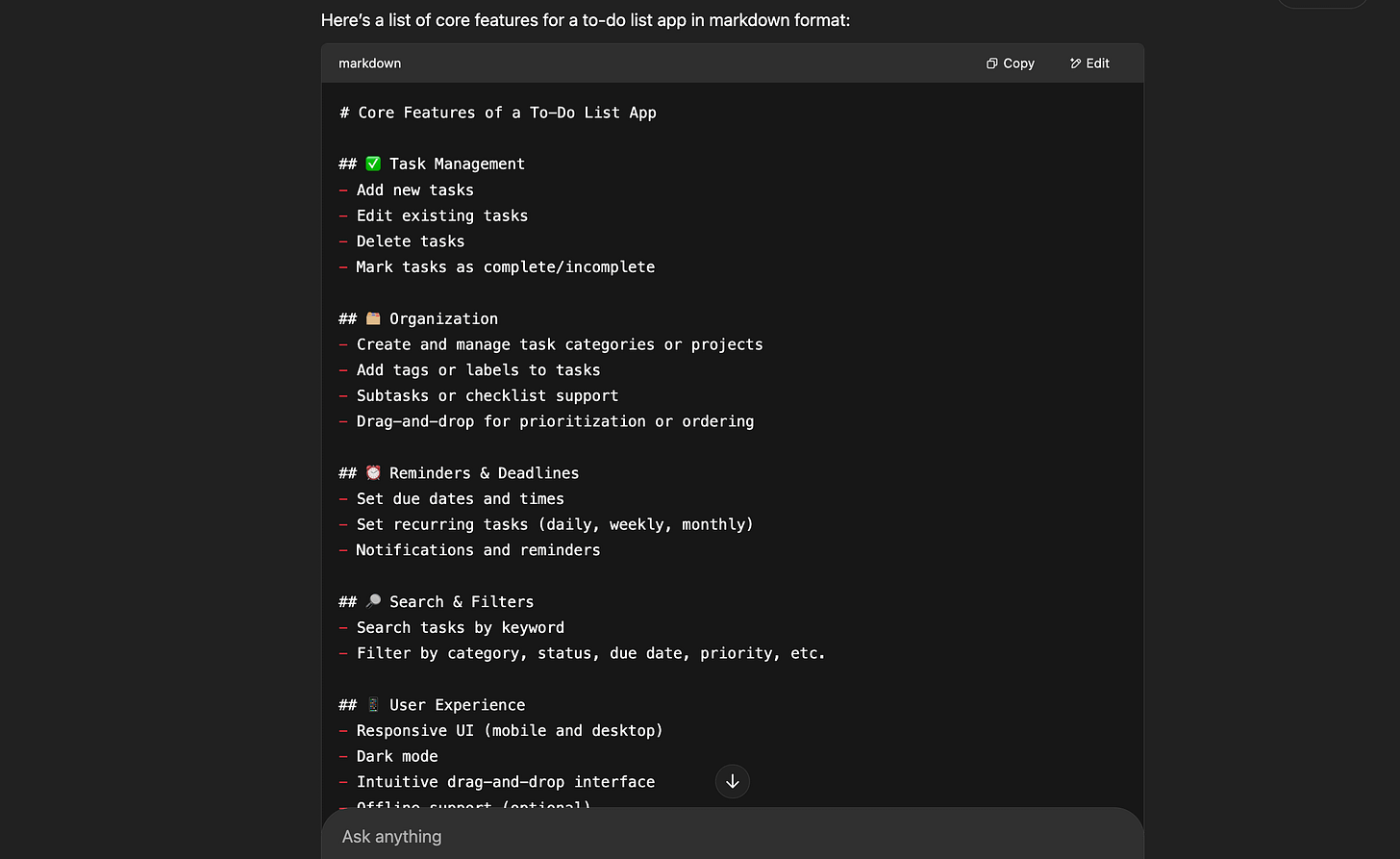
After that, feed those points to Cursor for implementation. You can also use an LLM for code review: ask Claude to inspect generated code for logic errors or style improvements.
Example:
Review this React component for best practices and suggest improvements.Switching models keeps ideas fresh.
Sometimes, a misunderstanding by one AI becomes clear when explained to another. The community often uses multiple models – try their playgrounds or chat interfaces alongside Cursor.
In the end, you’re in control; use any tool that helps shape your vision.
Cursor’s community-driven tips like these turn AI-assisted coding from a wild ride into a smooth experience. By planning, guiding the AI, and keeping everything organized, you can actually enjoy writing code (even as a non-expert).
Keep experimenting with these hacks and share your own discoveries.
And share yours in the comments!
Share this edition with your friends!
This article was first published in the Creators AI newsletter. View the original edition.