How Claude Code Can Be Your AI Teammate
Real Cases with Prompts & Tips for Beginners
Hi guys!
“I stopped using Cursor and switched to Claude Code” — the phrase that I’ve seen way more often than I expected lately. So, since we started the journey into context engineering and broke down how to work with Cursor, it's time to keep going and talk about why Claude Code can be just as powerful (if not more) in your hands.
In this post:
- Why Claude Code should be in your daily workflow
- Real use cases that work with any data
- What Claude Skills are and how to build them
- What you need to know before getting started: Tips & Artifacts
Let’s go!
Keep your mailbox updated with practical knowledge & key news from the AI industry!
What Claude Code Is and Why It Matters Now
In the previous post, we explored Cursor and why it’s different from other coding assistants. Now it’s Claude Code’s turn. Short and sweet: both can automate entire workflows, but Claude Code does it differently - and that difference might be exactly what you need.
Powered by Claude reasoning models, Claude Code is running in your Terminal (an app that every computer has). It not only does things like auto-completing functions or fixing syntax, but sees the project inside out.
I know that some of you avoid Claude Code because the terminal looks scary. Even if you’ve never opened that black window before, don’t let it stop you. The interface doesn’t matter here. Claude Code reads, edits, and organizes files like a junior supporter at your side.
This one you’ll like: Claude runs on your computer, not in the cloud. It’s local, which means no upload bottlenecks, no file limits, and your context sticks around between sessions. So you can run long projects and analyze huge datasets.
In any case, doc work is a nightmare, especially when you have so many files and you’re losing track of how they fit together. And we think that Claude Code can level up your workflow. It starts with sorting your notes, tags, and categorizing info, and finishes with data, marketing, and research analysis.
The terminal becomes an interface for turning thoughts into working software and organizing everything around it. And below we show you cases that can be adapted to your way of working.
Real-World Examples: How Claude Code Works in Practice
Now let’s look at specific cases where Claude Code actually makes a difference.
How to Build an AI Assistant with Claude Code and Obsidian
If you ever felt that traditional productivity tools don’t match your vibe, this system can work out for you. It’s not a new app or a planner, but a setup where your notes and progress live in one place. Claude Code lets you talk to your files in plain English (simply, just like in the GIF). You type a request, it reads through your Obsidian vault, and instantly gives you what you need
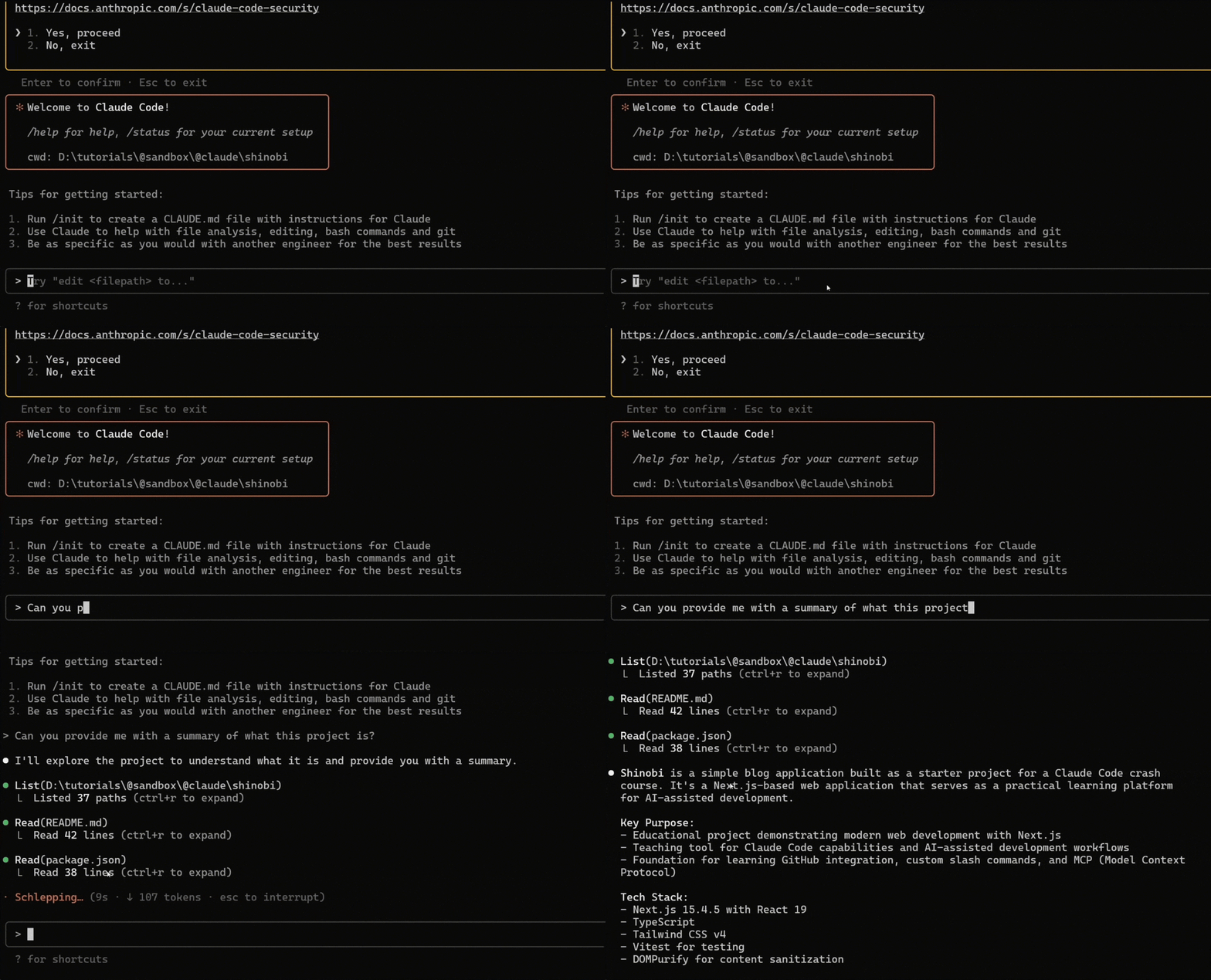
I chose the case introduced by Mohamed Amgad Khater because it helps stop losing context, skipping updates, and wondering what to do next.
In the end, you will see that you don’t need to dig through tons of files searching for that one note or task. Perfect for ADHD workflows thanks to an automatic system that tracks your work in the background, prioritizes tasks by urgency (or as you wish), and generates daily standup reports without manual updates.
The System
Together, Claude Code + Obsidian + Git do the most important thing: keep track of why the task is being done.
- Claude Code reads, writes, and automates your projects without cloud limits.
- Obsidian stores all notes and tasks in plain Markdown files, creating a connected knowledge base.
- Git tracks progress automatically.
Step-by-Step Setup
- Start with Obsidian
Create your main vault — it’s your knowledge base.
Structure:
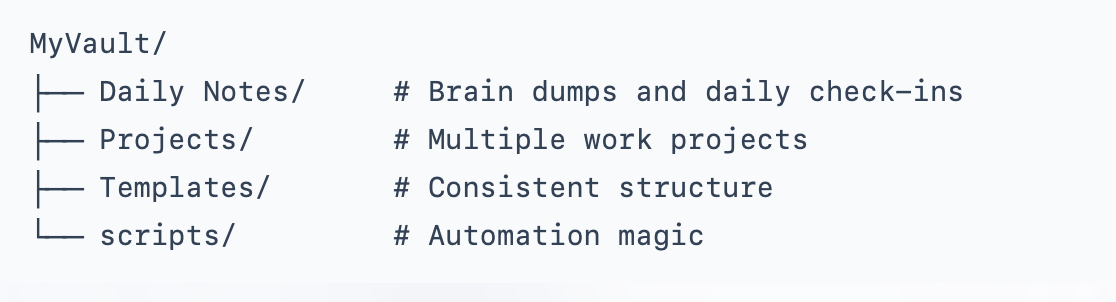
You can drop notes anywhere, because there are no strict rules. These files are regular .md (just folders and text), and Claude will help organize them later.
- Install Claude Code
Now, open your Terminal, copy and paste this code:
npm install -g @anthropic-ai/claude-code
Other details you will find here. If everything is ok, the Claude Code CLI interface will be opened.
- Connect Claude Code
Claude Code works with the Obsidian folder as a project.
We simply:
- Create the myVault folder (or with any other name)
- Inside the Claude Code interface, write:
No programming language. Instead of this:
cd ~/Documents/MyVault
claude-code
I say:
Connect to my Obsidian vault in /Document/foldername and manage notes there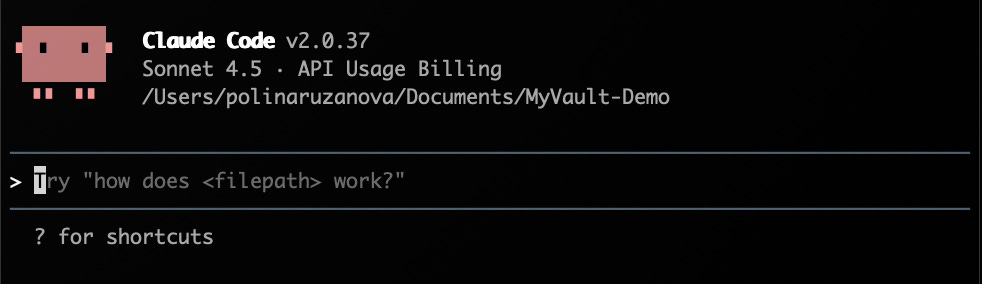
After that, Claude will read the folder structure and will be able to take care of your data.
- Claude Code works alongside you
Create custom commands to manage tasks and reports. Actually, they are called “slash commands”. They work like shortcuts that tell Claude Code exactly what to do, and they really (and everyone confirms that) make your process smoother.
When you type, for example, /clean-up, you’re not leaving it to guess whether you want to delete everything or change. You’re telling it straight up: rewrite this report to make it concise without back and forth.
- /show-tasks - sorts by urgency and priority. How it works, you see in the picture.
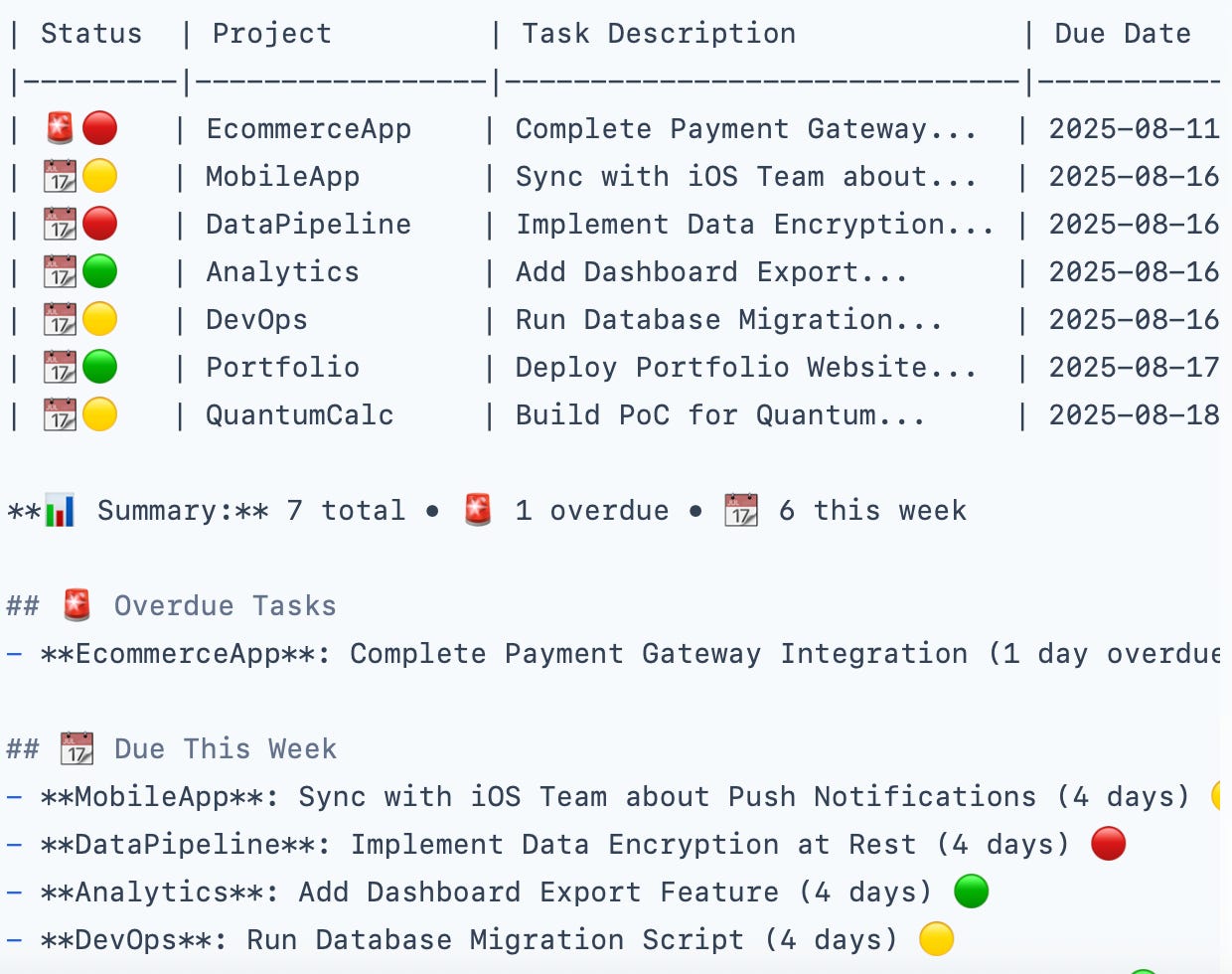
- /daily-check-in - reads your Git commits, summarizes what you did, what’s next, and your blockers.
You don’t track progress manually. When a new task appears, the AI itself clarifies: the term, the priority, and which project it belongs to.
5. Get rid of the chaos
To help the system easily sort and filter the context, every task follows a simple Markdown pattern - a CLAUDE.md file with instructions. Nothing too complicated, the idea is the same as .cursorrules in Cursor. This way, Claude Code will understand exactly how to create tasks, what parameters to require, and in what format to output information.
The CLAUDE.md file should be next to these folders in myVault, because Claude Code reads the root configuration before working with all your files.
Below you see how the author organized his document:
- [ ] Fix login bug (due:: 2025-08-16) (priority:: P1) (project:: WebApp)
- status:: not-started
- estimate:: 2d
- notes:: breaks authentication flow
And here is other details you can add:
# Folder Routing
Daily notes → /Daily
Notes Projects → /Projects
Templates → /Templates

Always ask for missing parameters before creating a task.

Use a unique task ID: @task-YYYYMMDD-XXX

# Command Rules
/show-tasks → Sort by priority and due date.
6. Use Git for Accountability (do it if you want to dig, because it’s not necessary)
Your commits show what you actually did.
git log --since=”yesterday” --oneline
git diff HEAD~1 -- Projects/
How the process works
I want to write, for example: “I want to add dark mode to my app but keep the existing theme system - users have been asking for it and our competitor just shipped theirs.”
If you CLAUDE.md is well-structured, Claude Code asks for
- deadlines
- priority
- project
(builds the structure if needed)
- You type /show-tasks
Claude Code displays a table with tasks, highlights urgent ones, and counts days to the deadline.
- You type /daily-check-in
Claude Code generates a daily report: achievements, current tasks, blockers, auto-detected commits, and so on.
How it works in real life
Morning /daily-check-in to see what was done and what matters most.
Day /show-tasks to regain context after distractions.
Evening Git tracks completed tasks automatically.
It works because you dump thoughts freely, and AI organizes later. Progress is tracked automatically, and tasks update themselves, so you get nothing lost in your context.
Btw, you can hit up Claude Code first to help you throw together a list of stuff you need to do if you’re feeling lost about the process
Share this with your friends and colleagues, especially if they are AI-savvy!
How to Make Claude Pull Google Analytics Reports Automatically
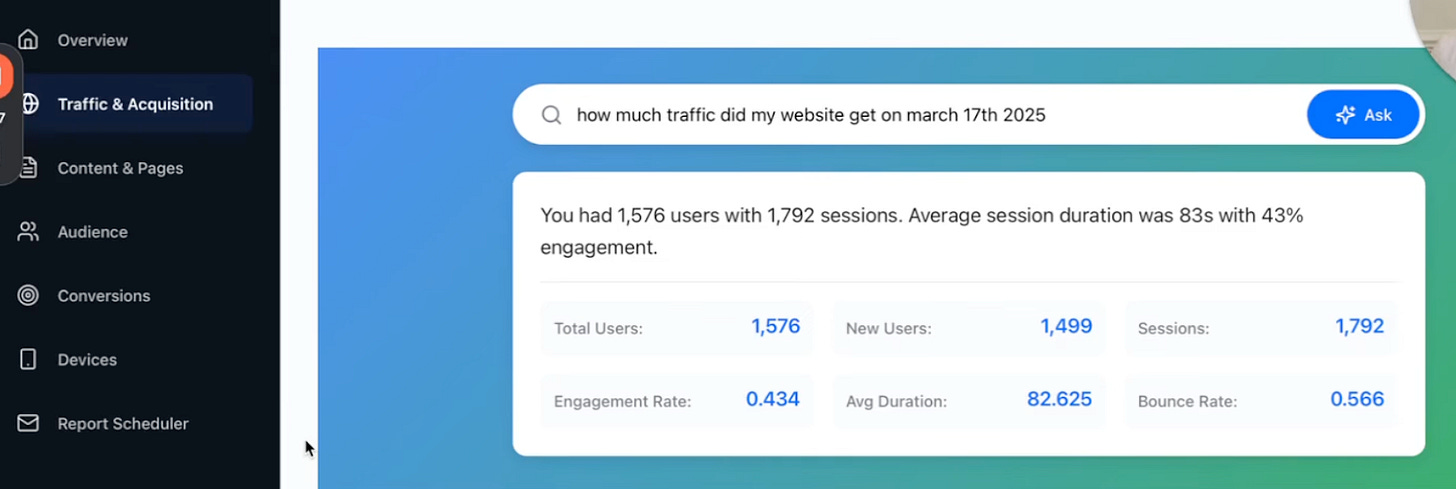
If you are tired of opening Google Analytics every time and need a simple stat like “active users last week”, grab this guide.
In this case, we connect Claude directly to GA4. You can ask things in plain English, and Claude instantly sends you all the numbers.
This system is a simple 3-part setup, and most of the time even goes into setting up Google Analytics.
- Google Cloud + OAuth 2.0 will handle access to GA4.
- Google Analytics MCP Server is a small Python server that translates Claude’s natural language into GA API requests.
- And Claude Codeе that gets real-time analytics back.
Google Cloud prep
- Create a new project
- Enable the Analytics APIs
- Set up an OAuth 2.0 client
- Download client\_secret.json.
Important: enable these scopes for full GA4 access:
- analytics.readonly
- analytics
Installing the MCP server
The MCP server is not a program, but just a folder with Python files that we keep on our computer.
- Open your Terminal and choose where you want to keep the project (for example, your Documents folder).
- Clone the project and go into it:
git clone https://github.com/gomarble-ai/google-analytics-mcp-server.git
cd google-analytics-mcp-server- Create and activate a virtual environment (this keeps things separate):
python3 -m venv .venv
source .venv/bin/activate- Install dependencies:
pip install -r requirements.txt- Add your Google OAuth config path to the .env file (create it if it doesn’t exist):
GOOGLE_ANALYTICS_OAUTH_CONFIG_PATH=/Users/me/client_secret_xxx.jsonСonnecting it to Claude Code
Find your Claude Desktop configuration file:
macOS:
~/Library/Application Support/Claude/claude_desktop_config.jsonWindows:
%APPDATA%\Claude\claude_desktop_config.jsonAdd MCP Server Configuration
{
“mcpServers”: {
    “google-analytics”: {

      “command”: “/full/path/to/your/project/.venv/bin/python”,

      “args”: [

        “/full/path/to/your/project/server.py”

      ]

    }

  }

}
Launch OAuth authentication
Ask Claude:
List all my Google Analytics propertiesThat triggered the OAuth window, and a google\_analytics\_token.json file is created.
Just ask questions in the window:
- Compare our Q4 campaign performance against last year - what changed in user behavior?
- Based on our GA4 data and the brief in /Strategy, is our actual audience matching our target personas?
- Given our traffic patterns over the past 6 months, forecast next quarter’s conversions?
- Find anomalies in our conversion data this month that might indicate technical issues or opportunities?
- Pull customer support tickets from /Operations and cross-reference with user behavior - are UX issues killing conversions?
When you’re working with large amounts of data, I can imagine how you’d like to get closer to automating analytics. No more jumping between tabs, no more copy-pasting queries. This system actually knows what you’re building and pulls the info you need in seconds.
What’s Claude Skills all about?
Claude Skills teach Claude how to perform tasks in a repeatable way. This is a literal addition to CLAUDE.md, no need to keep explaining the same stuff over and over.
What they cover
Skills span tons of different areas (P.S. limited by your imagination): Document processing, Data & analysis, Business & marketing, Writing & communication, Creative & media, Productivity & organization.
When you create a Skill, you’re basically building a knowledge package with instructions, best practices, examples, and specific guidance for a task. You download it and upload it back into Claude’s Skills section.
Creating Skills
You need to define a folder structure with a SKILL.md file. Inside, you outline when and how Claude should use this skill, and add templates or scripts if needed.
I know it seems overwhelming so far, but just like that, you’ll not come back to the loop copying and pasting again and again.
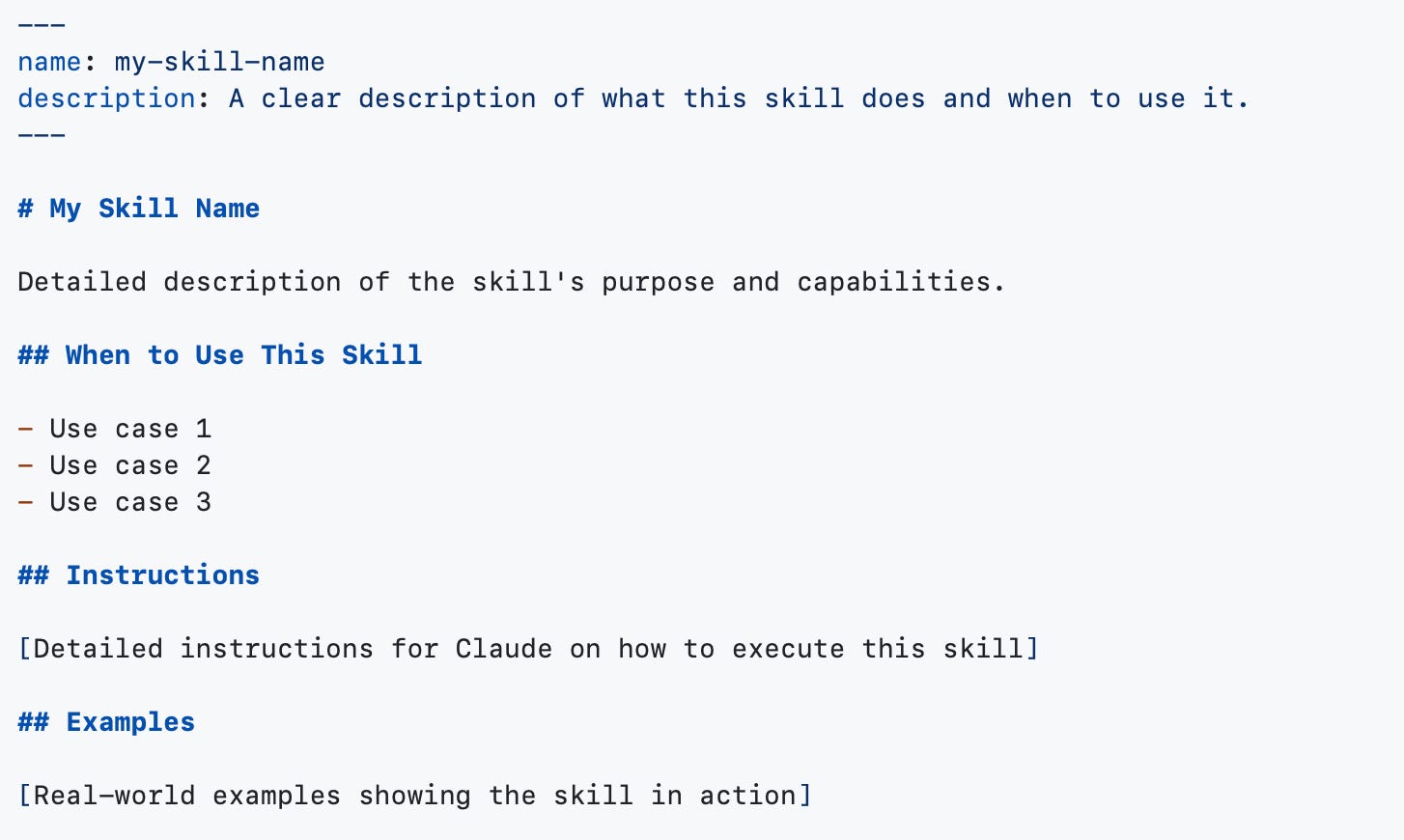
To use Skills in Claude Code:
- Place the skill in ~/.config/claude-code/skills/:
mkdir -p ~/.config/claude-code/skills/
cp -r skill-name ~/.config/claude-code/skills/- Verify skill metadata:
head ~/.config/claude-code/skills/skill-name/SKILL.mdAfter that, when you start Claude Code, the skill should load automatically when relevant.
Let’s see what skills exist for different tasks. I’ll tell you more about some of them and give you links so that you can adapt them for your workflow.
For those who struggle with data: CSV Data Summarizer
It analyzes any CSV file and delivers insights with charts and stats. After you add this Skill into your root system, upload your CSV, and it detects the data type, runs the analysis, and visualizes trends without any extra prompts.
Why it’s useful
- Automatically identifies your data (sales, finance, surveys)
- Generates statistics, correlations, distributions, and trends
- Creates visualizations: time-series, heatmaps, histograms, categorical breakdowns
- Checks for missing values and ensures data quality
- Works across industries: e-commerce, finance, healthcare, operations
More about the skill and all necessary files you can find here: Click
For those who are all about marketing: Competitive Ads Extractor
This skill pulls competitor ads from platforms like Facebook and LinkedIn, analyzes messaging, visuals, and creative patterns. I’m confident that this boring process, which we can’t avoid, can become less time-consuming with Claude's insights for your own campaigns.
Why it’s useful
- Scrapes ads and saves screenshots for reference
- Analyzes messaging, pain points, value props, and CTAs
- Finds recurring creative patterns (before/after visuals, feature showcases, social proof)
- Categorizes ads by theme, audience, or format
- Helps inspire your campaigns without copying
More about the skill, how to use, and all necessary files you can find here: Click
For those who are into editing: Content Research Writer
As a writer, I find this one especially worth considering. It assists with researching, outlining, drafting, and refining content while keeping your voice.
Why it’s useful
- Collaboratively builds outlines and structures
- Research topics and adds citations
- Improves hooks and introductions
- Gives section-by-section feedback
- Maintains your tone and style
- Iteratively refines drafts
More about the skill, how to use, and all necessary files you can find here: Click
In short, experiment, create your own Skills, and use ready-made ones, because the main goal is to save time. You can find more Skills here: Awesome Claude Skills. Download them, add details about your company and yourself, and make Claude as accurate and helpful as possible.
Artifacts & Tips for beginners
If you’re on the fence about Claude Code, just think about how much energy you’ll actually preserve. No dragging files around, no sweating over file sizes, and you don’t have to keep typing the same prompts over and over. It just handles it.
There are some tips for new users:
- Start every project in plan mode. Ask Claude to explain the code base first, then say what you want to build. Tell it to explore solutions starting from the simplest one.
- Let Claude outline options and reasoning, then decide together which path to take.
- After that, for a detailed to-do list, create a CLAUDE.md file in your project. Write your preferences, writing style, naming rules, and communication guidelines. Claude will use this file to align with your workflow and tone.
- Always audit Claude’s plans! Treat its answers like a draft, not a final version. Ask questions until every detail makes sense for you.
Artifacts
Don’t skip this part! Artifacts often get confused with skills, but they’re not the same. Artifacts are the actual results of Claude’s work: files, reports, slides, code, notes, and more.
Think of artifacts as outputs you can reuse, share, or store for later:
- A PDF analytics report
- A CSV table with structured data
- A slide deck with insights
- A Python script Claude helped you write
Artifacts make your workflow visible and reusable (sustainable, isn’t it? 😁). They turn AI conversations into real docs that you can share with your team or integrate into other projects.
Conclusion
Claude Code perfectly represents this shift into an era where AI assistants are actual workflow partners. It’s about handling complexity end-to-end, right from your terminal.
Just like Cursor, Claude Code differs in how it treats context. All project structure, your notes, and your data stay connected. You’re not constantly re-explaining yourself or manually syncing files across platforms. Everything lives locally, everything persists, and Claude learns how you work.
This isn’t for everyone yet. If you’re just writing the occasional script or asking one-off questions, the web interface works fine. But if you’re dealing with large projects, multiple data sources, constant iterations, and need everything in one place, we genuinely encourage you to dive into Claude Code.
Have you already tried Claude Code?
This article was first published in the Creators AI newsletter. View the original edition.