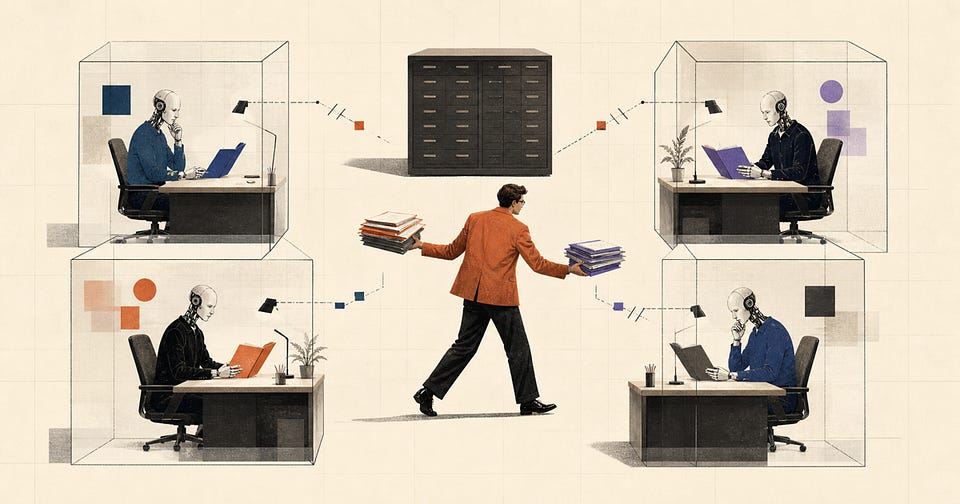
How Cowork Can Boost Your Routine Work
4 Cases & Tips

Last week I gave Cowork a folder with 47 supplier invoices and asked it to normalize the naming, flag duplicates, and build a summary spreadsheet.
Eight minutes later, everything was done. Clean folder, clean spreadsheet, zero typos.
And that is exactly when the real problem showed up.
The output looked so polished that my first instinct was to ship it — skip the check, close the laptop, move on. Cowork had solved the speed problem, but it quietly created a trust problem: when AI-generated work looks finished too early, teams stop verifying it before they should.
This post is about the pattern I found to fix that. Three rules, four real cases from public Cowork users, and one checklist I now run before every serious task.
This post is for you if you’ve tried Cowork at least once and got decent results — but you’re not sure how to make it reliable for real work, the kind where mistakes actually cost something. If you’ve been using Claude Code in the terminal, this is the non-technical counterpart.
New to Cowork? We wrote a complete beginner guide with practical use cases — start there.
The three rules that make Cowork usable
Before we get into cases, here are three principles that separate good Cowork runs from chaotic ones.
Rule 1. Start with a shared folder that has a job.
If the folder is a mess, Cowork will be a mess. If the folder has a purpose, naming rules, and a place for logs, Cowork becomes much easier to trust.
What goes wrong without it:You point Cowork at your Downloads folder, it reorganizes 200 files, and you can’t tell what changed or where things went. No audit trail, no undo path.
Try this instead: Create
/project-name/input/
/project-name/output/
/project-name/logs/
Rule 2. Make sure every run produces files.
The plan should produce a plan.md. The cleanup should produce a report. The research should produce notes and a next-step prompt. If the output lives only in chat, you will lose the thread.
What goes wrong without it:You have a great conversation with Cowork, close the window, and realize nothing was saved. The work existed for 15 minutes.
Try this instead:End every prompt with “Save all outputs to /output/ and create a session log.”
Rule 3. Separate planning from execution.
“Plan first, execute after approval” is boring, but it prevents the most expensive class of errors – silent file moves, wrong assumptions, and work that looked fine until you inspected the folder.
What goes wrong without it: Cowork renames 300 files using a convention you never agreed to. Now you’re spending more time undoing than you saved.
Try this instead:Always add “Do not execute yet. Show me the plan first.” to your first prompt. We covered this plan-first approach in depth in our post on making complex tasks with AI agents. Simalrly Claude Code has Plan Mode which helps with the same feature.
My personal lifehack is to open ChatGPT Codex CLI or alternative tab and share plan from Cowork/Claude Code to get alternative opinion and reccs
Want more breakdowns like this? Subscribe to Creators AI for practical agent workflows, real use cases, and the parts most people skip – setup, failure modes, and review
Be sure to read our Cowork complete guide. You’ll discover useful tools, practical use cases, and you can practice with AI from scratch.
For the best readability of this post, I will divide each case into the same set of parameters – how to reproduce, what to ask, what good output looks like, and why it matters.
Let’s start with a quick win, then move into the heavier cases.
Quick win: Sort your Downloads and never think about it again
Before we get into the serious cases, try this one. It takes under two minutes and shows what Cowork does differently from chat.
Point Cowork at your Downloads folder and ask it to sort everything by file type into subfolders and produce a summary of what moved. The result is immediately satisfying — and it teaches you the basic loop: folder in, structured output, audit trail. (If you prefer doing this kind of thing from the terminal, our Claude Code tips post covers the same idea for developers.)
Prompt to copy:
```
Sort everything in /Downloads into subfolders by file type (PDFs, images, spreadsheets, other). Create a move-log.md with the original path and new path for each file. Do not delete anything.
```
This one is almost impossible to mess up, and it gives you a feel for the tool before we push it further.
Case 1. The evidence vault — when 500+ PDFs become a strategy engine

Most people would ask for one mega-summary and get a foggy answer back. One of the strongest public Cowork examples did the opposite – it treated 500+ PDFs as an evidence system — normalize first, batch second, update one master strategy file after every pass.
How to reproduce it – Create a project folder with /00\_inbox\_pdfs, /01\_normalized\_pdfs, /03\_session\_notes, and one master-strategy.md at the root. The first run should only suggest a naming convention, deduplications, and session boundaries. The second run starts the analysis. After that, work through small batches and keep extending the master strategy.
Prompt to copy:
```
“Create a safe normalization plan for the PDFs in /00_inbox_pdfs. Do not rename anything yet. Output /master-strategy.md and /03_session_notes/S00_plan.md. Then propose session batches that fit within context limits.”
```
What good output looks like – a naming plan, a document index, a session map, session notes with source references, and an evidence map in CSV format with claim, filename, and page.
Why this case matters – the win is not the summary. The win is the session architecture. Each pass reduces uncertainty, updates one living strategy file, and leaves behind evidence references another human can audit without rereading 500 PDFs.
Original source – Reddit - “Claude Cowork just dropped, what’s your best use?” by user Contestant\_No\_3 <https://www.reddit.com/r/ClaudeAI/comments/1qc41xb/claude_cowork_just_dropped_whats_your_best_use/>
Same tool, different problem. This time the input is not documents — it’s data.
Case 2. The cleanup nobody wants — 5,200 contacts fixed in one controlled pass
This is the kind of ugly operational mess people postpone for years because it is too repetitive to do by hand and too risky to automate blindly. In the public example, the fix was not “let Cowork touch my contacts.” It was “export first, detect the junk pattern, clean one field, prove what changed.”
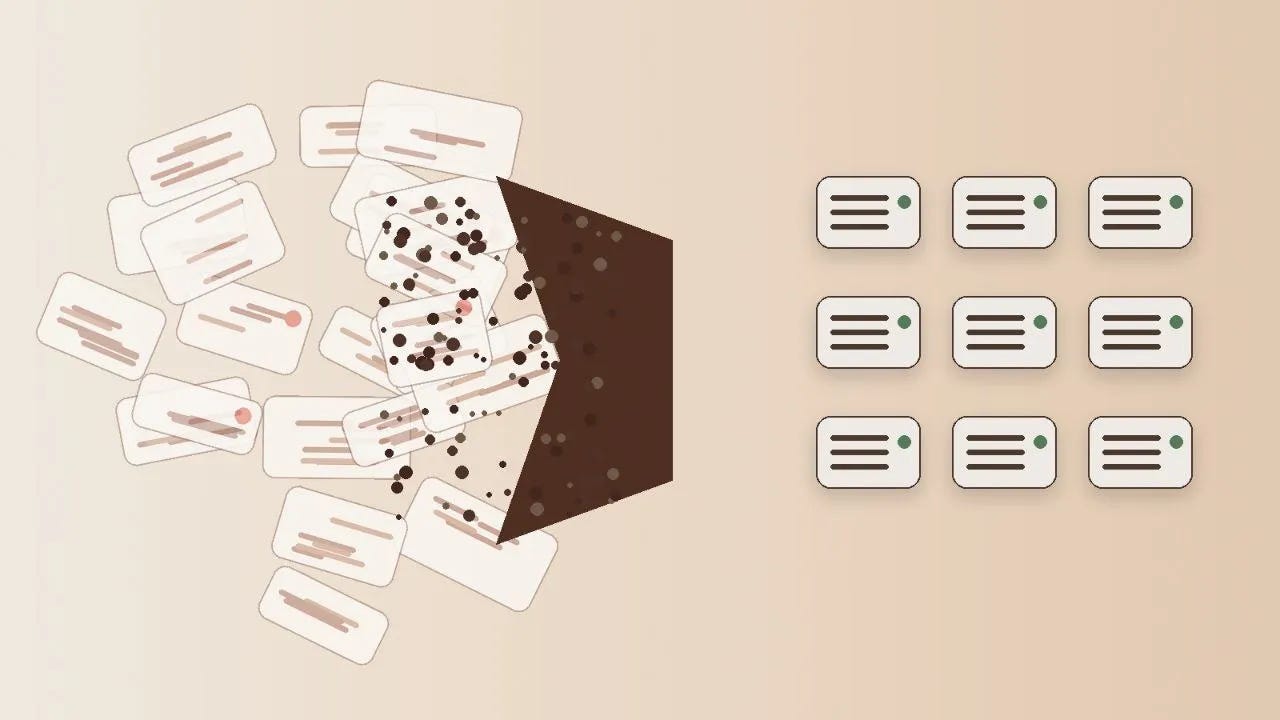
How to reproduce it – export the contacts to a new folder and do not give Cowork access to the live database at first. Ask it to inspect the export, identify the exact note patterns that should be removed, and write a script that edits only that field. Require two outputs: a cleaned export and a cleanup report with counts and before/after samples.
Prompt to copy:
```
I exported my contacts to contacts.csv. Remove only the legacy junk text from the Notes field. Do not change any other column. Produce contacts.cleaned.csv and contacts.cleanup-report.md with patterns removed, number of rows changed, and 20 random before/after samples
```
What good output looks like – the script, the cleaned file, and a report readable enough to inspect before re-import. If the report is weak, do not proceed.
Why this case matters – this is Cowork at its most economically useful — not flashy generation, but one careful batch operation that erases hours of manual cleanup and still leaves enough evidence to review before import. If you’re interested in building similar automations that run on a schedule, our post on building AI email newsletter systems covers the automation side.
Original source – Reddit - same thread, case described by user PinkyToe27 <https://www.reddit.com/r/ClaudeAI/comments/1qc41xb/claude_cowork_just_dropped_whats_your_best_use/>
For more Cowork use cases from beginner to advanced, check our complete guide.
The next case is a different kind of challenge — not about cleaning up the past, but about preventing mistakes in the future.
Case 3. Stop asking for magic — make Cowork write the spec first
The big mistake is asking Cowork for one heroic run and discovering halfway through that the spec lived only in your head. This public pattern flips the order: first force the system to explain the job, then make it rewrite that explanation as executable instructions, then review the instructions for ambiguity before anything runs.
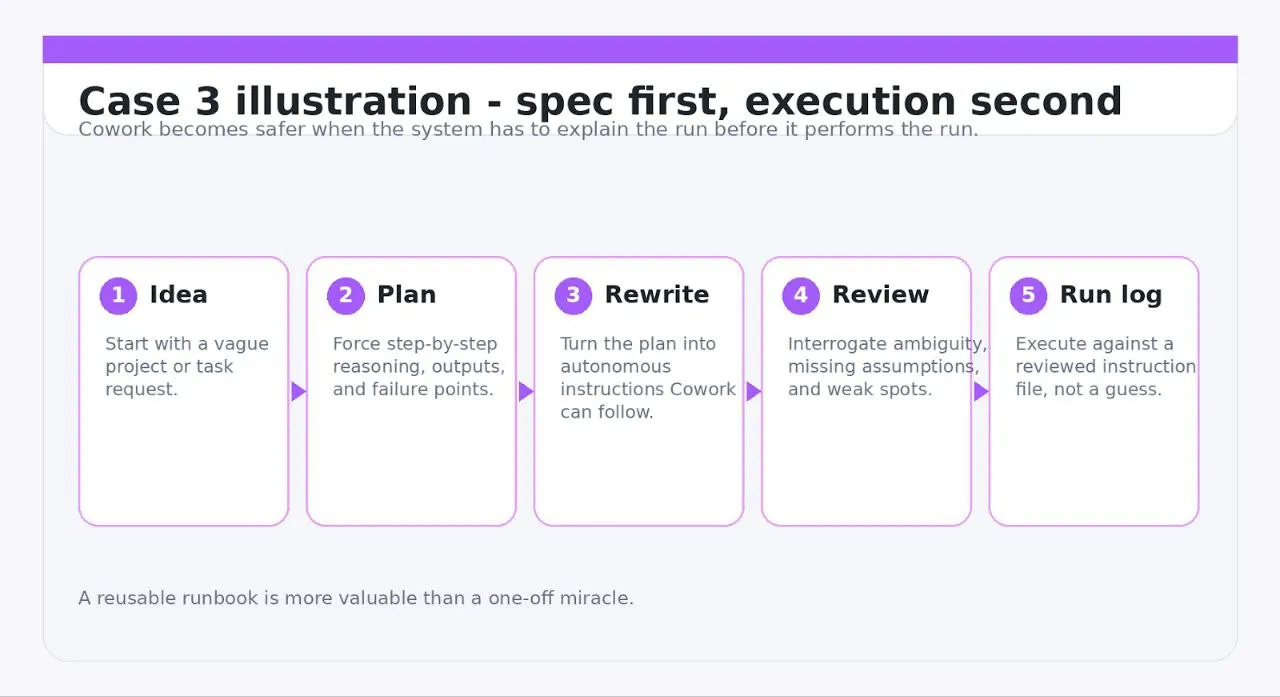
How to reproduce it – work in three passes. In pass one, ask Cowork for a step-by-step plan with reasons, outputs, and failure points. In pass two, ask it to rewrite that plan as instructions for an autonomous run. In pass three, ask it to review those instructions and revise only the parts that materially improve the run.
Prompt to copy (pass one):
```
“Turn this idea into a build plan in plain English. For each step, explain why it exists, what file it should create, and what could go wrong.”
```
Prompt to copy (pass two):
```
“Rewrite the plan as autonomous instructions for Cowork. Assume I will not write code or click through steps unless you explicitly stop and ask.”
```
Prompt to copy (pass three):
```
“Review the instructions for ambiguity, missing assumptions, and failure points. Revise only the parts that would materially improve the run.”
```
What good output looks like: autonomous-exec.md, autonomous-exec.v2.md, and a run-log.md.
Why this case matters – it separates thinking from action in a way most people skip. Cowork stops improvising and starts operating against an explicit spec that can be reviewed, versioned, and improved. This “spec-first” approach is exactly what solopreneurs building with AI agents keep coming back to.
Original source – Reddit - “I have Claude Cowork write autonomous instructions” <https://www.reddit.com/r/ClaudeAI/comments/1r3d1vk/i_have_claude_cowork_write_autonomous/>
share with friends who may enjoy Cowork
The last case pushes Cowork into heavier analytical territory.
Case 4. From export chaos to weekly decisions — the SKU forecasting case
This is one of the more ambitious public examples because it asks Cowork to move from descriptive analytics into a forecast people might actually use. Historical product drops, Shopify exports, and a marketing calendar get turned into a SKU-level forecast and a dashboard-ready output. If you’ve been using n8n or similar workflow tools, this is the same idea — but with no code and no integrations to maintain.
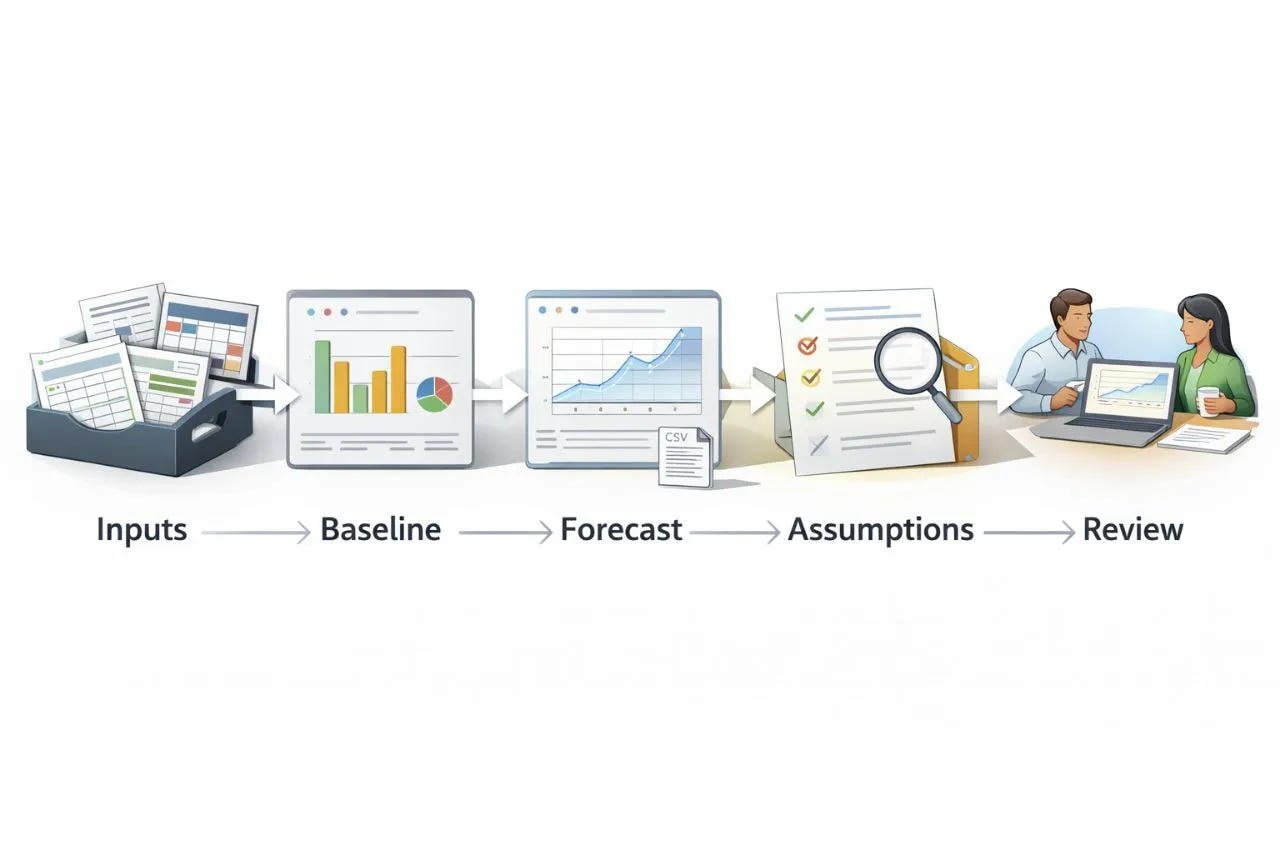
How to reproduce it – put your line items, product history, launch plan, and marketing calendar into /data. Start with descriptive analysis first – revenue by month, revenue by category, and launch impact. Only after review should you ask for a weekly forecast with confidence and assumptions.
Prompt to copy:
```
“Using the CSVs in /data, first create baseline reports for revenue by month, revenue by category, and launch impact. Then create a weekly SKU forecast for the next planning period as a CSV file. Also create assumptions.md in plain English.”
```
What good output looks like – a baseline report, a forecast file, and an assumptions file. Without the last file, the forecast is not believable.
Why this case matters – the assumptions.md file is the real product. It lets an operator challenge seasonality, launch effects, and risky optimism before inventory decisions get made.
Original source – X thread by James Lee (@jameshyujinlee)
<https://x.com/jameshyujinlee/status/2022296922720211180>
Earlier we discussed Cowork in guide format — don’t miss it!
If this post was useful, share it with someone who’s trying to make Cowork stick.
Two failure modes worth knowing before you trust Cowork
Before you go all in, two real problems worth flagging.
The first is cloud drive confusion. A user on Reddit discovered that Google Drive folders in streaming mode could appear empty to Cowork because they were effectively placeholders. If a folder matters, make it available offline or copy it to a local directory before Cowork reorganizes anything.
The second is environment fragility. A Windows user reported getting stuck in an update loop after a Cowork update. The lesson is simple – Cowork still needs guardrails, even on a work machine.
Looking for practical Skills and Plugins to extend what Cowork can do? We wrote a full breakdown of Skills, Plugins, and Swarm Mode.
The operating checklist I would use before every serious Cowork task
These five steps take less than two minutes and prevent most of the problems described above.
1. Create a task-specific folder. Never start from your Downloads folder. Give the run a boundary.
2. Write the brief down. State the goal, constraints, named outputs, and what Cowork must not touch.
3. Force a plan-first pass. For any file operation, browsing-heavy task, or cleanup job, planning first is the safest default.
4. Require an audit artifact. That can be a report, a diff summary, a run log, or a session note. If nothing is written down, the run will be harder to verify.
5. Verify the high-impact parts yourself. Spot-check citations in the PDF workflow. Sample 20 records in the contacts cleanup. Review assumptions in the forecast.
The bottom line
Claude Cowork becomes interesting when you can hand it a bounded folder, a written brief, and a messy operational task — then get back artifacts you can inspect, reuse, and improve. That is the pattern behind the best public cases so far – disciplined runs and a human who still checks the work.
If you want to go deeper, here are our most popular related guides: Claude Code Tips for the terminal side, Skills & Plugins for extending Cowork, and How to Make Complex Tasks with AI Agents for the planning framework behind all of this.
What is the first real task you would trust Cowork with: document analysis, cleanup, forecasting, or something else? Leave a comment and tell us what you want us to test next.
This article was first published in the Creators AI newsletter. View the original edition.