How Cursor Can Be Your AI Assistant & Knowledge Base
Real Cases of Content Engineering
Hello there!
I often try to solve problems using ChatGPT or any other model, and halfway through it just…forgets what I wanted. You throw stuff in the Memory and Projects features, hoping it remembers, but it turns out to be a total black box situation. I bet you faced the same.
It looks like we need something that lets your AI actually remember all your files and work alongside you (while you sip your coffee). Context engineering, which has been making waves for several months now, can give it to you.
And we will show you how to work with it! In this piece:
- Why Context engineering changes everything
- What Claude & Cursor have to do with it
- An Exciting Real Use Case-Tutorial in Cursor that can transform how your business runs (interested?).
- Practical Tips: How To Set Your Cursor
Ready?
Keep your mailbox updated with practical knowledge & key news from the AI industry!
From Prompts to Context: What Changed
We barely caught our breath from the whole Vibecoding thing with prompts when Andrej Karpathy posted another bombshell on Twitter, mentioning that he prefers context engineering to prompt engineering. Damn, we opened a new door in just one year.
There are many options to describe it, but all in all, context engineering is the art and science of orchestrating what information an AI has access to, designing a system that knows what to surface.
We moved past prompt-only setups where everything rode on that one text input. It evolved into contextual ecosystems, where prompts are still the spark, but it’s plugged into a sharper system that weaves AI, data, memory, rules, and people together.
Claude and Cursor seem to be at the center of this shift.
There is no surprise, they are the most loved tools by users, according to the State of AI Report.
Cursor & Claude Code: Two Superstars
Now it’s time to talk about them as the ultimate duo (Bonnie & Clyde 😄)
Cursor and Claude Code were clearly built for developers, but even though I’m not among them, I found them helpful. Yep, they can become your partners-in-crime in managing finance, marketing, and analytics (and even more, if you delve into it), working with a large context window.
The tools, which honestly can feel too technical, can automate entire workflows and let you work with any kind of text or data in one place without the chaos of switching tools.
Picture the hours you’ll save: all your docs together, AI scanning through them instantly.
Claude Code vs Cursor
For months, developers debate which tool is better at “understanding” a project, Cursor or Claude Code. But both of them become useful if you’re keeping a bunch of different data and want the AI to deal with a lot at once.
Claude Code
- Works entirely from the command line with no visual editor
- You can ask it to handle complex tasks like fixing bugs, updating many files, or reorganizing your whole project, and it can do most of it on its own.
- It gives you Anthropic models under the hood
Cursor
- Built as a Visual Studio Code-based IDE with AI directly inside the editor
- Gives real-time help as you type, because it completes your ideas instantly.
- Understands your project’s patterns and conventions
- In Cursor, you have a choice of different models like ChatGPT, Gemini, Claude + custom Cursor models.
In turn, both tools use AI to understand what you’re working on and help you get stuff done, whether that’s organizing information or figuring out solutions to problems. People often use Claude Code and Cursor together to get the best of both worlds.
In this article, we’re going to focus on Cursor cases — what it can actually do, how it helps you out, and why anyone can use it.
Btw, Cursor has just refreshed
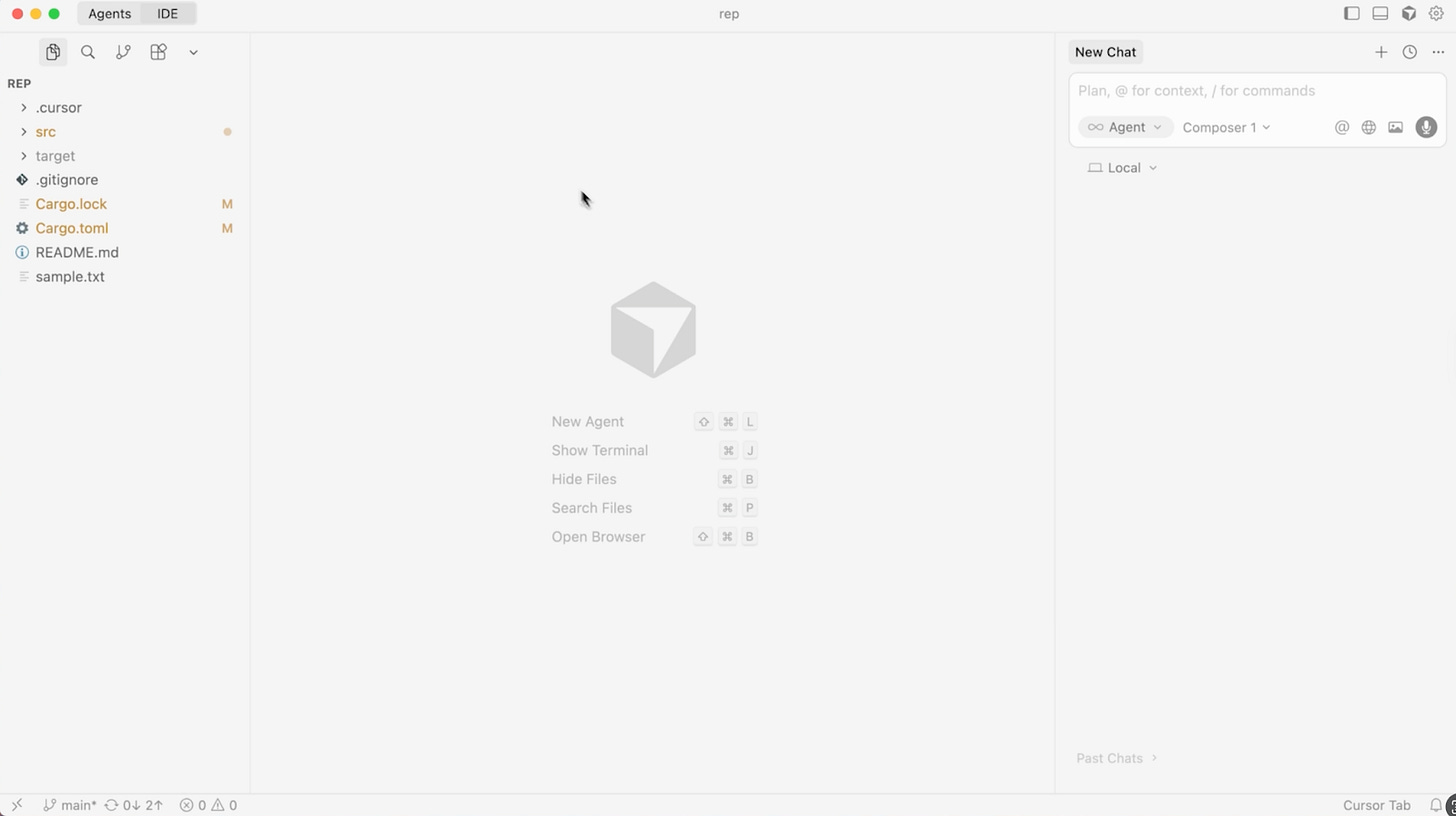
While we were preparing this post, Cursor just dropped two things: Cursor 2.0 with a redesigned interface, and Composer 1 Alpha, their very own LLM.
- I scrolled through reviews on Composer expecting mixed reactions, but they are mostly positive. The model is fast, trained specifically to call tools more often, and people see real potential in it.
- Now it’s agent-focused, not file-focused.
- The updated editor leans heavily into command-line interface (CLI) primitives and text-based tools that let you work more directly.
- Here’s where Cursor gets interesting: it’s built on a multi-agent system now. Agents can run in parallel without stepping on each other’s toes to tackle the same problem. Hm, I’ve already seen someone call it “a huge waste of tokens”.
- Agent can now review and test their own results. That means the system is starting to reason about its own output.
In benchmarks, Composer leads in token processing speed, but in answer quality, it only trails Sonnet 4.5 and GPT-5. Actually, not bad for a first release.
Real-Life Non-Development cases
And finally, we’re here. Like I said, these code editors on steroids can do a lot.
Now let’s dig into how you can shift your company from everyone using AI solo to building real organizational AI intelligence - following the guide that Vsevolod Ustinov shared for all those who are interested in automation.
AI First Workspace Template
If your company already uses ChatGPT or AI tools, this system is for you. It’s not a chat, it’s an operational system that understands your company, its workflows, and its goals.
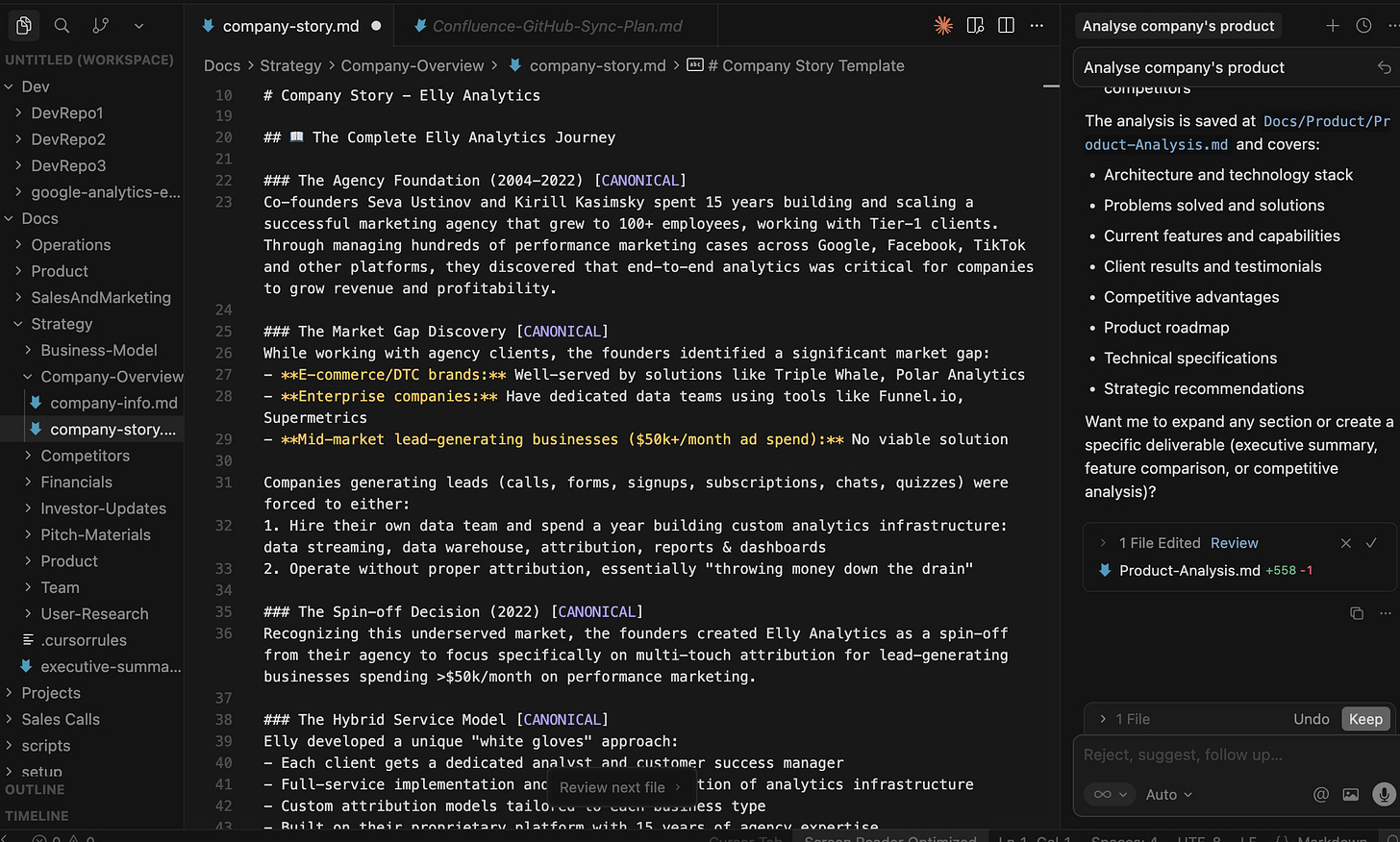
In the end, you must have a similar internal system and the whole company running through Cursor.
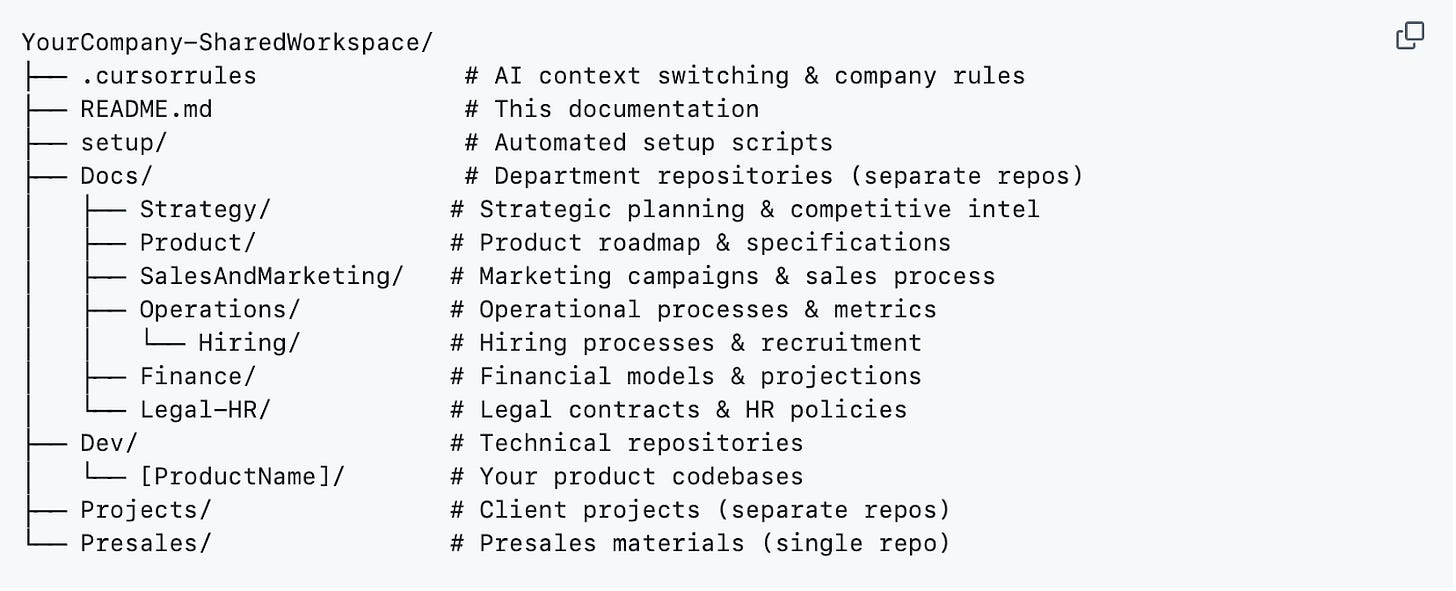
Now we are snowed under folders full of important documents - performance reviews, customer feedback, meeting notes, policy documents. The information is there, but extracting meaningful insights feels overwhelming and time-consuming.
That’s where this template comes in.
You will be able to automate routine work, and every team member can tap into shared prompts, templates, and contexts.
What is inside:
It includes Strategy, Product, Sales & Marketing, Operations, Finance, Legal-HR, Projects ready-to-use AI templates for daily tasks to make planning, analysis, content creation, hiring, and more simpler.
For example, let’s say I want to create a new campaign for our next season.
I enter a prompt, and it instantly pulls context from across the workspace, such as past campaigns, audience insights, and strategy notes (you can see below how it does this).
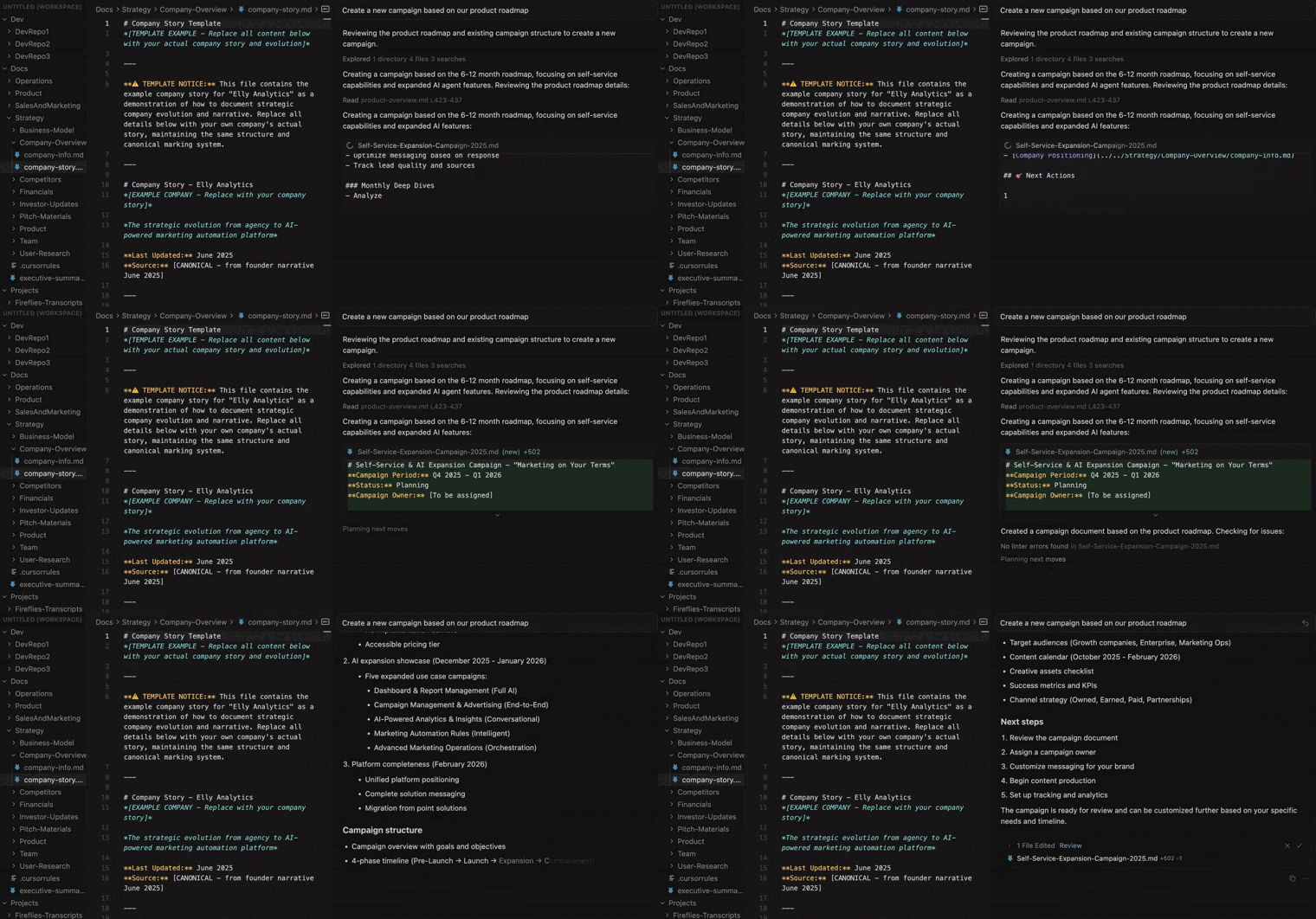
Of course, it’s not a finished campaign, but it’s already a solid starting point. No blank page and digging through old files.
Try it, and you’ll feel how having real context completely changes the way you work.
Step-by-step Guide
What you need before you start:
- A GitHub account (sign up for github.com)
- Create a GitHub Organization. It’s like a “company folder” where all the repositories will be (how to do this you will see below)
- Cursor can be installed for free from the official website.
The best part is that you don’t manually do anything — your AI sets it up for you.
- Create your workspace folder
- Open it in Cursor
- Ask your agent:
Help me implement the AI First Workspace Template for my company.
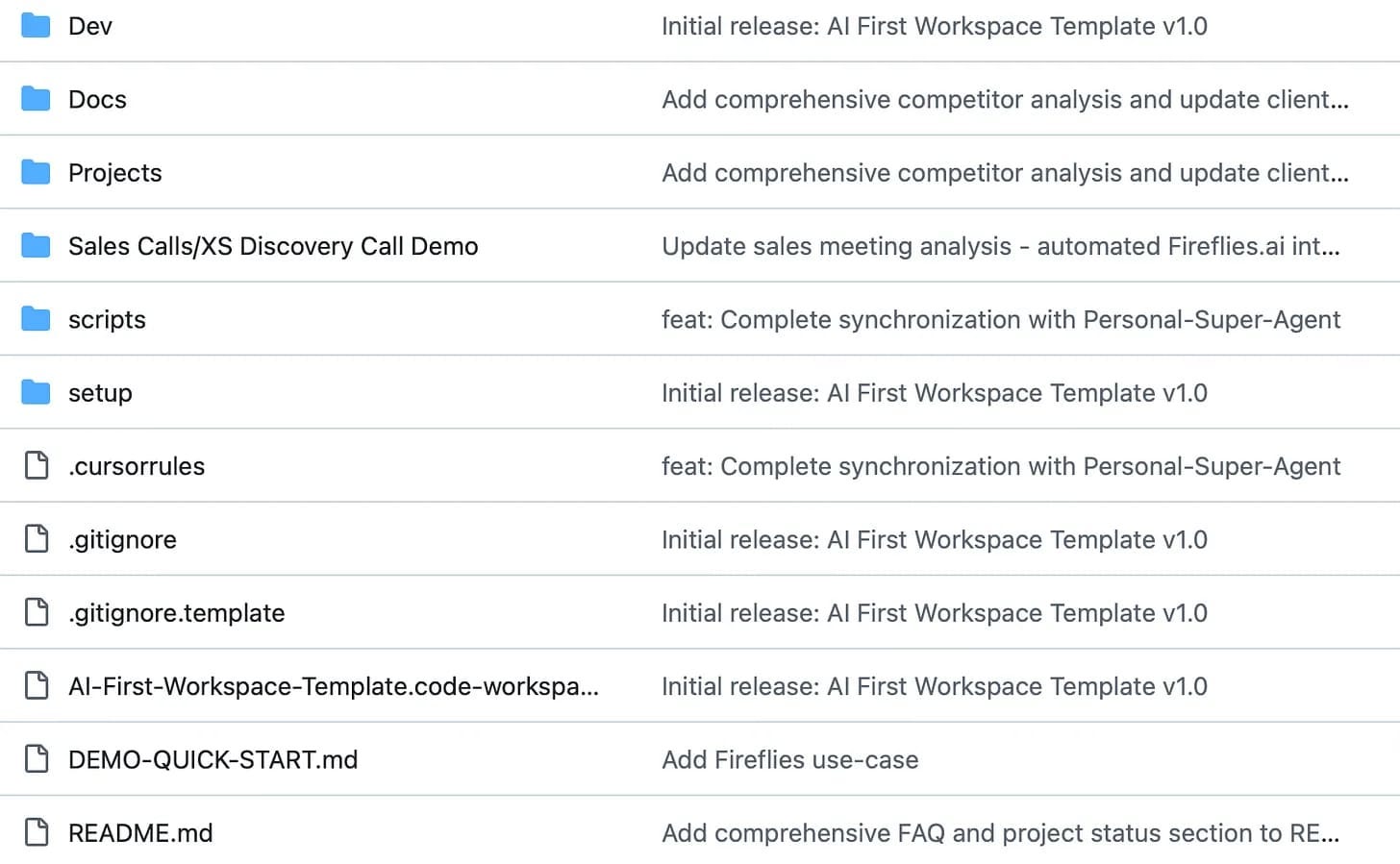
Here’s the template: https://github.com/vsevolodustinov/ai-first-workspace-template.
Guide me through:
- Setting up the repository structure
- Customizing it for [Your Company Name]
- Creating the GitHub repositories
- Migrating our team to this framework
Cursor will create all department repositories, configure scripts, and access rules, and customize content for your company.
Make it yours
To reveal its real power, you just need to add your company’s actual data into templates and documents — strategies, presentations, reports.
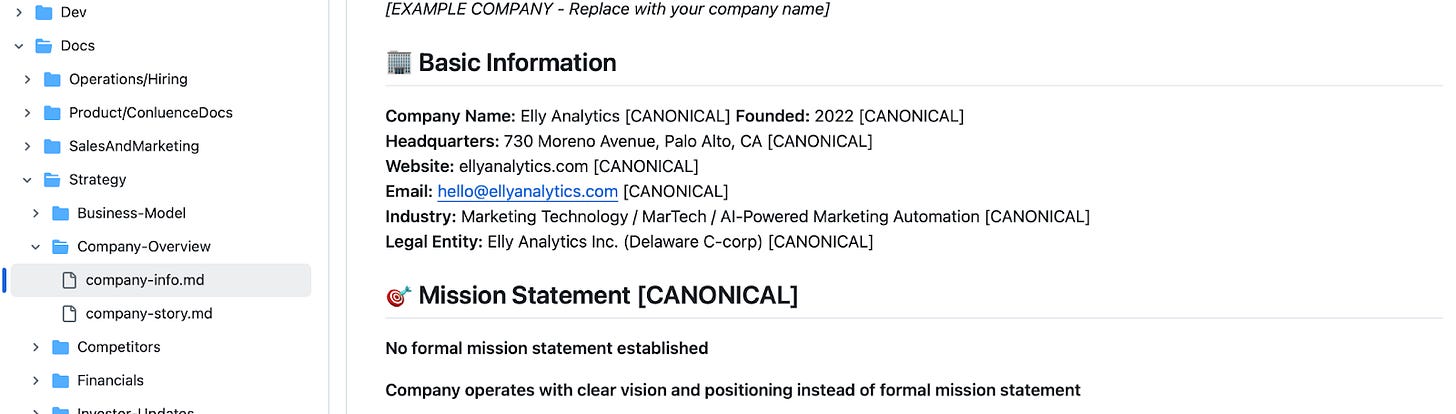
Yes, you’ll still need some management behind it. Take your time — transfer files from Notion, Confluence, or Google Docs at your own pace. You can edit the templates directly in Cursor, and instructions on how to add context can be found below in the “How to work with Cursor and make it better” section.
And if you put real energy into this shift, you’ll see why it matters.
Now just one prompt (but the whole world behind) can:
- Give full organizational transparency.
- Maintains enterprise standards while enabling AI collaboration.
- Adapts to strategy, product, marketing, and operations contexts.
- HR: Analyze exit interviews, identify retention patterns.
- Product: Synthesize user feedback across dozens of calls.
- Sales: Extract objections and needs from discovery calls.
- Research: Process qualitative data at scale.
How Not to Drown in Files with Personal Creative Director
What goes after boring reports and numbers? Presentations! It holds your visuals like Figma, Google Drive, and Notion, but collaborates your files, scripts, and visual references to build complete creative concepts, without needing to spend hours digging through them.
Ideal for design studios, agencies, and creative teams, managing everything from brand strategy to campaign visuals
Folder Structure
- You upload brand documents and a brief to Docs and Strategy.
- In Docs/Visuals - moodboard and references.
- In Docs/Presentations is the pitch deck template.

What we can ask:
- Compare our last 5 pitch decks - what design patterns got client approval vs rejection? Apply those insights to this new concept.
- Take the customer feedback from @YourFolder, find recurring pain points, and create a campaign storyboard that addresses them visually
- Our target audience shifted according to @YourFolder. How should we adapt our presentation?
- Create a pitch presentation for the ‘Autumn Refresh’ concept.
Cursor can’t create visuals on its own, but there are many integration opportunities:
- Connect to the Figma API to import components or export results.
- Visual generation via DALL·E or Midjourney’s API
- Create presentations in Pitch / Google Slides/ PowerPoint API.
And just like this, we can receive one by one:
- Image generation prompts for your campaigns
- Full presentation pitches
- Visual directions with rationale
- Color palette + typography recommendations
- Campaign tagline options
- Generate campaign visuals (social posts, landing headers, webinar covers)
- Scripts and taglines
How to write AI behavior instructions
Cursor needs a sense of direction, just like your team. That’s why we build a shared understanding of how your company thinks, speaks, and works.
That’s what .cursorrules files are for. In the example above, they’re already part of the structure; all you need to do is tailor them to your company.
But if you’re starting from scratch, you’ll need to create this system yourself.
To make it clear, you can check the structure in the previous case and use it as an example. For this one, there are some ideas on how you can navigate your workflow.
# .cursorrules — Docs/Visuals

🎯 Purpose:
Create or update creative directions and written visual briefs based on brand strategy and current campaigns.

🧠 AI Role: You are a Senior Art Director working alongside a Creative Director.
Read brand strategy documents to understand tone, audience, and positioning.

💬 Behavior:
- When proposing creative or visual ideas, include short textual rationales (“why this works for the brand”).
- Combine aesthetics + narrative: even text-based ideas should communicate a strategic visual message.
- If a moodboard or reference deck exists, use it as context when shaping creative direction.

🪄 Example Commands:
- Summarize key visual principles for the ‘Future Minimalism’ campaign.
- Suggest a moodboard structure and reference sources for our new collection.
- Refine a creative brief based on the updated brand strategy.
Describe visual tone and art direction for social media launch assets.
Finance Automation
As we said, you can manage all processes in your company, even accounting directly to Cursor, and suddenly your AI knows exactly where your money is, where it’s going, and where it shouldn’t be going.
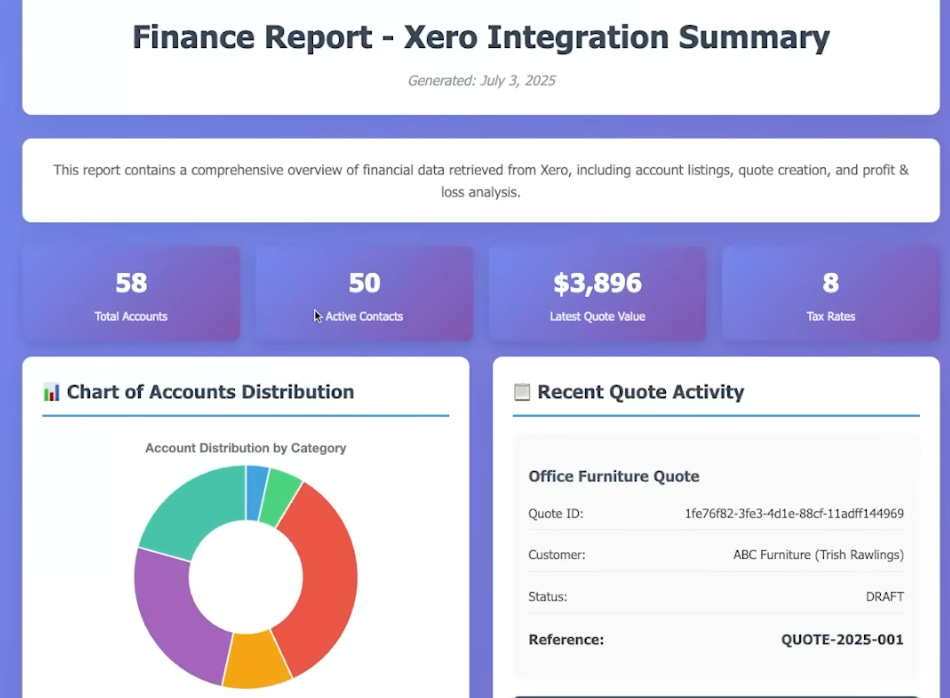
Source: Greg Isenberg
I already mentioned that Cursor can connect to other apps and services, so you can grab live data, automate boring tasks, and create reports without leaving the IDE.
How it works:
- Xero MCP connects Cursor IDE to Xero’s API
- Write a prompt, and Cursor gets live financial data without manual exports
- Сonnect to Xero MCP and list our profit report for May 2024
- Documents created, data analyzed
The result: generated profit & loss reports, created invoices, and commercial offers. Goodbye, manual exports.
Imagine you’ve got personal expense tracking in one place, departmental budgets scattered across different files. Normally, getting the full financial picture means opening ten tabs and doing mental math.
But Cursor sees all of it and helps make decisions.
- AI analyzes changes compared to the previous period, detects anomalies (expense growth, margin drops, delayed payments.
- You write: “Simulate next month’s cash flow if we cut ad spend by 15%”, AI creates a scenario calculation and visualizes the forecast.
- It analyzes changes relative to the previous period.
Plus, you handle everyday stuff directly in one window:
Budget Management & Planning:
- Know your budget status at any moment.
- Catch overspending before it becomes a problem.
- Data-driven savings strategies based on your spending patterns.
- Sort out expenses by category automatically and generate JSON.
Document Creation:
- Produce financial summaries for stakeholders.
- Manage cross-reference with bank statements.
- Automatically updating budget data from Gmail.
This is just the tip of the iceberg of what Cursor can do. Add your own files and templates, experiment with examples, customize your .cursorrules to fit your workflows, and you’ll quickly see how much time and effort you can save. Soon, we will introduce you to Claude Code opportunities, so stay tuned.
How to Work With Cursor and Make it Better
Cursor is powerful, but I decided to gather some tips on how to make it work more efficiently.
Context In Cursor
It is all that the model knows about the project:
- files and documentation that are located in an open Workspace.
- .cursorrules are special rules that define AI behavior for a specific department.
- chat history, and instructions embedded in each workspace.
There are two ways you can add your context
Option 1: via Cursor
- Open your main workspace in Cursor.
- Find a Docs/folder.
- If you want to add, for example, a strategy report, place your file here:
SharedWorkspace/Docs/Strategy/2025\_market\_analysis.md
You can create a new file directly in Cursor: Right click → “New File” → Give a name
- Then, in the Cursor chat, simply type:
Use strategy context. Summarize our 2025 market analysis and create a competitor comparison table.Cursor will automatically locate your file, open it, and perform the task.
- Once the result is ready, say:
“Upload my changes.” → The AI will commit and push all updates to GitHub automatically.
Option 2: via GitHub directly
- Go to your Strategy repository on GitHub.
- Click “Add file → Upload files.”
- Upload your document there.
- When Cursor refreshes (using the command “Sync updates”), it will detect the new file and include it in its context automatically.
Then, to help the AI understand what actually to do with your files, create a .cursorrules file: Drop a new text file called .cursorrules in your project folder.
@ Links in Cursor
In simple terms, @ links are Cursor’s way of managing context. It lets you drop context into your chat with AI in a super quick way. Just type @ in the chat or editor, and you’ll get a menu with all the available options.
Here’s what you can use with “@” in Cursor
- @Files & Folders — link specific files or folders from your project.
- @Docs - pull in docs or guides.
- @Web - tell it to look something up online (since Cursor doesn’t search the web by default).
- @Recent Changes - check what’s been updated in your project lately.
What makes your work smoother:
- Cursor (really) encourages using rules instead of prompts to automate project-specific workflows or templates. We recommend writing them as simple guidelines.
- Create a context file (.cursorrules or .md). The cursor will reference it. Doesn’t always follow perfectly, but helps reduce hallucinations.
- Be stupidly specific in your responses when Composer asks, “Should I continue updating XYZ?”. You shouldn’t just say “yes.”, but say exactly what you want: “Yes, update XYZ, but stick to the existing file structure,” or “Yes, but don’t create new files.”
- AI loves creating new files instead of editing existing ones, so watch for duplicate files.
AI isn’t just about helping us search for info or automate little tasks anymore. It could build a whole system around your work.
Conclusion
Yeah, we’re officially living in the age of context now. Have you noticed that we gave the whole picture to the platform, but still saved time? Advanced users and prosumers are moving from ChatGPT to platforms like Cursor - not because ChatGPT is bad, but because they need more. More control over models, more flexibility with context, more power to orchestrate different AI agents.
The context is the new code. These are definitely not tools for creators, but for those who are constantly working with a large amount of information. Agent Features in these tools let you tackle genuinely complex projects within only one place, pulling in data from different formats and sources: spreadsheets, docs, APIs, whatever.
So this partnership between AI platforms and deep context is opening a new door in how we work.
Would you trust Cursor to transform your routine?
This article was first published in the Creators AI newsletter. View the original edition.